1
eCopy ShareScan® Installation and Setup Guide | 285
3
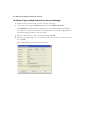
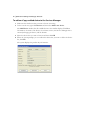
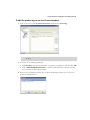
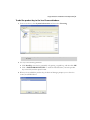
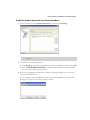
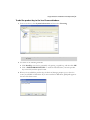
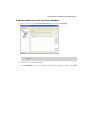
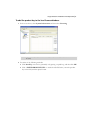
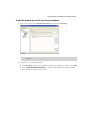
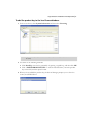
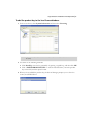
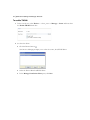
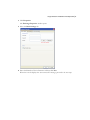
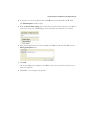
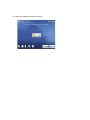
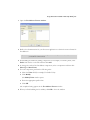
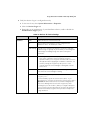
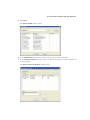
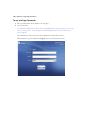
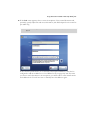
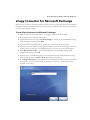
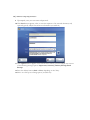
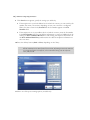
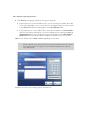
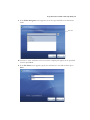
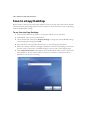
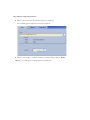
If your system is configured to use the Session Logon feature, enter your user credentials
on the Logon screen.
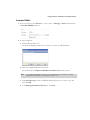
If you enabled Search while typing on the Session Logon tab, the connector will search
for matching address list entries after each character you enter in the User Name field.
Select your name from the list, enter your password and domain, and then press OK.
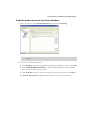
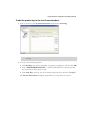
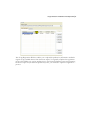
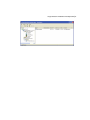
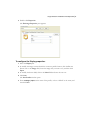
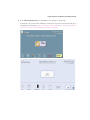
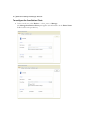
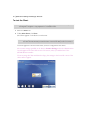
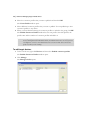
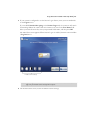
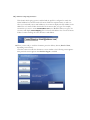
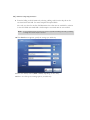
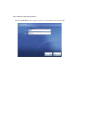
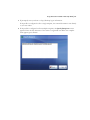
The main Client screen appears. When Session Logon is enabled, the main screen includes
a Log Out button.
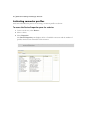
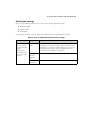
Default scanner settings
Note:
4
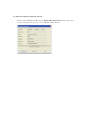
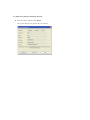
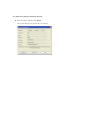
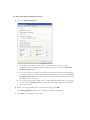
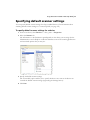
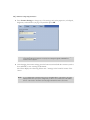
If you configured the ScanStation Client to use the TWAIN driver’s own user interface (see
page 275), the default scanner settings will not appear.
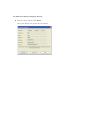
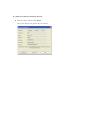
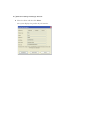
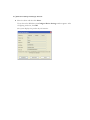
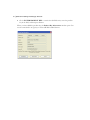
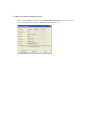
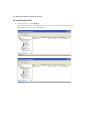
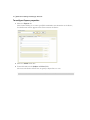
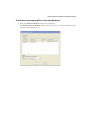
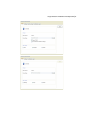
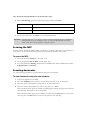
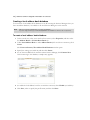
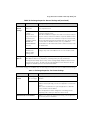
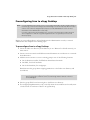
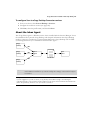
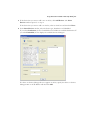
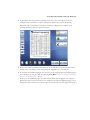
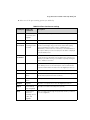
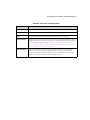
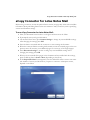
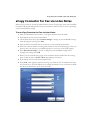
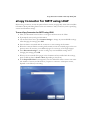
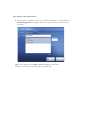
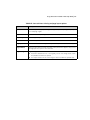
On the main Client screen, review the default scanner settings.