1
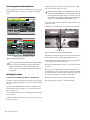
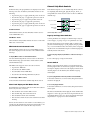
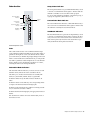
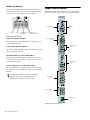
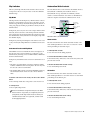
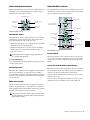
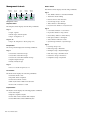
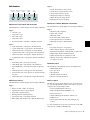
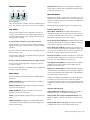
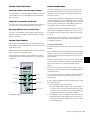
Displaying the Automation Playlist for a Control To display the automation playlist on-screen for a parameter controlled by a fader: Hold Control+Start (Windows) or Command+Control (Mac) and touch the fader. To display the automation playlist on-screen for a parameter controlled by an encoder: Hold Control+Start (Windows) or Command+Control (Mac) and touch the encoder. To display all automation playlists on-screen for a parameter type: Hold Alt+Control+Start (Windows) or Option+Command+Control (Mac) and touch a fader or encoder controlling the parameter type. To punch a preview value to the automation playlist: Do one of the following: • Press the Punch Preview Soft Key in the Actions Page. – or – • Hold Control+Start (Windows) or Command+Control (Mac) and press the flashing Off switch in the Automation Mode controls. Capturing and Recalling Automation You can capture the current automation values of actively writing controls and store them as snapshots. On D-Command, up to 48 snapshots can be stored and recalled. These stored snapshots are saved with the Pro Tools session, and can be imported into other sessions using the Import Session Data command. Capturing Automation Values Previewing Automation Before you can store automation values as a snapshot, they must be loaded into the Capture buffer. You can audition changes to a mix and compare them to existing automation values without committing them to the automation playlist by using Preview mode. To capture automation values: To preview a new automation value for a control: values you want to capture so that it is in a write-enabled state (Write, Touch, Latch, or Touch/Latch). 1 Press the Auto switch on each channel you want preview so that it is in a write-enabled state (Write, Touch, Latch, Touch/Latch). 2 In the Automation Enable controls, press the corresponding switch to enable each automation type you want to preview (Volume, Pan, Mute, Send level, Send pan, Send mute, or Plug-in). 3 Do one of the following: • Press the Preview Soft Key in the Actions Soft Keys Page. – or – • Hold Control (Win) or Command (Mac) and press the Off switch in the Automation Mode controls. The Off switch flashes to indicate Preview mode. 4 Isolate a control by moving it. 5 Start playback and adjust the isolated control to audition the new automation values. To suspend Preview mode: Do one of the following: • Press the Suspend Preview Soft Key in the Actions Soft Keys Page. – or – • Hold Control (Win) or Command (Mac) and press the Read switch in the Automation Mode controls. 112 D-Command Guide 1 Press the Auto switch on each channel whose automation 2 In the Automation Enable controls, press the corresponding switch to enable each automation type you want to capture (Volume, Pan, Mute, Send level, Send pan, Send mute, or Plug-in). 3 In the Management area of the Soft Keys section, press the Snapshot key to display the Capture commands in the Soft Keys section. 4 Start playback, and if necessary, touch a write-enabled con- trol to start writing automation. The Capture switch in the Soft Keys section lights to indicate that a capture is possible. 5 When the currently writing controls reach a value you want to capture, press the Capture switch in the Soft Keys section. The Punch Capture switch lights in the Soft Keys section lights to indicate captured values are available to punch.












































![D-Control Guide v7.3 - akmedia.[bleep]digidesign.](http://vs1.manualzilla.com/store/data/006638518_3-22bc31a56bb7c920ddb184f9348826e8-150x150.png)