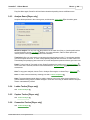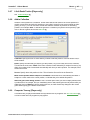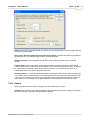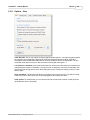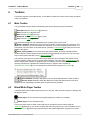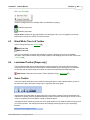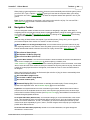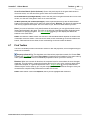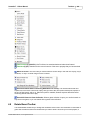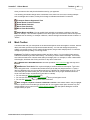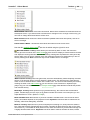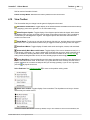
1
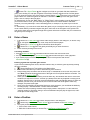
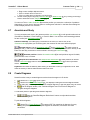
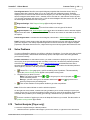
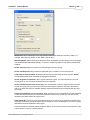
User Manual
© 2002-2004 Smart Go, Inc. All rights reserved.
SmartGo™ 1.5 User Manual
Contents
1
Table of Contents
Part 1 Introduction
6
1 What is SmartGo?
................................................................................................................................... 6
2 Notation and Conventions
................................................................................................................................... 7
3 Screen Layout................................................................................................................................... 7
4 Using Toolbars
................................................................................................................................... 8
5 Tree of Moves................................................................................................................................... 8
6 Game Collections
................................................................................................................................... 9
7 Keyboard Focus
................................................................................................................................... 10
Part 2 Common Tasks
11
1 Play Against...................................................................................................................................
the Computer [Player only]
11
2 Replay a Game
................................................................................................................................... 11
3 Study Fuseki...................................................................................................................................
or Joseki
12
4 Find a Game................................................................................................................................... 12
5 Enter a Game
................................................................................................................................... 13
6 Enter a Position
................................................................................................................................... 13
7 Annotate and...................................................................................................................................
Study
14
8 Create Diagrams
................................................................................................................................... 14
9 Solve Problems
................................................................................................................................... 15
10 Tactical Analysis
...................................................................................................................................
[Player only]
15
Part 3 Menus
18
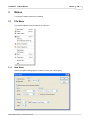
1 File Menu
................................................................................................................................... 18
New Game .......................................................................................................................................................... 18
Open
.......................................................................................................................................................... 19
Open Folder .......................................................................................................................................................... 20
Filter Games .......................................................................................................................................................... 21
Save
.......................................................................................................................................................... 21
Save As
.......................................................................................................................................................... 22
Save Selected..........................................................................................................................................................
Games As
22
Library of Games
.......................................................................................................................................................... 22
Create Library.......................................................................................................................................................... 24
Export Diagrams
.......................................................................................................................................................... 25
Export Diagrams
..........................................................................................................................................................
Advanced Settings
26
Page Setup .......................................................................................................................................................... 28
Print Setup .......................................................................................................................................................... 28
Print
.......................................................................................................................................................... 28
Game Info .......................................................................................................................................................... 29
Recent Files .......................................................................................................................................................... 30
Exit
.......................................................................................................................................................... 30
2 Edit Menu
Undo
Cut, Copy
Paste
................................................................................................................................... 31
.......................................................................................................................................................... 31
.......................................................................................................................................................... 31
.......................................................................................................................................................... 31
© 2002-2004 Smart Go, Inc. All rights reserved.
SmartGo™ 1.5 User Manual
Contents
2
Delete Move .......................................................................................................................................................... 31
Delete Nodes.......................................................................................................................................................... 32
Delete Properties
.......................................................................................................................................................... 32
Insert Node .......................................................................................................................................................... 33
Insert Move, Insert
..........................................................................................................................................................
Move Pair
33
Count Nodes .......................................................................................................................................................... 33
Node Name .......................................................................................................................................................... 33
Make Main Line
.......................................................................................................................................................... 34
3 View Menu ................................................................................................................................... 34
Default Toolbars
.......................................................................................................................................................... 34
Annotation Toolbars
.......................................................................................................................................................... 34
Problem Solving
.......................................................................................................................................................... 34
All Toolbars .......................................................................................................................................................... 34
Toolbars (submenu)
.......................................................................................................................................................... 35
Markup Style .......................................................................................................................................................... 35
Board Graphics
.......................................................................................................................................................... 36
Insert New Diagram
.......................................................................................................................................................... 36
Diagram Settings
.......................................................................................................................................................... 37
4 Play Menu ................................................................................................................................... 39
Stop Clock .......................................................................................................................................................... 39
Resume Play .......................................................................................................................................................... 39
Time Left
.......................................................................................................................................................... 40
Pass
.......................................................................................................................................................... 40
Black/White to
..........................................................................................................................................................
Play
40
Add/Remove ..........................................................................................................................................................
Black/White Stones
40
Computer Color
..........................................................................................................................................................
[Player only]
41
5 Replay Menu................................................................................................................................... 41
Find
.......................................................................................................................................................... 41
Find Previous.......................................................................................................................................................... 43
Find Next
.......................................................................................................................................................... 43
Go To
.......................................................................................................................................................... 43
Automatic Replay
.......................................................................................................................................................... 43
Annotate Board
.......................................................................................................................................................... 44
Annotate Move
.......................................................................................................................................................... 44
Annotate Position
.......................................................................................................................................................... 44
Focus on Board
.......................................................................................................................................................... 44
Focus on Comment
.......................................................................................................................................................... 44
Focus on Games
.......................................................................................................................................................... 45
6 Tools Menu ................................................................................................................................... 45
Analyze Position
..........................................................................................................................................................
[Player only]
45
Play One Move
..........................................................................................................................................................
[Player only]
45
Analyze Game..........................................................................................................................................................
[Player only]
46
Ladder Tactics
..........................................................................................................................................................
[Player only]
46
Capture Tactics
..........................................................................................................................................................
[Player only]
46
Connection Tactics
..........................................................................................................................................................
[Player only]
46
Life & Death Tactics
..........................................................................................................................................................
[Player only]
47
Add to Collection
.......................................................................................................................................................... 47
Computer Tourney
..........................................................................................................................................................
[Player only]
47
Options
.......................................................................................................................................................... 48
Options - View
.......................................................................................................................................................... 49
Options - General
.......................................................................................................................................................... 50
Options - Edit.......................................................................................................................................................... 51
Options - Save
.......................................................................................................................................................... 52
Options - Analyze
..........................................................................................................................................................
[Player only]
53
© 2002-2004 Smart Go, Inc. All rights reserved.
SmartGo™ 1.5 User Manual
Contents
3
Options - Engine
..........................................................................................................................................................
[Player only]
54
Go Text Protocol
..........................................................................................................................................................
[Player only]
54
Options - Reset
.......................................................................................................................................................... 56
7 Help Menu ................................................................................................................................... 56
SmartGo Help.......................................................................................................................................................... 56
www: SmartGo
.......................................................................................................................................................... 57
www: Go Links
.......................................................................................................................................................... 57
www: American
..........................................................................................................................................................
Go Association
57
www: Sensei's
..........................................................................................................................................................
Library
57
About SmartGo
.......................................................................................................................................................... 57
8 Board Popup...................................................................................................................................
Menu
58
Bad Move
.......................................................................................................................................................... 58
Good Move .......................................................................................................................................................... 58
Mark Point/Stones
.......................................................................................................................................................... 58
Edit Label
.......................................................................................................................................................... 59
Label as Number
.......................................................................................................................................................... 59
Show Joseki .......................................................................................................................................................... 59
Go To Move .......................................................................................................................................................... 59
Add Alternate..........................................................................................................................................................
Move
59
Play Illegal Move
.......................................................................................................................................................... 59
9 Games List Popup
...................................................................................................................................
Menu
59
Mark Game .......................................................................................................................................................... 60
Check Game .......................................................................................................................................................... 60
Unmark Game.......................................................................................................................................................... 60
Delete Game .......................................................................................................................................................... 60
Add File
.......................................................................................................................................................... 60
Add Folder .......................................................................................................................................................... 60
Save Game As
.......................................................................................................................................................... 60
10 Games Header
...................................................................................................................................
Popup Menu
60
Part 4 Toolbars
62
1 Main Toolbar................................................................................................................................... 62
2 Black/White ...................................................................................................................................
Player Toolbar
62
3 Black/White ...................................................................................................................................
Time Left Toolbar
63
4 Lookahead Toolbar
...................................................................................................................................
[Player only]
63
5 Score Toolbar
................................................................................................................................... 63
6 Navigation Toolbar
................................................................................................................................... 64
7 Find Toolbar................................................................................................................................... 65
8 Rotate Board...................................................................................................................................
Toolbar
66
9 Mark Toolbar................................................................................................................................... 67
10 View Toolbar................................................................................................................................... 69
11 Comment Toolbar
................................................................................................................................... 70
12 Annotation Toolbar
................................................................................................................................... 70
13 Diagram Toolbar
................................................................................................................................... 71
14 Problems Toolbar
................................................................................................................................... 71
15 Library Toolbar
................................................................................................................................... 73
Part 5 Tips and Tricks
75
1 Alt Key on Board
................................................................................................................................... 75
© 2002-2004 Smart Go, Inc. All rights reserved.
SmartGo™ 1.5 User Manual
2 Shift Key
Contents
4
................................................................................................................................... 75
3 Right-Click on
...................................................................................................................................
Board
75
4 Drag Current...................................................................................................................................
Move
75
5 Change Order
...................................................................................................................................
of Next Moves
75
6 Guess Next Move
................................................................................................................................... 75
7 SGF with Standard
...................................................................................................................................
Coordinates
76
8 Fancy Text Labels
................................................................................................................................... 76
9 Environmental
...................................................................................................................................
Go
77
Part 6 Appendix
78
1 The Game of...................................................................................................................................
Go
78
2 SGF File Format
................................................................................................................................... 78
3 Compressed...................................................................................................................................
Game Collections
80
4 System Requirements
................................................................................................................................... 80
5 Installation ................................................................................................................................... 81
6 Registry Settings
................................................................................................................................... 82
7 Technical Support
................................................................................................................................... 82
8 Frequently Asked
...................................................................................................................................
Questions
82
Index
© 2002-2004 Smart Go, Inc. All rights reserved.
83
SmartGo™ 1.5 User Manual
5
SmartGo™ 1.5 User Manual
© 2002-2004 Smart Go, Inc. All rights reserved.
All rights reserved. No parts of this work may be reproduced in any form or by any means - graphic, electronic, or
mechanical, including photocopying, recording, taping, or information storage and retrieval systems - without the
written permission of the publisher.
Products that are referred to in this document may be either trademarks and/or registered trademarks of the
respective owners. The publisher and the author make no claim to these trademarks.
While every precaution has been taken in the preparation of this document, the publisher and the author assume no
responsibility for errors or omissions, or for damages resulting from the use of information contained in this document
or from the use of programs and source code that may accompany it. In no event shall the publisher and the author be
liable for any loss of profit or any other commercial damage caused or alleged to have been caused directly or
indirectly by this document.
© 2002-2004 Smart Go, Inc. All rights reserved.
SmartGo™ 1.5 User Manual
1
Introduction
6
Introduction
While we've tried to make SmartGo self-explanatory, there's more to it than meets the eye. After
reading the overview topics in this section, pick any section in Common Tasks 11 to learn how to use a
group of features, or read Tips & Tricks 75 for information about the program's cool features. Menus 18
and Toolbars 62 provide details on each command. If you're new to Go, you should read
The Game of Go 78 .
Your feedback is always welcome. If you find bugs in the program or documentation, or have
suggestions for making the program more useful, please let us know by sending mail to
[email protected]. We'll update the online version of this manual at www.smartgo.com as we
learn where people have questions, so please check there first if you think this manual is missing the
clue you need. See Technical Support 82 if you still need help.
If you want a printed version of this Help file, we recommend that you visit www.smartgo.com and
download this manual in PDF format. Or you can purchase a printed copy of the book at
www.lulu.com.
Thank you for supporting SmartGo. We hope you enjoy the program.
1.1
What is SmartGo?
SmartGo:Player is the complete tool to play, record, replay, analyze, annotate, and print Go games.
It's a tool for players of all strengths, from weak players who enjoy playing against the program to
strong players who study their own or professional games.
· You can replay games that you find on the web (in .sgf or .go format).
· You can record your own games and easily create diagrams such as those that appear in Go books.
· You can play against the computer and perform sophisticated tactical analysis.
· The dan-level Life & Death algorithm of GoTools (by Thomas Wolf) is integrated into
SmartGo:Player.
· SmartGo can also connect to other Go engines using GTP (Go Text Protocol), so you can use
SmartGo as a user interface to play against GNU Go, for instance.
SmartGo:Games is a large collection of professional games. While SmartGo works well with other
game collections, the size and quality of this game collection make it the preferred choice for studying
modern openings.
SmartGo:Combo is a combination of SmartGo:Player and SmartGo:Games, giving you the best
analysis tools with the best game collection, at the best price.
SmartGo:Viewer is a free, limited version of SmartGo:Player: All computer play is disabled, as are
Save, Print, Export Diagrams, and Add to Collection. The library of games is limited to 5000 games.
SmartGo:9x9 is a free, limited version of SmartGo:Player: Its board size is limited to 9x9.
SmartGo:Editor (formerly known as SmartGo:Board), a version without computer play, has been
discontinued.
This manual describes all versions of the program; features provided only in SmartGo:Player are
marked as [Player only].
SmartGo does not currently support Internet play (using Go servers like IGS, NNGS, or KGS). There
are a number of client programs that you can use to do that; you can then use SmartGo to replay and
study your game. We plan to add this capability in a future version.
© 2002-2004 Smart Go, Inc. All rights reserved.
SmartGo™ 1.5 User Manual
1.2
Introduction
7
Notation and Conventions
Notation: Throughout this manual, the commands to choose are indicated using the following notation:
Menu > Menu item > Tab in dialog box
'Tools > Options > View', for example, means: click on the Tools menu, choose Options, then click on
the View tab in that dialog box.
For each command or task, the basic steps are outlined first, optionally followed by several sections
providing more information:
Hint: Additional ideas of what you can do.
Detail: Additional background information when you're ready to learn more.
Keyboard: Useful keyboard shortcuts or modifiers related to this command. Standard keyboard
shortcuts (for example Ctrl+N for New Game or Ctrl+S for Save) are not documented, as you can
easily find them in the menu when you need them.
Warning: Issues you should be aware of.
1.3
Screen Layout
The SmartGo screen is designed to maximize the size of the board. The menu bar and toolbars are
placed on the left side so they don't take away space from the board. As shown in the picture below,
the width of the left side is adjustable (drag between the toolbars and the board), as is the height of the
comment view (drag below the bottom toolbar), and the games view (drag on top of the games view
header).
Many of the program's functions are available directly from the board: Finding a particular move 75 in
the game, annotating moves 44 , or marking stones 75 , for example.
Note that SmartGo is a single-document program; like Notepad, SmartGo can have only one file open
at a time. However, a single SGF file can contain multiple games; read Game Collections 9 for more
information. To work with multiple games at a time, you can right-click in the games view and add
© 2002-2004 Smart Go, Inc. All rights reserved.
SmartGo™ 1.5 User Manual
Introduction
8
another game to the currently open collection.
1.4
Using Toolbars
SmartGo contains over a dozen toolbars, each with buttons for a particular set of functions. You can
easily hide or show toolbars to adapt the user interface to the task at hand. For example, the
Diagram toolbar 71 provides functions to create and manipulate diagrams. The Rotate toolbar 66
provides functions to rotate the board (so you can see the game from your opponent's perspective).
You can display these toolbars when you need them and hide them when you're done.
You can show or hide a toolbar with either the View menu, or by right-clicking on a toolbar. You can
use the toolbar groupings (Default 34 , Annotation 34 , or All 34 ) to quickly show groups of related
toolbars or to restore the default set of toolbars.
1.5
Tree of Moves
SmartGo operates on a tree of moves. A Go game has a main line of play, but at any point you can
play alternative moves, and SmartGo will automatically keep track of all the variations.
The tree view on the left side of the screen shows the move tree around the current position, including
the branches you've taken to get to the current position, the current move, and the next move(s) played
from the current position.
Opening patterns (joseki) can be represented by a tree of moves, and SmartGo is well suited to study
these. The following tree view shows joseki:
· The game name or ID is shown first ("Kogo's Joseki Dictionary"; see www.smartgo.com/links.htm for
links to this joseki dictionary, which is available in SGF format).
· The branches that were taken to reach the current position are shown next. At move 0, the third
variation (c) was chosen, at move 1, the first variation (a) was chosen, and at move 2, the second
variation (b) was chosen. These branches have all been named, so the names are shown too.
· The current move is number 3, it is named "ogeima (large knight's move)".
· There are four possible next moves, labeled a, b, c, and d. Those letters are shown on the board.
Click any displayed move to go to that move; click one of the next moves to go forward or click one of
the branches to go backward. Click and drag one of the next moves to change their order (for
example, to make move 'c' appear in the list before move 'b').
Each move can have other properties associated with it: a comment, a name, board markings, or other
annotations. The term "node" is used to denote the unit comprising the move and all of its properties.
In fact, a node doesn't even need to contain a move: Diagram nodes are inserted between the moves
to split the game into diagrams, for example.
© 2002-2004 Smart Go, Inc. All rights reserved.
SmartGo™ 1.5 User Manual
1.6
Introduction
9
Game Collections
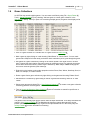
An SGF file may contain multiple games. You can create such files by using File > Open Folder 20 ,
Tools > Add to Collection 47 , or by checking "Add new game to current game collection" in the
New Game 18 dialog. When you open a file containing multiple games, the games view displays a list
of games.
· Click on a game to switch to it. Double-click on a game to see its Game Info 29 .
· Mark a game by right-clicking on it and choosing "Mark Game" or "Check Game". You can mark
games with a hotspot for further study, and with a check mark when you've gone through the game.
· Sort games in a game collection by clicking on the column header. Click again to sort in inverse
order. Games keep their relative order when sorting by a different column; for example, the games
shown above were first sorted by "White Player" and then by "Black Player". Note: Sorting by the
first column sorts the games by their markings.
· Right-click on the header to show other properties such as Place, Date, Winner, Handicap, Komi, or
Rank, for example, or to hide columns.
· Delete a game from a game collection by right-clicking on the game and choosing "Delete Game".
· Add Games to a collection by right-clicking on the list of games and choosing "Add File" or "Add
Folder".
· Select some games and choose File > Save Selected Games As 22 to create a new game collection
containing just those selected games.
· Turn on Search All Games in Game Collection 65 on the Find toolbar to search for specific text or
annotations in all of the games in a collection.
The games in the currently open file are shown under the Open Games tab. The Library tab shows the
games in your Library of Games 22 . The Matching tab shows any games that match the current
position (whether you're looking through a game in the Open Games tab or in the Library tab); see
Library Toolbar 73 for more information on matching.
© 2002-2004 Smart Go, Inc. All rights reserved.
SmartGo™ 1.5 User Manual
1.7
Introduction
10
Keyboard Focus
It's easy to move around in the game either by clicking the Navigation toolbar 64 buttons or by using
the keyboard shortcuts described there. However, using the arrow keys for navigation works only if the
board has the keyboard focus. When editing a comment in the comment area 70 , the arrow keys
perform standard text-editing. And when the games view has the focus, the up/down arrow keys
navigate between games, while the left/right arrow keys replay the selected game.
The keyboard focus switches automatically to the comment area when you start typing text, and
automatically to the board when navigating in the tree. To switch the keyboard focus manually, click the
board or the comment area. Alternatively, press F6 to set the focus to the board, or press Shift+F6 to
set the focus to the comment. Note that the Focus on Board 44 , Focus on Comment 44 and
Focus on Games 45 commands in the Replay menu also indicate the current focus.
© 2002-2004 Smart Go, Inc. All rights reserved.
SmartGo™ 1.5 User Manual
2
Common Tasks
11
Common Tasks
This section explains how to perform common SmartGo tasks such as playing a game against the
computer, replaying and annotating a game, creating diagrams such as those that appear in Go books,
and using SmartGo to solve tactical problems.
2.1
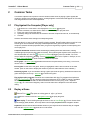
Play Against the Computer [Player only]
1.
2.
3.
4.
5.
Choose File > New Game. This displays the New Game 18 dialog box.
Choose "SmartGo" for either black or white to have the computer play that color.
Enter your name for the other player.
Optionally change the board size, the amount of time the computer should use, or the handicap.
Click OK.
SmartGo remembers these settings for subsequent games.
Note that there's no way to change SmartGo's playing strength. SmartGo always plays as well as it can
with the given time constraints. It will play moderately better when given more time or a faster
computer. SmartGo will also play better when you give it a large library of games to draw opening and
corner play from.
Computer lookahead: SmartGo shows its thinking by shading black and white areas, marking
unsettled groups and blocks (with subtle red marks), and numbering the expected move sequence. To
turn this animation off, click the
Computer Lookahead 69 button in the View toolbar. Or, to see
more of what the computer is thinking: Turn on move motives 53 in Tools > Options > Analyze, or turn
on Show Top Level Moves 69 in the computer lookahead dropdown.
Score graph: The score graph 63 indicates how well the computer thinks you're doing. To turn it off,
choose View > Toolbars > Score.
End of game: At the end of the game, territory is highlighted, and the score is shown in the main
toolbar. (Click on the score to display the number of prisoners rather than the score estimate.)
Resuming a game: If you exit SmartGo during a game (and save the game), SmartGo will restore the
game at that point; click Play > Resume 39 to continue the game.
Play against other programs: SmartGo can communicate with other Go programs that implement
GTP (Go Text Protocol 54 ). One strong program that implements GTP is GNU Go, which is available
for free. After you download GNU Go and tell SmartGo where to find it (using Tools > Options >
Engine 54 > Go Text Protocol Engines), GNU Go will be listed in the dropdown in the New Game
dialog.
2.2
Replay a Game
Choose File > Open 19 to open an existing game in .sgf or .go format.
Use the controls on the blue Navigation toolbar 64 to replay the game.
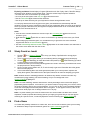
Auto-replay: To avoid clicking through each move, turn on Auto-Replay 43 . You can choose three
speed settings (Slow, Medium, and Fast) with the Auto-Replay dropdown on the Navigation toolbar.
Keyboard: Use the forward and backward arrows on your keyboard as an alternate way to navigate.
Note that the keyboard focus 10 needs to be on the board.
© 2002-2004 Smart Go, Inc. All rights reserved.
SmartGo™ 1.5 User Manual
Common Tasks
12
Exploring variations: Normal replay of a game follows the main line of play, that is, SmartGo always
chooses the first variation at every branch point. There are several ways to explore variations:
- Click the next move on the board to go to that move.
- Click one of the next nodes in the tree view 8 to choose that node.
- Use the Find toolbar 65 to traverse all the variations.
- Use the up or down arrow keys on your keyboard to choose among alternate moves.
You can play different moves at any point in the game, and SmartGo will automatically add that
variation to its tree of moves, keeping the main line of play unchanged. When you return to the position
where you played a different move, the original move played will be shown as 'a' on the board, and the
alternate move will be shown as 'b'.
Hints:
· Click the move number between the arrows to open the Find dialog box 41 and enter a move
number to go to.
· Hold down the Alt key 75 and click on a stone on the board to go instantly to the move you clicked
on.
· When studying a professional game, it is educational to try to guess the next move. SmartGo
supports this with its Guess Next Move 75 mode.
· Use the Automatically Mark Moves with Letters 69 dropdown on the View toolbar to see alternates of
the current move rather than the next moves.
2.3
Study Fuseki or Joseki
1.
2.
3.
4.
5.
6.
Choose
File > Library of Games 22 to set up your library of professional or strong player
games.
Go to a position in your game where you're wondering what a professional player would play.
Choose
Fuseki Matching (to match the whole board position) or
Joseki Matching (to match
a corner position) on the Library toolbar.
SmartGo will show you how many matching positions it found in the library, and which next moves
the players chose in those positions.
Hover over the moves (shown as A, B, C on the board) to get more information about the games
this move was played in.
Click on the Matching tab to see all the games that match your current position. Explore and
replay those games, then switch back to the Open Games tab to continue analyzing your game.
Note: SmartGo looks for matching positions in all rotations. By default, reversed colors are only
considered for joseki matching, not fuseki matching, but you can change that in the
Library of Games 22 dialog box.
Note: For Joseki matching, SmartGo will show the Tenuki percentage, which is how often players
played away from this position. If it's near zero, you should continue to play locally. If it's close to 100%,
the joseki is finished, and it's time to play elsewhere. You can click on the Tenuki Percentage indicator
to see the moves played around this position later in the game. To see opponent moves, click on the
large black or white player icon to change whose turn it is to play.
Note: For joseki matching, the most convenient mode is to choose Near Last Move in the Joseki
dropdown, as that will update the matching area as you replay your game. But you can also pin the
matching to a specific corner, or manually adjust the area for matching (see Library Toolbar 73 ).
2.4
Find a Game
Your hard disk probably contains a lot of SGF files, and it can be hard to find the game you're looking
for. SmartGo's ability to open thousands of games as a game collection 9 can help.
© 2002-2004 Smart Go, Inc. All rights reserved.
SmartGo™ 1.5 User Manual
Common Tasks
13
1.
Choose File > Open Folder 20 , then navigate to a folder on your hard disk that contains the
game you're looking for, and open all games in that folder. SmartGo will show a list of all the games.
2a. If you know the name of one of the players, choose Replay > Find 41 and type in the name of the
player. Make sure "Search all games in collection" is checked. This will go to the first game of that
player. Use F3 to step to the next game.
2b. Alternatively, click on the "Black Player" or "White Player" column header to sort by that player. If
you know the date or event, you can sort by that. (Right-click on a column header to add other
columns.) Or sort by handicap if it was a handicap game, for example, or by result if you know the
score.
2c. Alternatively, if you don't know much about the game, but you'll recognize it when you see it, go to a
move number where you would recognize the game, then click on the first game in the games view
and use the down arrow to navigate through all the games at that move number until you come across
the game you're looking for.
2.5
Enter a Game
1.
2.
3.
4.
Choose File > New Game 18 . Choose either "Empty board" in the dialog box, or choose "Play
game" and enter the player names. Clear "Keep time for human player".
Choose File > Game Info 29 : Enter information about this game.
Choose File > Save 21 : Save the game periodically as you enter the moves.
Enter moves by clicking on the board.
Correcting mistakes:
· Click
Delete Last Move 62 in the Main toolbar to remove the most recent move.
· If a single move is wrong, just go to that move 75 , grab the stone and put it in the right place.
· If you missed a pair of moves early in the game, return to that position and choose
Insert Move Pair 33 .
Entering a game from a printed game record:
If you have a numbered game record, SmartGo makes it easy to enter the game by directly entering
the move numbers.
1.
Choose Add/Remove Text Labels on the Mark toolbar.
2. Click on the board where you want to start entering move numbers.
3. Keep entering move numbers. Use the arrow keys or Tab/Shift-tab to move from one point to the
next. Note: SmartGo shows a ghost stone of the right color for all points that have a number. You
can this off in Options > Edit 51 .
4. When you've entered all the numbers, press the Enter key, and SmartGo will offer to convert the
numbers to a sequence of moves. It will tell you whether there are any duplicate or missing move
numbers, illegal moves, or obvious moves that SmartGo would automatically assume. If there are
mistakes you want to fix, just choose No, then enter text label edit mode again to make any
changes, and press Enter again.
5. Once you've successfully converted the labels to a move sequence, you can delete the labels by
choosing Replay > Annotate Board > Delete Labels and Marks.
6. If there were moves missing, SmartGo will put empty nodes in their place. You can search for
"missing number" to find those, then go one move backward and just play the right move, and it
will be put into that empty node.
2.6
Enter a Position
1.
2.
3.
Choose File > New Game 18 . Choose "Empty board" in the dialog box.
Choose Play > Add/Remove Black Stones 40 . (Also available on the Mark toolbar 67 .)
Set up the position:
· Click to enter a black stone.
· Shift-click for white stones (or choose Play > Add/Remove White Stones 40 ).
© 2002-2004 Smart Go, Inc. All rights reserved.
SmartGo™ 1.5 User Manual
4.
Common Tasks
14
· Drag to enter multiple adjacent stones.
· Click on a black stone to remove it.
· Click on a white stone to change it to a black stone.
Set the current player using Play > Black to Play 40 or White to Play 40 , or by clicking on the large
black or white stone in the Player toolbar 62 .
You can use Tools > Add to Collection 47 to add the position you entered to a collection of problems.
Alternatively, you can check "Add new game to current game collection" in the New Game dialog box
to add multiple positions to a collection.
2.7
Annotate and Study
You may annotate each move in the game tree with a text comment 70 , or with special marks such as
'Good Move', 'Bad Move', 'Even Position', or 'Good for Black'. You can also mark interesting positions
for later review (see Annotation toolbar 70 ).
Add text comments: Just start typing a comment for the move; no need to click in the
Comment toolbar 70 . When you review the game, the comment for that move will be displayed.
Annotate moves: Use the Annotation toolbar 70 or the context menu 58 to mark moves as
good (!) or bad (?). Move annotations are understandable internationally, and are shown directly on the
board. It's also easy to search for moves marked in this way (see Find toolbar 65 ).
Annotate position: Use the Annotation toolbar 70 to mark positions as good for black,
good for white, even, or unclear.
Hotspots and checkmarks: Use hotspots and checkmarks 70 to mark positions of interest.
Use the Find toolbar 65 to return to those positions. Use Delete Properties 32 to clean up all those
marks.
Keyboard: Hold down the Shift key while clicking on the board to enter your opponent's move. Hold
down the Ctrl key to add an alternate rather than next move.
2.8
Create Diagrams
SmartGo makes it easy to create diagrams such as those that appear in Go books.
1.
2.
3.
4.
Choose File > Open 19 to open a game.
Choose View > Insert New Diagram 36 . This displays a dialog box and the Diagram toolbar.
In the dialog box, choose "Split main line into multiple diagrams" to split the game every 50 moves.
On the Diagram toolbar, click "Find Next Diagram" and "Find Previous Diagram" to
navigate among the diagrams.
To find better places to split the game between diagrams:
5.
Click the "Start/End Diagram Earlier/Later" buttons to adjust the boundaries
between two diagrams.
To print all the diagrams:
6.
Choose File > Export Diagrams 25 to create a PDF file containing all diagrams, for easy
viewing and printing. You can also export diagrams as EPS files, for inclusion into other
documents.
© 2002-2004 Smart Go, Inc. All rights reserved.
SmartGo™ 1.5 User Manual
Common Tasks
15
How diagrams work: SmartGo uses special diagram properties that determine when to show a
diagram rather than a position. When you go to a node with such a diagram property, SmartGo
displays all the moves from that node to the next diagram (or to the end of the game). For example, if
there are diagram nodes before move 1, between moves 100 and 101, and between moves 150 and
151, then the first diagram will show moves 1-100, the second diagram will show moves 101-150, and
the third diagram will show the rest of the game.
Diagram Settings: Click Diagram Settings 37 to modify each diagram.
Partial Board: Use Partial Board 69 on the View toolbar to see only part of the board.
Diagram Caption: Use Show Diagram Caption 69 on the View toolbar to show or hide the diagram
caption below the board. By default, moves that can't be shown as numbers on the board are shown in
the caption.
Delete Diagram Node: To delete the current diagram, choose Edit > Delete Diagram Node 31 .
Detail: SmartGo creates empty nodes and adds a diagram property to those nodes when dividing the
game into diagrams. This cleanly separates diagrams from moves. SmartGo also supports diagram
properties in the same node as a move, a style favored by some other programs that create SGF files.
2.9
Solve Problems
You can use SmartGo to practice your skills on collections of problems. You try the move that you think
will solve the problem, and SmartGo automatically replies, and keeps track of how many problems
you've solved correctly.
Problem collections: For this feature to work, you need a collection of properly set up problems. You
can use any of the .prb files that ship with The Many Faces of Go, as well as the problems provided
with UliGo (see www.u-go.net/uligo). Or go to www.goproblems.com and download more than a
thousand problems from that site, then use File > Open Folder 20 to combine the individual problems
into a single file, and save it with the .prb extension.
1.
2.
3.
Choose File > Open 19 to open a .prb file containing a set of problems. This automatically
opens the problem solving toolbar 71 and enters problem solving mode.
Play the move you think is correct.
Right: The problem toolbar shows
or
as long as you're on the right path, and
when
you've solved the problem.
Wrong: If you take a wrong turn, the indicator will become
. Click
to go back to the
previous position and try something else.
Click on Next Problem on the problem toolbar to go to the next problem.
Note: Click on the status indicator to see the solution sequence.
On the right side of the toolbar, it shows how many problems you've solved correctly out of the total
number you've tried. If you save the problem file after working on some of the problems, SmartGo will
remember which problems you've already gone through, and which ones you solved correctly.
There are a number of options you can set to adapt this feature to your needs. See the section on
the problem solving toolbar 71 for details.
2.10
Tactical Analysis [Player only]
To have the computer analyze a tactical problem:
1. Mark the stones in question with triangles. (Click on the stones, or right-click on the stones and
© 2002-2004 Smart Go, Inc. All rights reserved.
SmartGo™ 1.5 User Manual
2.
Common Tasks
16
choose Mark Stones.)
Depending on the type of problem, choose Tools > Ladder Tactics, Capture Tactics, Connection
Tactics, or Life & Death Tactics.
SmartGo then creates two new nodes in the tree, one for black playing first and one for white playing
first, each with a diagram property showing the solution sequence. The status will be shown in the
board caption, and in the node name, e.g. as <Black can live. White can make ko.>. The value
assigned to each diagram node is "B+" or W+" depending on who will win the tactical fight (or "B=W" if
SmartGo couldn't solve the problem). SmartGo also determines whether the result depends on a
ladder or a ko.
Ladders: SmartGo can solve complex ladders accurately and quickly. The stones involved in a ladder
are limited to a maximum of 2 liberties.
Captures: SmartGo is moderately good at general captures. The general capture algorithm in
SmartGo handles blocks up to 5 liberties. If it finds a solution, it will dim the area of the board that it
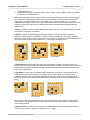
thinks won't influence the outcome of the problem. Here are some examples of problems that SmartGo
can solve correctly, with the time it takes on a 1.7 GHz Pentium 4 (black to play):
0.63 seconds
0.08 seconds
0.02 seconds
Connections: Mark two blocks of the same color with triangles, choose Connection Tactics, and
SmartGo will check whether they can be tactically connected or cut apart. You can also mark one block
with squares and multiple blocks with triangles, and SmartGo will try to connect the squared block to
any of the triangled blocks.
Life & Death: The GoTools Life & Death engine, integrated into SmartGo, solves enclosed Life &
Death problems as well as many dan-level players can, and often faster. (If the problem is not
completely enclosed, GoTools internally will add some stones to enclose it, but you might want to
enclose it yourself, as the automatically-added stones can falsify a result.) Some examples (white to
play):
0.01 seconds
200.7 seconds
1.78 seconds
If the stones on the board comprise only the Life & Death problem, there is often no need to mark
which stones are in question, as the GoTools engine uses heuristics to recognize the vital blocks in
Life & Death problems.
Time limit: SmartGo will spend 15 seconds on a tactical problem (for each player) before giving up.
Choose Tools > Options > Analyze to change this time limit 53 .
© 2002-2004 Smart Go, Inc. All rights reserved.
SmartGo™ 1.5 User Manual
Common Tasks
17
Detail: For capture tactics, you also can specify multiple blocks, and SmartGo will try to capture one of
the blocks. This is useful when a threat against one block can be used to capture another block.
Detail: For semeai (race to capture), the problem must be completely surrounded, and the safe stones
around the blocks in question must be marked with squares (using the Mark toolbar 67 ).
© 2002-2004 Smart Go, Inc. All rights reserved.
SmartGo™ 1.5 User Manual
3
Menus
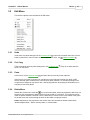
This section explains each menu command.
3.1
File Menu
This section explains each command in the File menu.
3.1.1
New Game
Starts a new game (after giving you a chance to save your current game).
© 2002-2004 Smart Go, Inc. All rights reserved.
Menus
18
SmartGo™ 1.5 User Manual
Menus
19
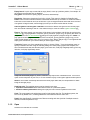
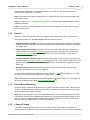
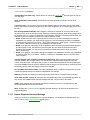
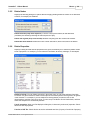
Empty board: A quick way to start with an empty board, to set up a problem position, for example. All
the controls except board size are disabled.
Play game: Choose this to specify players, time limit, and handicap.
Board size: Choose any board size from 2x2 to 19x19. (This control is disabled in SmartGo:9x9.)
Detail: Earlier version of SmartGo:Editor could handle board sizes up to 29x29. For technical reasons,
board size is now limited to 19x19 in all versions. If you've bought SmartGo and would like to record or
view games on larger boards, we'll be happy to send you an older version that can do that.
Add new game to current game collection: Check this to add this new game to the currently open
SGF file instead of starting a new file. This makes it easy to create or extend a game collection 9 .
Players: The player names you enter here will be shown in the toolbars, and will also be copied to the
Game Info 29 . To play against the computer, specify "SmartGo" [Player only]. Or specify the name of a
program listed in the Go Text Protocol 54 dialog box to play against a program using GTP. Detail: To
play against another program connected over the serial port, specify "Modem" [Player only]. For an
opponent that simply mirrors every one of your moves, type "Mirror" [Player only]. For an opponent that
simply picks moves from your current Library of Games, type "Library".
Time limit: Choose one of the standard time limits, or choose "Other..." from the dropdown menu to
specify a different time limit using the following dialog box. When playing against the computer, the
time limit determines how well SmartGo plays: given more time, it will play marginally better; given very
little time, it will play significantly worse.
Keep time for human player: By default, SmartGo only keeps track of SmartGo's time. Turn on this
option to also keep track of your time, or to use SmartGo to play a timed game against another person.
Stones: The number of handicap stones that the black player starts with, as compensation for white
being the stronger player.
Handicap style: The handicap stones can be placed in two ways:
· Japanese: Fixed Pattern: Black starts with N stones in a predefined pattern.
· Chinese: Arbitrary Placement: Black gets to play the first N moves anywhere on the board.
Komi: The compensation the white player gets for letting black play first. For handicap games, the
komi is set by default to 0.5, meaning White wins if the territories are the same size.
Detail: Note that SmartGo internally uses Chinese counting and rules (suicide of multiple stones is
allowed, full-board repetition is not).
3.1.2
Open
SmartGo can read files in 5 formats:
© 2002-2004 Smart Go, Inc. All rights reserved.
SmartGo™ 1.5 User Manual
Menus
20
· *.sgf, *.prb: The SGF format is the standard for exchanging Go games. SmartGo supports both
FF[3] and FF[4] versions of the standard with very few exceptions. Game collections (multiple SGF
games concatenated into a single file) are handled properly. PRB files are just SGF files with a
different extension; typically, they contain collections of problems (see Problems toolbar 71 ), and
SmartGo automatically enters problem solving mode when opening a PRB file.
· *.sgc: Compressed Game Collection 80 , a variant of SGF using a special property to reduce file size.
· *.sgd: A game collection stored in a proprietary format. SmartGo can read these games, but there
may be restrictions on what you can do with the games. In particular, you can't save such a game
collection in SGF format. However, you can save individual games from the collection; see
Save Selected Games As 22 .
· *.go: The Ishi Press format is becoming less popular. SmartGo reads most properties of .go files.
Note that SmartGo doesn't write files in .go format, so when you save such files, SmartGo will
display the Save As dialog box and suggest saving with an .sgf extension instead.
· lv*.*: SmartGo can read GoTools files that contain collections of Life & Death problems.
More information can be found in SGF File Format 78 .
3.1.3
Open Folder
Opens all the files in a given folder to create an untitled game collection
9
.
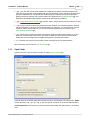
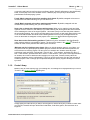
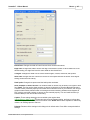
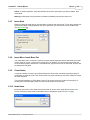
Enter the name of an existing folder that contains Go files or click Browse to choose a folder. Detail:
All files that end in .sgf, .sgc, .go, .mgt, or .prb are opened, as well as GoTools files that start with lv.
Include subfolders: Check this box to also include all folders within the given folder, to an arbitrary
level.
© 2002-2004 Smart Go, Inc. All rights reserved.
SmartGo™ 1.5 User Manual
Menus
21
Limit to file names that include the following text: Check this box to only include files whose file
name contains the given text (not case-sensitive).
Maximum number of files to open: Opening a huge number of files can be slow, so this allows you
to limit the number of files opened.
Limit to games with specific features: Click on Filter Games to bring up a dialog that lets you filter
games by board size, player strength, and handicap. This is helpful when you have a huge collection of
games to go through and won't be able to open all the games due to lack of memory.
Create game ID based on date rather than file name: If the Game ID 29 of the file opened is empty,
it will usually be set to the file name (excluding extension). You can choose to use the date when the
game was played to create a unique ID instead.
Add prefix before each newly created game ID: When creating a new game ID (whether based on
the file name or the date), SmartGo can add a prefix to make it easier to distinguish games by their
source.
Note: You can right-click on the games list and choose Add Folder 60 to add the games in a folder to
the currently open game collection.
3.1.4
Filter Games
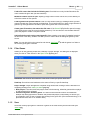
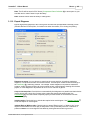
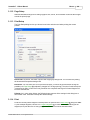
Allows you to limit games by board size, handicap, or player strength. This dialog box is displayed
when you click on "Filter Games" in the Open Folder 20 dialog box.
Board size: Set minimum and maximum to the same to filter by a specific board size.
Handicap: Set minimum and maximum to the same to filter by a specific handicap.
Player strength: Player strengths are compared using amateur dan rankings. See the discussion on
comparing rankings in the Library of Games 22 dialog.
· Both players: If checked, then both players need to be that strong, otherwise games with one player
of that strength will be accepted.
· Professional games / Amateur games: The SGF file format doesn't make a clear distinction
between the ranking specified for amateur and professional players, unfortunately, so this lets you
give SmartGo a hint on how to interpret dan rankings in the game info. (We recommend using "p" for
professional ranks and "d" for amateur ranks.)
3.1.5
Save
Saves the currently open game or collection of games in the most recently chosen file format (see
Save As 22 ).
© 2002-2004 Smart Go, Inc. All rights reserved.
SmartGo™ 1.5 User Manual
Menus
22
If the file has a .go extension, you will be prompted to save it with an .sgf extension instead, as
SmartGo doesn't write files in .go format.
Hint: The title bar of the SmartGo window shows a * after the file name if there is some change that
has not been saved.
Hint: You can turn on Save game after each computer move 50 to automatically save games played
against the computer.
Detail: If you save an SGF file that had some text in front of the proper SGF, that text is preserved
when you save the file.
3.1.6
Save As
Saves the currently open game or collection of games with an optional new name and file format.
In the Save As dialog box, the Save as type dropdown has three choices:
· FF[3] Backwards Compatible: This saves in a format that maximizes the chances that other SGF
viewers can read the file. Some new FF[4] properties are not saved, and the usual SGF coordinates
are always used.
· FF[4] Complete and Compact: This saves the file in accordance with version 4 of the SGF file
format standard. Point lists are compressed 52 (unless turned off), and the game is saved using
standard Go coordinates 76 if that option is turned on. Files are often smaller, but may not be
compatible with all SGF viewers.
· Compressed Game Collection (.sgc): This option reduces the file size for large game collections
significantly (see Compressed Game Collection 80 ). In particular, move sequences without any other
properties are compressed to about a third the original size. The file extension suggested for such
files is .sgc.
· Problem collection: Saves the file in the current format with a .prb extension. Files with .prb
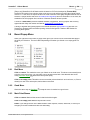
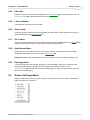
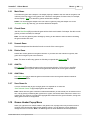
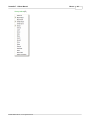
extension are opened in problem solving 34 mode.
You can set the preferences for writing files in Tools > Options > Save 52 . The default is to use FF[4]
for new files, and to keep existing files in their original format.
Note: Save and Save As always save the game or games in the Open Games tab. To save games in
the Library or Matching tab, choose Save Selected Games As 22 .
3.1.7
Save Selected Games As
Saves the game or games currently selected in the games view with a new file name. This is useful to
create a new game collection containing only a subset of games from a larger collection, or to export
the current game from a game collection.
Note: Games from the game collection included with SmartGo (stored in SGD format) can be saved
one at a time. On the Library or Matching tab, right-click on a game and choose Save Game As, and
you can save it as a regular SGF file. However, to protect the copyright and investment in the game
collection, saving such library games in bulk is not supported.
3.1.8
Library of Games
The Library of Games dialog box lets you set up a library of tens of thousands of professional or
amateur games. You can then access those games on the Library tab. And you can match any position
© 2002-2004 Smart Go, Inc. All rights reserved.
SmartGo™ 1.5 User Manual
Menus
23
in your games against any of the positions in all the games in your library.
SmartGo Professional Library: SmartGo comes with a collection of more than thousand professional
games, and the library will initially be set up to point to that collection. Check the SmartGo web site to
purchase a much larger collection of professional games. Detail: The SmartGo game collection is
stored as "SmartGo.sgd" in the same location as the SmartGo executable (usually "C:\Program
Files\Smart Go"). When you first start up SmartGo, the library will automatically point to that file.
Your Personal Library: You may already have a number of games by professional players or strong
amateurs, and you can use these to create your own library, without having to modify the library you
bought. For SmartGo to use such games, they need to be in a single file. Click Create to bring up the
Create Library 24 dialog box that helps you create such a library.
Library: Simply uncheck this box to not load and use the professional and/or your personal library.
Professional games / Amateur games: The SGF file format doesn't make a clear distinction between
the ranking specified for amateur and professional players, unfortunately, so this lets you give SmartGo
a hint on how to interpret dan rankings in the game info. (We recommend using "p" for professional
ranks and "d" for amateur ranks.)
Mark duplicate games instead of discarding them: When opening a library of games, SmartGo will
check for duplicate games (all the same moves played), and by default discard all duplicate games.
You can choose to have SmartGo mark them with a hotspot, and SmartGo will also combine the two
game IDs with a " DUP" in between.
Use library to generate standard computer moves: Turn this on to have SmartGo automatically pick
© 2002-2004 Smart Go, Inc. All rights reserved.
SmartGo™ 1.5 User Manual
Menus
24
out opening and joseki moves from the current library games. SmartGo will appear to play significantly
better, as it will play much more standard moves. It will also play more quickly in cases where
professionals continued playing a joseki.
Fuseki: Match swapped colors when matching whole board: By default, swapped colors are not
considered for full-board matching, but you can turn this on.
Joseki: Match swapped colors when matching partial boards: By default, swapped color are
considered for joseki matching, but you can turn this off.
Swap color on board when displaying matching games: When you're matching joseki and allow
opposite colors to match too, then when you go to the matching tab, all the games are shown with the
colors matching the colors in the original position. This makes it easy to see how the joseki relates to
the surrounding position, but it can be confusing when trying to figure out who really played which color.
You'll notice that the black and white stone indicating whose turn it is to play is swapped when the
colors on the board are swapped, but the players in the Game Info 29 are still the original players.
Show time used to find matching positions: Enable this if you're interested in how fast SmartGo
really matches positions in thousands of games. The time will be shown in the caption 69 . SmartGo is
slowest to match corner positions that contain just a few stones.
Minimum rank for including moves played: When you include amateur games in your library, you
may want to filter out games played by weaker players. SmartGo will still match those positions, but
won't show the moves they played. The rank given is in amateur dan. SmartGo internally maps
professional ranks as follows: Professional 1 dan to 4 dan = 7 dan amateur; professional 5 dan to 7
dan = 8 dan amateur; professional 8 dan or 9 dan = 9 dan amateur. (This is just a useful approximation
for SmartGo to be able to handle the two rankings on a single scale, it doesn't exactly reflect the
strength of amateurs versus. professionals.) Thus if you specify a minimum of 6 dan, that includes all
amateur players 6 dan or stronger plus all professional players. Specify negative rankings to indicate
kyu ranks.
3.1.9
Create Library
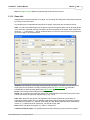
Makes it easy to create a library from your existing files. This dialog box is displayed when you click on
"Create" in the Library of Games 22 dialog box.
Simply specify the folder where you want to find the games, and the library file you want to create. After
you click OK, SmartGo will open all the files in that folder, read all the games, and save them as a
single file.
© 2002-2004 Smart Go, Inc. All rights reserved.
SmartGo™ 1.5 User Manual
Menus
25
Note: The file will be saved in SGC format (Compressed Game Collection 80 ) to save space on your
hard disk and to make it faster to open the library.
Note: SmartGo:Viewer limits the library to 5000 games.
3.1.10 Export Diagrams
Exports high-quality diagrams of the current game as either EPS (Encapsulated PostScript) or PDF
(Portable Document Format) files, for inclusion into other documents, or for viewing and printing.
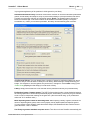
Diagrams to export: You can choose to export just the current position, all positions marked as
diagrams, or all positions that are found with Find Next. This last option combined with the settings in
the Find dialog 41 is extremely powerful. For example: Create diagrams of all positions marked as
hotspots, create diagrams showing all moves marked as bad, create diagrams showing all ko threats
played, or create diagrams of all positions at move 30 in a collection of games.
Crop to relevant points: Check this box to automatically limit diagrams to a partial board that includes
just the stones plus a single line of empty points, rather than showing the whole board. Use
Partial Board 69 in the View toolbar to explicitly specify a limited section of the board and override
automatic cropping.
Include caption: Check this box to include the caption below each diagram. Use Diagram Settings 37
to edit the caption for each diagram.
Indicate Black or White to play: Check this box to append "Black to play" or "White to play" to the
caption to show whose turn it is to play in that position. This is particularly useful for a collection of
problems. Detail: You can change the text added by clicking the More button to get to the
© 2002-2004 Smart Go, Inc. All rights reserved.
SmartGo™ 1.5 User Manual
Menus
26
Advanced Settings 26 dialog.
Include Game Info (PDF only): Check this box to include the Game Info 29 for each game on the top
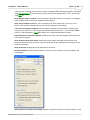
of a new page.
Show coordinates around board: Check this box to show standard coordinates around each
diagram.
Layout and size: You can specify the size of each diagram either by specifying how big each board
point is (most useful for EPS), or by specifying how many diagrams to fit on a single page (most useful
for PDF).
EPS (Encapsulated PostScript): Each diagram is saved as a separate file, for easy inclusion into
other documents such as word processing or desktop publishing programs. When writing multiple files,
the diagram name or a number is appended to each diagram. Printing to a PostScript printer driver will
assure that your EPS diagrams will print at the highest possible quality.
· Detail: SmartGo doesn't create a preview picture for the EPS, so when inserting the EPS file into
PageMaker, for example, you might just see a gray box. Use the following command in PageMaker
to create preview pictures: File > Place > Show Filter Preferences > EPS graphic > Create Preview If
None Exists. If that still doesn't work, try updating the EPS import filter.
· Detail: If you get poor output after using an application such as Word to put together EPS diagrams
and then export to PDF, the problem is most likely that you don't have the fonts Helvetica and
Helvetica Bold installed. You may need to purchase and install those fonts to work around this
Adobe Acrobat bug.
· Detail: If you get poor output after inserting EPS diagrams into PageMaker and then use PageMaker
to produce a PDF file, go to Printers > Distiller > Properties in PageMaker and turn off "Don't send
fonts to distiller".
Append diagram name instead of numbering multiple files: When exporting multiple diagrams,
each file needs to have a unique name. You can choose to append either the diagram name or a
number to the file name. If a diagram has no name, a number will be appended even when this option
is checked. Detail: SmartGo replaces characters that are illegal in file names with an underscore when
constructing the file name; the diagram name is not changed.
PDF (Portable Document Format): A number of diagrams can be included in the same file, and then
viewed and printed with the free Adobe Acrobat Reader, for example.
Warning: Note that any existing files with the given file names will be overwritten without warning.
Show each file after creating it: Check this box to automatically launch your preferred application for
EPS or PDF files. Detail: When exporting multiple EPS files, only the first ten are shown.
Detail: A few markings are not exported yet: Dimmed, selected, and moyo. Unsettled groups are
shown with dashed lines around the stones.
More: Displays the Advanced Settings 26 dialog box that allows you to fine-tune the appearance of
exported diagrams.
3.1.11 Export Diagrams Advanced Settings
Allows you to fine-tune the appearance of exported diagrams. This dialog box is displayed when you
click on "More" in the Export Diagrams 25 dialog box.
© 2002-2004 Smart Go, Inc. All rights reserved.
SmartGo™ 1.5 User Manual
Menus
27
Board lines: Changes the width of board lines and lines around white stones.
Edge lines: Changes the width of lines at the edge of the board in relation to other board lines. At its
thinnest setting, the edge lines have the same width as other board lines.
Triangles: Changes the width of lines used to draw triangles, crosses, diamonds, and squares.
Stone size: Changes the size of stones to leave a bit more space between the stones. At its largest
setting, the stones touch exactly.
Hoshi point: Changes how pronounced the hoshi points are drawn.
Show numbers on stones in bold: The numbers drawn on stones may be shown in a regular or bold
font. Detail: The font used to show numbers on stones is Helvetica (or Helvetica Bold when showing
numbers in bold). Windows properly uses similar fonts if Helvetica is not on your machine, but a bug in
Adobe Acrobat causes problems when converting documents containing SmartGo EPS diagrams to
PDF, with the result that numbers on stones are not centered properly. You can install Helvetica (or
Helvetica Bold) to work around this Acrobat bug.
Caption: These settings determine the text added to the caption when
Indicate Black or White to play 25 is checked in the Export Diagrams dialog, and how to indicate that
one move is played at the same point as an earlier move. Detail: Note that the separator is added only
if there is an existing caption to add it to.
Defaults: Restores all the settings in this dialog to their default value. Press OK to accept the default
settings.
© 2002-2004 Smart Go, Inc. All rights reserved.
SmartGo™ 1.5 User Manual
Menus
28
3.1.12 Page Setup
Standard Windows dialog box for setting up paper size, source, and orientation as well as the margins
around the printed page.
3.1.13 Print Setup
The Print Setup dialog box lets you choose board color and size used when printing the current
position.
Board color: By default, the board is printed with a light gray background. You can switch to printing
the board with a transparent background.
Board size: You can select one of four preset board sizes, or choose to print the board as large as
possible (use Page Setup 28 to adjust the margins for Full Page printing). The size of each board point
is measured in twips (1/1440 of an inch); SmartGo also computes how large a full board diagram will
be at the selected size.
Defaults: As in many other dialogs, the Defaults button restores all the settings in this dialog box to
their default value. Press OK to accept the default settings.
3.1.14 Print
Prints the currently shown diagram or board position as specified in the Print Setup 28 dialog box. Hint:
To print multiple diagrams, choose File > Export Diagrams 25 to create a PDF file containing all the
diagrams, then print the PDF file using an application like the free Adobe Acrobat Reader.
© 2002-2004 Smart Go, Inc. All rights reserved.
SmartGo™ 1.5 User Manual
Menus
29
Hint: The diagram caption 69 will be printed below the board if it's turned on.
3.1.15 Game Info
Displays all the relevant information for a game. You can shrink the dialog box to hide rarely used fields
by clicking on the Less button.
Any fields that are not applicable should just be left empty; empty fields are not stored in the file.
Note: You can select multiple games in the games view and change the game info for all those games
at the same time. Data that is exactly the same in all selected games will be shown, other fields will be
shown as "---". Fields left as "---" will be unaffected when you click OK; enter new text in any fields that
you want to apply to all selected games.
Game ID: This should be a string that uniquely identifies the game. The Game ID is not crucial for a
single game, but is important to identify individual games in a game collection 9 . This field is
automatically set when opening games using Open Folder 20 .
Event: The tournament where this game was played.
Round: The round when this game was played. The recommended format for this entry is the round
number followed by the type (final, playoff, league), e.g "3 final".
Date: When the game was played. The dropdown makes it easy to select the current date. It's
important to enter this date as YYYY-MM-DD so that games can be sorted and searched for by date.
Partial dates are allowed, e.g. "1996-05" means May of 1996. Multiple dates should be separated by
comma, e.g. "1996-05-06,07,08" means 6th, 7th, and 8th of May 1996.
Place: Where the game was played, e.g. "Paris" or "Nihon Ki-in".
Time limit, Overtime, Split: The regulation time limit and overtime (byo-yomi) used for this game.
© 2002-2004 Smart Go, Inc. All rights reserved.
SmartGo™ 1.5 User Manual
Menus
30
(After the regular time has been used up, it is usual to require a number of moves to be played within a
given time period.) In the FF[4] file format, the time limit is specified as a number, with a separate text
for overtime. However, some programs specify the time limit as text and include the overtime. The
check box lets you choose which way you want to enter the game info. The recommended way is to
split time limit and overtime into separate properties.
Name: The player names (without any rank appended).
Rank: The rank of each player. Use "k" or "kyu" for kyu ranks and "d" or "dan" for dan ranks, "p" for
professional.
Team/Country: The team or country each player represented.
Result: Who won and by how much, e.g. "B+0.5" or "W+12.5". It's important to use the standard
formats provided in the dropdown, e.g. "B+R" for black winning by resignation or "W+T" for white
winning on time. Adhering to the conventions enables SmartGo to properly sort the Result and Score
columns in game collections.
Komi: The number of points added to white's score to compensate for black having the first move.
Handicap: How many handicap stones the black player received.
Rules: Standard names for the rule sets are given in the dropdown: "AGA" (American Go Association),
"GOE" (Ing), "Japanese", or "NZ" (New Zealand). (Note that SmartGo uses Chinese rules internally,
regardless of this setting.)
More/Less: The fields below are only visible after expanding the dialog box.
Number of moves: The number of moves in this game, not counting passes at the end of the game.
Size: The board size of this game.
Application: Newer programs will set the Application property in the file so that you can see which
program last wrote the file (SmartGo will set it to "SmartGo:1.4").
File format: The file format (FF[3] or FF[4]) will be shown if the game has been saved.
Source: Where this game came from, e.g. Go World.
Analysis: Who provided the analysis of the game.
Copyright: Who has the copyright on the game commentary.
Recorder: The person who recorded the game.
Comment: A comment applying to the game as a whole. This game comment will be shown in the
Comment view 70 at start of the game, clearly separated from the normal comment.
Detail: You can display most of these properties in the games view by right-clicking on the header and
adding the appropriate column. You can tweak the registry setting "GameListColumns" to add columns
for properties not listed in the dropdown menu.
3.1.16 Recent Files
Opens one of the six most recently opened files.
3.1.17 Exit
Exits SmartGo, after giving you a chance to save changes to the current game.
Your current settings are preserved (see Registry Settings 82 ). The current game (assuming it was
saved) will open at the same point in the game the next time you start SmartGo. Choose Tools >
Options > General to disable Open most recent game at startup 50 .
© 2002-2004 Smart Go, Inc. All rights reserved.
SmartGo™ 1.5 User Manual
3.2
Menus
31
Edit Menu
This section explains each command in the Edit menu.
3.2.1
Undo
Undo works only while editing text in the Comment area 70 . It does not work when the focus is on the
board; in particular, it does not undo moves. To take back a move, use
Delete Last Move 62 .
3.2.2
Cut, Copy
These commands work only while editing text in the Comment view 70 . They do not work when the
focus is on the board.
3.2.3
Paste
If the focus is on the Comment view 70 , this inserts the text currently on the clipboard.
If the focus is not on the Comment view, and the text on the clipboard consists of a game in SGF
format, then that game is added to the currently open game collection. For example, postings in the
rec.games.go newsgroup may include SGF, and copying that SGF and pasting it into SmartGo is an
easy way to view such games.
3.2.4
Delete Move
Deletes the current node. Unlike the
icon on the main toolbar, which only deletes the last move of a
sequence, this command also deletes moves from the middle of a sequence. This command can be
useful in special situations, but there is often a better way to correct a move in the middle of the game:
Go to that move, then click and drag the stone on the board to its proper location.
Detail: Depending on the properties of the current node, this command is named "Delete Move",
"Delete Diagram Node", "Delete Territory Node", or "Delete Node".
© 2002-2004 Smart Go, Inc. All rights reserved.
SmartGo™ 1.5 User Manual
3.2.5
Menus
32
Delete Nodes
Displays the following dialog box. Options that don't apply (deleting branches if there are no branches
to delete, for example) are disabled.
Delete branches (keep main sequence): From the current point forward, all side branches
(variations) are deleted, preserving the main sequence of play.
Delete rest of game (keep current node): Deletes everything from the current node forward.
Delete this whole branch: Deletes the entire current side branch, back to the start of the branch.
3.2.6
Delete Properties
Displays a dialog box that lists the properties in the game, and allows you to selectively delete certain
kinds of properties. For example, you can delete all comments, all territory markings, or all hotspots.
Nodes to include: You can delete properties in the whole game, or just at the positions found with
Find Next. In a game collection, either of these options can include just the current game or all games
in the collection. For example, if you use hotspots to mark positions you want to look at, and
checkmarks to mark the ones you've done, you can set up Find Next to find all checkmarks, and then
delete the hotspots from all checked positions.
List all properties: When you first display the dialog box, it shows only a subset of properties. Check
this box to see all properties.
List size in SGF file: Check this box to see the estimated total size (in bytes) of each kind of property.
© 2002-2004 Smart Go, Inc. All rights reserved.
SmartGo™ 1.5 User Manual
Menus
33
Delete: To delete properties, check the checkbox to the left of the property you want to delete, then
click Delete.
Warning: Deleting the move properties is possible but probably not what you want to do.
3.2.7
Insert Node
Displays a dialog box that lets you choose where to insert a new empty node. This is rarely needed, but
can be useful when creating elaborate SGF files. Optionally, you can name the newly created node
(see Node Name 33 ).
3.2.8
Insert Move, Insert Move Pair
The "Insert Move Pair" command is useful if you have entered a game and then realize that you forgot
to enter a pair of moves, a forcing move and its reply, for instance. Go to the position where the first
move should be played, choose Edit > Insert Move Pair, play the two moves on the board, and they will
be inserted into the game.
3.2.9
Count Nodes
Counts the number of nodes in all variations below the current node, and adds a special property at
each branch to show the count. This can be useful in a joseki dictionary to see which variations contain
the most branches.
This command changes to "Erase Node Counts" if the current node has a node count property, so
choosing this command again clears the node counts below the current node.
3.2.10 Node Name
Each node can have a name; these names are shown in the tree view. Node names can serve as
concise comments, and provide an alternative way to navigate the game tree (see Find 41 ).
© 2002-2004 Smart Go, Inc. All rights reserved.
SmartGo™ 1.5 User Manual
Menus
34
3.2.11 Make Main Line
Transforms the current line of play into the main line of play. Use this command if you've inadvertently
played the real moves in a side branch (which can happen when you take moves back and then play
other moves).
Hint: Note that you can also drag the next moves shown in the tree view to change the order of next
moves.
Hint: You're on a side branch if:
· The score graph 63 shows a dark gray triangle pointing down rather than a blue triangle pointing up,
or
· This command is active, or
· The "Back to Main Line 64 " command is active, or
· The tree view displays any branches taken that don't go to 'a'.
3.3
View Menu
This section explains each command in the View menu.
3.3.1
Default Toolbars
Shows the default set of toolbars: Main, Black and White Player, Navigation, and View. Use this
command to remove toolbar clutter quickly.
3.3.2
Annotation Toolbars
Shows the default toolbars plus toolbars used for annotating games: Find, Mark, Annotate, and
Diagram.
3.3.3
Problem Solving
Shows the Problems toolbar 71 used for solving collections of problems, and turns on problem solving
mode.
3.3.4
All Toolbars
Shows all the toolbars, exposing all the functionality SmartGo has to offer.
© 2002-2004 Smart Go, Inc. All rights reserved.
SmartGo™ 1.5 User Manual
3.3.5
Menus
35
Toolbars (submenu)
Turns specific toolbars on or off.
Hint: You can also right-click on a toolbar to get a popup menu that lets you show and hide toolbars.
(Due to an implementation constraint, you need to right-click on a toolbar button, or on a gray area of
the toolbar, not on the title of a toolbar. We hope to have this fixed in a future version.)
3.3.6
Markup Style
Adjusts how variations are shown on the board, in order to match any comments in the game. By
default, the next moves are shown as a, b, c, but some SGF viewers use different conventions. The
markup style can also be saved as a property in the file (SGF FF[4] only), so that other viewers
respecting that property will display the game the way you intended.
Automatically mark moves with letters: This is the same as the
icon in the View toolbar 69 .
Moves to mark: The default setting is to show the next moves, but you can switch to showing the
alternates of the current move.
Letters to use: The default setting is to use lowercase letters to mark the next moves. When showing
alternates, the recommended setting is to use uppercase letters.
Read markup style property from file: Any existing markup style property in the file determines how
the game is initially shown. This option is on by default.
Save markup style as a file property: Any changes you make regarding how moves are marked will
be recorded as a property in the root node of the current game, and will be written to the file when the
game is saved. This option is off by default; turn it on if you're creating game records that should be
viewed in a particular way.
Defaults: Restores all the settings in this dialog to their default value. Press OK to accept the default
settings.
© 2002-2004 Smart Go, Inc. All rights reserved.
SmartGo™ 1.5 User Manual
3.3.7
Menus
36
Board Graphics
Adjusts the look of the board on your screen. (The printed board is not affected by these settings; use
Print Setup 28 to change the look of printouts.)
Graphics quality: By default, the stones and triangles are drawn with smooth edges (using antialiasing to avoid jaggies). If this appears too slow, you can turn it off. Note that smooth edges are
automatically turned off while using a slider to adjust the board color.
Board color: You can adjust the color of the board to look good on your screen.
Stone color: You can adjust the stone color to be subtly gray rather than completely black or white.
Font size: Adjust the font size used to show text labels and numbers on stones.
3.3.8
Insert New Diagram
Creates new diagram nodes. See Create Diagrams 14 for an overview of how diagrams work.
New diagrams will take on the most recent settings specified in the Diagram Settings 37 dialog box.
© 2002-2004 Smart Go, Inc. All rights reserved.
SmartGo™ 1.5 User Manual
Menus
37
Insert diagram before this move: Inserts a new diagram node before the current node. That diagram
will show the sequence of moves starting at the current move and ending at the next diagram. Use this
to split an existing diagram into two diagrams, or to add a variation diagram for an existing move
sequence off the main line of play. Detail: If you choose this at an empty node, the diagram property
will be added to the empty node rather than creating a new node. You can use this in combination with
View > Insert Node 33 to add diagram nodes as alternates of other diagram nodes.
Insert diagram after this move: Inserts a new diagram node after the current node, on the main line
of play. That diagram will show the sequence of moves starting at the next move and ending at the
next diagram. Use this to split an existing diagram into two diagrams.
Add variation diagram at this position: Inserts a new diagram node as a child of the current node.
You can use the newly created diagram to show the current position (without any move numbering), or
you can enter a sequence of moves to show a variation off the main line.
Diagram name: When adding a single diagram, you can specify a diagram name for the newly created
diagram.
Split main line of game record every N moves: Adds diagram nodes every N moves along the main
line of the game. For instance, splitting a game with 175 moves every 50 moves will produce four
diagrams: 1-50, 51-100, 101-150, and 151-175.
Split main line of game record into N diagrams: Adds N diagram nodes along the main line of the
game. The first diagrams have slightly fewer moves than the last ones. This setting is particularly
useful for printing diagrams for a collection of games when you want each game to fit on a single page.
Add diagram at every branch point: Inserts a diagram in front of every branch, to make it easy to
see the whole sequence when going to a variation.
Add diagrams in all games in collection: Check this box to add diagrams in all games in the game
collection rather than just the current game. Detail: This setting is only available when adding multiple
diagrams.
3.3.9
Diagram Settings
Customizes diagram caption and numbering. These settings are stored with the diagram and can be
set for each diagram individually.
Diagram name: If a diagram name is specified, it will be shown in the caption and as <diagram name>
© 2002-2004 Smart Go, Inc. All rights reserved.
SmartGo™ 1.5 User Manual
Menus
38
in the tree view. It will also be printed (if the caption is displayed when printing the diagram), and shown
using Export Diagrams 25 . And of course you can search for the diagram name, "Dia. 3" for example,
using Find 41 .
Show diagram name in caption: Turns on display of the diagram name in the caption. (The diagram
name is always shown in tree view, regardless of this setting.)
Show move numbers (From-To): Turns on display of the move numbers as "(From-To)" in the
caption. (The numbers are always shown in tree view, regardless of this setting.)
List moves not shown in diagram: Uses the caption to display moves that can't be shown on the
board, such as "89 at 77" if move 89 was played at the same point as move 77, for example. Detail:
Use File > Export Diagrams > More 26 to change "at" to a different language or symbol.
Repeat last move of previous diagram: Starts the first move of the next diagram with the last move
of the previous diagram.
Show sequence with small stones: Shows the current position with large stones and the move
sequence with small stones. SmartGo uses this setting to show the expected move sequence during
computer lookahead.
Show hoshi dots: Displays the small hoshi dots on the board.
No move numbers: Shows only the position at this node, not the sequence of moves leading to the
next diagram.
Start sequence at current move number: Starts the sequence with the current move number. This is
© 2002-2004 Smart Go, Inc. All rights reserved.
SmartGo™ 1.5 User Manual
Menus
39
the default for diagrams created on the main line of play.
Start with last two digits of move number: Truncates the starting move number to two digits, so a
diagram of moves 151 to 200 would be numbered as 51 to 100, for example. The caption below the
diagram still shows the moves as 151 to 200.
Start move numbers at: Sets an arbitrary starting number. Starting at 1 is the default for diagrams
created on a side branch.
Detail: In the FF[4] file format, most of these are standard options, so other programs implementing
the complete FF[4] standard should show the diagrams the same way. SmartGo extends the standard
with: Show move numbers (From-To), repeat last move of previous diagram, and show sequence with
small stones. See the section on the SGF File Format 78 .
3.4
Play Menu
This section explains each command in the Play menu.
3.4.1
Stop Clock
Stops the clock, and also stops the computer lookahead.
Detail: The clock has three states: On, off, and suspended.
· On: Time is counting down for the player to move, and the computer will compute its move if it's the
computer's turn. If "Compute during opponent's time" is turned on (see
Tools > Options > General 50 ), the computer will also be computing in the background while it's your
turn to move.
· Off: The clock is stopped, and the computer is not thinking.
· Suspended: The clock is stopped, but will automatically restart when a new move is played.
SmartGo enters this state when the clock is running and you take back moves; when you then play
another move, the clock is automatically restarted and the game continues. If you suspend the clock
while SmartGo is computing its move, to go back a few moves, for example, the previous position
will automatically be restored when the computer is ready to play.
Keyboard: Use Esc to stop the clock.
3.4.2
Resume Play
This starts the clock, and starts the computer player thinking about its move if it's the computer to play.
Use this command to continue a game against the computer.
Detail: When the clock was stopped, SmartGo looks at the player names to determine whether the
© 2002-2004 Smart Go, Inc. All rights reserved.
SmartGo™ 1.5 User Manual
Menus
40
computer should start playing. If one of the players is named SmartGo (or a name given to a
Go Text Protocol 54 engine) the computer will start playing that color.
3.4.3
Time Left
Changes the time left for each player, and the overtime setting (byo-yomi) to use when running out of
regulation time.
3.4.4
Pass
Plays a pass move, which is always legal. Two consecutive passes end the game.
Detail: During an Environmental Go 77 game, Pass is used to take a coupon.
3.4.5
Black/White to Play
Sets the current player to move. This is most useful after setting up a problem position to indicate
whose turn it is to play, but you can also use it at any point in the game to play out what the opponent
could do in a particular position.
Hint: You can also hold down the Shift key to play an opponent move.
3.4.6
Add/Remove Black/White Stones
Sets up a position, or modifies the current board position. These commands are also available on the
Mark 67 toolbar.
Drag to add multiple stones: Hold down the mouse button and drag to quickly add multiple stones.
Shift-key for opponent color: Hold down the Shift key while adding stones to add stones of the other
color.
Hint: You can also remove stones from the current position. Use this feature to demonstrate how the
position would look without some bad moves played earlier in the game, for example. (Note that some
SGF viewers might not handle this standard SGF feature properly.)
Detail: In FF[4], moves and setup stones can't be mixed in the same node, so a new node is created
when you add stones in the middle of the game.
© 2002-2004 Smart Go, Inc. All rights reserved.
SmartGo™ 1.5 User Manual
3.4.7
Menus
41
Computer Color [Player only]
Sets SmartGo to play black, white, or both colors, and starts the clock.
Note: While this is a convenient way to play against SmartGo starting from an arbitrary position, it's not
the recommended way to start a game against the computer. Choose
File > New Game 18 to start
a game that properly sets up the Game Info 29 for that game.
Detail: If no time limit has been set yet, the default setting from the New Game dialog box is used to
set the computer's time. If no player name has been entered, the player name will be set to "SmartGo".
3.5
Replay Menu
This section explains each command in the Replay menu.
3.5.1
Find
Searches for text in a game (either in a comment, a node name, a diagram name, or a game info
property), searches for a specific property, or goes to a specific move number. To search for text or go
to a move number, simply type in the text or move number. Use the dropdown to search for a property.
The dropdown and some of the settings explained below are also accessible from the Find toolbar 65 .
© 2002-2004 Smart Go, Inc. All rights reserved.
SmartGo™ 1.5 User Manual
Menus
42
Match case: When searching for text, this checkbox determines whether a search for "black", for
example, will match only "black" or also "Black" and "BLACK".
Match emphasis: When searching for properties such as hotspots, you can choose to find both single
and double hotspots (the default setting), or choose to match only single or only double (emphasized)
hotspots.
Search main line only: Only search for nodes along the main line of play.
Search variations only: Only search for nodes that are in a variation, not on the main line.
Limit range of move numbers: Restrict the search to a specified range of move numbers. Detail:
This slows the search down noticeably in large game collections.
Search all games in collection: When a game collection is open, you can limit search to only the
current game, or you can search all the games in the collection.
Search variations before main line of play: The normal search order is to explore to the end of the
current line of play, then go back to the most recent branch point, explore to the end of that branch,
and so on. When this option is enabled, SmartGo explores branches before continuing with the main
line of play.
Find move annotations (?!) in next move: When searching for move annotations, it's often desirable
to show the bad move as the next move rather than the current move, so that you can also see the
alternate move that's marked as a good move.
Detail (Node ID): The F8 key copies the Node ID of the current node to the clipboard (use Shift+F8 to
copy cross-references as used in Kogo's Joseki Dictionary). In the Find dialog box, use Ctrl+V to paste
that Node ID from the clipboard to find it again.
Here's an example of SmartGo's Node ID syntax: 0#3+5. This is read as "start at move number 0, take
branch number 3, then go 5 nodes forward".
© 2002-2004 Smart Go, Inc. All rights reserved.
SmartGo™ 1.5 User Manual
Menus
43
This is the same node using Kogo's cross-reference syntax: 3-1-1-1-1-1 (take branch number 3, then
take branch number 1 five times).
3.5.2
Find Previous
Works like Find Next 43 , but searches backwards from the current node rather than forwards.
Keyboard: Shift+F3.
3.5.3
Find Next
Searches for the next occurrence of the text or property specified by the last Find 41 command.
Keyboard: F3.
3.5.4
Go To
See the Navigation Toolbar 64 for an explanation of these commands.
3.5.5
Automatic Replay
To avoid having to click through each move, turn on
Auto-Replay. This convenient hands free
mode has many uses: for example, watch Shusaku play a move every 20 seconds the next time you
pay your bills. Or study professional games while rocking your newborn to sleep. Let us know your
favorite use of this feature.
Automatic Replay has three adjustable speed settings (Slow, Medium, and Fast) that you can choose
with the Auto-Replay dropdown on the Navigation toolbar.
Slower / Faster: Choose Faster or Slower on the dropdown to speed up or slow down the current
mode by about 20%.
Use Find Next: Instead of going forward one move at a time, turn on Use Find Next to perform a
Find Next 43 at every step. Used this way, Automatic Replay can find a specific text, find all annotated
moves, or go through all the variations in a joseki library. To auto-replay multiple games, for example,
choose Every Node in the Find dropdown on the Find toolbar, and make sure Search all Games in
Game Collection is turned on. If you just want to see openings, choose Limit Range of Move Numbers
on the Where to Search dropdown on the Find toolbar. Detail: The Use Find Next setting also affects
the behavior of the scroll wheel. Rolling the mouse wheel normally replays the game move by move;
when Use Find Next is turned on, the scroll wheel behaves like Find Next.
Stop at Comments: Turn this on to stop auto-replay when reaching a move that has a comment.
Hint: Use
in the View toolbar to hide the next move(s) if you don't want any hints where the next
move will be played.
© 2002-2004 Smart Go, Inc. All rights reserved.
SmartGo™ 1.5 User Manual
Menus
44
Keyboard: Use F5 to start or pause the replay.
Detail: SmartGo continues automatic replay if you go forward a move, allowing you to quickly skip
moves you're not interested in. It stops automatic replay when you go backward in the game, assuming
you want to look at a recent move in more detail.
3.5.6
Annotate Board
All Annotate Board commands are explained in the Mark Toolbar 67 section.
3.5.7
Annotate Move
All Annotate Move commands except the following are explained in the Annotation Toolbar 70 section.
No Move Annotation: Deletes any move annotation from the current move.
3.5.8
Annotate Position
All Annotate Position commands except the following are explained in the Annotation Toolbar 70
section.
No Position Annotation: Deletes any position annotation from the current node.
3.5.9
Focus on Board
Sets the keyboard focus to the board, which means that the keyboard shortcuts normally associated
with editing comments are re-mapped to the Navigation toolbar 64 . For example, the arrow keys, which
move the cursor when the focus is on the comment, are used to replay the game.
All of the keyboard shortcuts for the Navigation toolbar 64 will work after setting the focus to the board.
To switch to editing a comment while navigating in the game, simply start typing the comment, choose
Replay > Focus on Comment 44 , press Shift+F6, or click in the comment view.
Keyboard: F6.
3.5.10 Focus on Comment
Sets the keyboard focus to the comment view 70 , which means that the keyboard shortcuts normally
associated with the Navigation toolbar are remapped for editing comments. For example, the arrow
keys, which replay the game when focus is on the board, will take on their normal text editing function.
Any text you enter will be added to the comment.
To navigate to a different move while the comment view has the focus, click on a button in the
Navigation toolbar 64 , or set the focus to the board first and then use arrow keys to navigate. To set the
focus to the board, choose either Focus on Board 44 , press F6, or click on the white border just around
the board. Any navigation in the game tree will also set the focus back to the board. In addition, rolling
the wheel on the mouse will also replay the game and restore the focus to the board.
Keyboard: Shift+F6.
© 2002-2004 Smart Go, Inc. All rights reserved.
SmartGo™ 1.5 User Manual
Menus
45
3.5.11 Focus on Games
Sets the keyboard focus to the games view, which means that the keyboard shortcuts normally
associated with the Navigation toolbar are remapped for navigating between games. Use the up/down
arrow keys to switch between games; use the left and right arrow keys to replay moves in the selected
game.
Any text you enter while the games view has the focus will be added to the comment.
3.6
Tools Menu
This section explains each command in the Tools menu. The Tools menu in SmartGo:Player includes
more commands than in SmartGo:Viewer.
3.6.1
Analyze Position [Player only]
Analyzes the current position and shows what SmartGo thinks is going on. SmartGo shows the territory
of each player, the moves it would consider, which groups it thinks are unsettled (red outline around
the stones), and which blocks it has computed to be tactically unsettled (red dot on the stones).
Hint: The time SmartGo takes to analyze the position is set by default to 5 seconds. More time will
sometimes yield a better analysis. You can adjust the time limit in the Options dialog box 53 .
Hint: You can easily erase the territory markings by clicking
in the Main toolbar 62 . Or you can hide
69
the marks by turning off
Show Board Marks in the View toolbar.
Keyboard: F11. Ctrl+F11 analyzes the position and generates all the moves that SmartGo is capable
of finding, not just the top 24 that SmartGo chooses to look at by default.
Detail: The score shown in the main toolbar counts the territory as marked on the board; the score
shown in the tree view is based on SmartGo's evaluation when looking several moves ahead and may
differ.
3.6.2
Play One Move [Player only]
Causes the computer to play what it thinks is the best move in the current position. By default, the
program spends 20 seconds to determine its move; you can adjust this in the Options dialog box 53 .
Keyboard: F9.
Detail: SmartGo remembers much of its previous analysis, so if you go back one move and choose
© 2002-2004 Smart Go, Inc. All rights reserved.
SmartGo™ 1.5 User Manual
Menus
46
Play One Move again, SmartGo will look further ahead and possibly choose a different move.
3.6.3
Analyze Game [Player only]
Analyzes all the positions in the current game, and shows the score graph 63 for the whole game.
Moves to analyze: You can look at all the positions on the main line of play, or just the positions that
are found with the current Find Next 41 settings. In a game collection, either of these options can
include just the current game or all games in the collection.
Time limit: At first, you can have the computer go through the game quickly. To get a better analysis,
give the computer more time, or check "Keep repeating analysis with more time", in which case it will
automatically keep analyzing with more time once it has analyzed all positions with the given time limit.
Detail: For time limits of 5 seconds or less, SmartGo analyzes the position as in Analyze Position 45 .
Given more than 5 seconds, SmartGo uses lookahead as in Play One Move 45 to get a more accurate
assessment.
Hint: To stop game analysis, choose Tools > Analyze Game again, or choose Play > Stop Clock 39 .
Hint: To erase scores and territory markings, use Edit > Delete Properties 32 .
Note: For games between weak players, sudden changes in score can often pinpoint blunders. For
games between strong players, sudden changes in score are more likely to indicate that the computer
doesn't understand the position.
3.6.4
Ladder Tactics [Player only]
See Tactical Analysis 15 .
3.6.5
Capture Tactics [Player only]
See Tactical Analysis 15 .
3.6.6
Connection Tactics [Player only]
See Tactical Analysis 15 .
© 2002-2004 Smart Go, Inc. All rights reserved.
SmartGo™ 1.5 User Manual
3.6.7
Menus
47
Life & Death Tactics [Player only]
See Tactical Analysis 15 .
3.6.8
Add to Collection
Adds the current position to a collection. All the visible stones and marks of the current position are
copied; moves before and after this position are not copied, except for next moves marked as either
good (!) or bad (?). You can use this to create and extend a collection of problems or interesting
positions, for example. Note: To add whole games to a collection (not just the current position), rightclick on the list of games and choose Add File 60 .
Collection: Specify the SGF file name where you want to add this position. If the file doesn't exist, it
will be created.
Name: Specify the name that you want to give this position, so you can easily find it in the collection.
This will set the node name. Detail: If the name contains a letter followed by a number from two to five
digits, the number will be incremented automatically each time you add a position. For example, P0017
will become P0018.
Source: Specify where this position is from. This will set the Source field in the Game Info.
Mark current position with a Hotspot or Checkmark: Check this box to automatically add either a
hotspot or a check mark at the current position, to indicate that you've added this position.
Start new game after adding position: This is a useful option when you enter multiple problems from
a problem book, for example, and you immediately want to start entering the second problem after you
added the first one. Warning: Use this option with care, as it will discard any changes to the current
game without giving you a chance to save them.
3.6.9
Computer Tourney [Player only]
This feature lets you play an automated tourney between two Go programs. See Go Text Protocol 54
on how to install other Go programs to play against.
© 2002-2004 Smart Go, Inc. All rights reserved.
SmartGo™ 1.5 User Manual
Menus
48
Players: Choose the two programs that you want to play against each other. The first program will start
the first game playing black.
Swap colors after each game (play twice from each position): Uncheck this option to keep playing
the assigned color, for instance to play a series of handicap games.
Number of games: How many games to play. Enter zero to just keep playing until you stop the
tourney.
Time per game: The time per game is taken from the starting positions (see below). If the starting
positions don't contain a time limit, then the standard time is 15 minutes per player for 9x9, 30 minutes
for 13x13, and 60 minutes for 19x19. Enter a number less than 1.0 to speed up each game, or a
number larger than 1.0 to give the programs more time.
Starting positions: To avoid two programs endlessly repeating the same games, each program plays
once as black and once as white from a set of starting positions. SmartGo:Player ships with three files
(Tourney9.sgf, Tourney13.sgf, and Tourney19.sgf) that contain suitable starting positions for different
board sizes. You can create your own game collections with starting positions to suit your needs.
3.6.10 Options
Specify your preferences to make the program fit better with the way you work.
Defaults: Each tab has a button labeled Defaults. Clicking Defaults restores the settings on that tab to
the default settings. Press OK to accept the default settings.
© 2002-2004 Smart Go, Inc. All rights reserved.
SmartGo™ 1.5 User Manual
Menus
49
3.6.11 Options - View
Color-blind Go: This is a fun option for playing against another person, or to make the game against
the computer more challenging. Although the computer displays all stones as white, internally it
remembers where the black and white stones are, and will capture stones as appropriate. Can you
remember which stones are yours? We recommend starting with a 9x9 game. :-)
Line breaks in comments: Files created with other SGF editors may follow different conventions for
representing line breaks in comments. If you get an SGF file where the comments look strange, with
line breaks in the wrong places, one of these settings may help. Change the setting, then try to open
that file again.
Show text labels: This lists any text labels in a separate entry in the move tree. This option is rarely
needed, but can be useful when you are annotating games and adding text labels.
Hoshi points: For small boards, you can choose how many hoshi points to show. (Hoshi points are
the small black dots on the board.)
© 2002-2004 Smart Go, Inc. All rights reserved.
SmartGo™ 1.5 User Manual
Menus
50
3.6.12 Options - General
Open most recent game at startup: Turn this off if you always want SmartGo to start with an empty
board rather than the most recent file you worked on.
The remaining settings are only enabled in SmartGo:Player.
Compute during opponent's time: Turn this off if you don't like the computer thinking in the
background while you're figuring out your move. Turning it off will make SmartGo slightly weaker.
Beep after computer move: The computer will by default beep to alert you of its move.
Save game after each computer move: Turn this on if you want to make sure you have a record of
your games against the computer. SmartGo will then ask you to save it right after starting a game.
Detail: If you cancel the Save dialog box without naming the file, auto-save will be turned off for that
game; auto-save will resume once you save the game.
Stay on main line when playing against computer: Turn this on if you like to take back moves when
playing against the computer. SmartGo will automatically designate the latest move you play as the
main line of play, and move your previous attempts to side branches.
Operator overhead: This subtracts the specified number of seconds from the computer's clock after
each move. This is needed only if you are manually relaying the computer's moves and there is an
external clock that you need to stay in sync with.
Serial port number: SmartGo supports the Go Modem Protocol, which allows you to test SmartGo
against other programs supporting that protocol. Connect two computers with a serial cable, and
specify "SmartGo" as one player and "Modem" as the other. Start the program playing white first, then
the program playing black.
Detail: Specify "Modem: ProgramName" in the New Game 18 dialog box to automatically show
ProgramName as the other program's name. The serial port settings are 2400 baud, no parity, one
stop bit, 8 bits.
© 2002-2004 Smart Go, Inc. All rights reserved.
SmartGo™ 1.5 User Manual
Menus
51
3.6.13 Options - Edit
Enforce unique markups: The FF[4] SGF standard states that you can only have one board marking
(such as triangle, square, cross, or selected) at each point. By default, SmartGo enforces the standard
while you edit board marks. However, SmartGo has no problem displaying multiple marks at each
point.
Mark blocks that have zero liberties: While setting up a board position, you may inadvertently create
illegal positions that contain blocks of stones without liberties. SmartGo displays a zero on such blocks,
and some commands put up an alert if you choose them in such a position. If you want to create
diagrams illustrating the rules of Go, for example, you can disable this behavior to show zero-liberty
blocks before they are removed from the board.
Automatically expand Game Info dialog: The Game Info dialog box by default hides a number of
settings that are often empty, and only shows that section of the dialog when it contains relevant
information. You can disable this behavior to always show the dialog in the state you last closed it.
Detail: The Game Info dialog box is automatically expanded when either source, copyright, analysis, or
comment field contain text.
Value of each point in a moyo: When marking points as black or white territory, you can also mark
points as moyo (potential territory). When computing the score, each moyo point is counted as a third
of a point. You can adjust this factor.
Detail: SmartGo uses it's own internal factor to value moyo points, ranging from 0.40 in the opening to
0.25 in the endgame.
Convert numeric text labels to move sequence: When you enter numbers as text labels, SmartGo
assumes you want to convert those numbers to a sequence of moves. You can turn off this feature.
Show ghost stones while entering numeric text labels: Numeric text labels are usually shown with
ghost stones to make it easier to enter a game from a game record. You can turn off ghost stones.
© 2002-2004 Smart Go, Inc. All rights reserved.
SmartGo™ 1.5 User Manual
Menus
52
3.6.14 Options - Save
When saving a game (see Save As 22 command), you can choose between version 3 and version 4 of
the SGF file format. By default, files retain their original file format when you save them, but you can
choose to save files in either version.
Compatible: Always saves files using FF[3], unless you explicitly change it in the Save As dialog box.
Files in FF[3] are most compatible, but some properties will not be saved. For details, see
SGF File Format 78 .
Complete: Always saves files using FF[4], unless you explicitly change it in the Save As dialog box.
Some SGF viewers may complain about some of the new FF[4] properties.
Default: The recommended setting. It saves old files in their original format, and saves new files using
FF[4].
Ignore unknown properties: By default, unknown properties are read and then saved unchanged to
preserve files created by other SGF editors. You can turn this on to ignore any unknown properties.
Compressed point lists: This makes FF[4] files smaller, sometimes substantially smaller, especially if
the file contains territory markings or partial board views. However, some older SGF viewers have
problems with such properties. (This setting has no effect when saving as FF[3].)
Create properties for captured stones: When writing the game, all the captured stones are
computed and stored in the file using the E[] property. This slows down saving significantly. You can
use this to create files for simple viewers that don't know how to capture stones.
Write standard Go coordinates: See SGF with Standard Coordinates 76 for more information.
© 2002-2004 Smart Go, Inc. All rights reserved.
SmartGo™ 1.5 User Manual
Menus
53
3.6.15 Options - Analyze [Player only]
Save score estimate: SmartGo saves the estimated score at each point in the game, and displays
that score in the main toolbar and the score view. If you don't want to see that score, or don't want it
included in the game record, turn this option off.
Save move motive: Turn on move motives if you're interested in getting an idea of why the computer
looked at the move it chose. The motive for each computer move will be shown in the tree view. Some
of the motive descriptions are cryptic and may not make sense to you, but in many cases they should
provide you with some clue as to what the computer was thinking.
Save territory and expected moves: If you want even more information about what the computer is
thinking, this option will create a separate diagram node for each computer move. The diagram will
show territory, group status, and expected move sequence. After the game, you can use Previous/Next
Diagram on the Diagram toolbar to look through the evolving groups during the game. Warning:
Turning this option on makes files significantly bigger. Use Edit > Delete Properties 32 to delete
unwanted properties and reduce file size.
Save move motives of all moves: At the expense of making files even bigger, this saves all the
moves investigated at each position, together with their motives.
Time limits: Changes the time to use for the different computer analysis commands.
© 2002-2004 Smart Go, Inc. All rights reserved.
SmartGo™ 1.5 User Manual
Menus
54
3.6.16 Options - Engine [Player only]
Go Text Protocol Engines: Click here to connect SmartGo to other Go programs that implement GTP
(Go Text Protocol 54 ), such as GNU Go, for example. In the New Game dialog, you can then choose to
play against any of those programs.
SmartGo engine: You can adjust some of the settings of the SmartGo playing engine, in particular
how many moves to look at under various circumstances, and how many tactical nodes to look at for
block capture problems. Increasing these numbers makes SmartGo more likely to evaluate the
position correctly, and consider important moves; however, it will have less time to look far ahead.
Decreasing these numbers makes SmartGo look further ahead; however, it may miss key moves.
Detail: The Smart Go web site contains detailed information on how SmartGo works (see
www.smartgo.com/details.htm).
3.6.17 Go Text Protocol [Player only]
The Go Text Protocol (GTP) is a relatively new protocol that's emerging as a standard for Go programs
to communicate with each other. SmartGo can act as a client for GTP-enabled programs; it's not
working as a server yet. So you can use the SmartGo user interface to play against some other
programs such as GNU Go (see http://www.gnu.org/software/gnugo/gnugo.html), a strong Go program
that's available for free.
Choose Tools > Options > Engine 54 > Go Text Protocol Engines to get the following dialog:
© 2002-2004 Smart Go, Inc. All rights reserved.
SmartGo™ 1.5 User Manual
Menus
55
You can install up to 10 different Go engines. Click on "Links to more GTP engines" to go to SmartGo's
web site with an updated list of engines that are compatible with SmartGo. Click on an item in the list to
select it, then choose Edit to change it (select <none> then click Edit to add a new engine):
Name: Enter the name you want to appear in the dropdown menu in the New Game 18 and Tourney 47
dialogs.
Executable: Enter the path where the executable can be found.
Command line options: Enter the command line options to pass to the engine to start it in GTP
mode. Detail: It's necessary to add an arbitrary word before "--mode gtp" due to the way this gets
passed to the Windows CreateProcess API. Use "gnugo --mode gtp", for example.
Once you click OK and get back to the previous dialog, SmartGo will try to communicate with that
engine, and will report back whether the connection is okay, and which program and version you're
connected to. After that, just click OK, and choose New Game to play against that Go program.
© 2002-2004 Smart Go, Inc. All rights reserved.
SmartGo™ 1.5 User Manual
Menus
56
3.6.18 Options - Reset
Associate SGF with SmartGo: If you want SmartGo to start when you double-click on an .sgf file,
click this button. This will also associate .mgt and .prb files with SmartGo (which are just SGF files in
disguise) as well as .sgc and .sgd. You can choose whether you also want to associate .go files (the
old Ishi format) with SmartGo.
Restore Factory Defaults: When you feel you've messed things up and just want to get all the
settings back to their original state, click this button. You should then exit and restart SmartGo to let all
the default settings take effect.
Detail: Your settings are stored in the Windows registry under HKEY_CURRENT_USER > Software >
Smart Go > SmartGo > Settings.
3.7
Help Menu
This section explains each command in the Help menu.
3.7.1
SmartGo Help
Starts the SmartGo Help file (SmartGo.chm). This file needs to be in the same folder as the SmartGo
executable.
© 2002-2004 Smart Go, Inc. All rights reserved.
SmartGo™ 1.5 User Manual
3.7.2
Menus
57
www: SmartGo
Starts your web browser and brings you to www.smartgo.com.
3.7.3
www: Go Links
Starts your web browser and brings you to www.smartgo.com/links.htm. That web page contains up-todate links to interesting web sites about Go.
3.7.4
www: American Go Association
Starts your web browser and brings you to the home page of the American Go Association
(www.usgo.org) with a wealth of information about Go.
3.7.5
www: Sensei's Library
Starts your web browser and brings you to Sensei's Library (senseis.xmp.net), a great collaborative
web site about all aspects of Go.
3.7.6
About SmartGo
This dialog box shows the version of SmartGo, the release date, copyright information, and provides
access to the license agreement you accepted when you first started SmartGo.
Anders Kierulf is the author of SmartGo. Read more about him at
www.smartgo.com/t_anders_kierulf.htm.
Bjørn Kierulf (Anders' brother) designed the Smart Go logo and web site and is responsible for the
graphic design of the SmartGo program. His company Bendis & Kierulf does award-winning industrial
design; check it out at www.bendisandkierulf.com.
© 2002-2004 Smart Go, Inc. All rights reserved.
SmartGo™ 1.5 User Manual
Menus
58
[Player only] SmartGo's Life & Death module is based on GoTools developed by Thomas Wolf.
SmartGo has acquired non-exclusive rights to the source code and has converted the original Pascal
code to C++. Over time, we expect the GoTools code to become more tightly integrated with the rest of
SmartGo. Thomas Wolf's web site at lie.math.brocku.ca/gotools has more information on GoTools; his
standalone GoTools program has a number of features SmartGo doesn't provide.
A number of beta testers provided valuable feedback, suggestions, and bug reports. We sincerely
appreciate their help; their names are listed at www.smartgo.com/beta.htm.
A library of high-dan 9x9 games played on the Kiseido Go Server (kgs.kiseido.com) are built in to
SmartGo to generate better and faster opening moves for 9x9 games. Thanks to Bill Shubert for
providing these games.
3.8
Board Popup Menu
When you right-click on the board, a popup menu gives you access to a few commands that apply to
the point you clicked on. The menu differs depending on whether you clicked on an empty point or a
stone.
3.8.1
Bad Move
Click on a stone: This marks the move you clicked on as a bad move. This does not necessarily have
to be the most recent move, you can mark a move several moves back. Note that this also works
during automatic replay 43 , and doesn't interrupt the replay.
Click on an empty point: This adds a next move at that point and marks it as a bad move, or, if there
already is a next move at that point, marks that move as bad.
3.8.2
Good Move
Works the same way as Bad Move 58 , except the move is marked as a good move.
3.8.3
Mark Point/Stones
Click on a stone: Marks all the stones in that block with triangles.
Click on an empty point: Marks that point with a cross.
Detail: If you change the tool in the Mark toolbar to mark squares, crosses, diamonds, or circles (not
triangles), then this command will also use that setting.
© 2002-2004 Smart Go, Inc. All rights reserved.
SmartGo™ 1.5 User Manual
3.8.4
Menus
59
Edit Label
Displays a dialog box to add a label at that point. See Mark toolbar 67 for more information. Also see
Fancy Text Labels 76 for advanced text label features.
3.8.5
Label as Number
This labels the stone with its move number.
3.8.6
Show Joseki
This turns on joseki matching for the corner where you right-clicked. This is equivalent to turning on
joseki matching using the Library toolbar 73 .
3.8.7
Go To Move
Goes to the position where a move was played at that point. Note that holding down the Alt-key 75 and
clicking on the board provides the same function and gives more feedback.
3.8.8
Add Alternate Move
Adds a new move as an alternate of the current move. This can be particularly convenient when
showing alternate rather than next moves (see Markup Style 35 ).
Keyboard: Another way to add alternate moves is to hold down the Ctrl key while entering a move.
3.8.9
Play Illegal Move
To play an illegal move (for example, taking back a ko immediately), right-click on that move and
choose Play Illegal Move. The illegal move will be played as defined in version 4 of the
SGF File Format 78 . (Note that this command doesn't appear on the pop-up menu unless a move at
that point is actually illegal.)
3.9
Games List Popup Menu
When you right-click on the list of games, a popup menu gives you access to a few commands that
apply to the game you clicked on.
© 2002-2004 Smart Go, Inc. All rights reserved.
SmartGo™ 1.5 User Manual
3.9.1
Menus
60
Mark Game
This marks the game with a hotspot. The hotspot property is added to the root node of the game, and
is shown in the first column in the games view. Use this to mark games for later review, for example;
choose Replay > Find 41 to search for games marked with a hotspot.
Detail: You can also add a hotspot to the root node of a game by using the hotspot icon on the
Annotation toolbar 70 . That way, you can also add double hotspots.
3.9.2
Check Game
Just like Mark Game 60 , but marks the game with a check mark instead of a hotspot. Use this to mark
games you have reviewed, for example.
Note: You can sort games by their markings by clicking on the header of the first column containing
the game number and mark.
3.9.3
Unmark Game
Removes hotspots and checkmarks from the root node of the current game.
3.9.4
Delete Game
Deletes the current game from the game collection. If you later save this collection of games, that
game will no longer be part of the collection.
Note: This does not affect any games on disk that you opened with Open Folder 20 .
3.9.5
Add File
Like File Open 19 , but adds the game to the current game collection. Or if the file you specified
contains a collection of games, then all those games are added to the current game collection.
3.9.6
Add Folder
Like Open Folder 20 , but adds the games in that folder to the current game collection instead of
starting a new collection.
3.9.7
Save Game As
This is a convenient way to save a single game to a separate file. It works like
Save Selected Games As 22 if multiple games are selected.
Note: Games from the game collection included with SmartGo (in SGD format) can be saved one at a
time. On the Library or Matching tab, right-click on a game, and choose Save Game As to save it as a
regular SGF file. However, to protect the copyright and investment in the game collection, saving such
library games in bulk is not supported.
3.10
Games Header Popup Menu
When you right-click on a column header in the games view, a popup menu lets you add or remove
columns. New columns are added as the rightmost column; you can drag the column headers to
change the order of columns. Note: The Matching tab has a few additional columns explained in
© 2002-2004 Smart Go, Inc. All rights reserved.
SmartGo™ 1.5 User Manual
Library toolbar 73 .
© 2002-2004 Smart Go, Inc. All rights reserved.
Menus
61
SmartGo™ 1.5 User Manual
4
Toolbars
62
Toolbars
This section explains each toolbar button. The toolbars are listed in the same order as they are shown
in the user interface.
4.1
Main Toolbar
The main toolbar contains buttons manipulating files and performing common commands.
New Game: See the New Game 18 menu item.
Open: See the Open 19 menu item.
Save: See the Save 21 menu item.
Game Info: See the Game Info 29 menu item.
Pass: See the Pass 40 menu item.
The next button changes its icon depending on the contents of the current node:
Delete Last Move: Deletes the most recent move played if it's the last move of a sequence. This
command is disabled if you're in the middle of a sequence, so you can repeatedly delete moves on a
side branch until you're back on the main branch. (Use Edit > Delete Move 31 to delete a move in the
middle of the game.)
Delete Territory Marks: If the current move has territory marks, the Delete Last Move button
becomes Delete Territory Marks and will just delete territory markings, not the move. This is an easy
way to clean up the board after Tools > Analyze Position 45 .
The indicator at the right of the main toolbar shows either the score estimate or the prisoner count.
Click the indicator to show a menu to choose what to display. The score (when marking territory 67 )
can be counted either Chinese or Japanese style. If no territory has been marked at that position yet,
checking "Show Score" estimates and shows the territory, using the same estimate as
Mark Enclosed Territory 67 . You can change the marked territory using the Mark toolbar 67 .
Score Estimate: SmartGo changes the icon to indicate whether black or white is ahead.
Prisoner Count: SmartGo shows the difference in black and white prisoner count, and
changes the icon depending on whether black or white has more prisoners.
4.2
Black/White Player Toolbar
The Black/White Player toolbars show whose turn it is to play, which color the computer is playing, and
the players' names.
Black player: Click to set black to play (after setting up a position, for example).
White player: Click to set white to play.
Click on the player name to show a menu that lets you change the player's name (using the
Game Info 29 dialog box), or to let the computer play that color [Player only]. This is equivalent to Play
> Computer Color 41 . Note that the preferred way to start a game against the computer is to choose
© 2002-2004 Smart Go, Inc. All rights reserved.
SmartGo™ 1.5 User Manual
Toolbars
63
File > New Game 18 .
SmartGo changes the icon to indicate which color SmartGo is playing:
SmartGo plays black.
SmartGo plays white.
Known issue: If there's an ugly gap between icon and player name, you can upgrade your Internet
Explorer from version 4 to version 5 or later to fix that.
4.3
Black/White Time Left Toolbar
Click to change time left (see Time Left 40 ).
Black Time Left.
White Time Left.
The Time Left toolbars are shown automatically if a player is keeping track of time, and hidden
otherwise. If the toolbar is hidden and you want a player to start keeping track of time left, choose Play
> Time Left 40 .
4.4
Lookahead Toolbar [Player only]
The Lookahead toolbar shows details about the computer's thinking: how many seconds it's been
computing so far; how many full-board positions it has evaluated (E); the speed given in evaluations
per second; and the search depth and number of top-level moves examined at that depth (D).
Stop Search: Stops the current search. This is identical to Play > Stop Clock 39 .
4.5
Score Toolbar
The score toolbar shows the score at each point during the game. It also indicates where you are on
the main line of play, and makes it easy to go to a specific point in the game.
Vertical black lines mean black is ahead, white lines mean white is ahead. Each horizontal white line
represents 10 points; the score graph automatically scales to show the whole range of scores. Click on
it to go to a specific point in the game, or drag to replay the game.
If the game doesn't contain any scores, the score graph shrinks to only show the main line of play, and
your current position. The triangle points down and changes to dark gray when you're exploring a
variation.
© 2002-2004 Smart Go, Inc. All rights reserved.
SmartGo™ 1.5 User Manual
Toolbars
64
When playing a game against the computer, the scores are automatically saved with the game (unless
you turn it off in Tools > Options > Analyze 53 ), and you'll see how the computer thinks you're doing.
You can also use Tools > Analyze Game 46 to have the computer assess each position in one of your
games.
Note: Scores on variations are not shown, only scores on the main line of play. You can use Edit >
Make Main Line 34 to promote a variation to be the main line.
4.6
Navigation Toolbar
The blue Navigation toolbar contains the main controls for navigating in the game. Other ways of
navigating include using the arrow keys (shown in parenthesis below), rolling the mouse wheel, clicking
on a node in the tree view 8 , Alt-clicking on the board 75 , clicking on the Score toolbar 63 , and using
Find 41 to search for text or properties.
Note that many of these buttons auto-repeat if you hold them down. (If they don't, you can upgrade
your Internet Explorer from version 4 to version 5 or later to fix that.)
Back to Main Line of Play (Ctrl+Up Arrow): This command returns you to the main line of play
after exploring variations. This control is active only when you're on a side branch. (If you're on a side
branch and want that branch to become the main line of play, choose Edit > Make Main Line 34 .)
Go to Start of Game (Home)
Go Backward 10 Moves (Page Up)
Go to Previous Move (Left Arrow)
Current Move Number: The current move number is shown between the Previous and Next Move
icons. Click it to display the Find dialog box 41 . When exploring a variation, and
"Start Variations at 1 69 " is turned on in the move numbering dropdown on the View toolbar, it will show
"M+N", where M is the move number at which you branched off from the main line of play, and N is the
number of moves played since then. At diagrams, it will show the From-To move numbers shown in
the diagram.
When going forward in the game, the first branch (the main line of play) is chosen automatically when
there are several different moves.
Go to Next Move (Right Arrow)
Go Forward 10 Moves (Page Down)
Go to End of Game (End)
Automatic Replay (F5): Click this button to start/stop automatic replay. Choose among three
speeds in the dropdown menu. See Automatic Replay 43 for more information.
Keyboard: The keyboard shortcut for each command is given above. Note that the board needs to
have the focus for the keyboard shortcut to work; if the comment view has the focus, the arrow keys
perform their normal text editing functions (see Keyboard Focus 10 ). Three additional commands are
available through keyboard shortcuts:
Go to Next Alternative (Down Arrow): This command brings you to the next alternate of the current
move. This command is active only immediately after a branch point. If you're at a branch point and
see the next moves shown as a, b, and c, for example, go one move forward (this chooses a), then
use the Down arrow repeatedly to go to b, then c, and then a again, which may help you compare the
position after different moves.
Go to Previous Alternative (Up Arrow): Similar to Go to Next Alternative, but goes through the
alternatives in reverse order.
© 2002-2004 Smart Go, Inc. All rights reserved.
SmartGo™ 1.5 User Manual
Toolbars
65
Go to Previous Branch (Ctrl+Left Arrow): Goes to the previous point in the game that has two or
more next moves, or to the start of the game if there are no earlier branches.
Go to Next Branch (Ctrl+Right Arrow): Goes to the next point in the game that has two or more next
moves, or to the end of the game if there are no more branches.
Go Back (Alt+Left), Go Forward (Alt+Right): These keyboard shortcuts act like the back/forward
buttons in the browser, taking you to nodes you visited recently. Warning: This feature is experimental
and not fully supported at this point. Use it if it works for you, and let us know whether you like it.
Hint: If your mouse includes a scroll wheel between the two buttons, you can spin the wheel to move
forward and backward in the game. The roller on the left side of the Microsoft Office Keyboard works
even better for replaying the game. The Use Find Next 43 setting in Auto-Replay also affects the
behavior of the scroll wheel.
Detail: The behavior of Back to Main Line and Go to Previous/Next Branch depends on whether next
or alternate moves are shown. If next moves are shown, these commands go to the move before the
branch; if alternate moves are shown, these commands go to the move after the branch.
4.7
Find Toolbar
The blue Find toolbar provides commands to search for text and properties, and to navigate through a
whole tree of variations.
Property to Search For: The dropdown menu lists various properties to search for. Choose Find
to display the Find dialog 41 . Choose Every Node to simply traverse all variations of the game node by
node. (Please let us know if there are additional properties for which you'd like to search.)
Blunders: When set to search for blunders, the computer looks for moves where the score changes
drastically. This only works in a game that contains the score for every move, such as a game played
against the computer, or a game analyzed with Tools > Analyze Game 46 . In many cases this will
indeed find poor moves, either by you or by the computer, but in some cases the change in score just
means that the computer finally realized the true state of the board.
Detail: When search is set for Ko Captures, the ko point is highlighted with a blue dot.
© 2002-2004 Smart Go, Inc. All rights reserved.
SmartGo™ 1.5 User Manual
Toolbars
66
Find Previous 43 (Shift-F3): Like Find Next, but searches backward rather than forward.
Find Next 43 (F3): Searches for the next occurrence of the text or property that you last searched
for.
Where to Search: This menu lets you restrict where to search: Only in the main line of play, only in
variations, or only in a certain range of move numbers.
Search Variations Before Continuing With Main Line of Play: The normal search order is to
explore to the end of the current line of play, then go back to the most recent branch point, explore to
the end of that branch, and so on. When this option is enabled, SmartGo explores branches before
continuing with the main line of play.
Search All Games in Game Collection: When a game collection is open, you can limit search to
only the current game, or you can search all the games in the collection.
4.8
Rotate Board Toolbar
The Rotate Board toolbar lets you change the orientation of the board. This command is useful when a
game was recorded as seen from the side and you want to show it as seen by one of the players, or
© 2002-2004 Smart Go, Inc. All rights reserved.
SmartGo™ 1.5 User Manual
Toolbars
67
when you want to view and print the board as seen by your opponent.
The following commands change all the coordinates in the entire tree of moves, including markups
such as triangles and crosses, but they don't change coordinates mentioned in comments.
Transpose Game to Opponent's View
Rotate Game Counter-Clockwise
Rotate Game Clockwise
Mirror Game Vertically
Mirror Game Horizontally
Switch Black and White: You can switch black and white to transpose a problem to the other
color, for example. This command operates on the whole game tree, and will also switch color-specific
properties such as territory, for example. However, it doesn't change comments that refer to "Black" or
"White".
4.9
Mark Toolbar
The Mark toolbar lets you mark points on the board with symbols such as triangles or crosses, add text
labels, and mark (as well as count) black and white territory. You can also change the position by
adding or removing stones. Click to mark individual points; drag to mark multiple points. You can also
change the position by adding or removing stones.
Keyboard: The Shift key switches between black and white, that is, if you're marking black territory,
hold down the Shift key to mark white territory. The Ctrl key is used to mark a rectangle. The Ctrl key
also marks a whole block of stones rather than just a single point. For example, to mark a whole block
with triangles, hold down the Ctrl key and click on any stone in the block.
Add/Remove Black/White Stones: See the equivalent menu command 40 in the Play menu.
Add/Remove Text Labels: Click a point to display a small text edit box at that point. Type in the
label, then press Enter. To erase a label, delete the text in the edit box and press Enter. To enter a
label at a different point, you can use the arrow keys or Tab/Shift-Tab. Default labels are A, B, C (just
click each point you want to label), but you can enter text labels of any length. SmartGo shows as
much of the label as fits, and shows the entire label in a tooltip.
· You can also type Fancy Text Labels 76 .
· You can use text labels to easily enter a game 13 from a printed game record.
· You can also right-click 59 on a point to enter a text label.
Mark Triangles / Squares / Crosses / Diamonds / Circles: These marks make it easy to highlight
stones or points on the board that you can then refer to in a comment. Each point can have only one
mark by default, but you can turn off Enforce unique markups 51 in the Options dialog box to allow
multiple marks per point.
© 2002-2004 Smart Go, Inc. All rights reserved.
SmartGo™ 1.5 User Manual
Toolbars
68
Mark Dimmed: Marks areas of the board as dimmed. Note that the dimmed area remains dimmed for
subsequent moves. If you want an area to be dimmed for a single move or a range of moves only, you
can clear or change the dimmed area at a later move.
Mark Selected: Marks areas of the board as selected (shaded darker than other points). Use Ctrl to
select a rectangle.
Delete Labels & Marks: This deletes all the labels and marks from the current node.
Note that the currently chosen mark 58 can also be added using the right-click menu.
Mark Black/White Territory: Marks territory as controlled by black or white, and counts the
territory (the score is shown in the Main toolbar 62 ). Click the score display to choose between Chinese
and Japanese counting methods. Note that the territory markings are emphasized to clearly show the
territory while you're in territory marking mode; the markings becomes more subtle when you turn off
territory marking mode. Hint: Use the Ctrl key to mark a whole block or a rectangle.
Mark Enclosed Territory: When the game ends, this mode automatically marks completely enclosed
territory. If the program doesn't correctly determine dead stones, click dead stones to mark them as
dead, or click an enclosed area to mark it with a certain color. The score as determined by the territory
markings is shown in the Main toolbar 62 ; you can choose to count it Chinese or Japanese style.
[Player only] You can also choose Tools > Analyze Position 45 to make SmartGo evaluate the position
and mark the territory.
Mark Moyo Territory: Marks points as moyo (potential territory); this is shown with a subtle hatch
pattern. Points that are part of a moyo are by default counted as one third of a normal point; you can
adjust that factor in Tools > Options > Edit 51 .
Mark Unsettled Area: Marks stones or points as unsettled. Unsettled area is not counted for either
player, as its status depends on who plays there next. Keyboard: Hold down Shift to mark blocks as
tactically, rather than strategically, unsettled.
Mark Ko Territory: Marks stones or points as dependent on winning a ko. Such points are shown in
blue. Note that SmartGo distinguishes two ko states: Favorable for black (black can play to live, white
can make a ko), or favorable for white (white can live, black can make a ko), and the two markings use
a slightly different shade of blue. Keyboard: Hold down Shift to mark as favorable for white, release
© 2002-2004 Smart Go, Inc. All rights reserved.
SmartGo™ 1.5 User Manual
Toolbars
69
Shift to mark as favorable for black.
Delete Territory Marks: Deletes all the territory marks from the current node.
4.10
View Toolbar
The View toolbar lets you change how the game is displayed on the board.
Show Board Coordinates: Toggles display of the standard board coordinates around the board (A
to T (skipping I) from left to right and 1 to 19 from bottom to top).
Show Diagram Caption: Toggles display of the diagram caption below the board, which shows
the diagram name and any moves that can't be shown as numbers on the board. This is enabled by
default when you add diagrams to a game. The diagram caption also shows the node name and
comment for each node.
Partial Board: To only see or print part of the board, click this icon, and then drag out the rectangle
you want to see. The partial board is shown until you toggle this mode by clicking on this icon again.
Show Board Marks: Toggles display of board marks such as triangles, crosses, and text labels.
Automatically Mark Moves with Letters: Toggles display of the next or alternate moves (a, b, c
on the board). Lowercase a, b, c are the default way of showing the next move, while uppercase A, B,
C are the default for showing alternate moves. Other choices are available in the Markup Style 35
dialog. When showing alternate moves, the move actually played is shown as @.
Guess Next Move: Click the Mark Moves with Letters dropdown and choose Guess Next Move to
enable Guess Next Move mode. In this mode, if you guess the next move correctly, then the move is
played, otherwise an X is shown at that point and you can keep guessing. If you run out of guesses,
just click
to play the next move.
Solve Problems: See Problems toolbar 71 for more on the problem solving mode.
Show move number: Toggles display of move numbers. The dropdown menu lets you choose
different ways to number moves.
SmartGo numbers the last two moves by default, but you can choose to see no move numbers, the
© 2002-2004 Smart Go, Inc. All rights reserved.
SmartGo™ 1.5 User Manual
Toolbars
70
last move only (either marked or numbered), or all move numbers. When starting variations at 1,
numbering all moves shows you the moves played since branching off from the main line of play.
(Note: To split a game into diagrams showing move numbers, see Create Diagrams 14 .)
Show Computer Lookahead: [Player only] Toggles display of the computer's opinion of the
board. You can choose the level of detail of what the computer is thinking about while it's determining
its move. Note that changing this menu while SmartGo is thinking doesn't cause the display to be
updated immediately; however, the display will be shown correctly on the next move. Unsettled groups
are shown with a red outline; groups that depend on winning a ko are shown with a blue outline.
4.11
Comment Toolbar
The comment area is embedded in a toolbar. It can be resized by dragging at the bottom or right of all
the toolbars (see Screen Layout 7 ).
Keyboard: The arrow keys are normally used to replay the game, but while the focus is in the
comment area, the arrow keys perform text editing functions. See Keyboard Focus 10 for more
information. Note that you can simply start typing to enter comments, regardless of the current
keyboard focus.
Detail: When showing the start of a game, the comment view may show the game comment (entered
as part of the Game Info 29 ) as well as the regular comment, separated by a line of special characters.
4.12
Annotation Toolbar
The annotation toolbar makes it easy to mark moves or positions. You can use the Find toolbar 65 to
later search for specific annotations.
Hotspots and checkmarks: You can use hotspots and checkmarks to mark unclear positions for
further study, to mark interesting positions in a game, or to mark positions for your Go teacher to
review and comment on. Hotspots and checkmarks are shown in the tree view next to the nodes.
Note: Hotspots and checkmarks in the root node of a game are also shown in games view.
Keyboard: Hold down Shift while you click the buttons to mark double hotspots and double
checkmarks.
Mark Position with Hotspot
Mark Position with Checkmark
Annotate positions: Positions can be marked as good for black, good for white, even, or unclear. Any
such valuation of the position is shown where the score estimate 62 is usually shown in the Main
toolbar, and overrides any score estimate.
Keyboard: Hold down Shift while you click the buttons to emphasize position markings: very good,
very even, or very unclear.
Mark Position as Good for Black
Mark Position as Good for White
© 2002-2004 Smart Go, Inc. All rights reserved.
SmartGo™ 1.5 User Manual
Toolbars
71
Mark Position as Even
Mark Position as Unclear
Annotate moves: You can mark moves as good (!) or bad (?), very good (!!) or very bad (??),
interesting (!?) or doubtful (?!). These move annotations are shown directly on the board, as "42!" or
"a?", for example.
Keyboard: Hold down Shift and click the Good Move button once to mark a very good move, twice to
mark an interesting move. Shift-click twice on Bad Move to mark a doubtful move (a trick move, for
instance).
Good Move
Bad Move
4.13
Diagram Toolbar
The Diagram toolbar contains buttons for creating diagrams such as those that appear in Go books.
For an overview on how diagrams work in SmartGo, see Create Diagrams 14 .
Insert New Diagram: See the Insert New Diagram 36 menu item.
Diagram Settings: See the Diagram Settings 37 menu item.
Use the following buttons to adjust the starting and ending points of diagrams. Adjusting the end point
of one diagram adjusts the starting point of the next diagram automatically, so it's easy to find the right
places to split the game. (Note that these buttons auto-repeat if you hold them down.)
Start Diagram Earlier
Start Diagram Later
End Diagram Earlier
End Diagram Later
Use the following buttons to switch from one diagram to the next.
Find Previous Diagram
Find Next Diagram
Detail: The Next/Previous Diagram functions are equivalent to the Find Next function searching for
diagrams with
Search Variations First 65 enabled.
4.14
Problems Toolbar
The Problems toolbar contains buttons to help you work through collections of problems. You try out
the move that you think will solve the problem, and SmartGo automatically replies, and keeps track of
how many problems you've solved correctly.
For this feature to work, you need a collection of properly set up problems. Many Faces of Go ships
with a collection of .prb files; open one of those, and SmartGo automatically enters problem solving
mode. SmartGo also works with problems provided with UliGo (see www.u-go.net/uligo). Or go to
www.goproblems.com and download more than a thousand problems from that site. Use File >
Open Folder 20 to combine the individual problems into a single file, then choose View > Problem
Solving to enter problem solving mode. Detail: Note that SmartGo doesn't compute the moves to play;
it only picks among the moves stored in the problem file.
Problem Solving Options: Click this button to turn problem solving mode on or off. Click on the
dropdown arrow to get the following menu:
© 2002-2004 Smart Go, Inc. All rights reserved.
SmartGo™ 1.5 User Manual
Toolbars
72
Present Problems in Random Order: Problems can be presented in random order, or in the
sequence in which they appear in the file.
Repeat Missed Problems: When this option is checked, the problems you missed the first time will be
presented again after you've gone through all the problems.
Random Orientation & Color: Problems will be randomly rotated, and black and white may be
switched. Turn this option off if the comments refer to "Black" or "White" or depend on orientation like
"on the right side".
Random Choice of Correct Answers: When there are multiple correct choices, SmartGo will choose
one at random, rather than always choosing the first one.
Hide Red Dots at Current Move: Some problems at goproblems.com mark all the current moves with
a red dot, unfortunately. Check this option to avoid those red dots obscuring the move number.
Treat Triangles as Bad Moves: In problems set up for UliGo, bad moves are marked with triangles.
Check this option to handle those kinds of problems correctly.
Reset Statistics for This File: Choose this menu item to clear the statistics stored with this file.
Detail: SmartGo uses checkmarks to mark problems solved correctly, hotspots to mark problems
solved where you made a mistake.
Back to Start of Problem: Go back to the start of the problem.
Back to Previous Choice: Go back two moves to the previous position where you had a choice of
where to play.
The status indicator shows whether you're still on track or played a wrong move. Click the status
indicator to see the correct solution.
Your Move: It's your turn to pick the best move. The icon indicates whose turn it is to play.
Solved: You've correctly solved the problem.
Wrong: You've played a wrong move. Go back to the previous choice and try again.
Next Problem: Goes to the next problem in the file.
On the right side of the toolbar, it shows how many problems you've solved correctly out of the total
number you've tried. If you save a problem file after working on some of the problems, SmartGo will
remember which problems you've already gone through, and which ones you solved correctly.
Hint: You can also use the problem solving mode to guess moves in a professional game, and have
SmartGo play the opponent's moves. Open a professional game, go to either a black or a white move
(depending on which side you want to guess), and then turn on problem solving mode.
Detail: After you play your move, SmartGo plays the problem reply after a brief delay. If the current
move has a comment, that delay is longer. You can adjust those delays by adding the following
DWORD keys to the SmartGo registry settings 82 : "DelayNoComment" (default 200 = 0.2 seconds)
and "DelayAtComment" (default 2000 = 2 seconds).
© 2002-2004 Smart Go, Inc. All rights reserved.
SmartGo™ 1.5 User Manual
4.15
Toolbars
73
Library Toolbar
The Library toolbar provides access to the library of games functions. You can match the current
position in your game against the positions in any of the games in your library of games. You can
match the whole board, or just part of the board, such as a corner, for example.
Library of Games: Shows the Library of Games 22 dialog box.
Fuseki Matching: Turn on fuseki (whole board) matching. This is particularly valuable in the first
dozen moves to find out where your play deviated from professional play, and what other move you
might have played. Or you can explore all the variations of your favorite opening.
Joseki Matching: Turns on joseki (corner area) matching. The dropdown menu provides several
choices for what to match:
· Near Last Move: Tries to match in the corner area related to the most recently played move. This is
a useful mode when you're replaying your game and want to keep checking joseki as they develop in
your game. The area for matching is dynamically determined.
· Top Left / Top Right / Bottom Left / Bottom Right Corner: Match in the specified corner. The
area for matching is automatically determined based on the stones in that corner.
· In Selected Area: If the automatically determined area for matching is not suitable, you can choose
to match in the selected area, and modify the selection. This mode is automatically chosen when you
click on the Modify Selected Area button described below.
Tenuki Percentage: This button shows the percentage of moves that were played elsewhere in this
position. If it's near zero, you should continue to play locally. If it's close to 100%, the joseki is finished,
and it's time to play elsewhere. Click the Tenuki Percentage indicator to see the moves played around
this position later in the game. To see opponent moves, click on the large black or white player icon to
change whose turn it is to play.
Modify Selected Area: If you're not happy with the automatically determined area for matching, click
this button and add/remove points on the board to modify the selection. Keyboard: Hold down Ctrl to
mark a rectangle.
Detail: SmartGo matches the position in the marked area exactly. Any moves inside the marked area
are deemed to be continuations of the joseki. In some positions, you may see some of the next moves
shown outside the area: This happens when the moves outside the area seem to be more related to
the marked area than to stones on the rest of the board.
Matching games:
When you want to explore the games that match in more detail, switch to the Matching tab. It lists all
the positions that match. (A game may be shown several times if the same joseki was played in
different corners.) The games will be oriented the same way as the original position. Use the up/down
arrow keys to navigate from game to game; use the forward/backward arrow keys to replay the games
in this orientation.
Note: The commands on the Library toolbar are disabled while you're in the Matching tab -- you can't
match within a matching game. Switch back to the Open Games or the Library tab to change the
© 2002-2004 Smart Go, Inc. All rights reserved.
SmartGo™ 1.5 User Manual
Toolbars
74
position you want to match.
On the matching games tab, right-click on a header to add the following columns not available in other
views:
· Player, Opponent: The player listed is the player who will be playing the next move. Sort by this
column to see the moves a particular player picked in this position.
· Next Move: The coordinates of the next move played. Sort by this column to group the games by
next move. Detail: A minus after the move means it's played as a follow-up move, not immediately.
· Move Number: This is the move number at which the position matches. Sort by move number if
you're interested in matches occurring early or late in the game.
© 2002-2004 Smart Go, Inc. All rights reserved.
SmartGo™ 1.5 User Manual
5
Tips and Tricks
75
Tips and Tricks
This section highlights helpful features that you may not discover when you explore the user interface.
5.1
Alt Key on Board
Hold down the Alt key and click on a board point to go to the position where you played a certain move.
While you hold down Alt and mouse over the board, the move number at the cursor position is shown
in red. This feature lets you know where you'll go if you click.
5.2
Shift Key
Use the Shift key to change a function from black to white and vice versa:
· Hold down Shift while you play a move to enter a move for your opponent.
· Hold down Shift while adding black stones to add white stones instead.
· Hold down Shift while marking black territory to mark white territory instead.
5.3
Right-Click on Board
Click the right mouse button on the board to display a popup menu. You can use this menu to mark a
move as bad without having to go back to the position where you played that move, for example. See
Board Popup Menu 58 for more information.
5.4
Drag Current Move
On a real Go board, you can put down your stone and slide it smoothly to where you want to play. Your
other Go programs don't support this? SmartGo does.
You also can easily move a stone after you've played it. Just click and hold the most recent move (it
will be shown selected) and drag it to a new position.
5.5
Change Order of Next Moves
When several next moves are shown on the board as 'a', 'b', and 'c', you can easily change the order of
those moves in the move tree. In the move tree view, click and hold on the letter of a move and drag it
up or down to change the order of the moves.
5.6
Guess Next Move
An excellent way to study a professional game is to think about each move and decide where you
would play it, then check the actual move. SmartGo supports this mode of play with
Guess Next Move 69 mode.
Turn on Guess Next Move mode in the Mark Moves with Letters dropdown box on the View
Toolbar, and SmartGo rejects any move you play unless it matches the move played in the game.
Hint: You can drag the mouse across a number of points to determine whether the move was played
in a certain area of the board.
Hint: You can also use this mode to study joseki.
© 2002-2004 Smart Go, Inc. All rights reserved.
SmartGo™ 1.5 User Manual
Tips and Tricks
76
Hint: This mode works well with auto-replay 43 . Turn on Guess Next Move, turn on slow auto-replay,
and the actual move will be shown automatically if you don't find it within the given time.
Guess only one color: You can also use SmartGo's problem solving mode to guess only black or only
white moves, and have SmartGo play the opponent's moves. Open a professional game, go to either a
black or a white move (depending on which side you want to guess), and then turn on
problem solving 34 mode in the Mark Moves with Letters dropdown box on the View Toolbar.
5.7
SGF with Standard Coordinates
The SGF file format 78 (invented by SmartGo author Anders Kierulf) has been criticized for its nonstandard coordinate system, using 'aa' to 'ss' rather than the standard 'A1' to 'T19'. In retrospect, this
was a mistake, but it's too late to change the SGF standard.
Most of the time this is not an issue, but if you manually edit an SGF file, it's easier to use standard Go
coordinates. SmartGo allows you to write standard coordinates rather than SGF coordinates (see
Save tab in Options dialog box 52 ). Enable this option to save games in a human-readable format; turn
it off to create files that are compatible with other SGF viewers. Note that standard Go coordinates will
be written only in FF[4] format, never in FF[3] format.
Warning: While SmartGo can read any file with standard Go coordinates, most SGF viewers can not
(yet). Turn off this option before sending games to others!
5.8
Fancy Text Labels
You easily can label any points on the board by using Add/Remove Text Labels 67 in the Mark toolbar
or by using Edit Label 59 when right-clicking on the board. You can use single letters or longer text
(SmartGo will display longer text in a tooltip). But you can do even more, as SmartGo interprets some
label texts in special ways.
Show label in red or gray: If the label text starts with a star (*), the label text will be shown in red
without the star. If it starts with a minus (-), the label text will be shown in gray without the minus.
Example: "*A" will show "A" in red, "-B" will show "B" in gray.
Show more info in tooltip: If the label text contains a colon (:), SmartGo shows only the part of the
label in front of the colon as the label; the entire string will be shown as a tooltip. Example: "B: This is
not good" shows only "B" as the label, but shows the whole text when you hover over it. If you start the
text with a colon, SmartGo shows only a tooltip.
Refer to points in the tooltip: If SmartGo sees coordinates in the tooltip part of the label, it highlights
those coordinates when you hover over the point, using a small red square for the first coordinate it
sees and small red circles for the rest. Example: "C: Connects B2 and C4" shows a red square on B2
and a small red circle on C4 when you hover over the point marked C.
Show small black or white stone: If SmartGo sees "(B)" or "(W)" in the tooltip part of the label, it
shows a small black or white stone when hovering over that point. Example: "D: Black is dead after
White plays here (W)" shows a small white stone at D to better illustrate the issue when you hover over
the point marked D.
SmartGo also uses text labels to show move motives (turn on Save territory and expected moves 53 to
try this), and we envision others using these labels to create exciting tutorials in SGF. Please let us
know how you use these capabilities, and if you desire additional features.
© 2002-2004 Smart Go, Inc. All rights reserved.
SmartGo™ 1.5 User Manual
5.9
Tips and Tricks
77
Environmental Go
Elwyn Berlekamp (www.math.berkeley.edu/~berlek) invented a form of Go called Environmental Go. It
differs from regular Go in that you have a stack of coupons (ranging, say, from 19 points all the way
down to one point, in half point increments), and at any point in the game you can choose between
playing your move on the board or taking the largest remaining coupon from the stack. The value of
the coupon is added to your score. Several professional games have been played using this variant
(see www.smartgo.com/go.htm); it really makes you think about how much each move is worth.
SmartGo provides partial support for Environmental Go. (If you like this, please let us know, and we'll
consider expanding this feature in future versions. Also, the SmartGo computer player doesn't clearly
understand Environmental Go, so don't try to play an environmental game against SmartGo yet.)
To play an Environmental Go game between two people:
1. Start a game using File > New Game 18 , set up players and time limits as usual. Set the komi to
be half of the top coupon, 9.5 if the top coupon is 19, for example.
2. Save the game.
3. Exit SmartGo, and manually edit the SGF file using a text editor such as Notepad:
After "AP[SmartGo:1.x]", insert "EG[19.0:0.5:1.0]" (or specify a different high coupon,
increment, and low coupon).
4. Restart SmartGo (this should reopen that game).
5. Play normally, use Pass to take coupons (choose Play > Pass or click the Pass button in the Main
toolbar).
The tree view displays the top coupon, the net sum of coupons taken so far (including komi), and the
value of each coupon taken.
Hint: Click Find Pass/Coupon in the Find toolbar 65 to find all points in the game where a player took a
coupon.
© 2002-2004 Smart Go, Inc. All rights reserved.
SmartGo™ 1.5 User Manual
6
Appendix
78
Appendix
This section contains information about the game of Go, file format issues, system requirements and
installation issues, technical support, and frequently asked questions.
6.1
The Game of Go
What is Go?
Go is a 4000-year-old board game that originated in China. It's played on a 19x19 board, and the two
players take turns placing stones in an effort to surround territory. The game is known as igo in Japan,
as wei ch'i in China, and as baduk in Korea. To learn more about the history of the game, visit the
American Go Association web site, in particular www.usgo.org/resources/whatisgo.html.
Learning Go
The best way to learn the game is to explore the Interactive Way to Go on the web
(www.playgo.to/interactive). It provides a complete, interactive introduction to the game. You can also
download the "The Way to Go" PDF file from the American Go Association web site at
www.usgo.org/usa/waytogo.
Rules
Go is played on a 19x19 board with black and white stones. The game starts with the empty board; the
object of the game is to control more board points than the opponent at the end of the game. Black
plays first; the players move alternately by placing a stone of their color on an empty point. Once
played, stones are never moved, but they may be captured if they're completely surrounded by
opponent stones.
You're not allowed to repeat previous positions; the rule of Ko prohibits you from playing a move that
would cause the position to be repeated.
A player can pass at any time; the game ends when both players pass. The occupied points as well as
the points completely surrounded by a player count as territory; the player with most territory wins the
game. There are small differences in how special situations are scored, but there's no need to worry
about that while you're learning the game.
Go on the Web
The SmartGo web site (www.smartgo.com/links.htm) has links to a number of interesting web sites
about Go and computer Go.
6.2
SGF File Format
The SGF file format used for saving Go games was designed by SmartGo author Anders Kierulf for
use in the Smart Go Board for Macintosh, and has since become the prominent standard. Version 3 of
the standard was described in Kierulf's thesis in 1990; Arno Hollosi coordinated and documented
version 4 of the standard, see http://www.red-bean.com/sgf. As far as we know, SmartGo is the first
program to fully support the FF[4] standard.
Exceptions to FF[4] standard:
If the following properties are important to you, please let us know so that we can determine whether to
add support for them.
· AR, LN: Arrow and line properties are not supported; there are no plans to add support for these
properties.
· CA: The charset property is not supported, but support for this property will probably be added in a
future version.
· ON: The opening is not displayed in the Game Info dialog box. This property was introduced for the
game of Othello, and isn't as useful for Go.
© 2002-2004 Smart Go, Inc. All rights reserved.
SmartGo™ 1.5 User Manual
Appendix
79
Note that these properties (and any other non-standard properties generated by other SGF editors) are
preserved when reading and saving files (unless Skip unknown properties 52 is enabled).
A few properties don't support all the possibilities mentioned in the standard:
· SZ: Rectangular boards are not supported, only square boards. SmartGo:Editor supports sizes up to
29x29, while SmartGo:Player is limited to 19x19.
· FG - remove captured stones: The "remove captured stones" option is always turned off.
Diagrams show the starting position plus numbers on the stones played after that, without removing
any stones that get captured during that sequence. However, enabling Number All Moves 69 in the
View toolbar will show the sequence leading to the current position with captured stones removed.
· FG - coordinates: The "coordinates" setting is not exposed to the user, it will always be saved as if
it was turned off. Diagrams use the current setting of coordinate display from the user interface to
determine whether coordinates are shown.
· FG - ignore flags: The "ignore flags" setting is not exposed to the user. If the flag is present in a file,
it will be saved if the figure flags remain unchanged; it will be turned off if you change the figure
flags.
Non-standard usage in SmartGo:
· TM: To accommodate other SGF editors that record the time limit as a string rather than a number
of seconds, the user can choose to split the time limit into proper TM and OT properties, or simply
enter a text string that will be written in the TM property.
Extensions defined by SmartGo:
The SGF file format allows each program to add its own extensions, and SmartGo itself adds a
number of properties beyond what the standard defines.
In the FG (Figure) property, three additional flags are defined:
· From-To in caption (value: 0 or 4096): Show the range of moves as (From-To) in the caption.
· Repeat last move (value: 0 or 8192): The last move of the previous diagram is repeated.
· Small stones (value: 0 or 16384): Show sequence with small stones.
The following properties are used to define territory in more detail than TB and TW do. Each property
specifies a list of points.
· TY: Moyo points.
· TZ: Unsettled points.
· TC: Blocks that can be captured tactically.
· TP: One of several blocks can be captured tactically.
· TK: Ko points: Control of territory depends on winning a ko, for both sides.
· KB: Ko points favorable for black: Black can play to control those points, white can make a ko.
· KW: Ko points favorable for white: White can play to control those points, black can make a ko.
To help simple viewers that are not able to compute captured stones, the E (Empty) property can be
added to indicate all captured stones. See Options > Save > Create properties for captured stones 52 .
An empty E property in the root node tells viewers that they can rely on that property.
· E: List of points where stones are captured, or empty list in the root.
For Environmental Go 77 games, SmartGo defines the following root property:
· EG: The format of this property is [HighCoupon:Increment:LowCoupon], e.g. [19.0:0.5:1.0] defines
coupons of 19, 18.5, 18 ... 2, 1.5, 1.
The following properties contain various statistics (integer properties unless otherwise noted):
· TU: The time used to solve a problem (a real number, in seconds).
· NN: The number of nodes examined to solve a problem.
· NL: The number of evaluations or leaf nodes.
· MD: The maximal depth reached during a search.
· DE: The number of plies searched (depth).
· PD: The number of top level moves at deepest search (partial depth).
© 2002-2004 Smart Go, Inc. All rights reserved.
SmartGo™ 1.5 User Manual
Appendix
80
The following properties store the move motives:
· MO: A text property that stores the move motive.
· MM: A text list property that stores all move motives.
To store pattern restrictions, the following properties define lists of points that can't be empty, black, or
white.
· QE: Not empty.
· QB: Not black.
· QW: Not white.
To store the search tree of a proof number search, the following integer properties are defined:
· PN: Proof number.
· DN: Disproof number.
In addition, SmartGo can read and write SGF files by using standard Go coordinates, to make it easy
to edit files by hand. See SGF with Standard Coordinates 76 .
SmartGo reads some of the SGF diagram extensions used by GoWrite and converts them to proper
FF[4] diagram properties.
The following property makes it possible to significantly shrink the size of game collections:
· S: Sequence of alternating moves starting with a black move, without any other properties. See
Compressed Game Collections 80 for more information. Note that this property replaces a number of
nodes, and thus changes the structure of the SGF file, so this property is only written in SGC files.
6.3
Compressed Game Collections
SGF is a relatively compact format, but when dealing with thousands of games, it wastes mega-bytes
on your hard disk, and makes it slower to download game collections. We've implemented a simple
way to reduce the size of SGF files for games that mainly consist of moves, not a lot of other
properties. Since this format is not completely compatible with SGF, we're using the SGC extension for
such files.
In SGF, a sequence of moves is represented as follows:
;B[m1];W[m2];B[m3];W[m4];B[m5];W[m6];B[m7];W[m8];B[m9]
(9 x 6 = 54 characters)
In an SGC compressed file, this is written as:
;S[m1m2m3m4m5m6m7m8m9]
(4 + 9 x 2 = 22 characters)
The savings are even more significant for longer files. We hope other authors writing Go programs will
consider supporting this simple compression scheme.
6.4
System Requirements
Platform:
Windows 95 (with IE 4.0), Windows NT 4.0, Windows 98, Windows Me, Windows 2000, or Windows
XP. Internet Explorer 5.0 or later recommended.
RAM memory:
· SmartGo: 32 MB of RAM.
· Games: 10000 games take about 35 MB of RAM, so lots of RAM is recommended for large game
collections.
Tip: To reduce memory requirements, turn off "Smoothly rounded stones" in Board Graphics 36 .
© 2002-2004 Smart Go, Inc. All rights reserved.
SmartGo™ 1.5 User Manual
Appendix
81
Disk space:
· SmartGo: 6 MB of free disk space.
· Games: 10000 games in SGC format take about 7 MB of disk space.
Processor speed:
· 400 MHz Pentium II (or compatible) required. 650 MHz Pentium III (or compatible) recommended.
Screen: 800x600 resolution or better is recommended. SmartGo works in 256 colors or higher; High
Color (16 bit) recommended. (To check or adjust your screen settings, choose Start > Settings >
Control Panel > Display > Settings.)
SmartGo Help: SmartGo Help requires HTML Help, which is not included in Windows 95 and
Windows NT 4.0. Many programs (Microsoft Office, for example) install additional support for HTML
Help, so your system may already support it. If not, the easiest thing to do is to read the online Help file
at www.smartgo.com, or to download the User Manual as a PDF file from the web site and print it.
6.5
Installation
Install: After you download and execute the Setup file, you will be asked where to put the files after
uncompressing them. The default installation directory is "C:\Program Files\Smart Go" but you may
change it. No other files are required.
File names: The Help file (SmartGo.chm) is the same for all versions of SmartGo and should be put
into the same folder as the SmartGo executable. The executables for the Player, Editor, Viewer, and
9x9 versions have different file names and can coexist in the same folder without problems:
· SmartGo:Player: SmartGo.exe
· SmartGo:Editor: SmartGoE.exe
· SmartGo:Viewer: SmartGoV.exe
· SmartGo:9x9: SmartGo9.exe
SmartGo:Player includes SmartGo.sgd, a data file that contains more than a thousand professional
games. SmartGo will assume that this file is in the same folder as the SmartGo executable, but you
can change that in the Library of Games 22 dialog box.
SmartGo:Player includes Tourney9.sgf, Tourney13.sgf, and Tourney19.sgf for the Tourney 47 feature.
SmartGo:9x9 includes Tourney9.sgf.
The first time SmartGo is run, you will be asked to accept the license agreement.
The first time SmartGo is run, it will add a shortcut to itself in the Start menu. SmartGo will later update
that shortcut if you've moved the SmartGo executable to a different location.
Restoring factory settings: SmartGo keeps track of your settings. If at any point you want to get back
to all the original settings, choose Tools > Options > Reset 56 and click on "Restore Factory Defaults".
Uninstall: Simply delete the program files and the shortcut in the Start menu.
Associating .sgf files with SmartGo: You may want to set SmartGo as your preferred program for
editing .sgf files. Choose Tools > Options > Reset 56 and click on "Associate SGF with SmartGo".
Command line options: You can start SmartGo from the command line by passing it a file name as
well as a move number (-n) and a game number (-g). For example, "smartgo.exe -n 50 game.sgf" will
open game.sgf at move 50. Use this to integrate SmartGo as your favorite editor with programs such
as Kombilo (www.u-go.net/kombilo).
© 2002-2004 Smart Go, Inc. All rights reserved.
SmartGo™ 1.5 User Manual
6.6
Appendix
82
Registry Settings
When you exit SmartGo, your current settings are preserved in the registry at
HKEY_CURRENT_USER\Software\Smart Go\SmartGo\Settings. You can choose Start > Run and
type "RegEdit" to open the registry editor. Warning: While changes to the SmartGo part of the registry
are usually benign, we don't recommend editing any other parts of the registry.
Restoring factory settings: If at any point you want to get back to all the SmartGo original settings,
choose Tools > Options > Reset 56 and click on "Restore Factory Defaults".
6.7
Technical Support
We're happy to answer SmartGo questions or address problems that are not answered in this Help
manual or in the Frequently Asked Questions on our web site.
Please send your questions to: [email protected]
Send suggestions and bug reports to: [email protected]
6.8
Frequently Asked Questions
For an up-to-date list of FAQs, visit www.smartgo.com and click on FAQ on the left side. See also
www.smartgo.com/issues.htm for known problems.
How strong is SmartGo?
SmartGo is not rated, and we make no claims as to a particular kyu level. In test games, it usually gets
ahead in the middle game against strong programs like HandTalk, The Many Faces of Go, or GNU Go,
but rarely wins. Visit www.smartgo.com/progress.htm and check the games played at the most recent
tournament to get an idea of its play.
Why does SmartGo sometimes play the wrong move in Life & Death situations?
Even with the integrated GoTools, a dan-level Life & Death problem solver, SmartGo sometimes
makes silly mistakes in L&D situations. There are a number of reasons why this can happen, including:
· GoTools may not have been given enough time to solve the problem.
· SmartGo didn't enclose the group properly before passing it to GoTools.
· SmartGo's heuristic evaluation didn't recognize that the group was weak, and thus never passed the
group to GoTools.
· GoTools figured out that the group is dead, but SmartGo is not certain the surrounding group is alive,
and may think it's a race to capture.
· GoTools returned the correct move, but SmartGo decided something else was bigger.
How do I get SmartGo to count the score?
SmartGo automatically computes and shows the score at the end of the game. If SmartGo makes a
mistake in assessing whether a group is alive or dead, choose Replay > Annotate Board > Mark
Enclosed Territory and then click on the stones to change their status. If you want to count the score in
the middle of the game, choose Replay > Annotate Board > Mark Black (White) Territory, then mark
the black (white) territory on the board. These functions are also accessible from the Mark toolbar.
© 2002-2004 Smart Go, Inc. All rights reserved.
SmartGo™ 1.5 User Manual
Index
-110 moves backward 64
10 moves forward 64
-Aadd alternate move 59
add file 60
add folder 60
add stones 40, 67
add text labels 67
add to collection 47
Alt key 75
alternate moves 35, 59
alternative move 64
amateur games 22
analysis 29
analyze game 46
analyze position 45
Anders Kierulf 57, 78
annotate game 14
annotate move 44
annotate position 44
annotation 34
annotation toolbar 70
anti-alias 36
application 29
arrows 78
automatic replay 43, 64
auto-play 75
auto-save 50
-Bback to main line 64
bad move 58, 70
baduk 78
Berlekamp Elwyn 77
Bill Shubert 57
Bjørn Kierulf 57
black player 62
black territory 67
© 2002-2004 Smart Go, Inc. All rights reserved.
Index
black to play 40
blunders 65
board color 28, 36
board coordinates 69
board graphics 36
board marks 69
board size 18, 28
branch 64
branches 8, 11, 65
byo-yomi 29, 40
-Ccapture 78
captures 15
case sensitive 65
charset property 78
check mark 60
checkmarks 70
Chinese style counting 62
circles 67
collection 47
color-blind Go 49
command line 81
comment 43
comment toolbar 70
comment view 10, 70
comments 32
common tasks 11
compact 22
compatibility 22, 52
compressed point lists 52
compute in background 50
computer lookahead 11, 69
computer play 41
connect 15
conservative moves 54
context menu 58, 75
copy 31
copyright 6, 29, 57
correcting mistakes 13
count nodes 33
count score 62
country 29
coupon 40, 77
create library 24
crosses 58, 67
cross-reference 41
83
SmartGo™ 1.5 User Manual
Ctrl key 67
current player
cut 15, 31
Index
event 29
every node 65
exit 30
expected move sequence
explore variations 11
export diagrams 25
40, 62
-Ddan ranking 22
date 29
delete all marks 62
delete branch 32
delete diagram 31
delete game 60
delete last move 62
delete move 31
delete move annotation 44
delete node 31
delete nodes 32
delete position annotation 44
delete properties 32
delete rest of game 32
delete territory 31
diagram boundary 71
diagram caption 69
diagram name 37
diagram properties 78
diagram settings 37
diagram toolbar 71
diagrams 14, 36
diamonds 67
dimmed points 67
disk space 80
drag move 75
-Ffactory defaults 56
FAQs 82
faster auto-replay 43
feedback 82
FF[4] standard 78
file association 81
file format 22, 29, 52, 76, 78, 80
file menu 18
file open 19, 60
file save 21
file size 32, 52, 53
find 41
find dialog 65
find game 12
find move 59, 75
find next 43, 65
find previous 43, 65
find toolbar 65
forcing move 33, 40
fuseki 12, 73
-G-
-Eedit menu 31
emphasis 41
empty board 18
enclosed territory 67
end of game 11, 64, 67
engine settings 54
enter game 13
enter position 13
Environmental Go 40, 77, 78
EPS (Encapsulated PostScript)
erase node counts 33
even position 70
53
25
© 2002-2004 Smart Go, Inc. All rights reserved.
game collection 9, 19, 20, 47, 60, 65, 73
game comment 29
game ID 29
game info 29, 51
games list header 60
GNU Go 6, 11, 47, 54
Go 78
Go servers 6
Go Text Protocol 11, 47, 54
go to move 59, 75
good for black 70
good for white 70
good move 58, 70
goproblems.com 15, 71
GoTools 15, 57, 82
84
SmartGo™ 1.5 User Manual
GoTools files 19
GoWrite 78
graphics 36
graphics quality 36
GTP 11, 47, 54
guess next move 69, 75
-Lladder 15
last two digits 37
learning Go 78
level 11
library 73
library games 22
library of games 22
license agreement 57
life & death 15, 57, 82
line breaks 49
lines 78
lookahead 69
lookahead toolbar 63
loose ladder 15
-Hhandicap 18, 29
help file 56
help menu 56
hide next move 75
hoshi dots 37, 49
hotspot 60
hotspots 32, 70
-I-
-M-
IGS 6
illegal moves 13, 59
insert move 33
insert new diagram 36
insert node 33
installation 81
internet 6
introduction 6
-JJapanese style counting
joseki 12, 73
Index
62
-Kkeyboard focus 10, 44, 70
KGS 6, 57
Kiseido Go Server 57
Ko Captures 65
ko rule 78
ko territory 67
ko threats 25
Kogo's Joseki Dictionary 8, 41
komi 18, 29
© 2002-2004 Smart Go, Inc. All rights reserved.
main line of play 8, 32, 34, 64
main line only 41
main toolbar 62
make main line 34
mark moves 69
mark toolbar 67
markup 51
markup style 35
match case 41
matching games 73
matching position 73
maximum search depth 54
memory requirements 80
menus 18
Microsoft Office Keyboard 64
mirror game 66
mirror Go 18
modem port 50
mouse wheel 64
move motives 53
move number 73
move numbers 41, 69, 78
move pair 33
moves per second 63
moyo 51, 67
multiple games 7, 9
85
SmartGo™ 1.5 User Manual
Index
navigation toolbar 64
new game 18
next branch 64
next diagram 71
next move 64, 73
next moves 35
NNGS 6
node 8
node ID 41
node name 33
notation 7
number of moves 29, 54
popup menu 58
potential territory 51, 67
PRB files 15, 19, 71
previous branch 64
previous diagram 71
previous move 64
print 28
print setup 28
printed manual 6
prisoner count 62
problem collection 47
Problem solving 15, 71, 75
processor speed 80
professional games 22
proof number 78
-O-
-R-
open file 19, 60
open folder 12, 20, 60
opening property 78
operator overhead 50
opponent's time 50
Options dialog box 48
order of moves 34
overtime 29, 40
race to capture 15
RAM memory 80
rank 29
recent files 30
recorder 29
rectangle 67
rectangular boards 78
red label 76
registry 56, 82
release date 57
remove stones 40, 67
remove text labels 67
repeat last move 37
replay game 11
replay menu 41
replay speed 43
resize comment view 7
resize toolbar width 7
restore default settings 56
result 29
resume play 39
right-click 75
right-click on board 58
rotate board toolbar 66
rotate game 66
round 29
rules 18, 29
rules of Go 78
-N-
-Ppage setup 28
PageMaker 25
partial board 69
pass 40, 78
paste SGF 31
PDF (Portable Document Format)
PDF user manual 6
place 29
platform 80
play against the computer 11
play game 18
play menu 39
play one move 45
player 73
player name 29, 39
player toolbar 62
playing level 11
playing strength 47, 82
25
© 2002-2004 Smart Go, Inc. All rights reserved.
86
SmartGo™ 1.5 User Manual
-Ssave 22, 52
save as 22
save file 21
score 46
score estimate 53, 62
score graph 46, 63
screen layout 7
screen resolution 80
scroll wheel 64
search depth 63
search for property 65
search in game collections 9
search order 65
selected points 67
semeai 15
set up position 40
SGC files 80
SGF 76
SGF extensions 78
SGF files 78, 81
Shift key 67, 75
show joseki 59
show move number 69, 75
Shusaku 43
side branch 34, 36
single-document 7
slower auto-replay 43
small stones 37, 76
SmartGo on the web 57
SmartGo.chm 81
SmartGo.exe 81
SmartGo:9x9 6
SmartGo:Board 6
SmartGo:Editor 6
SmartGo:Games 6
SmartGo:Player 6
SmartGo9.exe 81
SmartGoB.exe 81
smooth stones 36
sort games 9
sort next moves 34
source 29
split main line 36
squares 67
standard coordinates 52, 76
© 2002-2004 Smart Go, Inc. All rights reserved.
Index
start of game 64
starting position 47
stone color 36
stop clock 39
stop search 63
study game 14
suspended clock 39
switch black and white 66
system requirements 80
-Ttactical analysis 15
team 29
technical support 82
tenuki percentage 12
territory markings 45, 53
territory properties 78
text label 59, 76
text labels 49
Thomas Wolf 57
time left 40, 63
time left toolbar 63
time limit 18, 29, 47, 53
time per node 54
tips and tricks 75
toolbars 8, 34, 35, 62
tools menu 45
tooltip 76
tourney 47
trademark 6
transpose game 66
tree of moves 8
tree view 8
triangles 58, 67
-UUliGo 15, 71
unclear position 70
undo 31
uninstall 81
unknown properties 52
unsettled groups 45, 67
updates 6
87
SmartGo™ 1.5 User Manual
-Vvariations 8, 11, 65
variations only 41
version 57
view menu 34
view toolbar 69
-Wwei ch'i 78
white player 62
white territory 67
white to play 40
Windows 80
-Zzero liberties
51
© 2002-2004 Smart Go, Inc. All rights reserved.
Index
88