1
Navigation
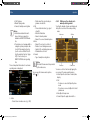
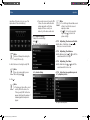
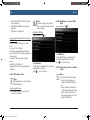
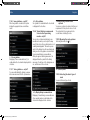
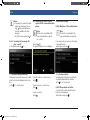
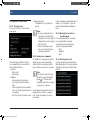
ff Tap the desired destination to start route
guidance.
Notes:
ff If the address that was stored as a
favourite is ambiguous, a list of
possible destinations is displayed.
Tap the desired item to start route
guidance to the respective destination.
ff Tap for an item to view the details
for the respective destination
before starting route guidance (see
the section entitled “Location
details view” (page 37)).
en | 37
7.3 Location details view
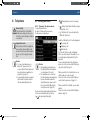
For the following locations or destinations you
can display a details view:
ff Points of interest
ff Previous destinations
ff Favourites
ff New destinations
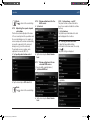
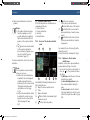
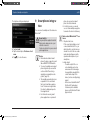
7.3.1 Areas of the location details
view
45
46
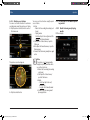
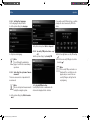
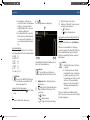
You can adjust the size of the map ] and the
information area b:
ff Touch the slider a and swipe left or right.
47
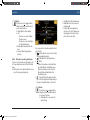
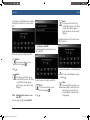
The system calculates the route to the selected
destination.
Note:
If a route guidance session is already
active, you can choose
ff whether the current destination or,
if applicable, the current waypoint
should be replaced by the new
destination (see the section entitled
“Changing the destination while
route guidance is active” (page
39)) or
ff whether the new destination should
be added to the current route as a
waypoint (see the section entitled
“Entering a waypoint” (page
38)).
BA_Suzuki_SLN_GEX_IN_en_nonRDS.indd 37
52
51
50
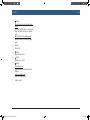
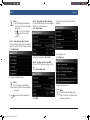
button: Save as favourite
If the location is already a favourite:
button: Edit the name of the favourite
f
button: Delete the location (only for
previous destinations, favourites or waypoints)
g
button: Delete all locations of the list
(either previous destinations, favourites
or waypoints)
e
49
48
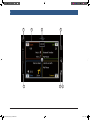
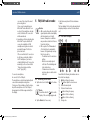
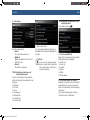
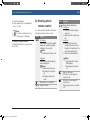
You will find the following information and controls in the details view:
] Map of the area around the location
a Slider
b Address information
c
button: Call the stored number (only if
a number is stored)
d
button: Start route guidance
7.3.2 Options in the location
details view
In addition, you have these options available to
you (depending on the type of location):
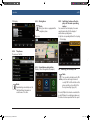
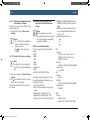
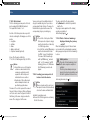
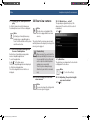
ff You can store a location in your favourites. To
do so, tap
e. Then you have the following options:
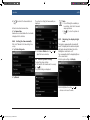
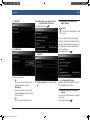
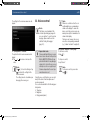
–– Tap Edit name to edit the name of the new
favourite before saving it.
–– Tap Save with displayed name to save
the new favourite without editing the
name.
–– Tap Save as home to store the favourite
as the home address (see also the section
entitled “Storing the home address” (page
38)).
01.04.15 09:23