1
Extended device functions
5.1 Monitoring functions
5.1.2
Temperature monitoring/display
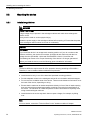
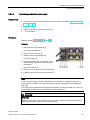
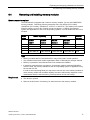
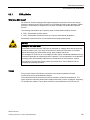
Three temperature sensors monitor the temperature of the device at several positions:
● Processor temperature
● Temperature close to the RAM ICs/chips
● Temperature of the basic module
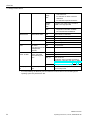
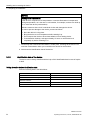
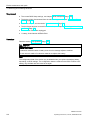
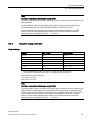
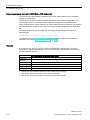
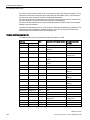
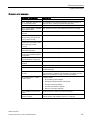
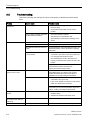
A temperature error is triggered when one of the three temperature values exceeds the set
temperature threshold and the following reaction is initiated:
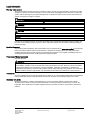
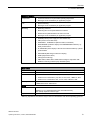
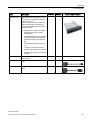
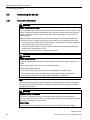
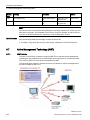
Reaction
Option
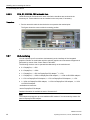
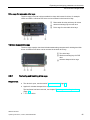
"Temp" LED lit red.
None
Device fan at maximum speed. The power supply unit fan is controlled by the
power supply unit.
None
The DiagBase or DiagMonitor software alerts the user.
None
The temperature error is retained in memory until temperatures have fallen below the
thresholds and it is reset by one of the following measures:
● Acknowledgment of the error message by the monitoring software
● Restart of the device
5.1.3
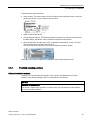
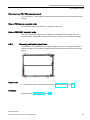
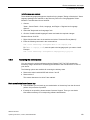
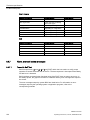
Watchdog (WD) with LED
Function
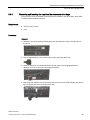
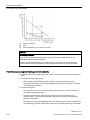
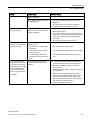
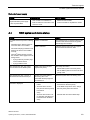
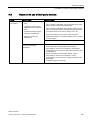
The watchdog is able to monitor program runtime and informs the user about the different
reactions that are triggered if the user program does not respond to the watchdog within the
specified monitoring time.
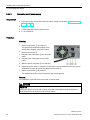
The watchdog is in idle state during power on of the device, or after a HW-RESET (cold
restart). A WD reaction is not triggered while it is in idle state. However, an active watchdog
interrupt remains after a restart and its active state is still indicated by the LED.
SIMATIC IPC647D
62
Operating Instructions, 01/2015, A5E32996306-AB