1
Using video clips
Lynx enables you to incorporate video clips into your lessons. You can also have a live video
source enabling you to have a live web cam link up.
To insert a video clip:
•
•
•
•
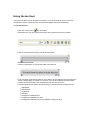
Click Insert | Video clip.
Browse for the location of the clip and click the Open button.
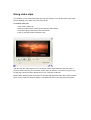
The video clip is inserted into your lesson book.
Click on the play button to watch the clip.
This will copy the video clip into your Lynx lesson, which will increase the size of the file. If
you don't want to do this, you can select "Insert Video as shortcut". This will not copy the clip,
but will play it from its location elsewhere on your computer or network.
NOTE: When inserting video as a shortcut, the video file must be present at the same location
when you try to play it in Delivery Mode. If it is deleted or moved, the clip cannot be played.