1
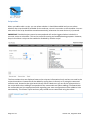
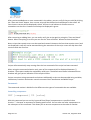
Script management xxter scripts can be created and updated using the xxter editor. This editor can be found in the project configuration of “My xxter”. Select the project for which you want to manage the scripts and select “Scripts” in the menu bar. All existing scripts will be shown here and can be edited and deleted. Important: When you add or edit a script, this has to be loaded onto the xxter device before it can be used. Whenever a change has been made, you can see the text “Project has changed” at the top right hand corner. When you click on this and subsequently on “Push configuration to xxter device”, the device will download the new configuration. This feature can only be used when xxter is configured for use outside (see chapter 13 of the installation manual). Alternatively you can reload the profile using the app (see chapter 11 of the user manual). Of course you can also reload the profile from the xxter device itself, by logging onto the device and clicking the button “Load configuration” at the top left hand corner in the menu. When you are logged in on the device, you can see the loaded scripts by clicking the “Scripts” option in the menu. Here a script can also be manually started, restarted or stopped for testing purposes.
Page 3 of 15 Version 3.0, Augustus 2015