Transcript
“Numock-Commander” driver from the “Genovation Products CDROM” that was included with the keypad. Once installed, it will block
the keypad Num-Lock key from affecting your laptops keyboard.
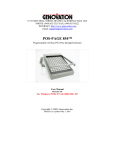
MICROPAD 630
USB & PS/2 Compatible
Introduction
The Micropad 630 is designed to connect to any standard USB (1.0 to 2.0)
port or any PS/2 compatible keyboard port. It features fast installation,
convenience and timesaving advantages.
Features
• USB (1.0 & 2.0) Uses standard MS Windows USB HID drivers.
• Includes USB to PS/2 plug to connect with PS/2 keyboard port.
• 21 keys (Standard numeric keypad)
• Includes “Back-Space”, “Esc”, “TAB”, and “\” keys
System Requirements
The Micropad 630 requires a computer with either one available USB
port, or a standard PS/2 keyboard port, and requires an MS Windows
operating system that supports USB
Installation
If you have not previously used the USB port on your computer, turn off
the computer and plug the 630 into the USB port. Turn the computer on
and Windows will automatically sense the presence of the USB keypad
and will automatically install the built-in Windows software driver.
Thereafter, you may "hot" connect the keypad at any time and the
computer should immediately recognize the presence of the keypad. You
may also use the USB to PS/2 plug to connect to a standard PS/2 keyboard
port. The PC must be “OFF” when connecting to a PS/2 port, then
powered “ON”. The PC will recognize the PS/2 keypad and function
without drivers.
If Win 95 does not recognize the USB keypad, most likely, you will need
to upgrade to Win 95 version 2.1 or higher (must say 'With USB Support'
on the CD) or to Windows 98, Windows 2000 or XP. Currently, Windows
NT version 4 does not support any USB devices.
The Num-Lock key on the keypad controls whether the keypad outputs
numbers or cursors keys. On some laptop computers, Microsoft Windows
causes the Num-Lock key on the keypad to invert the numeric key cluster
imbedded in the main laptop keyboard. To correct this condition, install the
WARRANTY REPAIR SERVICE AND LICENSE
Genovation, Incorporated ("Genovation") warrants this product to be in good
working order and free from defects in materials and workmanship under
normal use for a period of one year from the date of purchase. Any abuse
including opening the case will void the warranty. Your sole remedy and
Genovation's entire liability for this product will be repair or replacement as
provided for above, or at Genovation's option, the refund of your purchase
price. A RETURN MATERIAL AUTHORIZATION (RMA) number is
required before returning a product. Please contact Customer Service for
instructions and shipping cost before returning any product. Returns
without an RMA will be returned unopened.
FCC CERTIFICATION: The USB Micropad has been certified to comply
with FCC and other test standards. See label on the product for confirmation.
FCC CERTIFICATION REQUIRED STATEMENT WARNING: This
equipment has been certified to comply with the limits for a Class B
Computing Device, pursuant to Subpart J of Part 15 of the FCC rules. Only
peripherals (computer, computer input/output devices, terminals, printers, etc.)
certified to comply with the Class B limits may be attached to this device.
Operation with non-certified peripherals is likely to result in interference to
radio and TV reception.
NOTE: This equipment generates and uses radio frequency energy
and if not installed and used properly, that is, in strict accordance with
the manufacturer's instructions, may cause interference to radio and
television reception. It has been type tested and found to comply with
the limits for Class B computing devices in accordance with the
specifications in Subpart J of part 15 of the FCC Rules, which are
designed to provide reasonable protection against such interference in
a particular installation. If this equipment does cause interference to
radio or television reception, which can be determined by turning the
equipment off or on, the user is encouraged to try to correct the
interference by one or more of the following measures:
* Reorient the receiving antennas
* Relocate the computer with respect to the receiver
* Move the computer away from the receiver
* Plug the computer and receiver into different circuits
If necessary, the user should consult the dealer or an experienced
radio/television technician for additional suggestions. The user may find
the following booklet prepared by the Federal Communications
Commission helpful:
“How to identify and Resolve Radio-TV
Interference Problems". This booklet is available from the U.S.
Government Printing Office, Washington, DC 20402.