1
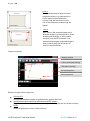
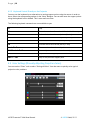
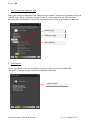
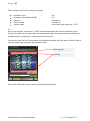
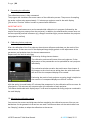
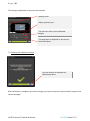
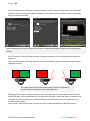
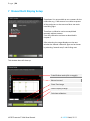
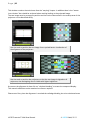
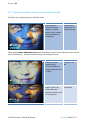
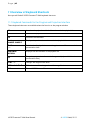
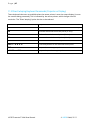
P a g e | 18 4.2.3 Keyboard Control Directly on the Projector You may use the keyboard as an alternative to moving support points using the mouse. In order to do so, select the corresponding options in the “Warp” dialogue. You can also move the support points using the keyboard in this window. This is even more accurate. The following keyboard commands are now available to you: F1 Help F2 Shows the user interface when hidden behind the output F5 Reduce the horizontal control points (X-axis) F6 Increase the horizontal control points (X-axis) F7 Reduce the vertical control points (Y-axis) F8 Increase the vertical control points (Y-axis) Fine-tune the selected control point SHIFT + Coarse adjustment of the selected control point TAB Jump to the next support point SHIFT + TAB Jump to the previous support point 4.3 Color Settings (Manually Adjusting Projection Colors) You can use the “Colors” tool or select “SettingsColors” from the menu to quickly solve typical projection color problems: VIOSO Presenter™ Multi User Manual © VIOSO GmbH, 2011