1
Departments & Employees
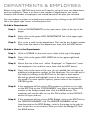
Before using your CB1500 time clock, we’ll need to set up at least one department
and one employee. There is no limit to the number of departments you setup however, the number of employees are limited based off the plan you selected.
You can update your plan to include more employees by clicking on the ACCOUNT
link in the upper-right corner of trackmytime.com
To Add a Department:
Step 1:Click on DEPARTMENTS on the main menu. (tabs at the top of the
page)
Step 2:Next, click on the green ADD DEPARTMENT link in the upper-right
hand corner
Step 3:First, enter a code for the department. This can be any 3-digit number.
Next, enter the name of the department, then click the ADD button.
To Add a User to the Department:
Step 1: Click on USERS on the main menu. (tabs at the top of the page)
Step 2:Next, click on the green ADD USER link in the upper-right hand
corner
Step 3:Select the role of the user - either “Employee” or “Supervisor”, enter
the employee’s first and last name, then click the ADD button.
Step 4:Next, click on the name of the user you just added, this will open up
additional configuration options for the employee. You can edit any of
the fields by clicking on the EDIT link to the right of each option. We will go ahead and highlight some of the most used options in
this guide. For more specific options, please refer to the complete
CB1500 guide.
Step 5:If this employee will be using a PIN number to clock in or out, click
on the EDIT link on the “PIN NUMBER” row. Enter the desired PIN
number in the field provided, then click the SAVE button. The employee will now be able to use this PIN number on the CB1500
device to log in and out.
Step 6:If this employee will be using a RFID Badge, click on the EDIT link on
the “BADGE NUMBER” row. The BADGE NUMBER can be found printed on the RFID Badge - refer to the image to the right to
best locate this set of numbers. After you enter the Badge ID, click the SAVE button.