1
MT PLAYER SETTINGS
The first time you use the MPD32 in MT Player, you will need to setup the
MPD32’s ports. You are prompted to do this as soon as a Preset is selected
in MT Player. However, if you bypass those prompts, you can access the
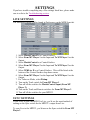
settings by right-clicking on MT Player and selecting MIDI Settings.
1. From the Port Name menu, select “IN: MPD32”.
2. From the MIDI In port menu, select your MPD32’s first port and click
OK.
3. Click the Restart button.
You can learn more about MT Player in the MT Player section.
NOTE: It is recommended that you launch MT Player, select a Preset and
then launch Live. If Live is already running when you select or Restart a
Preset, it is recommended that you enter, then exit MIDI mapping mode
after selecting the Preset to re-initialize.
MPD32 SETTINGS
You need to have the NPK II preset loaded on your MPD32 in order to use
NPKLive II. You are prompted to transfer and save this preset to your
MPD32 during install.
If you skip that step and/or overwrite the NPK II preset, you can retransfer it
using Vyzex MPD32. The Vyzex preset (*.sqs file) can be found in:
On Windows, My Documents\Bome’s Midi Translator\Player.
On OS X, (your name)\Bome’s Midi Translator\Player.
You also need to have your MPD32 set to Common Channel 1A. You can
check/change this in the MPD32’s Global menu.
USING OTHER MPD32 PRESETS
You can use other MPD32 presets while NPKLive II is running. However,
your other presets should not use:
- Any MIDI messages on MIDI Channel 16A.
- CCs 26-27 or 115-119 on any MIDI Channel.
2