1
FIREWIRE CARD
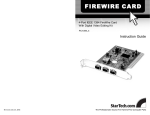
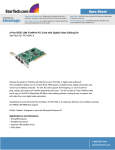
Low-Profile 2-port IEEE 1394 FireWire
PCI Card with Video Editing Software
PCI1394_2LP
Instruction Guide
* Actual product may vary from photo
The Professionals’ Source For Hard-to-Find Computer Parts
FCC COMPLIANCE STATEMENT
This equipment has been tested and found to comply with the limits for a Class B
digital device, pursuant to part 15 of the FCC Rules. These limits are designed to
provide reasonable protection against harmful interference in a residential installation.
This equipment generates, uses and can radiate radio frequency energy and, if not
installed and used in accordance with the instructions, may cause harmful interference
to radio communications. However, there is no guarantee that interference will not
occur in a particular installation. If this equipment does cause harmful interference to
radio or television reception, which can be determined by turning the equipment off
and on, the user is encouraged to try to correct the interference by one or more of the
following measures:
• Reorient or relocate the receiving antenna.
• Increase the separation between the equipment and receiver.
• Connect the equipment into an outlet on a circuit different from that to which the
receiver is connected.
• Consult the dealer or an experienced radio/TV technician for help.
1
Table of Contents
Introduction . . . . . . . . . . . . . . . . . . . . . . . . . . . . . . . . . . . . . . . . . . . . . . . . . . . . . . . . . . 2
Installation . . . . . . . . . . . . . . . . . . . . . . . . . . . . . . . . . . . . . . . . . . . . . . . . . . . . . . . . . . . 3
Installing Your Ulead VideoStudio SE Software . . . . . . . . . . . . . . . . . . . . . . . . . . .5
Specifications . . . . . . . . . . . . . . . . . . . . . . . . . . . . . . . . . . . . . . . . . . . . . . . . . . . . . . . . . .6
Technical Support . . . . . . . . . . . . . . . . . . . . . . . . . . . . . . . . . . . . . . . . . . . . . . . . . . . . . .7
Warranty Information . . . . . . . . . . . . . . . . . . . . . . . . . . . . . . . . . . . . . . . . . . . . . . . . . .7
2
Introduction
Thank you for purchasing a StarTech.com FireWire PCI card and digital video editing kit.
This low profile, two-port card allows you to instantly connect your video camera, image
scanner, digital still camera, or any other IEEE 1394 FireWire device to your PC. And
with the Ulead VideoStudio digital editing software included in this kit, you can create
and edit your home movie masterpieces with ease.
Features
• Compatible with most digital video camcorders including Sony, Canon, Panasonic,
JVC, Samsung, and many others
• Supports hard disk drives, DVD drives, CD-R/RW drives, printers, etc.
• Data transfer rates of up to 400 Mbits/sec
• Allows easy connection of internal and external FireWire peripherals
• Backed by StarTech.com’s limited lifetime warranty
Before You Begin
To ensure a quick and easy FireWire PCI card installation, please read through this
section carefully before attempting to install the card.
System Requirements
• An IBM-PC compatible computer running Windows XP/2000/ME/98SE
• One open PCI slot (must be low profile)
Ulead VideoStudio SE Recommendations for Digital Video:
• Pentium III (800 MHz or above) processor with 256 MB of RAM (512+ MB
recommended)
• 600 MB available hard drive space for program installation, 4+ GB additional
available hard drive space for video capture and editing
• Display system capable of 1024 x 768 resolution, DirectX version 9 (or higher)
WARNING! PCI cards, like all computer equipment, can be severely damaged by static
electricity. Be sure that you are properly grounded before opening your computer case or
touching your PCI card. StarTech.com recommends that you wear an anti-static strap
when installing any computer component. If an anti-static strap is unavailable, discharge
yourself of any static electricity build-up by touching a large grounded metal surface
(such as the computer case) for several seconds. Also be careful to handle the PCI card by
its edges and not the gold connectors.
3
Contents
• 1 x 2-port low profile FireWire card
• 1 x 4-6 pin IEEE 1394 FireWire cable
• 1 x Ulead VideoStudio SE editing software CD
Installation
This section will guide you through the installation of your FireWire PCI card and Ulead
VideoStudio editing software. Please read through the instructions carefully and
complete each step in the order listed.
Installing the Card
1. Make sure that your system is unplugged and you are grounded.
2. Remove the cover of your system (see your computer’s user manual for details, if
necessary) and gently turn your computer onto its side.
3. Locate an empty low profile PCI slot (usually white in color) and remove the metal
plate that covers the rear bracket. You may need a screwdriver to perform
this step. Retain the screw! You will need it to secure the card later.
4. Gently insert the FireWire card into the empty slot, making sure it is firmly seated.
5. Secure the card in place using the screw you removed in Step 3, if used.
6. Put the computer case back on.
Installing the Drivers
Once you have connected your FireWire card, the next time you turn on your computer
Windows will automatically detect that you have installed new hardware. Follow the
instructions below to install the required software drivers. Depending on your operating
system and the configuration of your system, the instructions you see on your screen
may not be identical to the instructions below.
Windows XP/2000
Windows will automatically detect the new device and install the drivers automatically.
To verify that the FireWire card has been properly installed, choose the following:
1. Click Start.
2. Right-click My Computer and choose Properties by highlighting it and left-clicking
once.
3. Click the Hardware tab, and then click Device Manager.
4. Look for IEEE 1394 Bus host controllers category. Click the + symbol next to the
name.
4
5. If VIA OHCI Compliant IEEE 1394 Host Controller appears without an exclamation
mark or other warnings, the card is installed correctly.
Windows ME
1. Windows should automatically detect the new hardware. At the Add New Hardware
Wizard window, click Next.
2. Select “Search for the best driver for your devices (Recommended)” and click Next.
3. Insert your Windows ME CD into your computer’s CD-ROM drive. Select “CD-ROM
drivers” and click Next.
4. Click Finish.
5. Remove the CD and select Yes to restart your computer.
To verify that the FireWire card has been properly installed, choose the following:
1. Click Start.
2. Right-click My Computer and choose Properties by highlighting it and left-clicking
once.
3. Click Device Manager.
4. Look for 1394 Bus Controller category. Click the + symbol next to the
name.
5. If VIA OHCI Compliant IEEE 1394 Host Controller appears without an exclamation
mark or other warnings, the card is installed correctly.
Windows 98SE (Second Edition)
1. Windows should automatically detect the new hardware. At the Add New Hardware
Wizard window, click Next.
2. Select “Search for the best driver for your devices (Recommended)” and click Next.
3. Insert the Windows 98SE CD-ROM and check the “CD-ROM drive” option. Click
Next.
4. Choose “The Updated Driver (Recommended)” and click Next.
5. Click Next again. If prompted for the Windows CD again, type “x:\win98” and click
OK where “x:” is the drive letter assigned to your CD-ROM drive.
6. Click Next, then Finish to complete the driver installation.
7. If prompted, remove the Windows CD from the drive and click Yes to restart.
To verify that the FireWire card has been properly installed, choose the following:
5
1. Click Start, Settings, Control Panel.
2. Double click System and choose the Device Manager tab by highlighting it and
clicking it once.
3. Look for 1394 Bus Controller category. Click the + symbol next to the
name.
4. If VIA OHCI Compliant IEEE 1394 Host Controller appears without an exclamation
mark or other warnings, the card is installed correctly.
Installing Your Ulead VideoStudio SE Software
For detailed instructions on the installation and use of the digital editing software,
consult the Ulead VideoStudio manual available on the CD. From the VideoStudio CD
setup screen click Browse CD then open the Document and Manual folders and select
your language (Note: To view the manual, you will need Adobe Acrobat Reader, which
you can download from the Install Drivers menu on the CD). StarTech.com recommends
carefully reading the instructions supplied by Ulead before attempting to install or use
the software.
1. Insert the VideoStudio CD into your computer’s CD drive. The setup screen should
appear automatically. If the screen does not appear, run the CD manually by doubleclicking on My Computer then double-clicking the CD icon.
2. Click on Install and follow the installation instructions.
3. Follow the on-screen instructions.
6
Specifications
Bus Interface
PCI with Power Management
Form Factor
Low profile
Transfer Rate
100/200/400 Mbits/sec.
Protocols
Asynchronous and Isochronous data transfer
Real-time digital applications (digital video)
Non real-time (printers, scanners)
Hot-plug devices supported
Serial Bus
3-port PHY layer connector and interface
Maximum of 63 device connections via daisy chain
Maximum device cable length: 14.5 ft. (4.5 m)
Connectors
2 x External 6-pin FireWire Female
1 x Internal 6-pin FireWire Female
Software Included
Ulead VideoStudio SE
OS Support
Windows XP/2000/ME/98SE
Warranty
Limited Lifetime
7
Technical Support
The following technical resources are available for this StarTech.com product:
On-line help:
We are constantly adding new information to the Tech Support section of our web site. To
access this page, click the Tech Support link on our homepage, www.startech.com. In the
tech support section there are a number of options that can provide assistance with this
product.
Knowledge Base - This tool allows you to search for answers to common issues using
key words that describe the product and your issue.
FAQ - This tool provides quick answers to the top questions asked by our customers.
Downloads - This selection takes you to our driver download page where you can
find the latest drivers for this product.
Call StarTech.com tech support for help:
USA/Canada: 1-800-265-1844
UK/Ireland/Europe: 00-800-7827-8324
Support hours: Monday to Friday 9:00AM to 5:00PM EST (except holidays)
Warranty Information
This product is backed by a lifetime warranty. In addition, StarTech.com warrants its
products against defects in materials and workmanship for the periods noted,
following the initial date of purchase. During this period, the products may be
returned for repair, or replacement with equivalent products at our discretion. The
warranty covers parts and labor costs only. StarTech.com does not warrant its products
from defects or damages arising from misuse, abuse, alteration, or normal wear and
tear.
Limitation of Liability
In no event shall the liability of StarTech.com Ltd. and StarTech.com USA LLP (or their
officers, directors, employees or agents) for any damages (whether direct or indirect,
special, punitive, incidental, consequential, or otherwise), loss of profits, loss of business,
or any pecuniary loss, arising out of or related to the use of the product exceed the actual
price paid for the product.
Some states do not allow the exclusion or limitation of incidental or consequential
damages. If such laws apply, the limitations or exclusions contained in this statement
may not apply to you.
Revised: May 19, 2004