1
Using PedCath Page 18 of 32
Diagram Manager
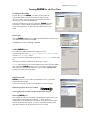
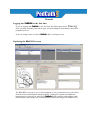
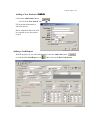
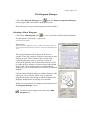
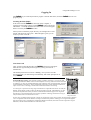
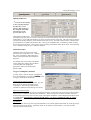
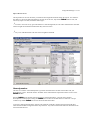
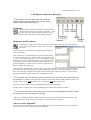
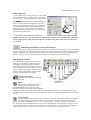
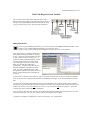
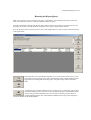
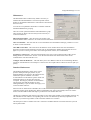
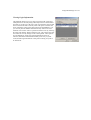
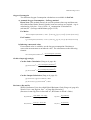
To access the diagram manager, press F6,
select “Diagram Manager…” from the Report
menu, or click on the Diagram Manager
button in the upper right of the edit screen.
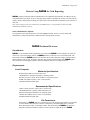
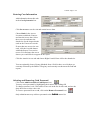
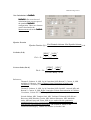
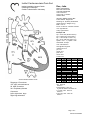
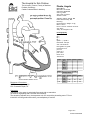
In the Report Diagrams selection box in the upper left
of this window, you may select the diagram you wish to
view. A preview will appear on the right. Each
diagram may be associated with between zero and four
hemodynamic sets. Click the check boxes of the hemo
sets which you would like to associate with each
diagram. To remove a diagram, click the button
marked with an “X.” To add a new diagram, click on
the Add Diagram button, the button marked with a
folder on the far left of the toolbar.
Adding Diagrams
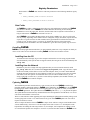
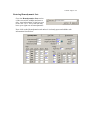
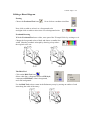
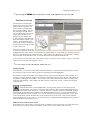
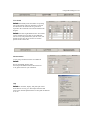
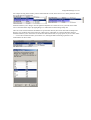
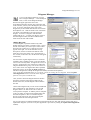
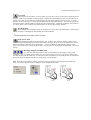
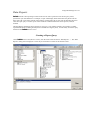
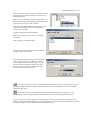
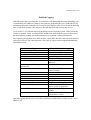
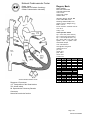
To add a diagram, expand the folder list by either
double-clicking on a folder or clicking on the + sign to
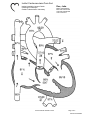
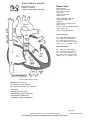
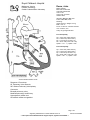
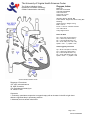
the left of the folder you wish to open. Select a heart
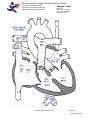
description by clicking on it; a small preview will
appear on the right. To see the full name of long
descriptions, use the scroll bar at the bottom of the
folder list or leave the mouse over a description for a
few seconds; in the latter case, the full name will appear
momentarily.
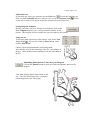
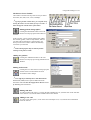
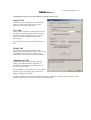
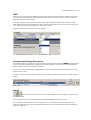
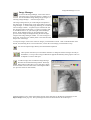
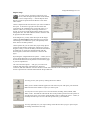
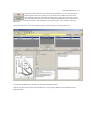
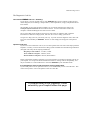
For most of the original diagrams there are variations
available (such as adding an LSVC to the Left Atrium,
LSVC to the Coronary Sinus, or Right Aortic Arch). To
choose a variation select one of the choices within the
Diagram Modifications group. You can also choose to
use a wider version of a diagram that shows expanded
pulmonary arteries, by clicking the Wide version box.
The Mirror diagram box will flip the diagram horizontally for Dextrocardia patients.
(Note: If the diagram modifications are greyed out, you may be missing the new diagrams. Click the Update
Atlas/Supplement button to install the latest diagrams
from the web or from a PedCath CD).
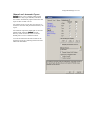
Once you have chosen the diagram that best matches
the patient, click the Select Diagram button at the
bottom of the form, and the diagram will be added to
the cath.
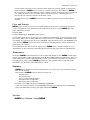
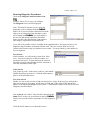
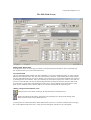
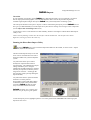
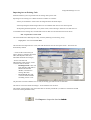
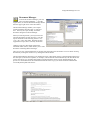
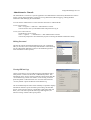
On the Other Diagrams tab you can create an additional
atlas of diagrams for your institution. You can add
diagrams to the User Atlas from a file or from the
current patient’s template. To add the patient’s template
to the User Atlas, click the Load Template button and
then Add Template to Atlas. To load the template
directly to the cath report, click the Load Template
button and then the Select Diagram button.
We provide an atlas of supplemental diagrams preloaded into the user atlas, that includes surgical and device
implantation diagrams. (You can see if your supplement is up to date by running the Update Atlas/Supplement
module).