1
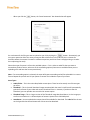
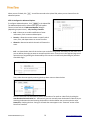
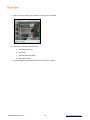
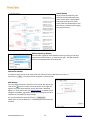
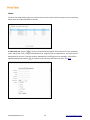
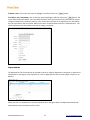
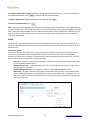
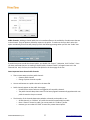
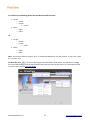
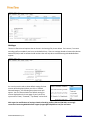
When you click on a Role, you will automatically see the Role Details on the right side of the screen, as shown above. You can change any role details in this interface. To change a Role’s settings, make the appropriate changes in the interface shown above, then click save the changes. PrimeTime gives you control over the following attributes of a Role: to Make the user a system administrator by checking the box next to “System Administration.” Give the user content management privileges by checking the box next to “Content Management.” Give the user access to reports by selecting from the drop-down menu, as shown to the right. The user can be given the option to view reports on all assets, only his or her own assets, departmental assets, or no assets at all. Give the user channel management capabilities by checking the box next to “Channel Management.” Select level of content creation permissions. Note, if you select “Approval Required” for a user, that user’s content will require approval from an administrator prior to being published on the system. To delete a Role, highlight the Role name and click . To create a new Role, click . A blank “Role Details” form will appear on the right side of the screen. Enter the information for the new role and click when you are done. Channels The Channel Tab, shown below, gives you the ability to add, edit, or delete channels. Channels are a way to easily group content by subject. Administrators can create channels as they are needed and they will show up in the Channel Selection box on the main PrimeTime interface. ©2010 MediaPlatform, Inc. 21 www.mediaplatform.com