1
SIMPROCESS and Dispatcher
4.1.3.2 RegistryServiceInstall.bat
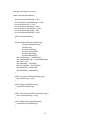
This batch file executes the RegistryService.exe program and passes parameters that will
cause it to install a Service named “SIMPROCESS RegistryService” that will start
automatically each time your system starts up. As initially provided by the installer, it
will only work correctly when run from the dispatcher directory of SIMPROCESS. To
install RegistryServer as a Service on another Windows system, this file must be edited.
The seven steps defined in comments in the original will serve as the basis for explaining
what changes must be made there.
• Steps 1 and 2 are used in the installed SIMPROCESS setting to obtain the
complete directory name where SIMPROCESS was installed. These can be
removed in a copy to be used on another system. Alternatively, you can change
either or both of them to provide information required in later steps.
• Step 3 sets the variable JVMLoc to the complete path of a file named jvm.dll
included with the JRE for running RegistryServer. For the modified copy of this
file, change this line to provide the full path to that file in the JRE to be used. For
example, if the system contains Oracle’s Java Plug-in for use with applets in web
browsers, there will be a JRE included in it. The complete path on a typical
system might be C:\Program Files\Java\jre7\bin\client\jvm.dll. It’s also
important to note that a path containing spaces (like this one does) must be
enclosed in quotes. So the resulting line might look like this:
set JVMLoc="C:\Program Files\Java\jre7\bin\client\jvm.dll"
•
Step 4 sets the variable WorkDir to the path of the “working directory” where
RegistryServer will run. This will allow it to find its registry.properties file, and
is where its log and error files will be created (named DispatcherRegistry.log and
DispatcherRegistry.err). Just as with JVMLoc, this requires quotes if any spaces
appear in the name (they are allowed even if there are no spaces). The directory
can be any place you choose, so the command might look like this:
set WorkDir="D:\work\registryserver"
•
•
The remaining steps must not be changed. Note Step 6, however, which actually
installs the new Service using the name “SIMPROCESS RegistryServer.” If no
problem occurs, the system will display a message saying that the installation of
the new Service was successful. Step 7 then reminds you that the newly installed
Service must be started, or that it will start automatically upon restarting your
system.
To start the new Service once installation is accomplished, you can go to the
Windows Control Panel and select Administrative Tools, then Services. Select
the Service to start or stop it as needed.
4.1.3.3 RegistryServiceUninstall.bat
This batch file uninstalls the Windows Service named “SIMPROCESS RegistryService.”
It will fail if the Service is currently running. No changes to this file will be required. It
must reside in the same directory with RegistryService.exe.
5