1
Appendix C: FAQs
SIM (simulation) MODE
1.
What is SIM mode and why it is required?
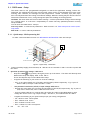
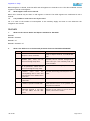
Simulation mode is provided for the purpose of demonstration of the features of the meter and in exhibition
displays. In this mode user can see the functioning of the meter without any input signals, meter shows
fixed Frequency, voltage and current and 0.5PF. Power and Energy parameters calculated based on this V
(240VLN), A (5000A) and PF (-0.5) are displayed.
2.
How to enter into SIM mode for Demo?
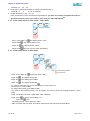
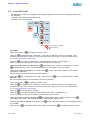
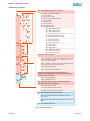
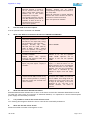
Power up the meter with left key pressed, it will go to “RUN”. Press the down key to go to “SIM”. Now press
the right key, the display shows “RMS SIM”. Press the right key to continue with navigation like normal
mode.
3.
How to come out of SIM mode?
Please follow the steps below:
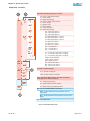
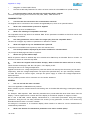
1.) Move to the home page “RMS” by pressing the TURBO key (Earlier called as
Favourite key) repeatedly (depends on the models, up to 16 times in super set)
2.) Press “LEFT” key once to see “SIM”.
3.) Press “UP” key, “RUN” is displayed.
4.) Now, press the right key the display shows “RMS” indicating exit from “SIM”
mode.
NOTE: The mode can be changed only through the PROG Menu. Switching off will not change the mode,
since switching off is often used to show the incrementing “Number of Interruptions” in the Integrator.
4.
How to confirm whether the meter is in SIM or RUN mode?
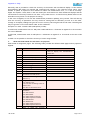
In the SIM mode, meter does not display the actual value. It always displays fixed unchanging values.
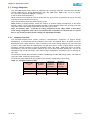
Example: V= 415VLL, 240VLN, A=5000A, PF =-0.5, Frequency= 50Hz and the Power and Energy parameters
are derived from this.
In the RUN (normal) mode meter displays the actual measured values based on the input signals.
5.
Is it possible to edit set parameters in SIM mode? Will this affect the displayed values in SIM
mode?
Yes the setup can be edited in SIM mode and the values displayed in SIM mode are updated as per the
edited setup.
AUTO SCROLL
1.
How to enable the auto scroll?
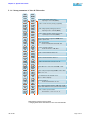
There are 3 modes of auto scroll.
1.) Scrolling with in the level.
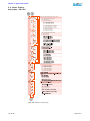
Keep pressing the down key for at least 3 seconds, the parameter name will be scrolled within the level (Refer
QSG) and when the key is released meter will display “Auto” for a moment, which means the auto scrolling is
enabled.
2.) Scrolling within the page.
Keep pressing the UP key for at least 3 seconds, the parameter name will be scrolled within the page and when
the key is released meter will display “Auto” for a moment, which means the auto scrolling is enabled. Here
also the auto scroll is similar to the earlier one (down key). But within the page.
3.) TURBO Parameters (Favourite pages earlier) auto scroll
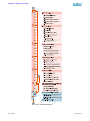
Keep pressing the TURBO key (Earlier called FAVOURITE key) for at least 3 seconds, the parameter name will
be scrolled as per the FAVOURITE page sequence (ref QSG) and when the key is released “Auto” will be
displayed for a moment, which means the auto scroll of the TURBO parameters is enabled. It will start scrolling
through the all the TURBO parameters.
v03.03.d05
Page 67 of 77