1
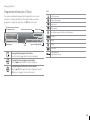
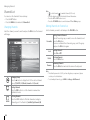
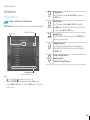
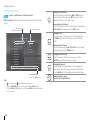
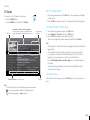
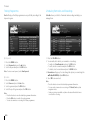
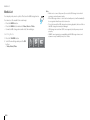
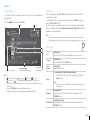
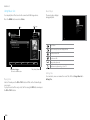
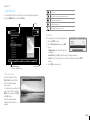
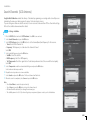
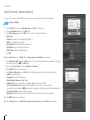
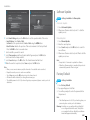
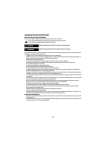
Media List Using Video List Playing Files You can play TV/radio recordings or video files stored in the connected USB storage device. Select a file and press the OK or PLAY button. Playback will start from the recently viewed point. To play multiple files successively, select the files using the RED button and press the OK or PLAY button. You can perform rewind, fast forward, slow motion and pause while playing back a recorded file. Refer to Recording and Playback > Playback for details on playback control and playbar. AD Press the MENU button and select Video. Storage Path AD Media - Video Free storage 155.8 GB available Upper Folder AD Note: • You will be prompted to enter the password when you play the locked files. • Some playback control buttons may not function depending on the contents. OPT+ File(s) Editing Files min. min. AD Sort Sorting Files You can sort the video files in alphabetical or time order. Delete Deleting Files Select Yes and press the OK button. Lock Unlock Locking Files Enter the password. min. Unselect New recorded file Note: • Release All Media Storage Function buttons: Coloured or OPT+ button Function Playing file Recording file : Recording icon, : Playing icon, : HD icon, AD: CAS icon, : Lock icon, : DRM (Digital Rights Management) expiration icon • Make sure that the USB storage device is connected correctly before using AD Media List. • Press the YELLOW button to switch the media type. AD to view the detailed programme information. • Press the i button Move Moving the files within the same storage: Select the folder you want to move the files to and press the OK button. Note: • When you move a locked file, you will be prompted to enter the password. Rename Renaming Files Enter the name of the file in the keyboard and press the YELLOW button. New Folder Creating New Folder Enter the name of new folder in the keyboard and press the YELLOW button. GB19