1
User Manual 3DimMaker
Revision 1.1
7. Printing a G-code
Once you have a G-code generated for printing and have loaded the material into the printer, you
can start printing. The printer does not begin printing immediately, because at the start, it needs to
cross to the initial position and heat the extruder and print bed to the working temperature. The
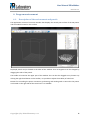
print progress and estimated time till completion are continuously updated in the progress indicator
on the status bar in the lower left part of the application window. Similarly, the display of the
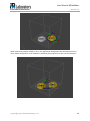
currently printed part of the model is continuously updated in the 3D window.
Printing in progress can be paused, usually for the purpose of replacing the material, and can be
stopped completely if necessary. If the application crashes during printing or a similar error state
arises, the application can offer the user to resume printing from the last recorded position. Since the
printer contains its own cache, the last recorded position may not correspond exactly to the actual
end of printing. Furthermore, the printer will need to calibrate at least the X and Y axes in order to
continue printing. Therefore, we recommend only using this function in an emergency.
7.1.
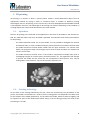
Loading the material
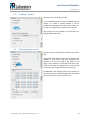
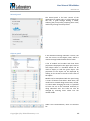
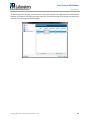
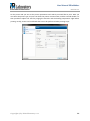
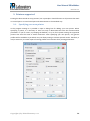
You can find the wizard for loading the material in the manual control panel. Once the dialog box
opens, the associated extruder immediately starts to heat up to the temperature entered in the
program settings. While it is heating up, you can disconnect the guiding tube from the extruder head,
cut off the old material, and pull a new tube through in its place. Once the required extruder
temperature is reached, click the Load material button, and the printer will start to push the heated
material thorough the head. Push a new filament with material into the extruder head. After loading
the material, click the Load material button again to turn of the extruder motor and insert the
guiding tube back into the head.
7.2.
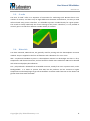
Material management
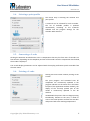
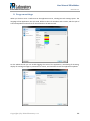
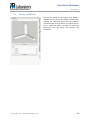
To make it easier to manage printing materials, the application makes it possible to enter material
packs in the program settings along with information on their lengths. If you then select the
Copyright © by 3Dim laboratory s.r.o.
20