1
4. Select From MT Player 1 as the Input and To MT Player 1 as the
Output.
5. Select MackieControl as a Control Surface.
6. Select From MT Player 2 as the Input and To MT Player 2 as the
Output.
7. Select APC40-DR as a Control Surface. This will be listed at the
bottom of the Control Surface drop-down menu.
8. Select From MT Player 1 as the Input.
9. Activate the Track and Remote switches for From MT Player 1.
10. Activate the Remote switch for APC40 Output (To MT Player 1).
NOTE: For the most part, the order in which you set up the Control
Surfaces doesn’t matter. However, the APC40 entry needs to be above the
APC40-DR entry.
Also, it is recommended that you launch MT Player, select a Preset and then
launch Live. If Live is already running when you select or Restart a Preset,
it is recommended that you enter, then exit MIDI mapping mode after
selecting the Preset to re-initialize.
GENERAL OVERVIEW
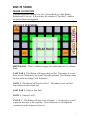
This Preset offers 4 Modes for the APC40’s Clip Launch Buttons. These
Modes can be switched between by holding down Shift and using the first 4
Clip Stop Buttons. Also, when Shift is depressed, the first 4 Clip Stop
Button LEDs will indicate the currently selected Mode.
NOTE: All of the APC40’s other controls perform their default function in
every Mode with the following exceptions:
MUTE/SOLO BUTTONS – These Buttons provide dual functionality.
Press them relatively quickly and they will toggle. Hold them down and
they become momentary switches.
DEVICE ON/OFF BUTTON – This Button provides dual functionality
like the Mute Buttons described above.
SHIFT+NUDGE +/- – Session = Increase/decrease Global Quantization
value. Arrange = Increase/decrease Grid size.
2