1
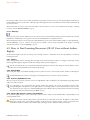
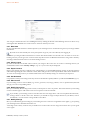
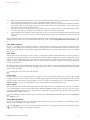
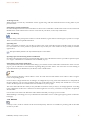
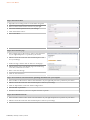
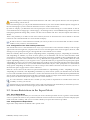
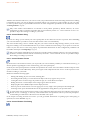
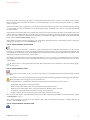
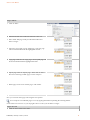
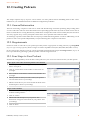
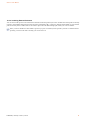
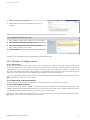
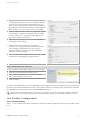
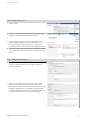
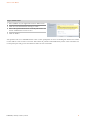
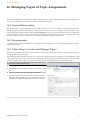
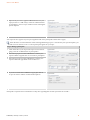
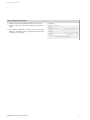
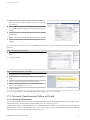
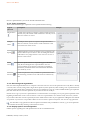
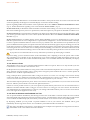
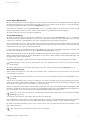
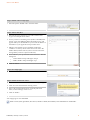
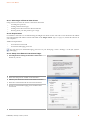
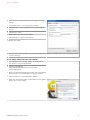
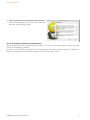
OLAT 7.8 - User Manual Step 3: Embed video in single page 1 Select the option «Embed video» from the menu. Step 4: Add or edit video 1 Select the necessary format for your video in the section «Type» from the pull-down menu. 2 In case you select a streaming server (HTTP or RTMP) in the section «Type» the additional field «Streaming server» will appear. Here your should indicate your server's IP address or the address of your application script on that server. 3 Indicate your external server's IP address in the field «Address» or a file by means of the search icon next to the address field. (If there aren't any files to choose from in the storage folder you have to upload a file first). 4 Please indicate your specifications in the field «Size». Default seings are: • Video: Width = 420 px and hight = 300 px • Audio: Width = 300 px and hight = 0 px 5 Click on «Insert». Step 5: Save single page 1 Click on «Save and close». Step 6: Publish and activate course 1 Select «Publish» in the tool box «Editor tools» on your right. 2 Click on course element before clicking «Next». 3 Select «All registered OLAT users» from the pull-down menu, section «Change course access». 4 Click on «Finish». Your single page is now embedded. Other formats (Flash, Quicktime, Shockwave, Windows Media, Real Media) can be embedded via multimedia. IT Services | University of Zurich | 5.8.2014 81