1
Welcome To C-PAD™
9
8
7
Thank you for choosing C-PAD, the simple, easy-to-use
portable device that is designed to help you keep track of
and be alerted to time-critical assessments/protocols.
6
1
How C-PAD™ Works
2
5
3
Touch screen and button navigation can be used
interchangeably.
Selecting an item: Highlight an item using the touch
screen or use the PREV/NEXT to highlight the first item
on the menu. Then use the Arrow Keys
to scroll up or
down. On some screens you have to press OK or ENTER at
the bottom of the screen to select a highlighted item.
4
Commands:
Cancel – Returns you to the previous menu
10
Done – Back to View My Beds (default screen)
11
Edit – Takes you to the Edit My Beds
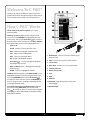
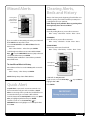
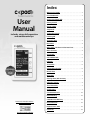
1. Wake Button – Hold 2-3 seconds to awaken or put
device to sleep
Main – Takes you to the Main Menu
OK - Accepts a highlighted selection
2. Alert! – Flashes when you have a Missed Alert
– Scroll up and down through lists
Arrow Keys
to highlight your selection
3. Touch Screen
PREV and NEXT buttons – Navigate back and forth
between pages
4. Quick Alert – Quickly sets a 3 or 5 minute Alert!
ENTER – Chooses a highlighted selection
6. Battery Charge Icon
5. Scroll Bar Indicator
Scrolling: With the exception of the View My Beds screen,
highlight the first item on the list using the touch screen,
or by using PREV/NEXT, then use the Arrow Keys
to scroll up or down one item at a time or PREV/NEXT to
move one page at a time. Scrolling is indicated by the bar
on the right side of the screen.
7. Time
To scroll through beds on the View My Beds: Highlight
the first item using PREV/NEXT, then use the arrow
keys
to scroll up or down one bed at a time. Using the
touch screen to select a bed will take you directly to setting
up an alert for that bed.
11.Outlet Charger
8. Date
9. USB Port
10.USB Cable – Plugs directly into your PC, or the
outlet charger
2
Back to Index