1
CHAPTER 7: ORGANIZING AND MANAGING
Importing albums
In previous versions of ACDSee, you could create albums in an .ais file format
that consisted of organized shortcuts to your images. Now you can use categories
to create albums of images that do not require a separate file extension. You can,
however, import your albums from previous versions of ACDSee, and add the
information from the albums to the database. ACDSee creates a new category for
each album you import.
To import album information into the database:
1. Click Database | Import, and then select Album.
2. In the Open dialog box, select the .ais file you want to import.
3. Click Open.
Importing descript.ion files
In previous versions of ACDSee, file descriptions were stored in a separate
descript.ion file in each folder that contained images. ACDSee now stores file
descriptions as captions in the database, along with other file information such as
notes and keywords.
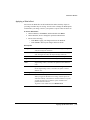
You can use the Descript.ion tools to import your old descript.ion files and add
the information to the database, or export your existing file captions to a
descript.ion file.
To import a descript.ion file:
1. Click Database | Import, and then select Descript.ion File.
2. In the Open dialog box, locate and select the descript.ion file you want to
import.
3. Click Open.
To export captions to a descript.ion file:
1. Click Database | Export, and then select Decript.ion File.
2. In the Save As dialog box, type a name for the descript.ion file in the File
name field.
3. Click Save.
Backing up database information
You can use the ACD Database Backup Wizard to back up all of your database
information, which you can then restore in the case of a system failure or other
Managing database information | 135