1
CHAPTER 8: SEARCHING
The following sections explain how to use ACDSee’s Search and Selective
Browsing panes to search your database, how to locate and view images quickly,
and how to find and manage duplicate files with the Duplicate Finder plug-in.
Finding images quickly
You can select Special Items in the Organize pane to quickly locate all of the
images in your database, or list all of the images that you have not yet assigned to
a category.
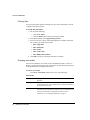
To find all of your images at once:
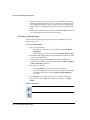
1. In the Browser, open the Organize pane by clicking View | Organize.
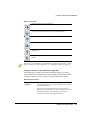
2. In the Organize pane, under Special Items, click Image Well.
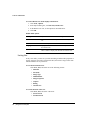
To locate uncategorized images:
1. In the Browser, open the Organize pane by clicking View | Organize.
2. In the Organize pane, under Special Items, click Uncategorized.
The Image Well and Uncategorized features only display images that have been
cataloged in the database; they do not search your hard drive for specific file
types.
Using the Search pane
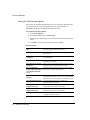
You can use the Search pane in the Browser to search for files and folders on your
computer. You can do basic searching by file name or keyword phrase, and create
advanced searches to narrow your results by folders, categories, and image
properties. You can also search using file name patterns and wild cards.
The ACDSee Search pane locates files and folders by searching the database for
items that match the criteria you specify. The Search pane does not return results
for folders that have not been cataloged in the ACDSee database. For instructions
on how to catalog files and folders, see “Cataloging files” on page 130.
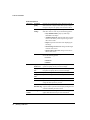
Search pane areas
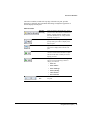
The Search pane contains three areas to help divide your search criteria into
distinct elements. When creating a search, remember that the search tool will only
return files that match all of the specified criteria.
158 | Finding images quickly