1
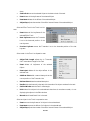
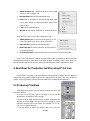
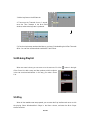
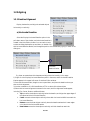
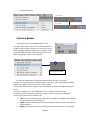
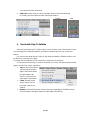
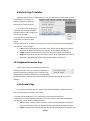
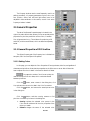
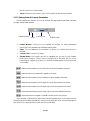
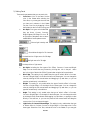
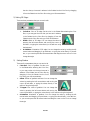
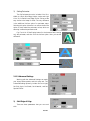
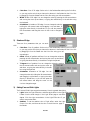
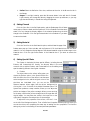
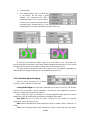
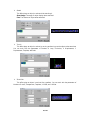
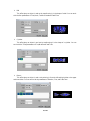
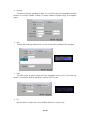
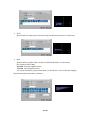
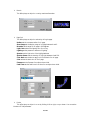
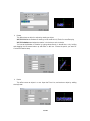
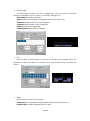
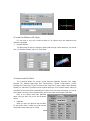
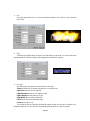
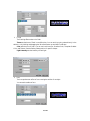
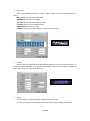
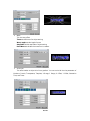
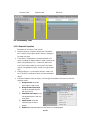
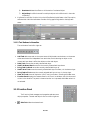
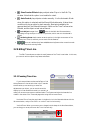
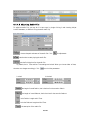
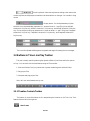
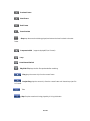
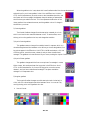
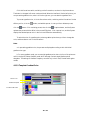
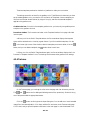
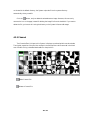
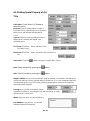
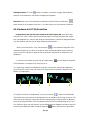
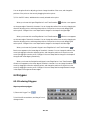
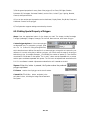
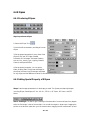
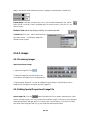
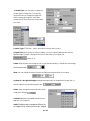
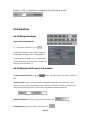
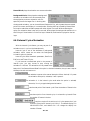
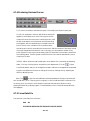
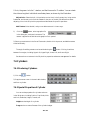
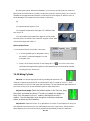
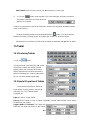
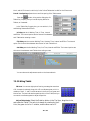
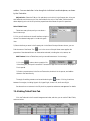
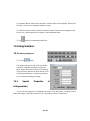
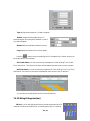
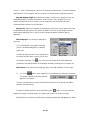
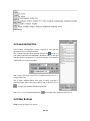
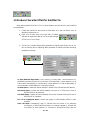
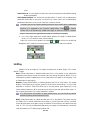
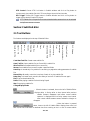
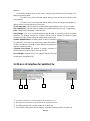
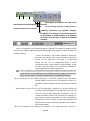
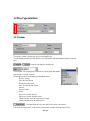
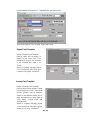
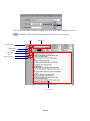
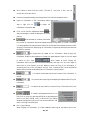
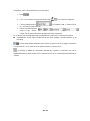
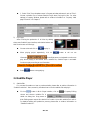
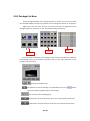
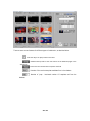
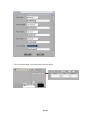
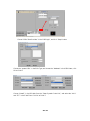
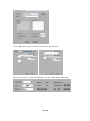
Bottom Alignment: Align selected objects or characters with the bottom of main object. Zoom Top Alignment: Align selected rolling characters with the top of main object without changing the position of their bottom borderline. Zoom Bottom Alignment: Align selected rolling characters with the bottom of main object without changing the position of their top borderline. Vertical Alignment: Five options are provided. Left Alignment: Align selected objects or characters with the left of main object. Center Alignment: Align selected objects or characters according to the center of main object. Right Alignment: Align selected objects or characters with the right of main object. Zoom Left Alignment: Align selected rolling characters with the left of main object without changing the position of their right borderline. Zoom Right Alignment: Align selected rolling characters with the right of main object without changing the position of their left borderline. Horizontal Alignment To Baseline: Five options are provided. Baseline Top Alignment: Take selected horizontal baseline as standard to horizontally align the objects on the top and selected status of horizontal baseline is valid. Baseline Center Alignment: Take selected horizontal baseline as standard to horizontally align the objects at center and selected status of horizontal baseline is valid. Baseline Bottom Alignment: Take selected horizontal baseline as standard to horizontally align the objects at bottom and selected status of horizontal baseline is valid. Zoom Top Alignment: Take current vertical baseline as standard to align the selected objects on the top without changing bottom position of the selected objects. Zoom Bottom Alignment: Take current vertical baseline as standard to align the selected objects on the bottom without changing top position of the selected objects. Vertical Alignment To Baseline: Five options are provided. Baseline Left Alignment: Take selected vertical baseline as standard to vertically align the objects on the left and selected status of vertical baseline is valid. Baseline Center Alignment: Take selected vertical baseline as standard to vertically align the objects at the center and selected status of vertical baseline is valid. Baseline Right Alignment: Take selected vertical baseline as standard to vertically align the objects on the right and selected status of vertical baseline is valid. Zoom Left Alignment: Take current vertical baseline as standard to align the selected objects on the left without changing right position of the selected objects. Zoom Right Alignment: Take current vertical baseline as standard to align the selected objects on the right without changing left position of the selected objects. Exit: Exit Roll Editor. 163 / 251