1
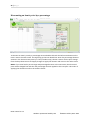
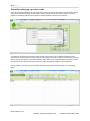
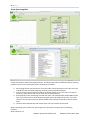
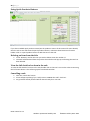
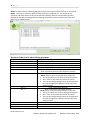
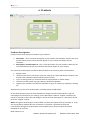
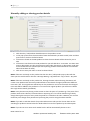
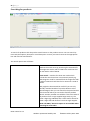
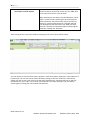
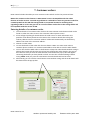
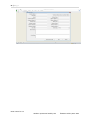
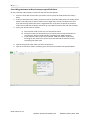
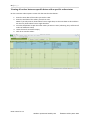
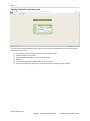
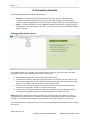
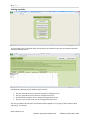
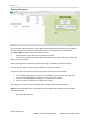
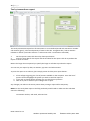
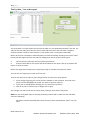
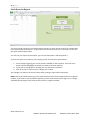
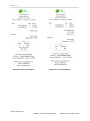
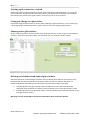
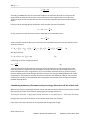
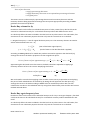
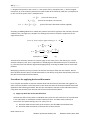
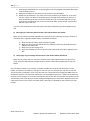
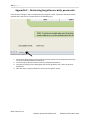
84 | P a g e Printing a gift voucher for a refund Proceed through the refund process as normal. After clicking the payment button, if you enter the refund amount in the gift voucher refund amount box you will then be asked when you complete the refund if you want to print a gift voucher. Click yes if you do or no if you don’t. Giving sale change as a gift voucher Proceed through the sale process as normal. After clicking the payment button, if you click the give sale change as gift voucher option then a gift voucher for the sale change will be printed. Showing active gift vouchers On the main gift vouchers screen click the show active gift vouchers to see a report of activated gift vouchers, their values and expiry dates. This will show you your total gift voucher liability Deleting zero balanced and expired gift vouchers E4E stores details of all activated gift vouchers until you delete them. When a gift voucher is fully redeemed E4E still stores details about this gift voucher but with zero balance. E4E does not automatically delete activated gift vouchers when they have passed their expiry date. To delete details of any gift vouchers with zero balance (ie. ones that have been fully redeemed) click the delete zero balance vouchers button on the main gift vouchers screen To delete details of any expired gift vouchers click the delete expired vouchers button on the main gift vouchers screen Warning: You will not be able to retrieve this information after it has been deleted. EPOS 4 Excel v1.5.2 Website: epos4excel.weebly.com ©Martin Stokley 2011-2013