1
Page 44
Exercise
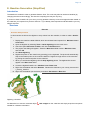
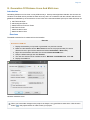
Import Sediment Thickness points from ASCII file
This exercise will assume that you have an ASCII Column file containing coordinates with sediment
thicknesses. In the exercise we will use a file which is included in the Atlantis Project the file includes
more than one profile.
1.
2.
3.
4.
5.
6.
7.
8.
9.
10.
11.
12.
13.
14.
15.
16.
17.
18.
19.
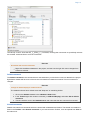
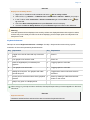
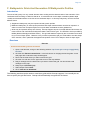
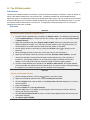
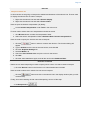
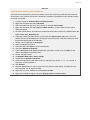
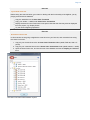
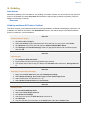
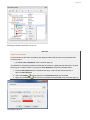
Locate the folder 3. Sediment Data / Sediment profiles
Right click the folder and select add folder
Add a sub folder with the name of the survey for example ATL-LOS-00
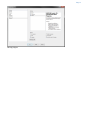
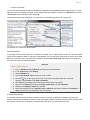
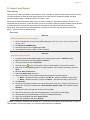
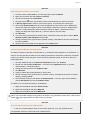
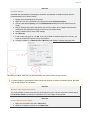
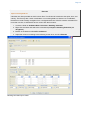
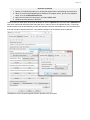
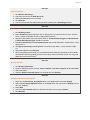
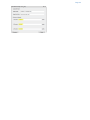
Right click the folder and select Import > ASCII Column… and the ASCII Column import
dialog will appear.
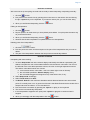
Click the browse button, and select the sediment thickness file located in the Atlantis folder: At
lantis \ Data \ ATL_Sediments.txt
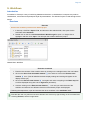
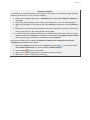
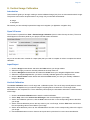
Adjust the number of header lines in your file with the Adjust header Spin box to one. The
header lines should be displayed in the top part of the file preview, while the bottom part of the
file preview should hold the coordinates.
Set the column separator to whitespace
Select coordinate format X Y
Check the Z and the Scalar Columns checkboxes
Check the Additional attributes
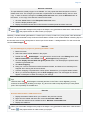
Type in Shot point under Additional attributes, and select number, then click Add. A new
column will appear for the Shot points
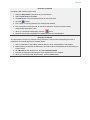
Set the cell type to Line
Set Separate Data Sets to Value change
Set Schema to Sediment Thickness
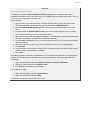
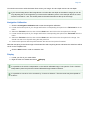
Correct file columns for each data column by adjust the spin boxes . x: 3 y: 4 z: 5 Scalar: 6
Shot point: 2 Data separator: 1
click Execute
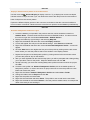
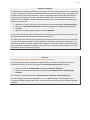
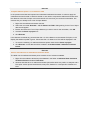
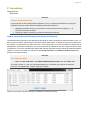
Click the Close button in order to close the ASCII Column import dialog. The data has now
been imported. Let us display the data:
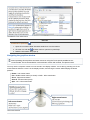
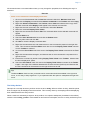
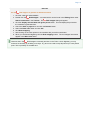
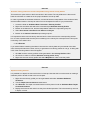
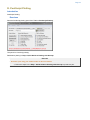
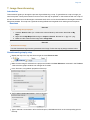
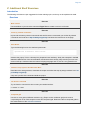
Right click one of the datasets and select Zoom to data
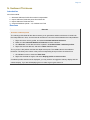
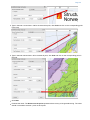
Right click the data set again, and select Display profile as cross section