1
.\usr_doc.txt
Page 181
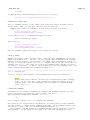
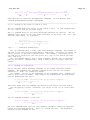
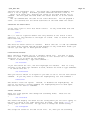
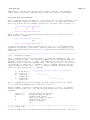
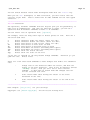
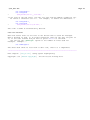
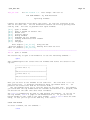
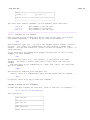
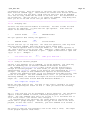
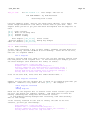
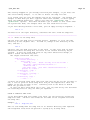
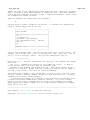
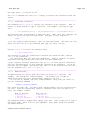
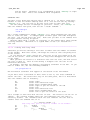
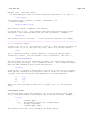
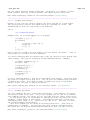
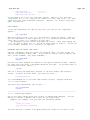
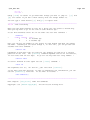
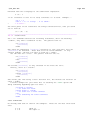
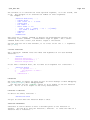
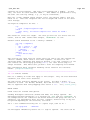
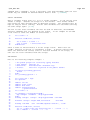
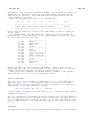
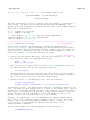
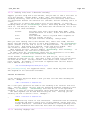
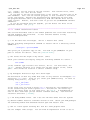
This adds one indent to the current block of lines, inside {}. The { and }
lines themselves are left unmodified. ">a{" includes them. In this example
the cursor is on "printf":
original text
after ">i{"
after ">a{"
if (flag)
{
printf("yes");
flag = 0;
}
if (flag)
{
printf("yes");
flag = 0;
}
if (flag) ~
{ ~
printf("yes"); ~
flag = 0; ~
} ~
==============================================================================
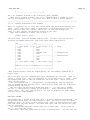
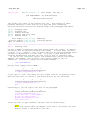
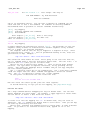
*30.5* Tabs and spaces
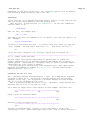
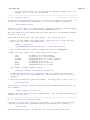
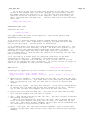
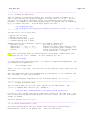
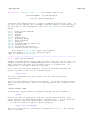
'tabstop' is set to eight by default. Although you can change it, you quickly
run into trouble later. Other programs won't know what tabstop value you
used. They probably use the default value of eight, and your text suddenly
looks very different. Also, most printers use a fixed tabstop value of eight.
Thus it's best to keep 'tabstop' alone. (If you edit a file which was written
with a different tabstop setting, see |25.3| for how to fix that.)
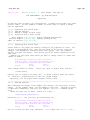
For indenting lines in a program, using a multiple of eight spaces makes
you quickly run into the right border of the window. Using a single space
doesn't provide enough visual difference. Many people prefer to use four
spaces, a good compromise.
Since a <Tab> is eight spaces and you want to use an indent of four spaces,
you can't use a <Tab> character to make your indent. There are two ways to
handle this:
1.
Use a mix of <Tab> and space characters. Since a <Tab> takes the place of
eight spaces, you have fewer characters in your file. Inserting a <Tab>
is quicker than eight spaces. Backspacing works faster as well.
2.
Use spaces only. This avoids the trouble with programs that use a
different tabstop value.
Fortunately, Vim supports both methods quite well.
SPACES AND TABS
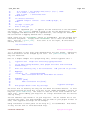
If you are using a combination of tabs and spaces, you just edit normally.
The Vim defaults do a fine job of handling things.
You can make life a little easier by setting the 'softtabstop' option.
This option tells Vim to make the <Tab> key look and feel as if tabs were set
at the value of 'softtabstop', but actually use a combination of tabs and
spaces.
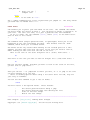
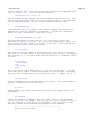
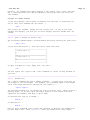
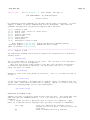
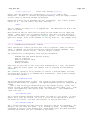
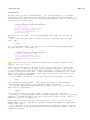
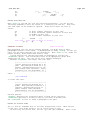
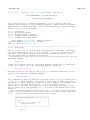
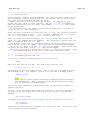
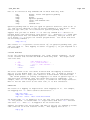
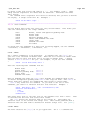
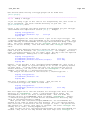
After you execute the following command, every time you press the <Tab> key
the cursor moves to the next 4−column boundary: >
:set softtabstop=4
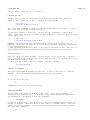
When you start in the first column and press <Tab>, you get 4 spaces inserted
in your text. The second time, Vim takes out the 4 spaces and puts in a <Tab>
(thus taking you to column 8). Thus Vim uses as many <Tab>s as possible, and
then fills up with spaces.
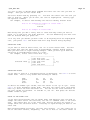
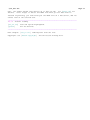
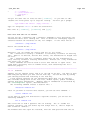
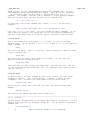
When backspacing it works the other way around. A <BS> will always delete
the amount specified with 'softtabstop'. Then <Tab>s are used as many as
possible and spaces to fill the gap.
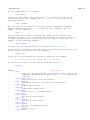
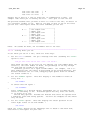
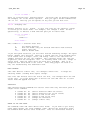
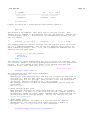
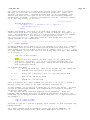
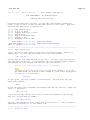
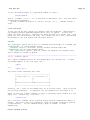
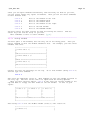
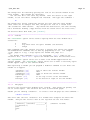
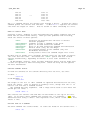
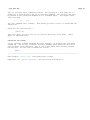
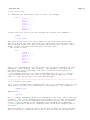
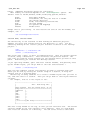
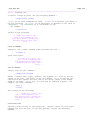
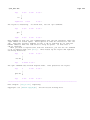
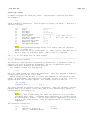
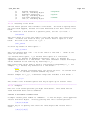
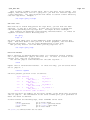
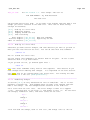
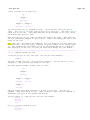
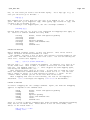
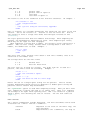
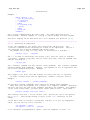
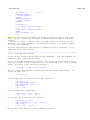
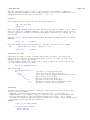
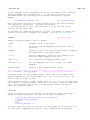
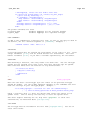
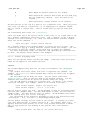
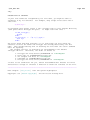
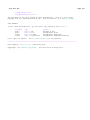
The following shows what happens pressing <Tab> a few times, and then using
<BS>. A "." stands for a space and "−−−−−−−>" for a <Tab>.
type
<Tab>
<Tab><Tab>
result ~
....
−−−−−−−>