1
Chapter 1 General Doc Practices
27
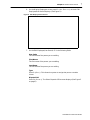
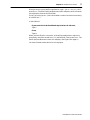
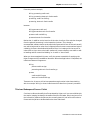
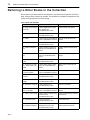
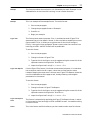
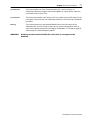
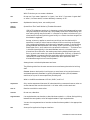
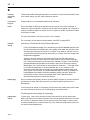
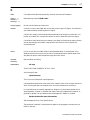
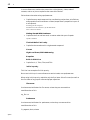
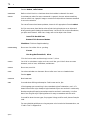
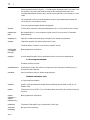
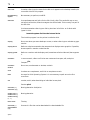
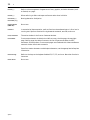
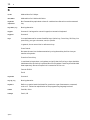
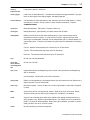
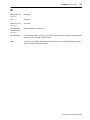
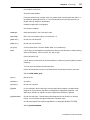
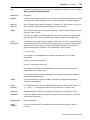
Variable
Definition
Result
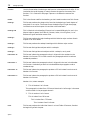
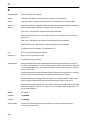
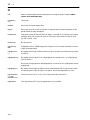
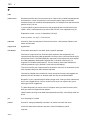
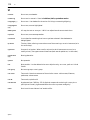
BT: Inventory - Management Guide
<Italic>Inventory Management User Guide<Default 
Font>
Inventory Management User
Guide
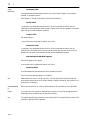
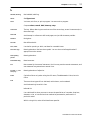
BT: Inventory - Point of
Sale
<Italic>Inventory Point of
Sale User Guide<Default 
Font>
Inventory Point of Sale User
Guide
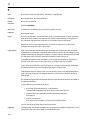
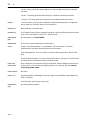
BT: Inventory - Purchase Order
<Italic>Inventory Purchase
Order User Guide<Default 
Font>
Inventory Purchase Order User
Guide
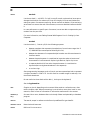
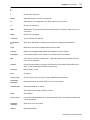
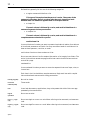
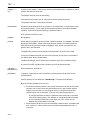
BT: Inventory - Transactions
<Italic>Inventory Transactions User Guide<Default 
Font>
Inventory Transactions User
Guide
BT: Inventory - Warranty
<Italic>Inventory Warranty
User Guide<Default ¶ Font>
Inventory Warranty User Guide
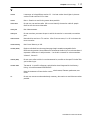
BT: Letter Generation
<Italic>Letter Generation
User Guide<Default ¶ Font>
Letter Generation User Guide
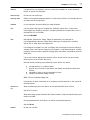
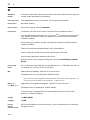
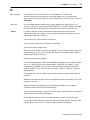
BT: Line Equipment
<Italic>Line Equipment User
Guide<Default ¶ Font>
Line Equipment User Guide
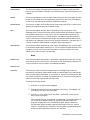
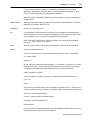
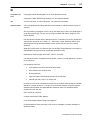
BT: Master Index and
List of Figures
<Italic>Master Index and
List of Figures<Default 
Font>
Master Index and List of Figures
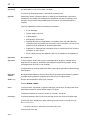
BT: Payments User
Guide
<Italic>Payments User
Guide<Default ¶ Font>
Payments User Guide
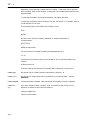
BT: Reports Reference
Guide
<Italic>Reports Reference
Guide<Default ¶ Font>
Reports Reference Guide
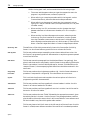
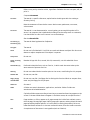
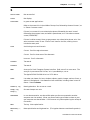
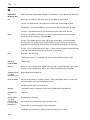
BT: System Configuration Admin Guide
<Italic>System Configuration Guide<Bold>
System Configuration Guide
BT: Table and Field Reference Guide
<Italic>Table and Field Reference Guide<Default 
Font>
Table and Field Reference
Guide
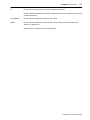
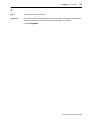
BT: Trouble Tickets
User Guide
<Italic>Trouble Tickets User
Guide<Default ¶ Font>
Trouble Tickets User Guide
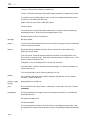
BT: Usage Processing
<Italic>Usage Processing
User Guide<Default ¶ Font>
Usage Processing User Guide
BT: Web Biller Administrator Guide
<Italic>WebBill Administrator Guide<Default ¶ Font>
WebBill Administrator Guide
Handbook for Technical Writers