1
The M7170 vehicle mount terminal has optional Terminal Emulation software available that
enables it to communicate directly with most host systems including IBM mainframe and
IBM AS400 systems. This software has many more features than described in this manual.
Terminal Options
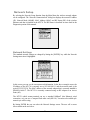
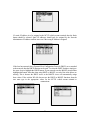
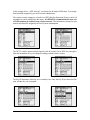
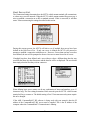
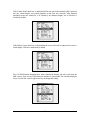
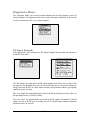
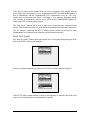
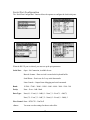
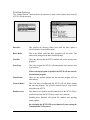
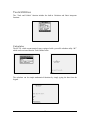
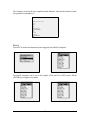
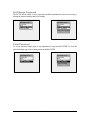
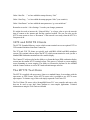
The Term setting determines what terminal type the M7170 will emulate. The default setting
is “amlterm” which is a superset of VT100 Terminal Emulation. If you are using
CommandLink™ software, set the Terminal type to amlterm. When using amlterm with
CommandLink™, the optional features are controlled by the CommandLink™ server.
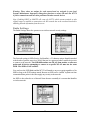
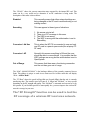
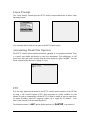
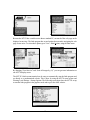
The Local Echo feature enables or disables displaying of characters sent to the host system.
The default setting for most host systems is Local Echo disabled (unchecked).
The “amlterm” emulation is designed to be used with the AML CommandLink™ software.
Using this emulation with host servers designed for other types of emulation, will produce
unexpected results.
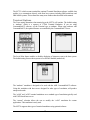
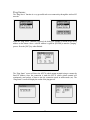
The “vt100” and “vt220” terminal emulations are a standard type of emulation typically used
with UNIX based host servers.
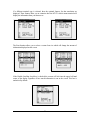
The “custom” selection allows the user to modify the “vt100” emulation for custom
applications. This emulation is rarely used.
The M7170 supports other types of terminal emulations using optional software.
27