1
Multiple Shopping Trolleys
Step 1
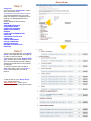
Another feature of the On-Line store is the
ability for many people to use the same
password and order using their own
shopping trolley.
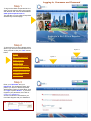
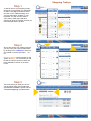
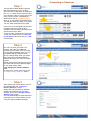
Shopping trolleys are available by clicking
Into the “NEW (trolley)” button.
Simply click on drop down bar where it
reads (Default) and then click onto the
word New Trolley 1.
You will then be presented with the “New
Trolley” naming screen.
Step 2
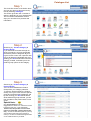
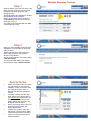
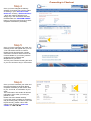
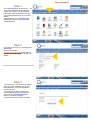
When you have the “New Trolley” screen
available, it is just a matter of giving the
trolley a name.
Simply type into the Trolley Name box
with a name and then click onto the
‘Create Trolley’ button.
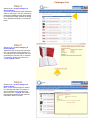
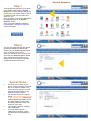
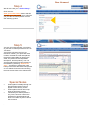
We have just created a new trolley called
“Sam the trolley”
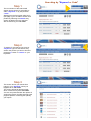
You may now start ordering as normal
using the new trolley “Sam the trolley”.
Special Notes
·
·
·
·
·
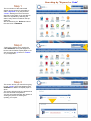
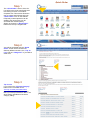
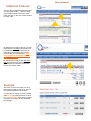
When you revisit the On-Line store
you will have to re-click onto the
“Switch” Trolley so that the multiple trolley drop down menu is
shown—this will show all named
trolleys.
To delete a trolley from the drop
down trolley menu simply click on
the Delete trolley button when you
have selected the order that you
wish to delete and the trolley will
disappear from the menu.
When you first log into the On-Line
store the (Default) trolley will
always appear first.
Trolleys with goods in them will
stay active until the order is either
confirmed or the trolley is deleted.
There is no limit to the amount of
trolleys available.
7