1
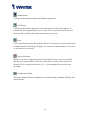
Stop
When you want to stop displaying the video sequence, you can click on the “Stop”
button. Note that once you had pressed the “Stop” button, the start point will be reset
to the beginning of the present period.
Pause/Resume
The “Pause” button provides you a way to pause video sequence display. When the
displaying video is paused, clicking on the “Pause” button again will resume video
display.
Step Forward
This button is valid only when the displaying video sequence is paused. Each time
the “Step Forward” button is clicked, it will display the next frame in that period
Fast Play and Slow Play
We support up to a maximum of x16 fast forward play and a minimum of 1/16 slow
forward play. This function provides you with more flexibility in browsing through
the surveillance database. If you want to change the playing speed, you only need to
move the speed indicator. To increase playing speed, move the indicator in the
clockwise direction. To decrease playing speed, move it in the counterclockwise
direction. Current speed you are set at will be shown in the second column of the
status area.
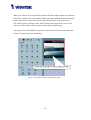
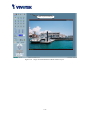
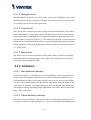
5.7.3 Display Adjustment Toolbox
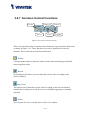
When you move the mouse cursor over to the displaying area, the display
adjustment toolbox will appear. Using the display adjustment toolbox, you can
change the displaying video sequence to the size you want to see in the Normal
display mode. Move the area selection indicator to the display area. Figure 5-14
shows the display adjustment toolbox and its own three elements, i.e. “Zoom In”,
“Zoom Out”, and “Full Screen”.
Figure 5-14 Display Adjustment Toolbox
5-72