1
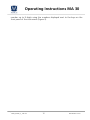
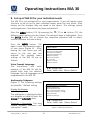
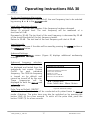
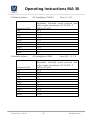
Operating Instructions MA 30 8. Set up of MA 30 for your individual needs The MA 30 is pre-configured for most requirements. If you still require some functions to be set up for your individual needs, enter the user menu. After having set the changes they are saved in the device. The settings remain unchanged even if the device has been switched off. Press the MENU button (14). By pressing the ▲ (11) or ▼ button (12), the different menu options can be chosen. The selected menu is highlighted. Press the ENTER button (13) to choose the respective submenu and to select, confirm and save the new setting. Press the MENU button (14) again to exit the respective menu or user menu (Figure 6). After leaving the user menu you will return to the test you last selected. The possible menu settings of the MA 30 are as follows: User Menu Voice Prompt Language The instructions and voice prompts of the MA 30 will be played back with the selected language. Up to 6 languages can be programmed in the MA 30. Audiometry Submenu (Figure 7) The following settings are possible: *Default setting Change Item Enter: Select item Menu: Return Figure 6: User menu Audiometry Submenu Display Audiogram Presenter/Interrupter Go to next freq.after saving Level after frequency change Save Data with Advanced Settings Display Audiogram: Table/Audiogram* The audiogram is displayed either as a diagram or table for both the manual and automatic tests. Change Item Enter: Select item Menu: Return Presenter / Interrupter: You may choose between presenter and interrupter* mode. Geba_MA30_e_13b.doc Voice Prompt Language Audiometry Submenu Automatic Audiometry Display Language Device Information PC or Printer Display Contrast Reset to Default Figure 7: Audiometry Submenu 16 852 094/3 03/13