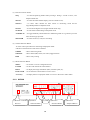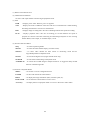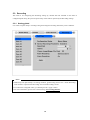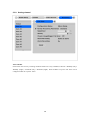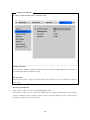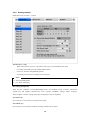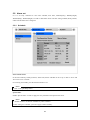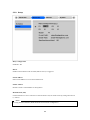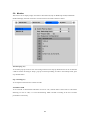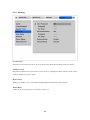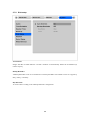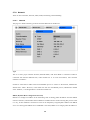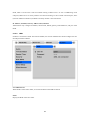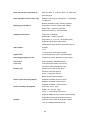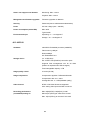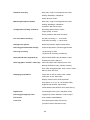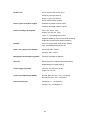
1
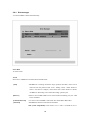
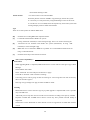
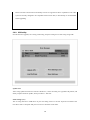
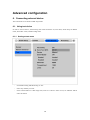
HVR User’s Guide
HVR-16Q/HVR-16E/HVR-08
(v 3.1)
FCC Compliance Statement
Caution : Any changes or modifications in construction of this device which are not expressly
approved the party responsible for compliance could void the user's authority to operate the equipment.
NOTE : This equipment has been tested and found to comply with the limits for a Class A digital
device, pursuant to part 15 of the FCC Rules. These limits are designed to provide reasonable
protection against harmful interference when the equipment is operated in a commercial environment.
This equipment generates, uses, and can radiate radio frequency energy and, if not installed and used in
accordance with the instruction manual, may cause harmful interference to radio communications,
Operation of this equipment in a residential area is likely to cause harmful interference in which case
the user will be required to correct the interference at his own expense.
Warning
This is a class A product. In a domestic environment this product may cause radio interference in which
case the user may be required to take adequate measures
CAUTION
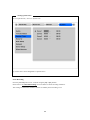
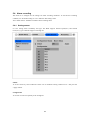
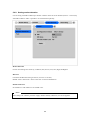
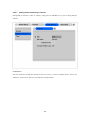
1.
Danger of explosion if battery is incorrectly replaced. Replace only with the same or equivalent type.
Disposal of used batteries according to the general recommendations against the environmental
pollution.
2. Do not throw the batteries into a fire, and do not heat, short-circuit or attempt to disassemble the
batteries.
3.
Do not attempt to recharge the batteries.
Important Notice
1. Do not place heavy objects on the top of the HVR.
2. HVR is for indoor use. It is not weatherproof. Use HVR with referring to its environmental
specifications (Temperature & Humidity). To clean the HVR, gently wipe the outside with a clean dry
cloth.
3. HVR uses AC power of 110V ~ 240V. Be cautious not to cause electric damages to HVR.
4. Be careful not to drop the HVR. Physical shocks may harm the product including internal HDD. In
addition, be sure the HVR is secured after installation.
5. HVR is made of metal. Therefore you can hurt human beings if you throw it to them or hit on them.
When installing HVR, be cautious to locate on safe places where children are unreachable.
6. If HVR does not operate properly, please contact the closest HUNT ELECTRONIC distributor for
after sales service. Tampering or disassembling the product will void the warranty.
7. Security surveillance laws may differ for each country. Therefore, please contact the local region
first to avoid any surveillance law violations.
Contents
OVERVIEW ................................................................................................................................... 7
1.
Introduction .......................................................................................................................... 7
2.
Product description ............................................................................................................. 9
2.1.
Front panel ...................................................................................................................... 9
2.1.1.
HVR-16Q/HVR-16E ................................................................................................. 9
2.1.2.
HVR-08 .................................................... 오류! 책갈피가 정의되어 있지 않습니다.
2.2.
Rear panel..................................................................................................................... 12
2.2.1.
HVR-16Q/HVR-16E ............................................................................................... 12
2.2.2.
HVR-08 .................................................... 오류! 책갈피가 정의되어 있지 않습니다.
2.3.
Installation summary ..................................................................................................... 13
Basic configuration................................................................................................................... 14
3.
Monitoring........................................................................................................................... 14
3.1.
Viewing basic screen .................................................................................................... 14
3.2.
Viewing single full screen.............................................................................................. 14
3.3.
Viewing multi screen ..................................................................................................... 14
3.4.
Viewing all channels with sequence mode ................................................................... 15
3.4.1.
Sequence mode for HVR-08 / HVR-16E ............................................................... 15
3.4.2.
Basic sequence mode for HVR-16Q ..................................................................... 15
3.4.3.
User sequence mode............................................................................................. 16
3.5.
Viewing an alarm triggered channel ............................................................................. 18
3.6.
Viewing images with digital zoom ................................................................................. 18
3.7.
Viewing with connected PTZ......................................................................................... 18
3.7.1.
Controlling pan/tilt .................................................................................................. 19
3.7.2.
Controlling zoom/focus .......................................................................................... 19
3.7.3.
Using load preset................................................................................................... 19
3.7.4.
Using save preset .................................................................................................. 19
3.7.5.
Using clear preset.................................................................................................. 19
3.7.6.
Using auxiliary on .................................................................................................. 20
3.7.7.
Using auxiliary off .................................................................................................. 20
3.8.
Using relay .................................................................................................................... 20
4
3.9.
Using screen lock.......................................................................................................... 21
3.10.
4.
3.10.1.
Monitoring .......................................................................................................... 22
3.10.2.
Multi-channels playback..................................................................................... 23
3.10.3.
1 ch playback ..................................................................................................... 23
Playback.............................................................................................................................. 24
4.1.
5.
Using monitor B......................................................................................................... 22
Playback via various mode ........................................................................................... 24
4.1.1.
Playback via basic screen (full screen) ................................................................. 24
4.1.2.
Playback via a multi screen (4/9/16)...................................................................... 24
4.1.3.
Playback ch5 to ch16 via quad-multi screen ......................................................... 24
4.1.4.
Playback with digital zoom..................................................................................... 24
4.1.5.
Various playback modes........................................................................................ 25
4.2.
Using search mode ....................................................................................................... 26
4.3.
Copy / Backup / Delete data manager.......................................................................... 27
4.3.1.
Copy image............................................................................................................ 27
4.3.2.
Backup data........................................................................................................... 28
4.3.3.
Delete data ............................................................................................................ 29
Configuration...................................................................................................................... 30
5.1.
Quick setup ................................................................................................................... 30
5.1.1.
Date/Time .............................................................................................................. 30
5.1.2.
Recording .............................................................................................................. 33
5.2.
Camera ......................................................................................................................... 35
5.3.
Recording...................................................................................................................... 38
5.3.1.
Setting global ......................................................................................................... 38
5.3.2.
Setting channel ...................................................................................................... 39
5.4.
Alarm recording............................................................................................................. 43
5.4.1.
Setting sensor........................................................................................................ 43
5.4.2.
Setting motion detection ........................................................................................ 44
5.4.3.
Setting text............................................................................................................. 47
5.4.4.
Setting global alarm recording............................................................................... 49
5.4.5.
Setting channel ...................................................................................................... 50
5.5.
Alarm act....................................................................................................................... 51
5.5.1.
Schedule................................................................................................................ 51
5
5.5.2.
Setup ..................................................................................................................... 52
5.6.
Monitor .......................................................................................................................... 53
5.7.
System .......................................................................................................................... 55
5.7.1.
Audio...................................................................................................................... 55
5.7.2.
Time schedule........................................................................................................ 56
5.7.3.
Special time ........................................................................................................... 57
5.7.4.
Security.................................................................................................................. 58
5.7.5.
Disk setup .............................................................................................................. 59
5.7.6.
Network.................................................................................................................. 60
5.7.7.
Serial setup............................................................................................................ 66
5.7.8.
Miscellaneous ........................................................................................................ 67
5.8.
Utility ............................................................................................................................. 69
5.8.1.
Disk manager......................................................................................................... 70
5.8.2.
USB utility .............................................................................................................. 72
Advanced configuration ........................................................................................................... 74
6.
Connecting external device .............................................................................................. 74
6.1.
Using text device........................................................................................................... 74
6.1.1.
Setting at text menu............................................................................................... 74
6.1.2.
Setting at serial setup for RS232 menu................................................................. 75
6.1.3.
Setting at alarm rec. menu .................................................................................... 76
6.1.4.
Setting at recording menu ..................................................................................... 77
6.2.
Using keyboard ............................................................................................................. 78
6.2.1.
Setting at serial setup for COM1 menu ................................................................. 78
6.2.2.
Setting at serial setup for PTZ menu ..................................................................... 78
APPENDIX ................................................................................................................................. 79
#1.
Technical specification .................................................................................................. 80
#1.1.
HVR-16Q ................................................. 오류! 책갈피가 정의되어 있지 않습니다.
#1.2.
HVR-16E.................................................. 오류! 책갈피가 정의되어 있지 않습니다.
#1.3.
HVR-08 .................................................... 오류! 책갈피가 정의되어 있지 않습니다.
#2.
Utilizing IP addresses on local Network........................................................................ 88
#2.1 Introduction .................................................................................................................. 88
#2.2 IP construction and Network class ............................................................................... 88
#2.3 Class C Network .......................................................................................................... 89
6
OVERVIEW
1. Introduction
HVR series support 16ch(HVR-16Q/D), 8ch(HVR-08) analog video channels. Video, Audio, Text data,
and Alarm Logs are digitized and simultaneously stored it on hard-drives called as HVR (Digital Video
Recorder). Using a ‘Proprietary Wavelet Algorithm,’ it maintains clarity high enough for facialrecognition.
Due to our proprietary Wavelet Algorithm, the HVR series processes analog video into crisp, clear, and
court-admissible pictures that are up to 500% smaller than comparable JPEG images. With this efficiency,
HVR-16Q/D records over 15 days on a 200GB hard disk drive when recording 16 channels at the speed
of 5ips per channel. HVR-08 records over 30 days on a 200GB hard disk drive when recording 8 channels
at the speed of 5ips per channel. The HVR series also allows users to record and playback audio for one
channel.
The HVR series starts to record as soon as power is supplied and CCTV cameras are connected. With
‘Quick Setup’, HVR series are programmed as to maximize their video quality and recording capacity.
Equipped with IEEE 1394 ports (Fire-Wire), HVR series can expand its recording capacity up to 4TB
easily. For efficiency of backup, Windows (FAT32) formatted HDD is compatible with HVR series. And
with (1) USB port for HVR-16Q/D and (3) USB port for HVR-08, user can upgrade a firmware, save &
restore a setting value, and provide copy function for lower size image.
The HVR series provide a SW called by “DVR manager” and are available with convenience saving,
playback, and configuration via remotely using this S/W.
7
Key features
- 16 analog video channels(HVR-16Q/D) , 8ch analog video channels(HVR-08)
- 1 channel two-way audio
- Recording, Playback, Back-up, Network recording, and Network playbakc at the same time (Pentaplex)
- Total 240(HVR-16Q)/120(HVR-16E)/60(HVR-08) ips 1 recording speed
- Total 480(HVR-16Q/D)/240(HVR-08) fps 2 real-time display speed
- Displaying live and recorded images on PC as well as CCTV Monitor
- Dual CCTV Monitor (1 Normal & 1 Spot only for 1600Q model)
- Built-in hardware Quad Splitter for analog video
- Built-in software multiplexer for all 16ch(HVR-16Q/D) & 8ch(HVR-08) live monitoring channels
(HVR-16Q/D : 1 / 4 / 9 / 16 / 13 Ch Mode on CCTV Monitor as well as PC)
(HVR-08 : 1 / 4 / 9 Ch Mode on CCTV Monitor as well as PC)
- Maximum 4TB storage capacity (IEEE 1394 for external HDD)
- Various configuration with recording and playback conditions
- Intelligent file system for managing event triggered video data
- ATM/POS transaction information text recording and search with corresponding video
- 16 sensor inputs and 4 alarm outputs(HVR-16Q/D) , 4 sensor inputs and 4 alarm outputs(HVR-08)
- Motion detection with search function (64-division comparison in case of running with Control Center)
- Disk/CD-R/DVD-R(option) back-up with IEEE 1394.
- PTZ Control via RS 232 and RS 485/RS422
- User-friendly 32bit True-colored Graphic OSD Menu (Support Anti-Flicker)
- Dynamic IP (DHCP, Floating IP) support (when xDSL and Cable Modem are used)
- Optimized Wavelet compression: 1-5KB (Average file size with standard image quality)
- Embedded Linux OS for excellent stability and reliability
- IR remote controller
- Advanced video quality function (Clearer image, Night Noise Filtering)
- Firmware upgrade, configuration, and backup function using USB device
- Digital water marking function
- DVR manager (User Interface of PC) is to be listed with 32 units of HVR on a program
(Total 512 channels (32sets of HVR-16Q x 16 channels) are controllable through a program)
1
2
ips = image per second
fps = frame per second
8
2. Product description
2.1. Front panel
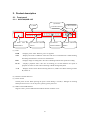
2.1.1. HVR-16Q/HVR-16E
(2) Remote
(1) LED
Controller Receiver
(3) Power Switch
(4) IEEE 1394 &
(5) Function selection
(6) Channel
(7) Menu/ Direction
USB Interface
button
Selection Button
Button
(1) LED
PWR
: Displays power status. When lit, power is supplied.
NET
: Displays the status of Ethernet connection and rate of communication. When blinking,
data being transmitted or received over the Ethernet.
REC
: Displays image recording status. The rate of blinking indicates the speed of recording.
PLAY
: Displays playback status. The rate of blinking per second indicates the speed of
playback. Its status is same when connecting to DVR manager Playback.
A/B
: Displays monitor status. When selecting monitor A, LED is off. When selecting monitor
B, LED is on.
(2) Remote Controller Receiver
(3) Power Switch
On/Off power switch. When pressing the power switch during 5 seconds, a dialogue for entering
admin password occurs. To cut off power, please type the password.
(4) IEEE 1394 & USB Interface
Supports each 1 port for IEEE1394 and USB at the back of rubber cover.
9
(5) Function selection button
SEQ
: To select Sequencing Mode. When pressing it during 1 second or above, User
Sequnce Mode runs.
MULTI
: To select the multi-channel display (4/9/16/13 multi screen).
SELECT
: To select video channel for PTZ control in monitoring mode and for
Copy/Backup/Delete in Playback mode
ZOOM
: To activate the digital zoom (single channel mode only).
SEARCH
: To search the recorded image in Playback mode
ACK/RELAY : To toggle the Relay On/Off function in Monitoring mode or to go back to previous
status at alarm pop-up mode
MONITOR
: To select monitor (A or B) for controlling
(6) Channel Selection Button
To select video input channel in monitoring and playback mode.
LED above channel shows each status of channel.
GREEN
: Shows monitoring mode
ORANGE
: Shows alarm (MD, Sensor, No Vdieo) triggered status
RED
: Shows relay running
(7) Menu/ Direction Button
MENU
: To set PTZ or access Configuration menu.
ENTER
: To enter and confirm the selected menu.
HELP
: To display the image information (Date, Transfer speed, etc).
EXIT/LOCK : To exit from the selected menu or lock a screen.
Arrow key
: To Replay function in playback mode or to move a direction in other modes.
2.1.2. HVR-08
(1)Remote Controller
Receiver
(2)Channel
(3) LED
Selection Button
(4)Function
Selection Button
10
(5)Direction
/Playback Button
(1) Remote Controller Receiver
(2) Channel Selection Button
To select video input channel in monitoring and playback mode.
(3) LED
PWR
: Displays power status. When lit, power is supplied.
NET
: Displays the status of Ethernet connection and rate of communication. When blinking,
data being transmitted or received over the Ethernet.
REC
: Displays image recording status. The rate of blinking indicates the speed of recording.
PLAY
: Displays playback status. The rate of blinking per second indicates the speed of
playback. Its status is same when connecting to DVR manager Playback. In case of being
Motion Detect, Sensor Input, or off Video Input, it is On.
(4) Function Selection Button
SEQ
: To select Sequencing Mode.
MULTI
: To select the multi-channel display (4/9 multi screen).
SELECT
: To select video channel for PTZ control in monitoring mode and for
Copy/Backup/Delete in Playback mode
ZOOM
: To activate the digital zoom (single channel mode only).
SEARCH
: To search the recorded image in Playback mode
ACK/RELAY : To search the recorded images in Playback mode or To toggle the Relay On/Off
function in Monitoring mode
(5) Direction / Playback Button
MENU
: To set PTZ or access Configuration menu.
ENTER
: To enter and confirm the selected menu.
HELP
: To display the image information (Date, Transfer speed, etc).
EXIT/LOCK : To exit from the selected menu or lock a screen.
Arrow key
: To Replay function in playback mode or to move a direction in other modes.
11
2.2. Rear panel
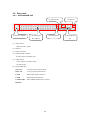
2.2.1. HVR-16Q/HVR-16E
(1) Audio In/Out
(4) Video Input
(3) Power Connector
(5) Video Output
& Loopback
(2) Ethernet
(6) Serial & DIO
Port
(1) Audio In/Out
1 audio input & 1 output
(2) Ehternet
(3) Power Connector
(4) Video Input & Loopback
16 video inputs & loopback port
(5) Video Output
2 video outputs (1 Normal, 1Spot)
1 S-video output
(6) Serial & DIO Port
Sensor In
: 16 sensor inputs terminal block
Relay Out
: 4 relay outputs terminal block
COM1
: RS232 9Pin D-Sub connector
COM2
: RS422/485 terminal block
COM3/COM4
: RS232 & RS422/485 RJ45 connector
IEE1394
12
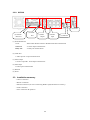
2.2.2. HVR-08
(6) Power
(2) Audio
(1) Serial &
Port
DIO Port
(3)Video
(4)Video
Output
Input
(5) Ethernet
(1) Serial & DIO Port
Serial
: RS232 9Pin D-Sub Connector & RS232/422/485 terminal block
Sensor In
: 4 Sensor input terminal block
Relay Out
: 4 Relay out terminal block
(2) Audio Port
1 Audio input & 1 output terminal block
(3) Video Output
1 monitor output & 1 VCR output terminal block
(4) Video Input
8 video input terminal blocks
(5) Ethernet
(6) Power
2.3. Installation summary
- Camera connection
- Monitor connection
- Ethernet connection (In case of connecting HVR-16Q/D, HVR-08 via remotely)
- Audio connection
- Power connection & operation
13
Basic configuration
3. Monitoring
Once power is supplied to HVR series, all connected channels will be displayed by multi monitoring
mode (When 8 analog channels are connected, 9-multi screens will show). The following steps apply for
all HVR series’s monitoring menus.
<Note>
HVR-16Q supports dual monitor (A, B). Monitor A(Normal) supports all functions, but Monitor
B(Spot) doesn’t support multi screen, menu setting and zoom function. However, when Monitor A runs
at Playback mode, Monitor B can’t run Playback mode simultaneously.
The following functions are described on the base of Monitor A.
For controlling Monitor A, Monitor A should be selected with the front panel menu.
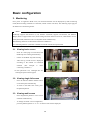
3.1. Viewing basic screen
-
Insert AC cord’s plug in a wall outlet, and
HVR-16Q starts running automatically.
-
LED is on and HVR-16Q starts booting.
-
After start-up, a multi screen is displayed
according to the number of connected
channels
(The
example
is
when
connecting 4 channels.)
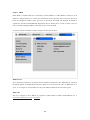
* If user password is set, a dialogue box for
entering the password will appear.
3.2. Viewing single full screen
-
Press the desired channel number button
on the front panel of HVR-16Q.
-
To return to the multi-view screen, press
the [MULTI] button.
3.3. Viewing multi screen
-
Press the [MULTI] button to view several
channels simultaneously.
-
To change the multi screen configuration,
press the [MULTI] button. 4 / 9 / 16 / 13 multi screens will be displayed.
14
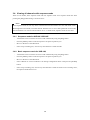
3.4. Viewing all channels with sequence mode
There are two modes; basic sequence mode and user sequence mode. User sequence mode runs when
pressing the [SEQ] button during 1 second or above.
<Note>
Basic sequence mode can run only when connected and activated cameras are more than multi screen.
With single full screen mode, activated cameras should be two or more. With quad-multi screen mode,
there should be five or more activated cameras. In 16 / 13 multi mode, sequence mode can’t be used.
3.4.1. Sequence mode for HVR-08 / HVR-16E
-
All channels can be viewed in successive order automatically using the [SEQ] button.
-
Press the [MENU] button on the front panel to set-up the sequential cycle.
-
Move to ‘Monitor’ at the OSD menu.
-
Select “Seq. Switching (sec)” and set any value between 1 and 60 seconds.
3.4.2. Basic sequence mode for HVR-16Q
-
All channels can be viewed in successive order automatically using the [SEQ] button.
-
Press the [MENU] button on the front panel to set-up the sequential cycle.
-
Move to ‘Monitor’ at the OSD menu.
-
Select “Monitor A” menu of “Monitor” tab among Configuration menus. And press the [ENTER]
button.
-
Select “Seq. Switching (sec)” and set any value between 1 and 60 seconds. In case of setting ‘OFF’,
the sequence mode does not run.
15
-
In order to move to sequence mode from any viewer mode, press the [SEQ] button.
-
In order to exit from sequence mode, press the [SEQ] button once again.
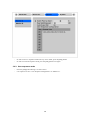
3.4.3. User sequence mode
-
Press the [SEQ] button during 1 second or above.
-
User sequence is set in “User Sequence Configuration” of “Monitor A”.
16
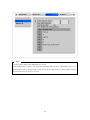
<Note>
1. User sequence mode can be configured up to 16 sets.
2. The example above is when 6 sets. In this case, HVR-16Q shows in order; quad multi screen (1,2,3,4)
Æ full single screen (1) Æ quad multi screen (5,6,7,8) Æ full single screen (5) Æ full single screen (8)
Æ 9 multi screens (9,10,11,12,13,14,15,16)
17
3.5. Viewing an alarm triggered channel
-
When an alarm is triggered, the related channel will pop-up full screen automatically.
-
The pop-up duration is set in “Monitor A” or “Alarm Pop-up (sec)” below the “Monitor” menu.
-
If more than one channel is triggered by an alarm, the related channels will be displayed
simultaneously in a multi-screen. For example, if the alarm is triggered at the 3 channels, then the
related channels will be displayed at the quad multi screen. In order to move current screen, press
any button.
<Note>
1. When Alarm Pop-up Hold (sec) is set as “Off”, this function doesn’t run.
2. When Alarm Pop-up Hold (sec) is set as “Keep”, pop-up screen keeps showing before pressing any
button.
3.6. Viewing images with digital zoom
-
In Single Full Screen mode, if press [ZOOM] button, Digital Zoom will expand the image to twice
its normal size.
-
Default location of the digital zoom is in the center of screen in case of pressing [ZOOM] button.
-
The zoom box can be moved each 10th step to left and right and 7th step up and down.
-
To move the zoom box, use the [Arrow] button.
-
To cancel the zoom box, press the [ZOOM] button once more.
3.7. Viewing with connected PTZ
Pan/Tilt/Zoom (PTZ) devices can be controlled through the HVR series,
when PTZ device is connected and properly configured under “Serial Setup.”
-
First, press the [SELECT] button.
-
Channel selection icon will be displayed.
-
Move the icon to the channel to control with the [Arrow] button.
(When controlling in single full screen, select the [SELECT] button.)
-
Press the [MENU] button with the selected channel selection icon, then
PTZ menu (Pan/Tilt, Zoom/Focus, Load Preset, Save Preset) will
appear.
-
Press the [ENTER] button after selecting the desired function.
18
3.7.1. Controlling pan/tilt
To control Pan and Tilt during live monitoring mode.
-
Press the [SELECT] button. Move the “Select” icon to the desired channel.
-
Press the [MENU] button.
-
Select ‘Pan/Tilt’ from the PTZ Menu.
-
Control pan and tilt function using the arrow keys.
3.7.2. Controlling zoom/focus
To control Zoom and Focus during live monitoring mode.
-
Press the [SELECT] button. Move the “Select” icon to the desired channel.
-
Press the [MENU] button.
-
Select ‘Zoom/Focus’ from the PTZ Menu.
-
Control zoom and focus functions using the arrow keys of front panel.
3.7.3. Using load preset
To move preset point for dome camera during live monitoring mode.
-
Press the [SELECT] button. Move the “Select” icon to the desired channel.
-
Press the [MENU] button.
-
Select ‘Load Preset’ from the PTZ Menu.
-
Press number button for desired preset.
3.7.4. Using save preset
To set a new preset point for dome camera during live monitoring mode
-
Move dome camera to the desired position using the ‘Pan/Tilt’ and ‘Zoom/Focus’ menus.
-
Press the [SELECT] button. Move the “Select” icon to the desired channel.
-
Press the [MENU] button.
-
Select ‘Save Preset’ from the PTZ Menu.
-
Designate a number for the preset position by pressing a number button.
3.7.5. Using clear preset
To initialize a preset point for dome camera during live monitoring mode
-
Press the [SELECT] button. Move the “Select” icon to the desired channel.
-
Press the [MENU] button.
-
Select ‘Clear Preset’ from the OSD Menu.
-
Press number button for initialized preset.
19
3.7.6. Using auxiliary on
To use special functions for PTZ device during live monitoring mode
-
Press the [SELECT] button. Move the “Select” icon to the desired channel.
-
Press the [MENU] button.
-
Select ‘Auxiliary On’ from the OSD Menu.
-
Press number button for its special functions. (Aux function is available up to 16)
3.7.7. Using auxiliary off
To stop special functions for PTZ device.
3.8. Using relay
To set relay on/off. (HVR-16Q supports four relay outputs.)
-
Press the [ACK/RELAY] button.
-
The icon of “Relay On” shows on the screen.
-
Press the relay number button between 1 and 4, and then the related relay out signal will be
transmitted.
-
In order to set relay off, press the [ACK/RELAY] button again.
-
Then, “Relay On” will be shown since relay keeps being set as on.
-
Press the [ACK/RELAY] button again, and the icon of “Relay Off” will be shown.
-
Press the relay number button to be off and relay is off.
20
3.9. Using screen lock
To set screen lock against unauthorized user’s controlling when administrator or authorized user isn’t on
his desk. For this function, “User Password” should be set at first.
If pressing the [EXIT/LOCK] button for 3 seconds above, lock mode will run with showing “Screen
Locked” message at the bottom screen. When “User Password” is set as off, the message of “Enable user
password first” shows on the screen. If lock mode runs, any function button will not be operated, but
operated after disabling a lock mode.
In order to cancel lock mode, user password should be entered.
21
3.10. Using monitor B
Works for only HVR-16Q model.
3.10.1. Monitoring
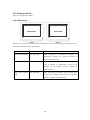
Monitor A is for monitoring multi channels and Monitor B is for monitoring large single channel. User
can monitor channels as following examples.
Monitor A
16-multi screen mode
Monitor B
1ch monitoring
Remarks
When monitoring 16 channels in Monitor A,
administrator monitors the important channel in
Monitor B simultaneously.
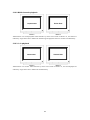
13-multi screen mode
User sequence
When monitoring 12 channels by 13-multi screen
mode in Monitor A, administrator monitors four
channels by user sequence mode in Monitor B
simultaneously.
Quad multi sequence 1ch monitoring
When monitoring all channels by each quad multi
mode
sequence mode, administrator monitors the important
channel in Monitor B simultaneously.
22
3.10.2. Multi-channels playback
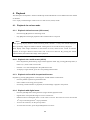
Administrator can search/playback multi-channels by multi screen mode in Monitor A, and monitor 1
channel by single full screen in Monitor B. Monitoring and playback with two monitors simultaneously.
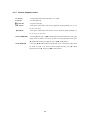
3.10.3. 1 ch playback
Administrator can monitor multi-channels by multi screen mode in Monitor A, and search/playback 1
channel by single full screen in Monitor B simultaneously.
23
4. Playback
The description of Playback is based on HVR-16Q model and HVR-08 can be differed from the number
of channels.
It is to replay recorded images in full screen or a multi screen (4/9/16) modes.
4.1. Playback via various mode
4.1.1. Playback via basic screen (full screen)
-
Press the Play [►] button in monitoring mode.
-
Play [►] button will begin playback of the recorded video at 1X speed.
<Note>
When pressing the play button in multi-monitoring mode, channel 1 is always the channel displayed.
More specifically, images recorded on Channel 1 during the last 30 seconds are always displayed.
There display video image information at the bottom of screen, which are the current 30 minutes
playback in the upper direction and 24 hours time in the lower direction. By pressing the wished
channel number, the related video image will be playback.
4.1.2. Playback via a multi screen (4/9/16)
-
Press the [MULTI] button during single channel playback mode. (By pressing [MULTI] button, it
multi as 4, 9, and 16 multi screen mode.
-
Channels 1 to 4 will be displayed in the quad-multi screen.
-
To display a single channel, press the corresponding number button.
4.1.3. Playback ch5 to ch16 via quad-multi screen
Playback by pressing [SEQ] button or selecting user wanted channel in multi mode.
-
Press the [SELECT] button in quad-multi mode.
-
Select a multi screen using [Arrow] button.
-
If selecting a channel number to playback, the related image is played in the position.
4.1.4. Playback with digital zoom
-
Press the [ZOOM] button during the basic (single-channel) playback mode.
-
Digital Zoom will expand the image to twice its normal size.
-
Default location of the digital zoom is in the center of screen. The zoom box can be moved each
10th step to left and right and 7th step up and down.
-
To move the zoom box, use the [Arrow] button.
-
To cancel the zoom box, press the [ZOOM] button once more.
24
4.1.5. Various playback modes
► (PLAY)
: To begin playback mode and replay at 1x speed.
■ (STOP)
: To stop replaying
▌▌ (PAUSE)
: To pause replaying
►► (FFW)
: Each press of the button will increase playback speed gradually (x1, x2, x4,
x8, x16, x32, x64)
◄◄ (REW)
: Each press of the button will increase reverse playback speed gradually (x1,
x2, x4, x8, x16, x32, x64)
STEP FORWARD
: Pressing [►, PLAY] or [►►, FFW] button from PAUSE status, will replay
image frame by frame. In order to go back to normal playback mode, press
[■, STOP] button then press [►, PLAY] or [►►, FFW] button.
STEP REWIND
: Pressing [◄◄, FRW] button from PAUSE status, will replay image frame
by frame. In order to go back to normal playback mode, press [■, STOP]
button then press [►, PLAY] or [►►, FFW] button.
25
4.2. Using search mode
Search Mode is used to search and play specific data directly in playback mode. Data can be searched by
specific Time and Date or by the Event Log browser.
“From” displays the first recorded time and “To” displays the last recorded time. By selecting “From/To”
and pressing [ENTER] button, it moves to the corresponding time.
<Button Control>
-
Press the [SEARCH] button in playback mode.
-
Search for data by entering Date/Time or by selecting an event from the Event Log browser.
-
Press the [ENTER] button.
-
The selected images will begin to playback.
-
To exit from search mode, press the [EXIT] button.
<Note> Using Log Browser
1. To move to the previous/next page, press the "Left" or "Right" buttons.
2. To move to previous log entry, press the "Up" button.
3. To move to next log entry, press the “Down Key” at the last log of the last page.
26
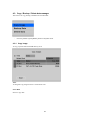
4.3. Copy / Backup / Delete data manager
This menu is to copy, backup, and delete the recorded data.
-
Press the [SELECT] and [MENU] button in Playback mode.
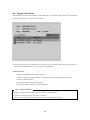
4.3.1. Copy image
To copy a specific data with USB memory stick.
Time
To designate copy range between 1 second and 1 hour.
Select Disk
Select to copy disk.
27
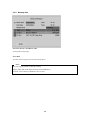
4.3.2. Backup data
Start Date & Time / End Date & Time
To designate backup range.
Select Disk
To select which storage will be used as backup device.
<Note>
Does not support USB device during a backup.
Support CD-R and CD-R media should be used 700MB above.
Generate .re4 for backup to HDD and .vfs3 to CD-R.
28
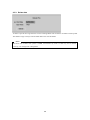
4.3.3. Delete data
To delete a specific file range from the current recording HDD. This menu does not affect for backup disk.
The deletion range is always from the oldest date to the time fixed data.
<Note>
The block unit of HVR’s file system is 64MB, which deletes by block. So data may not be deleted
correctly, even though time is designated.
29
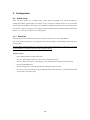
5. Configuration
5.1. Quick setup
There are three menus for recording setup; Quick Setup, Recording, and Alarm Recording in
Configuration Menu. Quick Setup is the easiest set-up, activating all analog cameras to record with the
same settings and conditions. Recording is the standard recording settings and can be customized by time
and channel. Alarm recording is the recording schedule based on alarm conditions (Motion Detection,
Sensors, etc.) Also, Quick Setup has time setting menu.
5.1.1. Date/Time
When HVR series are manufactured in factory, time zone will be set as “UTC 00:00 Dublin”.
First of all, please set the time to your local time zone, which is highly recommended for protecting user’s
recording data.
Changing HVR time[Date/Time] may cause time conflict with recorded images. In this case, it is strongly
recommended to re-format the hard drives after making changes.
<Button control>
-
Press [MENU] button on HVR front panel.
-
Move to “Quick Setup” menu (First tab on the Configuration menu).
-
Move to “Date/Time” below “Quick Setup” using downward arrow button on the front panel.
-
Press the [ENTER] button.
-
The following picture will be displayed when setting time menu correctly.
-
In order to access each sub menu, press [ENTER] button after selecting it with upward/downward
arrow button on the front panel.
30
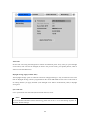
Time Zone
Set the time zone using the left/right arrow button on HVR front panel. Every time you press left/right
arrow button, time zone will be changed (To back to the previous menu, press [EXIT] button, which is
same as on the all OSD menu).
Daylight Saving (Apply summer time)
The Daylight Savings option is linked to Time Zone. Daylight Savings is only activated for time zones
that use Daylight Savings, which is programmed on the current MS Windows time zone. So this menu is
for setting whether you apply ON/OFF (with left/right arrow button on HVR front panel) in daylight
saving area.
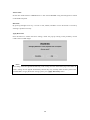
Sync with NTP
It is to synchronize time with NTP (Network Time Protocol) server.
<Note>
For more detailed information about NTP setting, please refer to the “5.7.6.4. NTP Setting” (System Æ
Network Æ NTP Settings).
31
Time Format
Set the time format between “MM/DD/YYYY” and “YYYY/MM/DD” using the left/right arrow button
on the HVR front panel.
Date/Time
By pressing left/right arrow key, it moves to Year, Month, and Date in turn. Each menu is moved by
selecting a up/down arrow key.
Apply Date/Time
Press this button to confirm the above settings, which will pop-up warning of the possibility of time
conflict with recorded images.
<Note>
Most setting values are applied automatically, when exiting from the related menu page. But “Date” &
“Time” settings are not applied automatically because they may critically affect the file system of the
recorded HDD. To apply Date/Time settings, please press [Apply Date/Time] button.
32
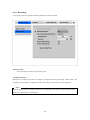
5.1.2. Recording
Its recording values are applied to all analog channels for all time periods.
<Button control>
-
Select “Recording “ from the “Quick Setup” tab.
Configuration Status
Display the recording setup status. If recording is configured with the Quick Setup, “Macro Setup” will
be displayed. If recording is configured with the “Recording, “Custom Setup” will be displayed.
<Note>
When all analog cameras' recording conditions are set identically, the status is marked as 'Macro Setup'.
Otherwise, it is marked as 'Custom Setup'.
33
Channel Status
Configure whether all analog channels will be activated or not. Default value is “On”.
Recording Speed/Quality
There are five conditions (No Rec./Low/Standard/High/Custom).
All conditions except “Custom” will synchronize “Speed (ips)” and “Quality” automatically”; “Low”
setting is 1ips/Q5; “Standard” setting is 5ips/Q5; “High” setting is 15ips/Q5.
When using the “Custom” setting, Speed (ips) and Quality can be set separately.
The condition of “Alarm Recording” is “Standard” as 1 sec and “Pre/Post Alarm” as 1 sec.
Audio Recording
Configure the audio recording feature.
If audio is set as “On” and “Audio Synch with” is set as “All”, audio will be available in Playback Mode
with all channels.
Apply
To apply a setting value, please press “Apply” button. By pressing [EXIT] button, HVR will begin
recording and exiting from the recording menu.
34
5.2. Camera
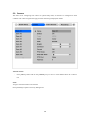
This menu is for configuring each camera. In Quick Setup menu, all cameras are configured as same
condition. The values assigned will apply for both monitoring and playback modes.
<Button control>
-
Press [MENU] button and use the [ARROW] keys to move to each channel below the “Camera”
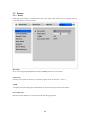
tab.
Name
Assign a customized name to the channel.
Press [ENTER] to open the necessary dialogue box.
35
<TIP>
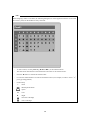
When assigning a name to a channel, the following dialogue box will be appeared. This box is also used
later in the system, but the method is always the same.
-
To select a letter, use the [ARROW] (◄◄ and ►► ) or the number buttons.
-
The intersection between the horizontal and the vertical bar is the selected choice.
-
Press the ► button to confirm the selected value.
-
Or enter the related numbers in order of horizontal/vertical. (For example, in order to select “C”,
press [3] and [2] button.)
-
Function Key
9
: Enter
: Back Space & delete
: Space
◄
: Left
►
: Right
: Previous Code Page
: Next Code Page
36
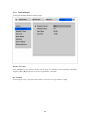
Status
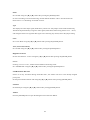
Set “On/Off” using the [◄] or [►] button after pressing the [ENTER] button.
In case of recording or network monitoring, unused channel should be “Off” to increase frame rate.
Please refer to “5.3 Recording” for further concerns.
Type
Just displays the video-input signal (NTSC/PAL), which is set with jumper switch inside of HVR-16Q.
The HVR-16Q automatically recognizes video signal (NTSC/PAL) after booting, detects ch #1 ~ ch#16,
and configures the first recognized video signal. Not connecting any camera, follow the jumper setting.
Color
Set “Color/ B/W” using the [◄] or [►] buttons after pressing the [ENTER] button.
AGC (Auto Gain Control)
Set “On/Off” using the [◄] or [►] buttons after pressing the [ENTER] button.
Brightness/Contrast
Set the value between –9 and +9 using the [◄] or [►] buttons after pressing the [ENTER] button.
Covert
If setting “Covert” as “On”, channel will be hidden in monitoring mode.
Set “A/B/Both/Off” using the [◄] or [►] buttons after pressing the [ENTER] button.
PTZ Home/PTZ Idle Time
If there is not any movement during "PTZ Idle Time”, the camera will move to the already assigned
preset point.
Set the preset number and time with using the [◄] or [►] buttons after pressing [ENTER] button.
PTZ Port
Set the PTZ port using the [◄] or [►] buttons after pressing [ENTER] button.
Address
Press the [ENTER] button to open the dialogue box for PTZ base address.
37
5.3. Recording
This menu is for configuring the Recording settings by channel and time schedule. If this menu is
configured Quick Setup, the previous Quick Setup values will be replaced by the Recording settings.
5.3.1. Setting global
It is similar to Quick Setup’s recording setting and configures all analog channels by same conditions.
<Note>
1. Differently from Quick Setup’s recording condition, global setting doesn’t have “Audio Recording”
menu and have “Special Time Recording” and “Event Recording” menus.
2. To confirm the configured values, you should press the “Apply” button.
3. For more information, please refer to the following “5.3.2 Setting channel”.
38
5.3.2. Setting channel
Time Schedule
Each camera can be set by recording condition based on five way schedules; Full Time / Weekday (Day) /
Weekday (Night) / Weekend (Day) / Weekend (Night). Each schedule except for Full Time can be
configured under the “System” menu.
39
<Setting Time Schedule>
In order to set time schedule, move to “System” menu.
Weekday Start/End
Set the range for “Weekday” between Monday and Sunday using the [◄] or [►] buttons. “Weekend” is
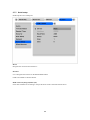
set automatically based on “Weekday” range.
Day Start/End
Set the range for “Day” using the up/down buttons. The “Night” range is set automatically based on
“Day” range.
Recording Speed/Quality
There are five conditions; No Rec./Low/Standard/High/Custom.
All conditions except “Custom” synchronize “Speed (ips)” and “Quality” automatically; “Low” setting is
1ips/Q3; “Standard” setting is 5ips/Q3; “High” setting is 15ips/Q3. When using the “Custom” setting,
Speed (ips) and Quality can be set separately.
40
In case of “Speed”, the maximum recording speed per channel is restricted as the following table.
HVR-08(Max. 60ips)
HVR-16E(Max. 120ips)
HVR-16Q(Max. 240ips)
2ch
30
30
30
4ch
15
30
30
8ch
7.5
15
30
16ch
-
7.5
15
Reducing a channel should be “Off” at the “Camera” menu without regard to the availability of recording.
For example, in case of recording 30 images per all channel using 8ch HVR-16Q, both even(2,4,6,8) &
odd(1,3,5,7) channel be “Off” and other channels(9~16) should be used.
Clearer Image Mode
Recording mode for the highest image quality. Configuring “On”, it is possible to record an clear image
without remainder image, but has twice to 20th times bigger recording file size compared with configuring
“Off”, which might be reduced recording frame rate according to the condition.
Special Time Recording
This menu is to designate different recording conditions during “Special Times.” For example, if “Special
Times” is set at the weekday, it can be recorded by two recording conditions. “Special Time” is
designated under the “System” tab.
There are five conditions; No Rec./Low/Standard/High/Same as above (Apply same setting value as
“Recording Speed/Quality”).
41
<Setting Special Time>
To set ”Special Time,” move to “System” tab.
Up to four zones can be designated as “Special Time.”
Event Recording
Press the [ENTER] button to set “On/Off” using the [◄] or [►] buttons.
Please refer to “5.4 Alarm Recording” for more details in alarm recording conditions.
This setting is to determine whether it will be recorded by alarm recording or not.
42
5.4. Alarm recording
This menu is to configure for the settings for alarm recording conditions. To activate this recording
condition, set “Event Recording” as “On” under the “Recording” menu.
And “Alarm Source” should be set before alarm recording menu.
5.4.1. Setting sensor
It is for setting sensor availability and type. The HVR supports Normal Open(N.O.) and Normal
Close(N.C.) types. HVR-08 support S1 through S4.
Global
To set all sensors by same conditions. Select one of conditions among “Off/N.O./N.C.” and press the
“Apply” button.
Configuration
To set each 16 sensors separately as S1 through S6.
43
5.4.2. Setting motion detection
It is for setting each MD condition per channel. “Global” means to set all channels (Cam#1 ~ Cam#16) by
same MD condition. And it is possible to set each channel separately.
Motion Detection
Choose from among four sensitivity conditions; Off, Lowest, Low, Std., High, and Highest
MD Area
Customize the MD area among 64 sectors (8 sectors x 8 sectors).
Default value is “Select All”. Select “Clear All” to remove all MD areas.
Include Video Loss
Set whether no video situation is set as MD or not.
<Note>
After setting it as “Global”, press the “Apply” button certainly. Otherwise, it won’t be applied.
44
5.4.2.1. Setting motion detection per channel
Setting MD per channel is same as “Global” setting and can add MD area in case of setting MD per
channel.
Custom Area
The user customizes the MD area among 64 sectors (8 sectors x 8 sectors). Default value is “Select All”
and Select “Custom Area” button to open MD area setting windows.
45
<Setting MD Area>
Designate a specific area for motion detection triggered event.
Press the “Custom Area” button to customize the motion detection area, which displays 64 cells (8 x 8).
Selected MD area is indicated in gray color. To select cells from motion detection, select the cell using
the [ARROW] buttons and press the [ENTER] button. Press the [EXIT] button when finished.
46
5.4.3. Setting text
This menu is to set input text information. For text recording, “COM1” part should be also set in
“SystemÆSerial Setup” menu.
Recording
To set recording “On/Off” for text input.
Sync Text With
To set channel to synchronize with a text.
Seek Header
The various types of information come from the connected external devices such as Access Control, POS,
ATM, and so on. If a protocol is already built in HVR-16Q like Star Finger 007, this setting is not
necessary. Otherwise, HVR-16Q can’t recognize which parameter value is input to HVR-16Q. Namely,
all information has starting point and ending point. A “Header” means starting point that is always
inserted.
Therefore, when this header data is transmitted to HVR-16Q, HVR-16Q can recognize it as starting point.
Header can be set up to 2 points only since one device can send out various data to the outside. That’s
why header is fixed as 2 points only.
47
Delimiter
Because delimiter value may be different at each device, please refer to the manual of related device.
Timeout(ms)
The following “Lines” means maximum text line that can be included within a data. However length of
each data may be longer or shorter in case of standardizing a data. For example, suppose that customer
name and its parameter is fixed as three data at ATM, if a certain customer register first & last name, his
data will display one blank data other than customer registered first, middle, and last name. Since HVR
can’t recognize last blank data automatically, timeout menu is necessary for this case. Namely, if specific
time passes after HVR-16Q receives the last line, HVR-16Q will regard it as normal data and decide to
record.
Lines
To set maximum line of data.
48
5.4.4. Setting global alarm recording
It is to set all analog channels by same condition.
Sensor/MD
Set whether sensor/MD is connected or not.
Pairing means channel runs sensor/MD by 1 by 1.
Text
Input text with “On” setting, the corresponding channel is recognized as Alarm Event and recorded.
Clearer Image (Bigger File Size)
Clearer image “On/Off” during a alarm recording.
<Note>
1. After setting it as “Global”, press the “Apply” button certainly.
2. For more information, please refer to the following “5.4.5. Setting channel”.
49
5.4.5. Setting channel
HVR-080 can be set Cam#1 ~ Cam#8.
Alarm Source (*=All)
-
With “Alarm Source” menu, it is possible to select up to 4 sensor/MD and text input.
-
For setting sensor/MD, press the related number button.
-
Set text as “On/Off” with [ARROW] button.
-
Set a PTZ preset position according to the alarm input.
<Note>
1. * : Press [ENTER] button.
2. – or # : Press numeral [0].
Recording Speed/Quality
There are four conditions; Low/Standard/High/Custom. All conditions except “Custom” synchronize
“Speed (ips)” and “Quality” automatically; “Low”: 1ips/Q3; “Standard”: 5ips/Q3; “High”: 15ips/Q3.
When using the “Custom” setting, Speed (ips) and Quality can be set separately.
Pre Alarm (sec)
Set a value up to 10 seconds to record video Pre-Alarm.
Post Alarm (sec)
Set a value up to 60 seconds to maintain recording conditions Post-Alarm.
50
5.5. Alarm act.
It is to set relay command as each time schedule; Full Time, Weekday(Day), Weekday(Night),
Weekend(Day), Weekend(Night). In order to make alarm action run after setting schedule, Relay, Buzzer,
and E-mail should be also configured.
5.5.1. Schedule
Select Action Source
In the menu of Relay1~Relay4, Buzzer, and E-mail, Sensor and MD can be set up to 4EA or ANY. And
Text can be set as “On/Off”.
For selecting sensor/MD, press the channel number to set.
<Note>
1. ANY : Press [ENTER] button.
Special Time
Enable “Special Time” in order to apply the relay schedule to the Special Time Zone.
<Note>
1. “Global” means to set all time schedules by same condition.
2. After setting it as “Global”, press the “Apply” button certainly.
51
5.5.2. Setup
Relay Configuration
Enable R1~R4.
Buzzer
Enable an alarm buzzer when an alarm (MD or sensor) is triggered.
E-mail Address
Enter E-mail address to receive alarm notification.
Sender Address
Record a sender’s e-mail address as who@where
Mail Duration (min)
E-mail notification is not to send out occurred an alarm event, but sends e-mail by setting time interval
(1~30min).
<Note>
For using E-mail notification, DNS should be set in Network configuration.
52
5.6. Monitor
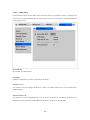
This menu is to set display image on monitor A & monitor B (Only for HVR-16Q model). HVR-08 &
HVR-16E display the menu of monitor A such as monitor A interface shown as below.
Alarm Pop-up (sec)
To set alarm pop-up screen in case of occurring an alarm event. Pop-up duration time can be set between
5 and 10 seconds. If setting as “Keep”, pop-up screen keeps holding. In order to cancel Keep mode, press
any channel button.
Seq. Switching(sec)
To set sequence time between 1 and 60 seconds.
Anti-Flicker OSD
To set “On/Off” of Anti-Flicker OSD menu. In case of “On”, menu & letter at the screen are soft and not
flickering. In case of “Off”, it is clear and flickering. Make “On/Off” according to the user’s monitor
performance if necessary.
53
<Note>
If channel 1 pops up and channel 2 also pops up before pop-up hold time, screen is changed to quadmulti screen and channel 1 and 2 are shown. And the pop-up hold time is extended automatically. (Up to
8 channels)
User Sequence Configuration
To set user sequence mode.
<Note>
1. User sequence mode can be set upto #16.
2. The example above shows 6 sequence sets; Quad multi screen(1,2,3,4) Æ Single full screen(1) Æ
Quad multi screen(5,6,7,8) Æ Single full screen(5) Æ Single full screen(8) Æ 9-multi
screen(9,10,11,12,13,14,15,16)
54
5.7. System
5.7.1. Audio
HVR-16Q model supports 1 channel audio input. This single audio channel can be replayed with any
connected channel or with all of them.
Recording
Set to “On” using the [ENTER] button and the [ARROW] buttons to record audio.
Audio Gain
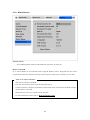
Increases or decreases the sensitivity to the audio signal. Can be set between –7 and +8.
+20dB
To amplify the audio input signal. Should ONLY be used when using an external microphone.
Sync Audio with
Designate which channel(s) to synchronize audio with during playback.
55
5.7.2. Time schedule
To designate Weekday/Weekend and Day/Night.
Weekday Start/End
Press [ENTER] to access the Time Setting. Set the range for “Weekday” between Monday and Sunday
using the [◄] or [►] buttons. Not to be set a range indicates “Weekend”.
Day Start/End
Set the range for “Day” using the up/down buttons. Not to be set a range indicates “Night”.
56
5.7.3. Special time
Each time zone is available at Weekday(Day), Weekday(Night), Weekend(Day), Weekend(Night) as a
special time.
Up to four zones can be designated as “Special Time.”
57
5.7.4. Security
User Password
Designate a User’s Password only for access to monitoring and playback. Default password is “0000”.
Admin Password
Designate an Administrator’s Password to control access to Configuration Menu and full system control
authority. Default password is “9999”.
Remote Setup
When set to “Enable,” users can configure HVR through the DVR manager S/W remotely.
Remote Relay
Enables access to the “Relay Out” menu from a remote site.
58
5.7.5. Disk setup
Auto Deletion
Images and data recorded under the “Normal” condition are automatically deleted as the hard-drive(s)
reaches capacity.
Backup Reminder
A Backup Reminder can be set to remind users to backup the HDD. The reminder can be set to appear by
daily, weekly, or monthly.
Day/Date/Time
To set the value according to the “Backup Reminder” configuration.
59
5.7.6. Network
There are five sub-menus; Network, xDSL, WRS, Port Setting, and NTP Setting.
5.7.6.1. Network
This page is to define network type and set network addresses for HVR series.
Type
This is to select proper network interface (Ethernet/xDSL) with which HVR is connected. If HVR is
connected with Internet dedicated line, cable modem line or on LAN environment, select network
interface as ‘Ethernet.’
If HVR is connected on xDSL line that needs PPPoE process to connect to the Internet, administrator
should select ‘xDSL.’ However, if the xDSL line does not need PPPoE process, administrator should
select ‘Ethernet,’ even though HVR is connected on xDSL line.
DHCP (Dynamic Host Configuration Protocol)
DHCP is to manage host address at the networking such as sharing public IP address from the defined
internet connection, which makes all host addresses available internet connection using this protocol. That
is to say, all host addresses connected to LAN can be temporarily assigned public address from DHCP
server. If LAN supports DHCP server and DHCP is activated, DHCP server assigns public IP address to
60
HVR, which is used on the LAN environment running a DHCP server. In case of middle/large scale
enterprise, DHCP server is mostly used for local area networking. In case of small scale enterprise, NAT
(Network Address Translation) of HUB is normally used for LAN environment.
IP Address, NetMask, Gateway Address, DNS, and Port
Administrator may configure IP address, subnet mask, default gateway, DNS addresses, and port of the
HVR.
5.7.6.2. xDSL
If HVR is connected on xDSL line and uses PPPoE, the network administrator should configure the user
ID and password for PPPoE.
User ID/Password
When HVR is connected to xDSL, access ID and Password should be entered.
Status
Display the HVR connection status.
61
5.7.6.3. WRS
When HVR is installed under the environment of Cable Modem or xDSL Modem connection, its IP
address is changed whenever it reconnects to the Internet Service Provider. In this case users who don’t
know the changed IP address cannot get access to the HVR. The HVR with dynamic IP should be
registered to the HUNT ELECTRONIC Registration Server (WRS) server in order to make it easy for
users to find the changed IP address when they want to access the HVR.
To register dynamic IP address to WRS, configure the descriptions below.
WRS Interval
To be registered continuously, registration interval should be configured at the ‘WRS Interval’. Dynamic
IP address updates its changed IP periodically at WRS server by the interval value. If ‘WRS Interval’ is
set as ‘0’ or no signal is received before two days, the WRS will delete the unit from the register.
WRS URL
This is to configure a server address for registration. WRS address of HUNT ELECTRONIC Inc. is
www.HUNT Electronicinc.com or mycam.to.
62
<Note>
1. In case of typing domain address such as www.HUNT Electronicinc.com or mycam.to at WRS URL,
please write DNS server IP at “System Æ Network Æ DNS1”.
2. In case of DHCP environment such as Cable/DSL, the user does not necessary to type DNS.
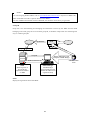
Group ID
Group ID is for discriminating and managing the information received by the WRS from the HVR
belonging to the same group ID. To avoid same group ID, is should be unique name not conflicting with
easy or common group ID.
Grup ID and IP
eDVR
IP
Internet
Group ID
ISP
As
sig
n
and IP
Group ID
ID
Register WRS address and
Group ID on eDVR Manager
Administrator /
User
eDVRs of selected Group
WRS
eDVR registers its
Group ID and
Dynamic IP address
on WRS
Gr
oup
eDVR Manager
eDVR Manager
accesses WRS and gets
DS800's IP addresses of
registered Group
Status
Display the registration status of the HVR.
63
5.7.6.4. NTP setting
NTP (Network Time Protocol) makes time of Network devices synchronize, which is composed of a
central server to supply standard time via Network and a client for receiving the synchronized time with
connecting the server.
Sync with NTP
Set “On/Off” for NTP function.
NTP Mode
Set HVR’s NTP mode as a Client or both (Server & Client).
NTP Server Loc.
It is possible to set after setting NTP Mode as “Client”. Set whether NTP server is on Local Network or
Internet (Public).
NTP Local Server IP
It is possible to set after setting NTP Server Loc. as “Local”. Set the server’s IP address. Set NTP server’s
IP address on local Network or the IP address of HVR that is set as server in NTP mode.
64
Interval (min)
Set a synchronizing interval.
<Note>
When NTP mode is set as “Client”, "Sync with NTP” of “Time Setting” should be as “On”.
65
5.7.7. Serial setup
HVR-16Q has total 4 COM ports.
Device
Designate the connected external device.
Interface
Use to designate the interface on the RS422/RS485 Menu.
COM1 and COM3 are fixed as RS232.
Baud rate/Parity/Stop (bit)/Data (bit)
Each value should be set according to the specifications of the connected external device.
66
5.7.8. Miscellaneous
<Button control>
-
Press [MENU] button and select “Miscellaneous” below the “System” tab.
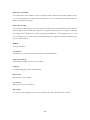
Remote Control ID
Up to sixteen HVRs can be controlled with a single IR Remote Control. Designate each unit with a
unique number under the ‘Remote Control ID’ menu. When not using remote controller, set it as “Off”.
<How to set remote controller >
-
Aim remote controller at the HVR.
-
Press the “ID” button of remote controller until HVR reacts.
-
If remote controller’s ID agrees with HVR’s, all the LEDs on the front panel of the HVR will light
up and a buzzer will sound.
-
OSD menus can now be set with the remote controller.
-
For more information, please refer to “HVR Installation Guide”.
67
Keyboard Control Addr
To set keyboard’s control address in order to operate all HVR’s menus with keyboard. Default value is
“32”. If several HVRs are connected with one keyboard, it can be collided with #32 channel. Then, the
default value should be changed.
Keyboard PTZ Addr
To set keyboard’s PTZ address in order to operate each PTZ camera with keyboard. If setting just first
camera’s address of each HVR, other cameras’ are designated automatically. For example, 1st HVR has
five cameras and 2nd HVR has six cameras, keyboard PTZ address of 1st HVR should be set as “1” and
one of 2nd HVR be set as “6”. Be cautious that PTZ addressed are assigned to all cameras automatically in
spite of non PTZ camera.
HVR ID
To name each HVR.
Alarm Buzzer
Configuring “On”, buzzer will sound when detect an alarm (MD/Sensor).
Night Noise Filtering
Clearer image for night view and can set “On/Off”.
Language
To select the language used for the OSD Menu.
H/W Version
Display H/W version of HVR.
S/W Version
Display firmware version of HVR.
Reset Values
Use to reset current configured values to factory default value. Press the “Reset Values” button.
68
5.8. Utility
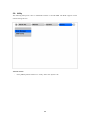
The following description is how to add/format internal or external HDD. The HVR supports various
external storage devices.
<Button control>
-
Press [MENU] button and move to “Utility” below the “System” tab.
69
5.8.1. Disk manager
A connected HDD is detected automatically.
Select Disk
To select a Disk.
Action
Select from “Add/Remove/Confirm Removed/Add used”.
[Add]
: Add HDD for recording. Should be empty partition table disk, which can be
removed from the partition table of PC. Adding a disk, “Alarm Partition”
menu is activated to configure, which means that “Alarm Partition” divides
one HDD as “Recording” and “Alarm Recording” partition part.
[Remove]
: Remove current HDD. HDD can be reused without formatting it by the ‘Add
Used’ command.
[Confirm Removed]
: Use when a removed HDD is still listed. ALL DATA WILL BE LOST!
[Add used]
: Add HDD that has been used without formatted.
<File system compatibility> Disk used at ver 1.x and 2.x of HVR can be re-
70
used without deleting its data.
FAT32 Format
: Use when connect to the external HDD
Fomat the partition of below 250GB to copy/backup by FAT32 file system.
It is necessary to create partition by using Diskmanager on PC for this work.
In case the size is over 250GB, format each partiton by FAT32 file system after
creating multiple partitons smaller than 250GB.
Type
There are several symbols to indicate HDD status.
[R]
: Available for recording HDD and completed format.
[V]
: Connected and formatted as HVR’s file system.
If using ‘Add used’ command, it will be changed to [R]. There is no need to format again.
[F]
: Connected but not available with HVR’s file system (FAT/FAT32). If using ‘Add’
command, it will be changed to [R].
[X]
: HDD cable is not connected or HDD has a problem. It is recommended to delete from list
using ‘Confirm Removed’.
[C]
: Available for backup to the external CD-Writer.
< File system compatibility >
Instructions
-
When upgrading HVR is completed, HDD used at below version will have the sign of [V] at Disk
Manager.
-
Select HDD at Select Disk.
-
Select ‘Add Used’ at Action and press the button of ‘Apply’.
-
Click OK at ‘NOTICE - Disk reused for recording’.
-
Converting process will be going on after the message of ‘Converting files from old version may
take a few minutes’ appears.
-
If the sign of Type changes into [R], the status of HDD is usable.
Warning
-
HDD used at below version will have sign of [V] when upgrade is completed and re-use is possible
only with Add Used.
-
‘Add Used’ process may take from 10 seconds to a few minutes according to the capacity of HDD.
-
Playback recorded data of HDD used at below version may have problem and CD backup is
impossible.
-
The function such as Watermark or Smart Search can not be supported at recorded data of below
version.
71
-
Please note that some functions and backup can not be supported as above explanation even if file
system is basically designed to be conpatible between each other, so data backup is recommended
before upgrading.
5.8.2. USB utility
Provide firmware upgrade, save setting, load setting, and print setting for text file saving using USB.
Update F/W
After saving update firmware for USB to USB device, connect to HVR, press [Update F/W] button, and
finally complete firmware update, which provides as ‘.data’ file.
Print Settings (.txt)
This is saving function to USB device to print out setting value as a text file. Open the saved file at the
text editor such as “Notepad” and print out a text to check the saved values.
72
<Setting File Content saved as a TEXT>
- Camera Setting
- Recording Setting
- Alarm Recording Setting
- Network Setting
- Audio Setting
Load Settings
Load the saved setting from USB device.
Save Settings
Save the current setting to USB device.
73
Advanced configuration
6. Connecting external device
The external device is based on HVR-16Q model.
6.1. Using text device
In order to use text device, the following four menus should be set; Text menu, Serial Setup for RS232
menu, Alarm Rec. menu, and Recording menu.
6.1.1. Setting at text menu
-
Set both Recording and Monitoring as “On”
-
Select any channel you want.
-
If the connected device is Star Finger 007, select it at “Device” menu. If not, set ”Manual” and all
other sub-menus.
74
6.1.2. Setting at serial setup for RS232 menu
Set COM1 RS232’s device menu as “Text”. And set baud rate, parity, stop, and data as a proper value.
75
6.1.3. Setting at alarm rec. menu
Set text event as “On” to record the channel with a text.
76
6.1.4. Setting at recording menu
Set alarm recording as “On” to record the channel with a text. “Full Time” is all for Weekday(Day),
Weekday(Night), Weekend(Day), and Weekend(Night). To set weekday or weekend differently, change
the menu to configure it.
<Note>
Whenever pressing the “Help” button, information of displayed image is different.
The default value of Monitoring mode is to show just channel number. Then next step is to show
channel name and text, event status, and HDD status.
However, the default value of Playback mode is to show all information. The next level is to show
channel name and text, event status, and channel number.
So in order to view text data, press the “Help” button once at either Monitoring or Playback mode.
77
6.2. Using keyboard
In order to use keyboard, the following two menus should be set; Serial Setup for RS232 menu, Serial
Setup for PTZ menu
6.2.1. Setting at serial setup for COM1 menu
Set RS232 (COM1)’s device menu as “Keyboard”. And set baud rate, parity, stop, and data.
6.2.2. Setting at serial setup for PTZ menu
Set PTZ camera to control with keyboard and communication environment between HVRs. For more
detailed technical solution, please contact the closest local HUNT ELECTRONIC’s distributor.
78
APPENDIX
APPENDIX
79
#1. Technical specification
#1.1. HVR-16Q
Hardware
32bit RISC Embedded processor (266MIPS)
Flash memory: 8Mbyte
RAM: 128Mbyte
OS: Embedded Linux
Storage device
Int.: 2 HDD bays
Ext: 2 IEEE 1394 (FireWire) connection ports
Supports Disk management tool for all disks
(Reboot is required when HDD changed)
Total manageable capacity: 4 TB
Image quality control
5 Levels (Q1-Q5)
Image compression
Compression algorithm: Differential Wavelet
Compression rate: 20:1 ~500:1
Average file size: 3 ~ 5KB (Standard quality)
Video channel
NTSC or PAL video format are supported (auto
detect)
16Ch. analog video inputs via BNC connector
Recording performance
Max. 240ips(NTSC) / 200ips(PAL) in total
(on 360X243) analog Ch
Max 30ips (NTSC) per channel if 8ch used
Max. 15ips (NTSC) per channel if 16ch used
Schedule recording
Daily: Day / Night / Four-segment time frame
Weekly: Weekdays / Weekends
Status: Normal / Event
Matrix digital output schedule
Daily: Day / night / Four-segment time frame
Weekly: Weekdays / Weekends
Conditions: MD, sensor input
Configurable recording conditions
Recording speed: None to 30 ips
Image quality: 5 Levels
Event conditions: MD & sensor inputs
Pre / Post alarm recording
Pre alarm recording: 1 ~ 10 seconds
Post alarm recording: 1 ~ 60 seconds
Intelligent file system
Data-loss protection against power failure
80
Event triggered video data storage
Overwrite prevention of event triggered data
Event log recording
Log archiving on HDD
Log search & monitoring via Network
Data (video & audio clip) back-up
External HDD or external CD-R on IEEE1394
(FireWire) port
Data copy (Max. 1hour’s video clip)
External USB memory disk(USB 1.1 compatible)
on USB port
Backup notification: Daily / Weekly / Monthly
Monitor A displaying performance
Frame rate on CCTV monitor: Max. 960fps
Quad mode : 1/4/9/16/13 Channels
Sequence switching : Auto, User defined
Monitor A playback performance
Frame rate : total 60ips
Quad mode : 1/4/9/16 channels
Play speed: 1x, 2x, 4x, 8x, 16x (FDW & REV)
Supports step-forward, step-reverse.
Instant data access based on time and event log
Monitor A output
1 CVBS
1 Y/C
Monitor B displaying performance
Frame Rate on CCTV monitor: Max. 60fps
Single channel mode only
Sequence switching : Auto, User defined
Monitor B playback performance
Frame rate : total 60ips
Single channel mode only
Play speed: 1x, 2x, 4x, 8x, 16x (FDW & REV)
Supports step-forward, step-reverse.
Instant data access based on time and event log
Monitor B output
1 CVBS
Digital zoom
2 times digital zoom (Live & Playback mode)
Event triggered pop-up video
Triggered by motion detection or sensor input
PTZ control
Ports: RS232(2) , RS485/RS422(2)
Local user
Front panel push button & IR remote
(controls IP video channels as well)
81
Remote user
On-the-screen PTZ control on PC
Preset: 8 points per channel
Group: 1 group per channel
Return home position’ support
Sensor inputs and alarm outputs
Software-controlled 16 sensor inputs
Software-controlled 4 alarms outputs
Software-controlled 1 internal buzzer
Audio recording and playback
Input: 1Ch, line-in, 1Vpp
Output: 1Ch, line-out, 1Vpp
Level: -7 ~ 8 recording level control
Supports 20dB Amp. for low level audio recording
Supports local and remote audio monitoring
Network
Protocol: TCP/IP, ARP, ICMP, DHCP, PPPoE
Line: 10/100Mbps Ethernet (RJ-45)
Simul. user support over Network
Monitoring: Max. 5 users
Playback: Max. 5 users
Management and firmware upgrades
Firmware upgrades via Network
Security
Password (User or Administrator authentication)
Power
AC free volt (100 ~ 240VAC)
Power consumption (with 2HDD)
Max. 85W
Typical 60W
Environmental spec
Operating: 41 ~ 113 degrees F.
Storage: -49 ~ 149 degrees F.
#1.2. HVR-16E
Hardware
32bit RISC Embedded processor (266/200MIPS)
Flash memory: 8Mbyte
RAM: 64Mbyte
OS: Embedded Linux
82
Storage device
Int.: 2 HDD bays
Ext: 2 IEEE 1394 (FireWire) connection ports
Supports disk management tool for all disks
(Reboot is required when HDD changed)
Total manageable capacity: 4 TB
Image quality control
5 Levels (Q1-Q5)
Image compression
Compression algorithm: Differential Wavelet
Compression rate: 20:1 ~500:1
Average file size: 3 ~ 5KB (standard quality)
Video channel
NTSC or PAL video format are supported (auto
detect)
16Ch. analog video inputs via BNC connector
Recording performance analog Ch
Max. 120ips(NTSC) / 100ips(PAL) in total
(1600D)
Max 30 ips (NTSC) per channel if 4ch used
Max. 15ips (NTSC) per channel if 8ch used
Max. 7.5ips (NTSC) per channel if 16ch used
Schedule recording
Daily: Day / night / Four-segment time frame
Weekly: Weekdays / Weekends
Status: Normal / Event
Matrix digital output schedule
Daily: Day / night / Four-segment time frame
Weekly: Weekdays / Weekends
Conditions: MD, sensor input
Configurable recording conditions
Recording speed: None to 30 ips
Image quality: 5 Levels
Event conditions: MD & sensor inputs
Pre / Post alarm recording
Pre alarm recording: 1 ~ 10 seconds
Post alarm recording: 1 ~ 60 seconds
Intelligent file system
Data-loss protection against power failure
Event triggered video data storage
Overwrite prevention of Event triggered data
Event log recording
Log archiving on HDD
Log search & monitoring via Network
83
Data (video & audio clip) Back-up
External HDD or external CD-R on IEEE1394
(FireWire) port
Data copy (Max. 1hour’s video clip)
External USB memory disk(USB 1.1 compatible)
on USB port
Backup notification: Daily / Weekly / Monthly
Displaying performance
Frame rate on CCTV monitor: Max. 960fps
Quad mode : 1/4/9/16/13 channels
Sequence switching : auto sequential
Playback performance
Frame rate : total 60ips
Quad mode : 1/4/9/16 channels
Play speed: 1x, 2x, 4x, 8x, 16x (FDW & REV)
Supports step-forward, step-reverse.
Instant data access based on time and event log
Video output
2 CVBS
1 Y/C
1 VGA (only for VGA support model)
Digital zoom
2 times digital zoom (Live & Playback Mode)
Event triggered pop-up video
Triggered by motion detection or sensor input
PTZ control
Ports: RS232(2), RS485/RS422(2)
Local user
Front panel push button & IR remote
(controls IP video channels as well)
Remote user
On-the-screen PTZ control on PC
Preset: 8 points per channel
Group: 1 group per channel
Return Home Position’ support
Sensor inputs and relay outputs
Software-controlled 16 sensor inputs
Software-controlled 4 relay outputs
Software-controlled 1 internal buzzer
Audio recording and playback
Input: 1Ch, line-in, 1Vpp
Output: 1Ch, line-out, 1Vpp
Level: -7 ~ 8 recording level control
Supports 20dB Amp. for low level audio recording
Supports local and remote audio monitoring
Network
Protocol: TCP/IP, ARP, ICMP, DHCP, PPPoE
Line: 10/100Mbps Ethernet (RJ-45)
84
Simul. user support over Network
Monitoring: Max. 5 users
Playback: Max. 5 users
Management and firmware upgrades
Firmware upgrades via Network
Security
Password (User or Administrator authentication)
Power
AC free voltage (100 ~ 240VAC)
Power consumption (with 2HDD)
Max. 85W
Typical 50W
Environmental spec
Operating: 41 ~ 113 degrees F.
Storage: -49 ~ 149 degrees F.
#1.3. HVR-08
Hardware
32bit RISC Embedded processor (200MIPS)
Flash memory: 8Mbyte
RAM: 32Mbyte
OS: Embedded Linux
Storage device
Int.: 2 HDD bays
Ext: 3 IEEE 1394 (FireWire) connection ports
Supports Disk management tool for all disks
(Reboot is required when HDD changed)
Total manageable capacity: 2 TB
Image quality control
5 Levels (Q1-Q5)
Image compression
Compression algorithm: Differential Wavelet
Compression rate: 20:1 ~500:1
Average file size: 3 ~ 5KB (standard quality)
Video channel
NTSC or PAL video format are supported
8Ch. analog video inputs via BNC connector
Recording performance
Max. 60fps(NTSC) / 50fps(PAL) in total
(on 360X243) analog Ch
Max 30 fps (NTSC) per channel if 2ch used
Max. 15fps (NTSC) per channel if 4ch used
85
Schedule recording
Daily: Day / night / Four-segment time frame
Weekly: Weekdays / Weekends
Status: Normal / Event
Matrix digital output schedule
Daily: Day / night / Four-segment time frame
Weekly: Weekdays / Weekends
Conditions: MD, sensor input
Configurable recording conditions
Recording speed: None to 30 fps
Image quality: 5 Levels
Event conditions: MD & sensor inputs
Pre / Post alarm recording
Pre alarm recording: 1 ~ 10 seconds
Post alarm recording: 1 ~ 60 seconds
Intelligent file system
Data-loss protection against power failure
Event triggered video data storage
Overwrite prevention of Event triggered data
Event log recording
Log archiving on HDD
Log search & monitoring via Network
Data (video & audio clip) Back-up
External HDD: IEEE1394 (FireWire) or USB
PnP Memory Stick: USB port
Data copy (Max. 1minute’s video clip)
VHS video tape: Video output port for VCR
Backup notification: Daily / Weekly / Monthly
PnP USB storage(Compact flash, Smart media,
Memory stick, SD card)
Displaying performance
Frame rate on CCTV monitor: Max. 120fps
Frame rate on PC: Max. 60ips
Display channel: Quad, Auto sequential
Play speed: 1x, 2x, 4x, 8x, 16x (FDW & REV)
Supports step-forward, step-reverse.
Instant data access based on time and event log
Digital zoom
2 times digital zoom (Live & Playback mode)
Event triggered pop-up video
Triggered by motion detection or sensor input
PTZ control
Ports: RS232, RS485/RS422
Local user
Front panel push button & IR remote
(controls IP video channels as well)
86
Remote user
On-the-screen PTZ control on PC
Preset: 8 points per channel
Group: 1 group per channel
Return home position support
Sensor inputs and alarm outputs
Software-controlled 4 sensor inputs
Software-controlled 4 alarms outputs
Audio recording and playback
Input: 1Ch, line-in, 1Vpp
Output: 1Ch, line-out, 1Vpp
Level: -7 ~ 8 recording level control
Supports 20dB Amp. for low level audio recording
Supports local and remote audio monitoring
Network
Protocol: TCP/IP, ARP, ICMP, DHCP, PPPoE
Line: 10/100Mbps Ethernet (RJ-45)
Simul. user support over Network
Monitoring: Max. 5 users
Playback: Max. 5 users
Management and firmware upgrades
Firmware upgrades via Network
Security
Password (User or Administrator authentication)
Watermarking (For image copying)
Power supply (included)
Input: AC 100~240V, 50~60 Hz
Output: DC 12V, 5A
Power consumption(with 2HDD)
Booting: Max. DC 12V ± 10%, 4.5A (54W)
Normal: DC 12V ± 10%, 3.9A (35W)
Environmental spec
Operating: 41 ~ 113 degrees F.
Storage: -49 ~ 149 degrees F.
87
#2. Utilizing IP addresses on local Network
#2.1 Introduction
Most of our businesses are done via Internet, lately. We play with information by transmitting through emails and searching the world of Internet. IP address is what we utilize to access to the Internet.
Currently used IP addresses are limited. And there are 5 classes’ networks in the world for now, and a
network contains lots of IP addresses. A network can hold limited IP addresses. The numbers depend on
network class. 5 classes are from A to E, and the most common one is C class network.
#2.2 IP construction and Network class
1) IP construction
xxx
xxx
xxx
(xxx: 0 – 255)
xxx
X1
X2
X3
X4
2) Network class
Class A: A network that contains IP addresses from 0 to 127 at room ‘X1’.
-
Network ID: X1
-
Host ID: X2, X3, X4
-
Total number of A-class networks is 128 in the world.
Class B: A network that contains IP addresses from 128 to 191 at room ‘X1’.
-
Network ID: X1, X2
-
Host ID: X3, X4
-
Total number of B-class networks is 65,534 in the world.
Class C: A network that contains IP addresses from 192 to 223 at room ‘X1’.
-
Network ID: X1, X2, X3
-
Host ID: X4
-
It is the most common network in the world, and the total number of C-class networks is
2,097,152
Class D: A network that contains IP addresses from 224 to 239 at room ‘X1’. D-class network is for
multicasting, and it is not allowed to use for common users.
Class E: A network that contains IP addresses from 240 to 255 at room ‘X1’. E-class network is reserved.
88
#2.3 Class C Network
1) Features of Address
IP address: Three digits number in room ‘X4’ are for Host ID, and the numbers are from 0 to 255.
Among the numbers, 0 is used for Network ID, 1 is used for Router IP (Gateway address) and 255 is used
for Broadcast address. Therefore the numbers from 1 to 244 are IP addresses that can be assigned to
products.
Network ID: It is to identify a network. Generally the first number is assigned as Network ID.
Gateway address: It is an IP address of router that is connecting Internet and local network. Remote
users can access local network over Internet through the gateway (router). Generally the second number is
assigned as Gateway address.
Broadcast address: It is to broadcast to all devices that are connected on local network. Broadcast
address is a destination for broadcasting and it is determined by calculating. All devices connected on
local network have a same Broadcast address.
Subnet Mask: It is to divide a local network into two remote networks. Subnet mask shows the IP
quantity in a certain network. The numbers that can be used as subnet mask are limited (0, 4, 8, 16, 32, 64,
128)
2) Network configuration
(1) To use as one network
Network ID: xxx.xxx.xxx.0
Gateway Address: xxx.xxx.xxx.1
Subnet Mask: 255.255.255.0
Broadcast Address: xxx.xxx.xxx.255
IP Addresses: xxx.xxx.xxx.2 – xxx.xxx.xxx.254
89
(2) To use as two sub-networks (1/2 + 1/2)
Sub-Network ID: xxx.xxx.xxx.0
Gateway Address: xxx.xxx.xxx.1
Subnet Mask: 255.255.255.128
Broadcast Address: xxx.xxx.xxx.127
IP Addresses: xxx.xxx.xxx.2 – xxx.xxx.xxx.126
Sub-Network ID: xxx.xxx.xxx.128
Gateway Address: xxx.xxx.xxx.129
Subnet Mask: 255.255.255.128
Broadcast Address: xxx.xxx.xxx.255
IP Addresses: xxx.xxx.xxx.130 – xxx.xxx.xxx.254
(3) To use as three sub-networks (1/2 +1/4 + 1/4)
Sub-Network ID: xxx.xxx.xxx.0
Gateway Address: xxx.xxx.xxx.1
Subnet Mask: 255.255.255.192
Broadcast Address: xxx.xxx.xxx.63
IP Addresses: xxx.xxx.xxx.2 – xxx.xxx.xxx.62
Sub-Network ID: xxx.xxx.xxx.64
Gateway Address: xxx.xxx.xxx.65
Subnet Mask: 255.255.255.192
Broadcast Address: xxx.xxx.xxx.127
IP Addresses: xxx.xxx.xxx.66 – xxx.xxx.xxx.126
Sub-Network ID: xxx.xxx.xxx.128
Gateway Address: xxx.xxx.xxx.129
Subnet Mask: 255.255.255.128
Broadcast Address: xxx.xxx.xxx.255
IP Addresses: xxx.xxx.xxx.130 – xxx.xxx.xxx.254
90
(4) To use as four sub-networks (1/4 + 1/4 + 1/4 + 1/4)
Sub-Network ID: xxx.xxx.xxx.0
Gateway Address: xxx.xxx.xxx.1
Subnet Mask: 255.255.255.192
Broadcast Address: xxx.xxx.xxx.63
IP Addresses: xxx.xxx.xxx.2 – xxx.xxx.xxx.62
Sub-Network ID: xxx.xxx.xxx.64
Gateway Address: xxx.xxx.xxx.65
Subnet Mask: 255.255.255.192
Broadcast Address: xxx.xxx.xxx.127
IP Addresses: xxx.xxx.xxx.66 – xxx.xxx.xxx.126
Sub-Network ID: xxx.xxx.xxx.128
Gateway Address: xxx.xxx.xxx.129
Subnet Mask: 255.255.255.192
Broadcast Address: xxx.xxx.xxx.191
IP Addresses: xxx.xxx.xxx.130 – xxx.xxx.xxx.190
Sub-Network ID: xxx.xxx.xxx.192
Gateway Address: xxx.xxx.xxx.193
Subnet Mask: 255.255.255.192
Broadcast Address: xxx.xxx.xxx.255
IP Addresses: xxx.xxx.xxx.194 – xxx.xxx.xxx.254
91
Hunt Electronic USA
978 W. 10th Street
Azusa, CA 91702
Tel : (626) 812-8868
Fax : (626) 812-8828
[email protected]
www.huntcctv.com