1
User Guide
© 2007 Kimberly Loeper
Chapter 1
Introduction
Introduction to Silver Efex Pro™ and the User Guide
Silver Efex Pro™
Chapter 1 : Introduction
User Guide
What’s in the User Guide
In addition to providing installation instructions, the User Guide
shows you how to access and apply the filter’s effect to your images.
The typographical conventions used in this manual are:
• Silver Efex Pro processes and user interface components appear
in Initial Caps, with first instances in Bold Caps. (In contextappropriate cases, later instances also appear in Bold Caps.)
© 2007 Laurie Shupp
• Specific control inputs appear in Bold Italic. Control inputs can
be menu items, buttons, or sliders. Where first instances coincide
with specific control inputs, the term appears in Bold Italic.
Introduction
Welcome to Silver Efex Pro, the most powerful tool for creating
dynamic black and white images. Silver Efex Pro offers the
traditional tools of the darkroom while utilizing the flexibility and
precision offered with digital photography.
By combining unique algorithms, patented U Point technology, and
a full range of black and white specific tools, Silver Efex Pro provides
the power and precision for creating stunning digital black and white
photographs.
3
© 2008 Sean Dyroff
Chapter 2
Installation
Installing and Accessing Silver Efex Pro™
Silver Efex Pro™
Chapter 2 : Installation
Installation
Silver Efex Pro™ is a plug-in for Adobe® Photoshop® and other
Photoshop plug-in compatible applications, Adobe Photoshop
Lightroom® and Apple® Aperture™. The installer provided with
Silver Efex Pro automatically attempts to locate a copy of Adobe
Photoshop or Adobe Photoshop Elements, Adobe Photoshop
Lightroom or Apple Aperture.
User Guide
The installer attempts to locate the most recent installation
of Adobe Photoshop or Adobe Photoshop Elements, and if
successful, displays the recommended folder. When installing into
Adobe Photoshop Lightroom or Apple Aperture, the installer will
automatically install into the appropriate location.
Installing Silver Efex Pro and the Selective Tool
Before you install Silver Efex Pro, please close all applications
including Adobe Photoshop, Adobe Photoshop Lightroom, Apple
Aperture or other image editing applications that will serve as host
for Silver Efex Pro. Please do not open any other applications during
the installation process.
Silver Efex Pro
Setup
To begin installation:
Double-click on the installation file provided either on your Silver
Efex Pro CD or downloaded from the Nik Software web site. A window
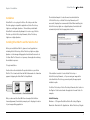
appears displaying the Silver Efex Pro Setup Wizard.
Double-click
The
installer walks you through the procedure.
the Installer
After you have read the Read Me file and accepted the End User
License Agreement, the installer prompts you for the plug-in location
of your image editing application.
If the installer is unable to locate Adobe Photoshop or
Adobe Photoshop Elements, or if you are using an image editor
other than Adobe Photoshop, you must specify the appropriate
installation path.
For Adobe Photoshop or Adobe Photoshop Elements, this location is
the Plug-Ins folder located under the application’s main folder. For
example:
Adobe Photoshop
Windows – C:\Program Files\Adobe\Adobe Photoshop\Plug-Ins
Macintosh – Macintosh HD : Applications : Adobe Photoshop : Plug-Ins
5
Silver Efex Pro™
Chapter 2 : Installation
Adobe Photoshop Elements
Windows – C:\Program Files\Adobe\Adobe Photoshop Elements\
Plug-Ins
Macintosh – Macintosh HD : Applications : Adobe Photoshop
Elements : Plug-Ins
Click Browse… to open the Browse for Folder window, and then
navigate to the appropriate folder.
Note: For guidance on the location of Plug-Ins in applications other
than Adobe Photoshop or Adobe Photoshop Elements, please refer
to your application’s user manual.
After selecting the appropriate folder location, click Install. When
the installation is complete, the final page of the installer appears.
If you want Silver Efex Pro to be automatically added to Lightroom’s
list of External Editors, leave the Add as External Editor for Lightroom
box checked. The Add as External Editor for Lightroom option is only
available if Lightroom is detected during installation. Instructions
are provided within this chapter to manually add Silver Efex Pro as
an external editor for Lightroom. (Please see .)
If you want the Selective Tool to open each time Adobe Photoshop
or Adobe Photoshop Elements launches, leave the Open the Nik
Selective Tool automatically box checked. The Selective Tool lets
you apply Silver Efex Pro by automating the layer systems in Adobe
Photoshop or Adobe Photoshop Elements. (Please see Selective Tool.)
Uncheck this box to prevent the Selective Tool from opening each
time Adobe Photoshop or Adobe Photoshop Elements launches. You
can change this option within the Selective Tool settings interface.
(Please see Selective Tool Settings.)
User Guide
Note: The Selective Tool is available only with Adobe Photoshop
and Adobe Photoshop Elements serving as host for Silver Efex Pro.
Click Finish to complete the installation process.
Accessing Silver Efex Pro and the Selective Tool
in Adobe Photoshop
After completing the installation, launch your image
editing application.
In Adobe Photoshop and Adobe Photoshop Elements, Silver Efex Pro
is accessed from the Filter menu. To begin using Silver Efex Pro in
Photoshop or Photoshop Elements:
To begin using Silver Efex Pro:
1. Open the image that you would like to enhance.
2. Click the Filter menu.
3. Roll over the Nik Software sub-menu. A popup menu appears.
4. Select Silver Efex Pro from the popup.
The Silver Efex Pro interface appears, displaying the image specified
in step 1 above.
You can access the Selective Tool by navigating to one of the
following locations:
Adobe Photoshop
File > Automate
Adobe Photoshop Elements
File > Automation Tools
6
Silver Efex Pro™
Chapter 2 : Installation
Accessing Silver Efex Pro in Apple Aperture
In Apple Aperture, Silver Efex Pro is accessed from the Images menu.
To begin using Silver Efex Pro in Apple Aperture:
1.Highlight the image(s) that you wish to enhance with
Silver Efex Pro.
2. Click the Images menu.
3. Roll over the Edit With sub-menu. A popup menu appears.
4. Select Silver Efex Pro… from the popup.
The Silver Efex Pro interface appears, displaying the image(s)
specified in step 1 above.
Adding Silver Efex Pro to Lightroom as an External
Editor
If Lightroom is found during the installation of Silver Efex Pro for
Lightroom, Silver Efex Pro can automatically be added as an external
editor. Silver Efex Pro can also be manually added as an external
editor providing easy access to edit your photos in Silver Efex Pro.
Follow the steps below to manually add Silver Efex Pro as an external
editor.
1. Open the Preferences in Lightroom.
User Guide
4.Click on Choose to select an application. Navigate to the
location of Silver Efex Pro.
On Windows, the default installation location for Silver Efex
Pro will be:
C:\Program Files\Nik Software\Silver Efex Pro for Lightroom\
On Macintosh, the default installation location for Silver Efex
Pro will be:
Macintosh HD : Applications : Nik Software : Silver Efex Pro for
Lightroom
5. Select the Silver Efex Pro file and click Choose.
6.Under the Preset drop-down menu, select Save Current
Settings as New Preset… and name the preset.
Silver Efex Pro can then be easily accessed under the Photo menu as
a preset external editor.
Accessing Silver Efex Pro in Lightroom
Once Silver Efex Pro is added to Lightroom as an external editor,
Silver Efex Pro is accessed from the Photo menu.
2. Click the External Editing tab.
3.In the Additional External Editor section select a desired File
Format, Color Space, Bit Depth, Resolution, and Compression.
Note: Silver Efex Pro is only compatible with TIFF files (8 or 16-bit,
with no compression or LZW compression).
To begin using Silver Efex Pro in Lightroom:
1.Highlight the image(s) that you wish to enhance with Silver
Efex Pro.
2. Click the Photo menu.
3. Roll over the Edit In sub-menu. A popup menu appears.
7
Chapter 2 : Installation
Silver Efex Pro™
User Guide
4. Select Silver Efex Pro from the popup.
5.After selecting Silver Efex Pro, select whether to Edit Original,
Edit a Copy, or Edit Copy with Lightroom Adjustments.
Note: If Edit a Copy with Lightoom Adjustments is selected, the
Copy File Options must be determined as well. Select the File
Format, Color Space, Bit Depth, Resolution and Compression for
the new file to be edited in Silver Efex Pro*.
*Silver Efex Pro is only compatible with TIFF and JPEG files (8 or 16bit with no compression or LZW compression).
6.Click Edit and the Silver Efex Pro interface appears, displaying
the image(s) specified in Step 1 above.
8
© 2008 Tim Mathiesen
Chapter 3
Workflow
Workflow and Tips for Enhancing Images
Silver Efex Pro™
Chapter 3 : Workflow
User Guide
Workflow
The order of steps involved in enhancing an image varies, depending
on the image. In general, there are only a few guidelines to consider:
- Apply noise reduction, such as with Nik Software Dfine® 2.0, as
early as possible in the process.
- Apply RAW Presharpening, if desired, with Nik Software
Sharpener Pro 3.0’s RAW Presharpener filter.
- Apply light and color enhancements with Nik Software
Viveza™ (global, then local), and end with enhancements
using Nik Software Color Efex Pro™ 3.0 or Nik Software
Silver Efex Pro™.
- Apply output and creative sharpening with Nik Software
Sharpener Pro 3.0’s Output Sharpener filter.
Note: Silver Efex Pro cannot process images in the grayscale color mode.
© 2007 Matt Bagwell
Workflow Diagram
OR
Apply Noise Reduction
with Dfine 2.0
Apply RAW Presharpening
with Sharpener Pro 3.0
Control Color and
Light with Viveza
Apply Enhancements
with Color Efex Pro 3.0
Convert to black and white
with Silver Efex Pro
Apply Output Sharpening
with Sharpener Pro 3.0
10
Silver Efex Pro™
Chapter 3 : Workflow
User Guide
Silver Efex Pro Workflow
Start by exploring the Style Browser and select a potential style to
apply to the image. Then adjust the overall brightness, contrast,
and structure of the image. Apply any specific brightness, contrast,
and structure enhancements to local areas or objects using control
points. Finally, stylize your image with the Film Types and Stylizing
sections. In other words, move from the general to the specific, and
then finish with a stylization to create a mood or feeling.
2
1
3
4
5
6
For best results in Silver Efex Pro, perform the tasks below in
the given order:
1. E
xplore the Style Browser and if you like, choose a style to
apply to your image.
7
2. Adjust the overall image brightness, contrast, and structure
within the image.
3. Add control points to objects in the image that you would like
to selectively control brightness, contrast, and structure.
4. Select a color filter to adjust the base tonal conversion
and contrast.
8
Adobe® Photoshop® Interface
2008 © Josh Haftel
5. Explore and apply a film type preset if desired.
6. Browse and apply a stylization to your image if desired.
7. Review the image in the Loupe.
8. Apply the filter’s effect by clicking OK (Photoshop)
or Save (Aperture).
11
Silver Efex Pro™
Chapter 3 : Workflow
Using Silver Efex Pro as a Smart Filter
(Adobe Photoshop Only)
When working within Adobe Photoshop CS3 and CS4, Silver Efex Pro
can be applied as a Smart Filter. Smart Filters enable you to adjust
the filter’s settings even after the filter interface has been closed.
If saving the file as a PSD or TIFF, you can even adjust the filter
settings after the image and Photoshop have been closed, enabling
a non-destructive workflow.
When working as a Smart Filter, the Brush button is disabled, and
the filter will be applied to the active layer (even if the After Clicking
OK setting is set to the Separate Layer option).
Note: Silver Efex Pro can only work as a Smart Filter feature with
Adobe Photoshop CS3 and CS4 as the host.
To use Silver Efex Pro as a Smart Filter:
1. Select the layer in the Layers Palette to apply Silver Efex Pro to.
2. Click the Filter menu.
3. Select Convert for Smart Filters.
4. Select the Filter menu again.
User Guide
Silver Efex Pro can be applied to multiple images when working in
Lightroom and Aperture.
Multiple Image Controls (Lightroom)
To apply Silver Efex Pro to multiple images when working in
Lightroom, follow the steps below:
1.Highlight the images you wish to enhance. Hold the Shift key
to select a sequence of images or the Control/Command key
to select individual images.
2.Click on the Photo menu.
3.Roll over the Edit In sub-menu option. A popup will appear.
4.Select Silver Efex Pro from the popup.
Multiple Image Controls (Aperture)
To apply Silver Efex Pro to multiple images when working in
Aperture, follow the steps below:
1.Highlight the images you wish to enhance. Hold the Shift key
to select a sequence of images or the Command key to select
individual images.
5. Roll over the Nik Software sub-menu. A popup menu appears.
2.Click on the Images menu.
6. Select Silver Efex Pro.
3.Roll over the Edit With sub-menu option. A popup will appear.
4.Select Silver Efex Pro… from the popup.
Note: Perform any rotations or transforms to the image prior to
applying Silver Efex Pro as a Smart Filter. Applying a rotation or
transformation after applying Silver Efex Pro as a Smart Filter can
result in a different filter effect.
When using Color Efex Pro 3.0 with multiple images, three new
image controls are available. The new image controls available
are Previous, Next and Save All. Please see in the Filter Interface
chapter for more information.
12
© 2008 Victor Ha
Chapter 4
U Point Technology
®
The Power Behind Silver Efex Pro™
Chapter 4 : U Point® Technology
U Point® Technology
Silver Efex Pro is powered by U Point image editing technology.
U Point technology enables you to modify sections of a photograph
directly or control where an enhancement is being applied
selectively all without having to go through the time-consuming
process of making a mask normally required in other
software applications.
U Point technology provides precise and direct selective control,
providing powerful yet simple photographic manipulation.
Silver Efex Pro™
User Guide
Control points work by identifying an object based on a number of
criteria. When you place your first control point, U Point technology
identifies the unique elements of the object on which you place a
control point, including its position, color, saturation, and texture.
By identifying these elements, and in conjunction with the Size
slider, the control point can determine the boundaries of the object
in order to affect only that object and objects with like elements.
With every control point that you apply to the image comes greater
control over specific objects in the image. The additional control
points ensure that the adjustments you make are being applied to
the current object only, and placing a control point on an object
with default settings prevents other control points from
affecting that object.
Through a unique mixing function, the effects of the control points
are applied throughout the image so as to create a natural-looking,
seamless result.
For more information on U Point technology and how it works,
please go to www.upoint.com.
The U Point powered control points found within Silver Efex
Pro enable you to work with your images and selectively adjust
brightness, contrast, and structure without the need for complicated
selections or masks.
14
© 2008 Cherie Steinberg-Cote
Chapter 5
Silver Efex Pro Interface
™
Overview of the Silver Efex Pro Interface
Silver Efex Pro™
Chapter 5 : Silver Efex Pro Interface
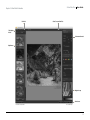
View Tools
User Guide
Select, Zoom, and Pan Tools
Filter Display
Modes
Enhancement Controls
Style Browser
Navigator Loupe
Resize Corner
Adobe Photoshop Interface
© 2008 Sean Dyroff
16
Silver Efex Pro™
Chapter 5 : Silver Efex Pro Interface
Filter Display Modes
Silver Efex Pro offers two modes for viewing the interface
with the active image:
Image Only
User Guide
Favorites Tab
The Favorites tab will contain any style marked as a favorite. Custom
styles you create will automatically be added to the Favorites tab.
You can add a favorite by clicking on the star next to the name of the
desired style. To remove a style from the Favorites tab, click the star
next to the name of the style again.
Only the Image Preview and the filter controls are displayed.
Image only SHORTCUTS
Alt (Windows)/ Option (Macintosh) + 1
Image + Style Browser
A palette opens next to the Image Preview area and displays the Style
Browser which contains preset styles that can be applied to the image
with a single click. The Style Browser will display thumbnail previews of
the current image with each style applied to it.
IMAGE + STYLE BROWSER SHORTCUTS
Alt (Windows)/ Option (Macintosh) + 2
While working in the Image + Style Browser mode, you will see
Style Tabs.
Style Tabs
The styles in Silver Efex Pro are organized into two different tabs for
easy viewing and use.
All Tab
The All tab contains every style available inside Silver Efex Pro,
including predefined styles as well as any custom styles.
Preview Modes
Silver Efex Pro offers three modes for previewing the filter effect
on the active image:
Single Image Preview
The image is displayed with the filter’s effect applied across the Image
Preview area. To see the effect before and after, toggle Preview on and
off with the Preview checkbox.
Split Preview
The image is displayed with a red line running either vertically or
horizontally through it. The portion to the left or above the red line
shows the image prior to applying the filter; the portion to the right or
below the red line shows the image after the filter has been applied.
You can move the image with the Pan Tool or click and drag the red
line to observe the effect on the image’s detail, when zoomed to either
100% or 300%.
• Click the Rotate Preview button to alternate between
vertical and horizontal split.
17
Silver Efex Pro™
Chapter 5 : Silver Efex Pro Interface
User Guide
Side-by-side Preview
Zoom Tool
Two separate previews appear. The portion on the left or on top shows
the image prior to applying the filter; the portion on the right or at
bottom shows the image after the filter has been applied.
The Zoom Tool lets you zoom in and out of the active image. Select
this tool, and then click on the area of the image that you want to
magnify. To zoom out, press and hold the Alt (Windows) or Option
(Macintosh) key and click on the image.
The previews are linked for zooming and panning. This lets you see the
before- and after-images as a whole, or at the fine-detail level.
•C
lick the Rotate Preview button to alternate between
vertical and horizontal layout.
Silver Efex Pro offers three zoom states:
• Zoom to Fit to see the entire image within the Image Preview
and automatically adjust the zoom factor as you change the size
of the interface.
• 100% to show the actual pixel details.
Preview
Preview lets you toggle on and off a preview of the filter effect
applied to the active image.
• Click the Preview checkbox to alternate between displaying and
hiding the effects.
• 300% to zoom even further into the image and view
fine pixel detail.
ZOOM SHORTCUTS
Press the Z key to switch to this tool.
Ctrl (Windows) / Command (Macintosh) + Spacebar to temporarily
switch to this tool
Select Tool
Ctrl (Windows) / Command (Macintosh) + ‘+’ to zoom in one level
The Select Tool lets you select and interact with control points.
Ctrl (Windows) / Command (Macintosh) + ‘-’ to zoom out one level
SELECT SHORTCUTS
Press the A key to switch to this tool.
Ctrl (Windows) / Command (Macintosh) to temporarily switch
to this tool.
Ctrl (Windows) / Command (Macintosh) + 0 to Zoom to Fit
Ctrl (Windows) / Command (Macintosh) + Alt (Windows) / Option
(Macintosh) + 0 to zoom to 100%
18
Silver Efex Pro™
Chapter 5 : Silver Efex Pro Interface
Pan Tool
The Pan Tool lets you reposition the image while zoomed into the
100% or 300% views. When the Loupe tool is enabled, the mouse
pointer becomes a Pan Tool to let you reposition the content of the
Loupe tool.
PAN SHORTCUTS
Press the H key to switch to this tool.
Hold Spacebar to temporarily switch to this tool.
User Guide
Enhancement Controls
Silver Efex Pro offers a wide range of controls for creating powerful
black and white images. The Enhancement Controls found on the
right-hand side of Silver Efex Pro include controls for the global
and selective tonality of the image. The Enhancement Controls
also provide tools for emulating traditional black and white film
types and stylizing your image with traditional toners and vignette
controls. (For more information, please see the Enhancement
Controls Chapter)
Background Color Selector
Navigator Loupe
The Background Color Selector tool lets you change the color of the
background surrounding the image. The three choices are light gray,
medium gray, and dark gray.
The Navigator Loupe ensures that the
appropriate information is displayed depending
on the state of the Image Preview. In the zoom
to fit view, the Loupe mode displays details
under the mouse pointer at 100%, and image
detail information after the filter is applied.
When zoomed to 100% or 300%, the Navigator
mode is displayed, giving you a bird’s eye view of where you are
currently in the image. The view switches automatically between
Navigator and Loupe for efficient workflow.
Image Preview
The Image Preview area displays the active image and related
information beneath the image.
Image
The active image is displayed with the view, preview mode,
background and zoom amount you have configured. This area has
three zoom states: zoom to fit, 100%, and 300%, controlled with
the Zoom Tool or with keyboard shortcuts.
(Please see Zoom Tool above.)
Image Info
Loupe Mode
With the Image Preview in the zoom to fit state, the Navigator
switches to Loupe mode.
This ensures that you can always see the image detail at 100% while
reviewing the filter’s effect where you position your mouse in the Preview.
The filename appears below the image. This is visible in the zoom to
fit state. If Exif data is available, additional image information will
be displayed under the filename.
19
Silver Efex Pro™
Chapter 5 : Silver Efex Pro Interface
To lock in place the area displayed in the Loupe, click the pushpin
icon in the lower-left corner of the Loupe, then click on the area of
the image you want to keep inside the Loupe. To unlock the area,
click the pushpin icon again. Alternately, right-click (Windows) or
Control-click (Macintosh) to toggle the lock in place function.
To pan within the Loupe display, click and drag the image.
Navigator Mode
When you switch from the zoom to fit state to 100% or 300%, the
Navigator Loupe switches to the Navigator mode and a red rectangle
indicates the area of the image currently displayed in the Image
Preview. Click on the area of the image in the Navigator that you
would like to display in the Image Preview.
Zone System Map
At the bottom of the Navigator Loupe there is a Zone System Map.
The Zone System Map is designed to help you understand the tonal
relationship of different areas in your photograph.
A gradient map is shown with 11 distinct zones representing the full
possible tonal range in your image. To see which parts of your image
are in each zone, click on the zone in the Zone System Map and that
zone will be highlighted in the image. Also, when you roll your cursor
over a zone in the Zone System Map the corresponding areas will be
highlighted in the Image Preview.
User Guide
Filter controls
Use the filter controls to apply or discard filter effects.
The Brush and OK/Save buttons process and apply the specified
filter’s effect to the active image. The Cancel button discards any
settings specified in the current session, and closes Silver Efex Pro
without changing the image.
Brush (Adobe Photoshop Only)
Click Brush to apply the filter’s effect to a separate layer and
then selectively paint the effect in, using the Selective Tool to
automatically create and modify a layer mask.
(Please see Selective Tool.)
Cancel
Click Cancel to prevent any effect from being applied to the image,
close the current Silver Efex Pro session, and return to your image
editing application.
CANCEL SHORTCUT
Press the Esc key to cancel.
The Zone System Map can work in coordination with the
Enhancement Controls and control points to fine tune the entire tonal
relationship of the image and specific objects in your image that you
want at a particular zone.
20
Chapter 5 : Silver Efex Pro Interface
Silver Efex Pro™
User Guide
OK (Adobe Photoshop) / Save (Lightroom & Aperture)
Click OK/Save to apply the specified filter to the image, close the
current Silver Efex Pro session, and return to your image editing
application. Silver Efex Pro also gives you the option of applying the
filter to a separate layer or to the current layer in Adobe Photoshop
or Photoshop Elements. (Please see Filter Interface Settings.)
OK/Save SHORTCUT:
Press Enter (Windows) / Return (Macintosh) key to apply the filter.
Multiple Image Controls (Lightroom & Aperture)
When using Silver Efex Pro with multiple images, three new image
controls are available. The new image controls available are
Previous, Next, and Save All.
Previous
The Previous button will go to the image previously enhanced within
the current Silver Efex Pro session.
Next
The Next button will proceed to the next selected image in the
current Silver Efex Pro session.
Save All
Click Save All to apply Silver Efex Pro to the images, and close the
current Silver Efex Pro session, and return to Apple Aperture.
SAVE ALL SHORTCUT:
Press the Enter (Windows) / Return (Macintosh) key to apply Silver
Efex Pro to the selected images in the current Silver Efex Pro session.
21
© 2004 Nadia Salameh
Chapter 6
Style Browser
Applying & Creating Styles in the Style Browser
Silver Efex Pro™
Chapter 6 : Style Browser
User Guide
Style Browser Modes
The Style Browser provides an overview of all of the available styles within
Silver Efex Pro, with thumbnails showing each style’s effect on the active
image. The Style Browser is separated into two tabs, the All tab and the
Favorites tab.
All
In the All tab, all available styles are displayed in a single column.
Favorites
The Favorites tab will only contain styles that you create or select as favorites.
To add a style to the Favorites tab, click on the star next to the name of the
style, it will be highlighted in red when selected as a favorite. To remove a
style from the Favorites tab, click on the star again to deselect it.
Add Style
Silver Efex Pro lets you create your own styles which will save any settings
from the Tonality, Color Filter, Film Type, and Stylizing controls. That style can
then be applied to any image with one click.
There are two ways to add a custom style to the Style Browser, either with the
Add Style button at the bottom of the Style Browser or with the Add Style icon
in the Style Browser list.
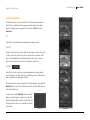
To add a style, click the Add Style button or the Add
Style icon and then type in a name for the style. The
style will automatically be added to the Favorites tab
and placed at the bottom of both the All tab and the
Favorites tab.
Add Style Icon
Style Browser
23
Silver Efex Pro™
Chapter 6 : Style Browser
User Guide
Delete
Import
You may remove styles that were added
using the Delete button. To remove a
custom style, mouse over the style in
the Style Browser and click the Delete
button. This will remove the style from
the Style Browser and cannot be undone.
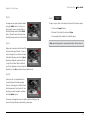
To import a style, click on the Import button and follow these steps:
Export
1. C
lick on the Import button.
2. B
rowse for the style file and select Open.
3. A new style will be added to the Style Browser.
Note: Imported styles will be automatically added to the Favorites tab.
Styles can be exported as individual files
and shared amongst friends. To export
a style, simply rollover the desired style
in the Style Browser and click on Export.
Exporting a Style will save the style as
a .sep file, and Silver Efex Pro will ask
you for the destination folder. Select the
destination, click Save, and then share it with friends.
Update
A style can also be updated with the
current settings in the Enhancement
Controls, replacing the old style. Adjust
the Enhancement Controls and roll over
the style you wish to update, and then
click the Update button.
You can also change the name of a style by double-clicking on the
name in the style Browser and entering a new name.
24
© 2008 Don Mahr
Chapter 7
Enhancement Controls
Create the Perfect Black and White Image
Silver Efex Pro™
Chapter 7 : Enhancement Controls
Tonality Controls
The Tonality Controls section enables you to control brightness,
contrast, and structure globally throughout the image. Additionally,
access to control points to selectively control the brightness,
contrast, and structure of objects can also be found within the
Tonality Controls section.
User Guide
Size - Controls the size or reach of
the control point. Click and drag this
control to enlarge or reduce the control
point’s reach.
Brightness - Controls of the brightness
of the selected object or area.
Brightness - Controls the overall lightness of the image.
Contrast - Controls the contrast of the selected object or area.
Contrast - Controls the overall contrast of the image.
Structure - Controls of the structure of the selected object or area.
Structure - Controls the overall structure within the image.
Increasing this slider emphasizes fine details throughout the image
while decreasing this slider reduces the appearance of fine details
for smoother surfaces.
ADD NEW CONTROL POINT SHORTCUT
Add Control Point
Clicking on this button will enable you to place a control point on
your image and selectively control the tonality and structure of an
object or area. Control points are based on U Point® technology
which lets you identify and isolate objects within a photograph
by placing a control point on the object or area to be affected. By
analyzing color, tonality, detail and location, U Point determines
where to apply certain effects, according to the photographer’s
needs. (For more information on U Point technology, please visit
www.upoint.com.)
All control points within the active image communicate with
each other, providing continuity of control over multiple objects
throughout the image.
Ctrl (Windows) / Command (Macintosh) + Shift + A
Shadows & Highlights
The Protect Shadows/Protect Highlights controls help you protect
image details at both ends of the tonal range. The controls take
advantage of the TrueLight™ function in Silver Efex Pro and modify
the filter’s effect to preserve image details.
When collapsed, this section displays one slider for protecting
shadows and one for protecting highlights. As you click and drag
either slider to the right or left to increase or decrease protection,
notice the change in the details in the image.
When expanded, this section displays not only the sliders, but also a
histogram representing the full tonal range of the active image after
the current enhancement has been applied. The histogram changes
in real time as you adjust the filter controls and Protect Shadows/
Protect Highlights sliders.
Each control point has four sliders:
26
Silver Efex Pro™
Chapter 7 : Enhancement Controls
The colored areas at both ends of the histogram help identify
potential problems. The top and bottom 2.5% of tonal values
(representing Shadows without Detail on the left and Highlights
without Detail on the right) appear in red. The next 2.5% of the
shadows and highlights (indicating Shadows with Detail on the left
and Highlights with Detail on the right) appear in green.
Next to each of the four colored areas (Shadows without Detail,
Shadows with Detail, Highlights without Detail, Highlights with
Detail) are numerical call-outs displaying the percentage of
pixels from the active image in each of those four areas after the
enhancement has been applied.
Protect Shadows/Protect Highlights helps you keep your image
details from falling into these areas. For best results, keep the
greater part of the image between the green areas (Shadows with
Detail and Highlights with Detail) of the histogram. Portions of the
image in Shadows without Detail will likely print pure black; those in
Highlights without Detail will likely print as paper white.
Click and drag the Protect Shadows slider to the right to adjust
the filter’s effect and prevent details from being moved into the
Shadows without Detail area.
Click and drag the Protect Highlights slider to the right to adjust the
filter’s effect and prevent details from being “blown out” or being
moved into the Highlights without Detail area.
User Guide
Control Points
The Control Points section will
display a list of the control points
used in an image. It will also
provide an option to toggle on
and off each individual control
point’s effect and each control point’s selection. Use the checkbox
on the control point list title to turn on and off all of the control
points’ effects and use the reset button to remove all of the control
points from the image.
Duplicate
The Duplicate button will duplicate the currently selected control points.
DUPLICATE SHORTCUTS:
Ctrl (Windows) / Command (Macintosh) + D to duplicate in place
Alt (Windows) / Option (Macintosh) + Click and drag to duplicate and
move a control point
Delete
To remove a control point, click the Select tool, and then click on the
control point to be removed. Then either click the Delete button or
press the Delete key on your keyboard.
Note: In general, it is best to maintain the histogram in the region
between Shadows without Details and Highlights without Details
sections. Nevertheless, many good images have values in those
areas of the histogram (e.g., highlight on a chrome bumper).
27
Silver Efex Pro™
Chapter 7 : Enhancement Controls
User Guide
Color Filter
Film Types
The Color Filter section selects the color of
the simulated filter, either with a preset filter
color or with a filter color selected on the Hue
slider in the Color Filter Details section. Use
the Checkbox to turn on and off the Color Filter
section’s effect and the Reset button to
reset all of the controls in the section to the default.
The Film Types section contains 18 simulated
black and white film types with controls for
the grain, color sensitivity, and tone curve of
each film. Use the Checkbox to turn on and off
the Film Types section’s effect and the Reset
button to reset all of the controls in the section to the default.
There are 6 preset Color Filters for quick easy selections. The 6 presets are
Neutral, which has no color filter applied, and Red, Orange, Yellow, Green,
and Blue for quick color filtration.
Color Filter Details
The Color Filter Details sub-section provides more advanced controls
for selecting the hue of the color filtration and the strength of the color
filtration, using the Hue and Strength sliders.
Hue - Adjusts the color of the simulated filter and controls the relationship
of colors in the image. This lightens objects of that color in the image and
darkens objects of the complementary color.
Strength - Slide to the left for less contrast between colors, to the right for
more contrast between colors.
Film Type - From the pull-down menu, select a type of film from
any of the pre-defined film types.
Grain
By expanding the Grain sub-section, you
have control over the amount of grain applied
throughout the image. You are provided with
the following controls:
Grain per pixel - Adjusts the grain applied to the image. Slide to the left to
have more visible grain and to the right to have finer grain.
Hard/Soft - Adjusts the separation and visibility between the grain.
Color Sensitivity
Expand the Color Sensitivity sub-section
to control the tonality of different colors
throughout the image. You are provided
with the following controls:
Red through Violet – sliders control how
bright or dark an object of that color appears.
Slide to the left to make objects of that color
darker, to the right to make them brighter.
28
Silver Efex Pro™
Chapter 7 : Enhancement Controls
Tone Curve
Expand the Tone Curve sub-section to control
the tone curve for the image. Click to add
anchor points to the curve to specify the
brightness, contrast, and relationship of tonal
values in the image.
To remove an anchor point from the curve,
select the point and drag it off of the
Curve area.
Stylizing
The Stylizing section provides different
stylizing techniques that can be applied to
the image. The Stylizing section allows you to
apply a toner to the image, apply a vignette to the image, or burn the edges
of the image to stylize your black and white image. Use the Checkbox to
turn on and off the stylizing effects and the Reset button to reset all of the
controls in the section to the default.
Toning
The Toning section provides the ability
to simulate different paper toners from a
traditional darkroom as well as create your
own custom toned image. There are a number
of preset toning options and you can use
the controls to fine tune the results for your
perfectly toned image.
Preset - From the pull-down menu, select
a type of toning from one of the
pre-defined toners.
User Guide
Strength - Sets the overall strength of the toning applied to the image.
Increasing the Strength slider will set the highest Toning slider equal to the
overall strength. Decreasing the Strength slider will relatively decrease the
Silver Toning and Paper Toning.
Silver Hue - Selects the toning color to be applied to the silver densities.
Silver Toning - Sets the strength of the toning applied to the
silver densities.
Balance - Determines the balance of the toning color combination,
when set to 0% the Silver Hue and the Paper Hue blend at the midtones.
Moving the Balance to the left will increase the toning effect applied to
the silver densities and moving the Balance to the right will increase the
toning effect applied to the paper tones.
Paper Hue - Select the toning color to be applied to the paper tones
of the image.
Paper Toning - Set the strength of the toning
applied to the paper tones.
Vignette
The Vignette section will apply a vignette
effect to the image. Control the vignette
effect by adjusting the Amount, Size, and Shape Control sliders and place
the center
of the vignette on the image with the
Place Center button.
Amount - Control the amount of the Vignette applied to the image.
Moving this slider all the way to the left will apply a completely black
29
Chapter 7 : Enhancement Controls
Silver Efex Pro™
User Guide
vignette. Moving this slider all the way to the right will apply a
completely white vignette.
Size - Adjusts the area of the image covered by the vignette.
Shape Control - Controls the overall shape of the vignette between circular
and rectangular.
Place Center - Positions the center of the
image. This is useful if the subject is not in the
center of the frame. Click this button and then
place the center where desired.
Burn Edges
The Burn Edges section will burn the image from any side. Use the Burn
Edges to control the overall darkness at the edges of an image and blend
the effects together naturally. Control the effect with Side Selector, and the
Strength, Size, and Transition sliders.
Side Selector - Pick which side of the image to darken. To affect different
sides, pick the first side and adjust the sliders, then pick the next side from
the Side Selector and adjust the new sliders available.
Strength - Controls the amount by which the selected side is darkened.
Size - Controls the size of the effect applied to selected side.
Transition - Controls the size of the blend between the darkening effect
and the original image details.
30
© 2008 Don Gale
Chapter 8
Selective Tool
Applying the Filter’s Effect Selectively
Silver Efex Pro™
Chapter 8 : Selective Tool
Selective Tool
User Guide
Interaction with Silver Efex Pro
The Selective Tool automates the
creation of layers and layer masks
within Adobe Photoshop and Adobe
Photoshop Elements while applying
Silver Efex Pro. The Selective Tool can
be used to selectively apply the
filter’s effect. Use this tool to create a
layer mask with which to selectively
control where the Silver Efex Pro effect
is applied using Photoshop’s brush,
lasso, marquee, and gradient tools.
If Dfine® 2.0, Viveza™, Color Efex
Pro™ 3.0 or Sharpener Pro™ 3.0 is
already installed; the Silver Efex Pro installer will update the existing
Selective Tool, enabling you to access all of these plug-ins from the
same Selective Tool.
The Selective Tool can be used with pressure-sensitive tablets such
as the Wacom® Pen Tablet to apply the Silver Efex Pro filter with
pressure-sensitivity.
Note: The Selective Tool is available only with Adobe Photoshop
and Adobe Photoshop Elements serving as host for Silver Efex Pro.
Note: The Selective Tool cannot be used when creating a
Photoshop Action. In order to create a Photoshop Action, please
select Silver Efex Pro from the Filters menu.
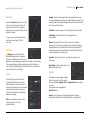
Click on the Silver Efex Pro button within the Silver Efex Pro section
of the Selective Tool window to launch the filter.
If you click the Brush button in the Silver Efex Pro filter interface,
whether you launched that filter from the Selective Tool or from
Photoshop or Photoshop Elements’ Filters menu, the Selective
Tool appears. The filter will be applied to a copy of the image on a
separate layer, the new layer will be named after the filter you are
using, and you can selectively apply the filter’s effect using the
Paint, Erase, Fill, and Clear buttons described later in this chapter.
Selection Tools
The Selective Tool contains four tools for applying the selected Silver
Efex Pro filter.
Paint
Click the Paint button to selectively paint the current filter’s effect
into the active image. Ensure that your Paint Brush mode is set to
Normal and that Opacity is set to 100%. You can control the degree
to which the effect is added to the image by varying the opacity of
the brush.
Erase
Click the Erase button to selectively remove the current filter’s effect
from the active image. Ensure that your Paint Brush mode is set to
Normal and that Opacity is set to 100%. You can control the degree
to which the effect is removed from the image by varying the opacity
of the brush.
32
Chapter 8 : Selective Tool
Silver Efex Pro™
User Guide
Fill
Click the Fill button to apply the filter’s effect to the entire image.
This tool is especially useful if you want to apply the filter’s effect to
all but a small area. Click Fill, then click Erase to remove the effect
from the area to remain unaffected.
Clear
Click the Clear button to remove the filter’s effect from the entire
image. This is helpful if you made a mistake with the Paint tool and
want to start over.
Apply / Discard
Click Apply to apply the current filter’s effect to the image. Click
Discard to prevent the effect from being applied.
33
© 2008 Laurie Shupp
Chapter 9
Filter Interface Settings
Controlling the Default Behavior of the Filter Interface
Silver Efex Pro™
Chapter 9 : Filter Interface Settings
Filter Interface Settings
User Guide
Use Last Setting
Click on Settings in the Silver Efex Pro Filter Interface to configure
the default look and functionality, and to specify how Silver Efex Pro
affects images.
Opens images in the last zoom state used in the previous
Silver Efex Pro session.
Default Preview
Default Preview lets you specify how images are displayed upon
opening Silver Efex Pro. (Please see Preview Modes in Chapter 5.)
Single Image Preview
Sets Single Image View as default.
Filter
Settings
Split Preview
Sets Split preview as default.
Side-by-side Preview
Sets Side-by-side preview as default.
Use Last Setting
Adobe Photoshop Dialog Settings
Default Zoom
Default Zoom lets you specify the zoom state to be applied when the
interface is launched. (Please see Zoom Tool.)
100%
Opens images at 100% zoom.
Zoom to Fit
Opens images in the last preview state used in the previous
Silver Efex Pro session.
Default Appearance
Default Appearance sets the brightness of the area surrounding
the image in the Preview.
• Light Gray
• Medium Gray
• Dark Gray
Ensures that the entire image is visible within the filter interface.
35
Chapter 9 : Filter Interface Settings
Silver Efex Pro™
User Guide
After Clicking OK (Adobe Photoshop Only)
This option lets you specify how Silver Efex Pro filters are applied.
Note: This option is valid only with Adobe Photoshop and Adobe
Photoshop Elements serving as host for Silver Efex Pro.
Apply the Filtered Effect to the Current Layer
This option applies the effect to the layer that was active when Silver
Efex Pro was launched.
Apply the Filtered Effect to a Separate Layer
Choose this option to always apply the filter effects of Silver Efex
Pro to a separate layer. Use this option and save the final image in a
layered format to ensure the preservation of original image details.
Note: Enabling this option increases file size and may increase
processing time.
Note: When batch processing with Silver Efex Pro, the filter effect
is not applied to a separate layer. To apply Silver Efex Pro to a
separate layer while recording the action, duplicate the layer prior
to applying Silver Efex Pro. This ensures that the batch process
includes a new filtered layer for each image.
Reset
Click Reset to restore Silver Efex Pro filter settings to their
default values.
36
© 2008 Paul Michael Kane
Chapter 10
Selective Tool Settings
Controlling the Default Behavior of the Selective Tool
Silver Efex Pro™
Chapter 10 : Selective Tool Settings
User Guide
Selective Tool Settings (Adobe Photoshop Only)
Apply filter to:
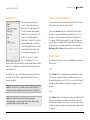
Click the Settings button at the bottom of the Selective Tool
interface to specify how the Selective Tool interacts with Adobe
Photoshop or Adobe Photoshop Elements and active images.
Advanced users can specify how the Selective Tool applies filters in
Silver Efex Pro.
Image Composite
Select this option to create a new layer and perform a stamp-visible
command into the new layer to ensure that the filter is applied to
the entire image and not only to the active layer. (This is the default
behavior in Silver Efex Pro. This is also how the Selective Tool
operates in all other Nik Software products.)
Active Layer
Filter
Settings
Select this option to duplicate the layer active when you selected
the Silver Efex Pro filter, and apply the filter to that layer only.
After clicking Apply
Adobe Photoshop Dialog Settings
This option lets you specify whether the Selective Tool maintains
Silver Efex Pro filter effects as a separate layer or merges layers
when you click Apply.
When Photoshop Launches
Merge the Filtered Effect to the Current Layer
This option lets you specify whether the Selective Tool opens when
Adobe Photoshop or Adobe Photoshop elements is launched.
Choose between:
This option merges the filtered image with your original image into
one layer. Enabling this option helps keep file sizes to a minimum.
• Automatically Open the Selective Tool
• Do Not Open the Selective Tool
Apply the Filtered Effect to a Separate Layer
This option ensures that the filtered effect is limited to a separate
layer. By enabling this setting and saving the active image in a
layered file, you preserve original image information and can remove
the filter’s effect at any time. Please keep in mind, however, that
enabling this option may increase file sizes.
38
© 2008 Victor Ha
Chapter 11
Contact and Support
Getting Additional Support
Silver Efex Pro™
Chapter 11: Contact and Support
United States
For more information on Nik Software products go to
Contact Nik Software, Inc. by phone at (619) 725-3150
www.niksoftware.com or www.upoint.com.
Monday - Friday from 8:30 AM - 5:00 PM (PST) or via email at
[email protected]
© 2008 Nik Software, Inc.
Nik Software, Inc.
7588 Metropolitan Drive
San Diego, CA 92108, USA
Phone (619) 725-3150
Fax (619) 725-3151
[email protected]
www.niksoftware.com
User Guide
Protected by one or more US Pats. 6,728,421; 6,865,300;
7,031,547; and other patents pending.
U Point and Dfine are registered trademarks of Nik Software, Inc.
Viveza, Color Efex Pro, Silver Efex Pro, TrueLight and
Nik Sharpener Pro are trademarks of Nik Software, Inc. All
other trade names mentioned in this manual are trademarks
or registered trademarks of their respective holders.
Germany
In Europe, contact Nik Software, GmbH at +49-40-47-11-35-0
Monday - Friday from 9:00 AM - 5:00 PM (CET) or via email at
[email protected].
Nik Software, GmbH
Hammerbrookstraße 93
D-20097 Hamburg, Germany
Phone +49-40-47-11-35-0
Fax +49-40-47-11-35-35
[email protected]
www.niksoftware.com
40