1
7.5.1.3. Map rotation
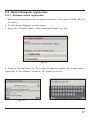
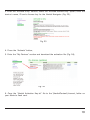
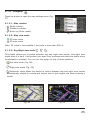
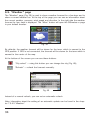
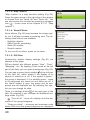
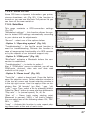
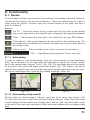
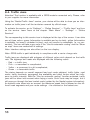
“Map rotation” is a map direction setting (Fig. 59).
Press the green arrow in the right side of the window
to choose from tne “North Up” and “Route Up”. You
can also access this function by pressing a compass
icon ( ). (Learn more at the chapter 6.1.5.1 “Map
rotation”).
Fig. 59
7.5.1.4. Visual Effects
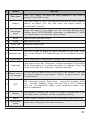
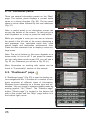
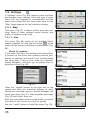
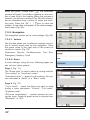
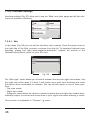
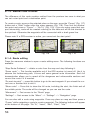
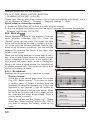
Visual effects (Fig. 60) may increase the image quality, but it will also increase a rendering time. The following visual effects are available:
•
•
•
•
Highlight objects;
Object border smoothing;
Show 3D models;
Smooth motion.
Fig. 60
To turn on/off an effect, press on its name.
7.5.1.5. POI filter
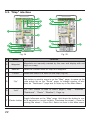
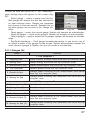
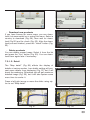
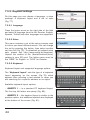
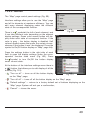
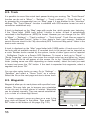
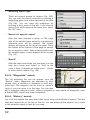
Infrastucture objects display settings (Fig. 61) are
showed at this page.
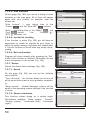
POI are divided into different groups: “Auto”, “Food”,
“Shopping”, etc. By tapping a blue arrow at the left
part of the field, you can open its subgroups (Fig. 62).
You can see a green check symbol
at the left part
of the field too, which shows if the display of its
objects is turned on or off. If the symbol is green the group is displayed, if it is partially green - some
of its subgroups are turned on and some are off. If
the check symbol is grey, the group and its subgroups are not displayed yet. By pressing this symbol you can change its state.
Fig. 61
Fig. 62
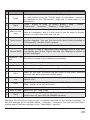
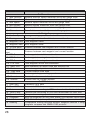
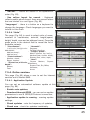
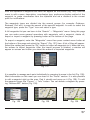
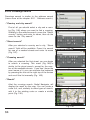
There is a settings button
at the right part of the
field. By pressing it you can open an additional settings menu (Fig. 63).
•
“Turn off all” - turns off a display of all the elements of the group/subgroup.
• “Seen on scales” — minimum and maximum scale
where POIs from this group/subgroup are displayed.
40
Fig. 63