1
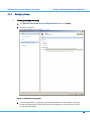
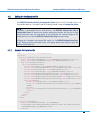
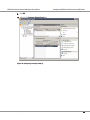
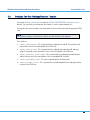
DIGIPASS Authentication for OWA Forms User Manual 6.2 Troubleshooting Other Troubleshooting Options If you are still having problems after checking that all installation and configuration settings for the DIGIPASS Authentication Plug-In are correct, follow these steps to check for other possible problems. 6.2.1 Application Pools If the DIGIPASS Authentication Plug-In stops working properly, open Internet Information Services (IIS) Manager and make sure the corresponding application pool is started. Restarting the server does not restart the application pool. TIP The following error message is likely to result from a stopped application pool: “HTTP Error 503. The service is unavailable.” 6.2.2 No Trace File If there is no trace file, or no new entries are written to the file, check the Windows events for any warnings or errors generated by a failure to load the DIGIPASS Authentication Plug-In into IIS. 6.2.3 Information from Trace File To view trace file information 1. Set the DIGIPASS Authentication Plug-In to tracing. 2. Attempt a login. 3. Check the trace file for information on the start-up conditions of the DIGIPASS Authentication Plug-In and of the login attempt. 6.2.4 Authentication Server If the DIGIPASS Authentication Plug-In appears to load and update but you are unable to achieve a successful login, check the authentication server. Open the Audit Viewer to: • check available audit messages in the audit files or database. • configure a live audit connection from the authentication server and retry a login. © 2012 VASCO Data Security International Inc. All rights reserved. Unauthorized duplication or distribution is prohibited. 72