1
This paper is organized as follows. First, the general architecture of BladePro-CF and the main features
within each menu are described. Then, the analysis capabilities of BladePro-CF are discussed. Next, the
comparison between BladePro-CF over IMPRO, mainly in terms of solution time required, is presented.
This is followed by representative results from analysis of a real-life impeller.
General Architecture
BladePro-CF has four modules: Model input, Model generation, Analysis, and Post-processing. Model
generation module uses a combination of FORTRAN, C & ANSYS APDL. The user interfaces are
developed using the native ANSYS support for Tcl/Tk.
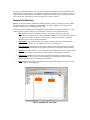
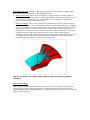
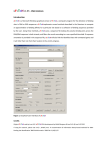
As shown in Figure 1 BladePro-CF is launched from within ANSYS by clicking “BladePro-CF” in the
ANSYS toolbar. As shown in Figure 1, the main menu contains six items as described below:
1.
File: BladePro-CF has the capability to import certain types of files exported by other
complementary programs such as TurboGrid, IMPRO. BladePro-CF relies on filename extensions
to associate files with certain programs. Once the file is imported, it should be saved into a
BladePro-CF file, with an extension name BPR.
2.
Model Input: This menu allows the user to define component geometries including airfoil,
cutback, shroud, and hub, etc. Aerodynamic force can be defined as well.
3.
Generate Model: This menu generates the finite element model and associated user-specified
boundary conditions. BladePro-CF can generate both single-sector and full-wheel FE models.
4.
Analysis: This menu launches a variety of analysis types including steady stress analysis, modal
analysis at any impeller speed, harmonic response analysis, and fatigue life estimation.
5.
Post process: BladePro-CF provides users with powerful and intuitive post-processing
capabilities of FE results. The post-processing functions available under a specific analysis
scenario depend on the type of analysis users conducted.
6.
Help: Html-based on-line user manual is provided. Additionally, hitting F1 provides a context
sensitive help for all the dialogues.
BladePro-CF
button
BladePro-CF
main menu
Figure 1. BladePro-CF main menu