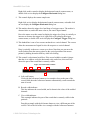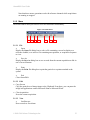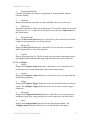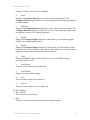
1
AlazarDSO User Guide
•
•
•
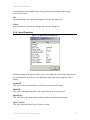
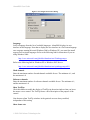
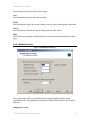
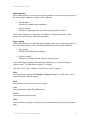
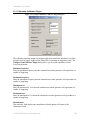
Local
The selected date and time values are in the time zone specified in the Windows
“Date / Time Properties” settings on the local PC.
UTC
The selected date and time are UTC times
GPS
The selected date and time are GPS times. Note that if the difference between
UTC and GPS time is unknown, it is assumed to be zero.
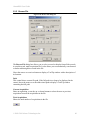
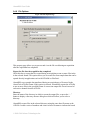
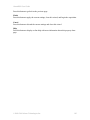
Now
Press this button to set the start date and time to the current date and time in the selected
time scale.
Continue to acquire at the specified interval
Check this button to delay the start of the next acquisition in the acquisition sequence
until the current time is the specified interval after the time at the start of the previous
acquisition.
Note that if you start an acquisition sequence with a requested start time has already past,
then:
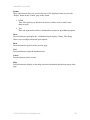
•
•
If the “Continue to acquire at the specified interval” button is not checked, the
acquisition will begin immediately.
If the “Continue to acquire at the specified interval” button is checked, then
acquisition will start as soon as the current time is an integer number of intervals
after the requested start time.
Also note that you specify the total number of acquisitions in the acquisition sequence in
the “Configure Acquire” dialog box. To open the “Configure Acquire” dialog box, select
the “Acquire…” command from the AlazarDSO “Configure” menu.
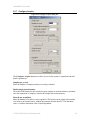
Interval
Select the time interval and units to wait between start of the previous acquisition and the
start of the next acquisition.
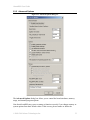
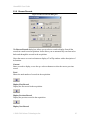
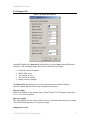
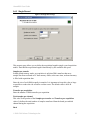
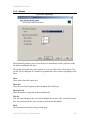
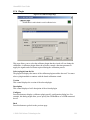
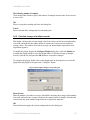
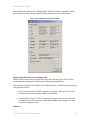
Get time from Trimble Mini-T GPS disciplined clock
Check this box to enable the plugin to obtain timing information from a Trimble® MiniT™ GPS Disciplined Clock Module.
COM port
Select the serial port to which the Trimble® Mini-T™ GPS Disciplined Clock Module is
attached. Note that the plugin assumes that the device’s communication parameters are:
9600 baud, 8 data bits, 1 stop bit, no parity, and no handshaking.
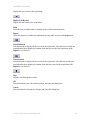
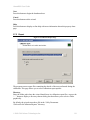
Status
© 2008-2010 Alazar Technologies Inc.
137