1
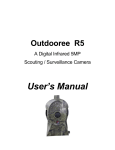
Outdooree R8
A Digital Infrared 8MP
Scouting / Surveillance Camera
User’s Manual
INDEX
1. Introduction...............................................................4
2. Parts and controls ID...............................................5
3. Installing Batteries and SD card.............................6
4. Using and Programming the Outdooree R8........11
4.1 Set Camera Mode .....................................14
4.2 Restore Factory Default Settings............15
4.3 Set Clock.....................................................16
4.4 Set time stamp...........................................17
4.5 Set TV Output.............................................18
4.6 Format SD Card.........................................19
4.7 Set Sensitivity level...................................20
4.8 Set Interval..................................................22
4.9 Set Video Length.......................................23
4.10 Set Video Resolution..............................24
4.11 Set Burst Mode/Capture Number..........25
4.12 Set Image Resolution..............................26
5. Mounting and Positioning your camera.................26
6. Sensing Angle and Distance test.............................27
7. Switching on the camera..........................................28
8. Playing back/deleting photos/videos......................28
9. Trouble Shooting/FAQ’s...........................................37
10. Technical Specifications.........................................47
1 2 3 1. Introduction
The
Outdooree
R8
is
a
digital
scouting/surveillance camera which uses a
highly sensitive Passive Infra-Red (PIR) motion
sensor to detect heat and movement and then
take high quality pictures (up to 8MP still
photos), or video clips.
The Outdooree R8 consumes very little power
(less than 300μA) in a standby (surveillance)
state. This means it can deliver up to six months
stand-by operation time when the device is
powered by eight AA alkaline batteries. Once
motion in the monitored area is detected, the
digital camera unit will be triggered in
approximately 1 second and then automatically
take photos or videos according to previously
programmed settings.
The Outdooree R8 is equipped with built-in
infrared LEDs for night time illumination, so that
it delivers clear photos or videos (in black &
white) even in the dark, and it can take color
photos or videos under sufficient daylight. The
Outdooree R8 is designed for outdoor use and
is completely weatherproof.
4 2.
Parts and Controls Identification
a. Packing Contents
The following items are included with your new
Outdooree R8: USB cable, TV cable, and
attachment strap.
b. Controls
The Outdooree R8 provides the following
connections for external devices: USB port, SD
card slot, TV Out, and external DC power in
(Fig. 1).
A 3-way power switch is used to select the
main operating modes: OFF, SETUP, and ON
(Fig. 2). A control key interface with six keys is
primarily used in SETUP mode to select
operational functions and parameters. As
shown in Fig. 2, these keys are: UP, DOWN,
LEFT, RIGHT, OK and MENU. Four of the keys
can also perform a second function (shortcut
operations in SETUP mode) in addition to their
5 main function: The DOWN key can be used to
set the camera to Photo mode (still camera
icon), and the UP key can set the camera to
Video mode (movie camera icon). The RIGHT
key also serves as the manual shutter (SHOT)
button of the camera and the OK key switches
the camera to the Playback (REPLAY) mode.
These secondary functions are indicated by
icons or text above the key as shown in Fig. 2.
3.
INSTALLING THE BATTERIES and
SD CARD
Before you begin learning how to use your
Outdooree R8, you will first need to install a
set of batteries and insert an SD card. Although
that may only take you a minute, there are
some important notes about both batteries and
SD cards you should be aware of, so please
take the time to read the following directions
and cautions:
6 a. Loading Batteries
After opening the two latches on the right side
of the Outdooree R8, you will see a small cord
with a loop; pull the cord to open the battery
compartment. The Outdooree R8 has eight
battery slots. Starting at the top of the battery
compartment, slots 1, 2, 3 and 4 form one
group, while slots 5, 6, 7 and 8 form the other
group, each providing 6 volts in parallel. For
maximum battery life, you should install a full
set of eight batteries. The Outdooree R8 may
also be operated by just four batteries installed
in the top group only, starting at slot 1. Battery
life will be shorter with 4 batteries, but the
camera will operate normally. Whether you use
4 or 8, be sure to insert each battery with
correct polarity (negative or “flat” end against
the long spring of each battery slot).
Outdooree recommends using eight new
lithium AA or alkaline AA batteries; NiMh
Rechargeable batteries can also be used, but
they might have a shorter life span due to their
reduced efficiency over time and at low
temperature.
7 b. Using an External Power Source
(optional, user provided)
Optionally, you can connect an external 6V DC
power source to the “DC In” jack at the bottom
of the Outdooree R8. It is recommended to
use a power source with a current output
greater than 1000mA. However, during bright
daytime operation when no flash is required,
the Outdooree R8 can function with much less
current (>400mA). Please use a compatible
power source cable (not provided) to connect
the external DC power source with the power
input jack of the Outdooree R8, making sure
that the polarity is correct. Note: The power
connector is a 4.0x1.7mm coaxial DC power
plug with positive “tip” (inside pin) polarity
(Radio Shack P/N 274-1532 or equivalent).
If both an external power source is connected
and batteries are installed, the Outdooree R8
will be powered by the external power source.
When the batteries become weak, the lowbattery indicator LED will glow blue, indicating
the batteries should be changed.
8 c. Inserting the SD Card
Warning!
Be sure the cameras power switch is turned
off before installing batteries or SD
card!!!!!!!
The Outdooree R8 has 32MB of internal
memory, which can hold only about 25 photos
(@ 5MP resolution). This is handy for testing
and getting familiar with the camera, but you
will no doubt want to leave the camera
unattended for longer than a day, so using an
SD card is recommended. Insert the SD card
(with the camera’s power switch in the OFF
position) before beginning to operate the
camera. Do not insert or remove the SD card
when the power switch is in the ON position.
The Outdooree R8 uses a standard SD
(Secure Digital) memory card to save photos
(in .jpg format) and videos (in .asf or .Avi
format). SD and SDHC (High Capacity) cards
up to a maximum 32GB capacity are supported.
Outdooree recommends using Outdooree or
Sandisk brand SD cards. Before inserting the
SD card into the card slot after opening the
9 camera’s front cover, please make sure that
the write-protect switch on the card is in the
up/off position (when looking at the front of the
card the switch is on the left side of the card) (fig.
4). The following describes how to insert and
remove the SD card:
• Insert the SD card into the card slot with its
label side upwards (see above). A “click” sound
indicates that the card is installed successfully. If
the wrong side of the card is facing up, you will
not be able to insert it without force-there is only
one correct way to insert cards. If the SD card is
not installed correctly, the device will not display
an SD card icon on the LCD in SETUP mode
(the SD card icon displayed after switching to
SETUP mode will have a “lock” symbol inside it if
the card is locked). Formatting the SD card by
using the Outdooree R8 “Format” parameter
before using it for the first time is recommended,
especially when a card has been used in other
devices (see “4.6 Format SD Card” for details).
• To take out the SD card, just gently push in
the card (do not try to pull it out without pushing
10 in first). The card is released from the slot and
ready to be removed when you hear the click.
4.
Using
and
Outdooree R8
Programming
the
Once you’ve prepared your Outdooree R8 by
properly installing batteries and a SD card, you
could simply take it outside, strap it to a tree,
switch it on and leave. The camera will
function in the factory default settings.
However, we highly recommend that you first
spend some additional time indoors with this
manual and your camera until you know a bit
more about what the 3-way switch and those
control keys do. If nothing else, you’ll probably
want to at least set the date and time so the
camera will imprint them on your photos as
they are taken, learn how to set the camera to
shoot video clips instead of still photos if you
like, and read some tips about mounting it on a
tree.
11 a. THE OFF, ON, AND SETUP MODES
The Outdooree R8
operational modes:
has
three
basic
- OFF mode: Power switch in the OFF position.
- ON mode: Power switch in the ON position
(LCD screen is off.)
- SETUP mode: Power switch at SETUP
position (LCD screen is on).
b. OFF mode
The OFF mode is the “safe” mode when any
actions must be taken, e.g., replacing the SD
card or batteries, or transporting the device.
You will also use OFF mode if you connect the
camera to a computer’s USB port later.
c. ON mode
Anytime after the batteries and SD card have
been inserted, you can switch on the camera.
When the power switch is moved to the ON
position, the camera will enter into the ON
(Live) mode. The motion indicator LED (Fig 3)
will blink red for about 10 seconds. This interval
12 allows time for you to close the Outdooree
R8’s front cover, lock it, and leave the
monitored area. Once in the ON mode, no
manual controls are needed or possible (the
control keys have no effect). The Outdooree
R8 will take photos or videos automatically
(according to its current parameter settings)
when it is triggered by the PIR sensor’s
detection of activity in the area it covers.
d. SETUP mode
In the SETUP mode you can check and change
the settings of the Outdooree R8 with the help
of its built-in LCD (or a monitor connected to
the TV out jack). Moving the power switch to
the SETUP position will turn on the LCD
display, and you will see an information screen
that shows how many images have been taken,
the battery level, camera or video mode, etc.
NOTE: when entering SETUP mode,
always move the power switch from OFF
to SETUP mode. It is possible that the
camera could lockup if it is switched from
ON to SETUP mode. If this occurs, simply
13 move the switch to OFF and then push it
up to SETUP again.
a.
b.
c.
d.
e.
4.1 Set Camera mode (video or still
images)
With batteries and SD card installed and
the camera in the OFF position; slide the
power switch to the “SETU” position.
Press the MENU button
“Mode” appears at the top of the screen.
Use the UP or DOWN arrow to select
either “Video” or “Camera” (selection will
be highlighted in blue).
Press “OK” to save setting. Note that the
blue checkmark will move to the selected
setting.
If you need to make additional changes,
proceed to those steps now. If you are
done making the changes you want,
press “MENU” and turn the camera off
until you are ready to put the camera into
action.
14 a.
b.
c.
d.
e.
f.
g.
h.
4.2 Restore
Factory
Default
settings
Restoring the factory default settings will
remove any previous settings you have
saved.
If you are already in the “MENU” skip to
step “e”
With batteries and SD card installed and
the camera in the OFF position; slide the
power switch to the “SETUP” position.
Press the MENU button
Press the LEFT arrow button until
“Default” appears at the top of the screen.
Use the UP arrow to choose “Execute”
Press “OK” to restore default settings
If you need to make additional changes,
proceed to those steps now. If you are
done making the changes you want,
press “MENU” and turn the camera off
until you are ready to put the camera into
action.
15 a.
b.
c.
d.
e.
f.
g.
h.
i.
j.
k.
l.
4.3 Set Clock
If you are already in the “MENU” skip to
step “d”
With batteries and SD card installed and
the camera in the OFF position; slide the
power switch to the “SETUP” position.
Press the MENU button
Press the LEFT arrow button until “Set
Clock” appears at the top of the screen.
Press “OK”
Use “UP” and “DOWN” buttons to change
the current hour
Use “RIGHT” arrow to move highlighted
box to minutes
Use “UP” and “DOWN” buttons to change
the current minute
Use “RIGHT” arrow to move highlighted
box to year
Use “UP” and “DOWN” buttons to change
the current year
Use “RIGHT” arrow to move highlighted
box to month
Use “UP” and “DOWN” buttons to change
the current month
16 m. Use “RIGHT” arrow to move highlighted
box to day
n. Use “UP” and “DOWN” buttons to change
the current day
o. Press “OK” to save settings
p. Date settings will disappear and the “Set
Clock” screen will reappear, the date and
time is now saved.
q. If you need to make additional changes,
proceed to those steps now. If you are
done making the changes you want,
press “MENU” and turn the camera off
until you are ready to put the camera into
action.
a.
b.
c.
d.
4.4 Set Time Stamp
If you are already in the “MENU” skip to
step “d”
With batteries and SD card installed and
the camera in the OFF position; slide the
power switch to the “SETUP” position.
Press the MENU button
Press the LEFT arrow button until “Time
Stamp” appears at the top of the screen.
17 e. Use “UP” and “DOWN” arrows to choose
On or Off. “On” will place the date and
time on the lower portion of all pictures
and the first frame of videos
f. Press “OK” to save setting.
g. If you need to make additional changes,
proceed to those steps now. If you are
done making the changes you want,
press “MENU” and turn the camera off
until you are ready to put the camera into
action.
4.5 Set TV output
a. If you are already in the “MENU” skip to
step “d”
b. With batteries and SD card installed and
the camera in the OFF position; slide the
power switch to the “SETUP” position.
c. Press the MENU button
d. Press the LEFT arrow button until “TV
Output” appears at the top of the screen.
e. In the US, Canada, Mexico, Asia and
South America, TV’s are formatted to
NTSC, European countries use PAL. Use
18 the “UP” and “DOWN” arrows to select
the appropriate TV Output.
f. Press “OK” to save setting.
g. If you need to make additional changes,
proceed to those steps now. If you are
done making the changes you want,
press “MENU” and turn the camera off
until you are ready to put the camera into
action.
4.6 Format SD card
Note: Formatting the SD card will erase all
data stored on the card. Do not format if
there is important data stored, it will be
unrecoverable.
Note: Formatting is highly recommended if
you are using an SD card that has been used
in other electronic equipment such as point
and shoot style cameras.
a. If you are already in the “MENU” skip to
step “d”
19 b. With batteries and SD card installed and
the camera in the OFF position; slide the
power switch to the “SETUP” position.
c. Press the MENU button
d. Press the LEFT arrow button until
“Format” appears at the top of the screen.
e. Press “OK”
f. Use the “UP” and “DOWN” arrows to
select “Yes”.
g. Press “OK”, a green screen will appear
that says “Format Success” and then the
screen will return to the format screen.
h. If you need to make additional changes,
proceed to those steps now. If you are
done making the changes you want,
press “MENU” and turn the camera off
until you are ready to put the camera into
action.
4.7 Set sensitivity level
Note: The sensitivity level dictates how
easily
the
camera
triggers.
It
is
recommended to use “Low” sensitivity during
winter months to avoid false triggers. The
20 higher the sensitivity the easier the camera
triggers.
a. If you are already in the “MENU” skip to
step “d”
b. With batteries and SD card installed and
the camera in the OFF position; slide the
power switch to the “SETUP” position.
c. Press the MENU button
d. Press the LEFT arrow button until
“Sensor Level” appears at the top of the
screen.
e. Use the “UP” and “DOWN” arrows to
select “Low”, “Normal” or “High”.
f. Press “OK” to save setting. Note that the
blue checkmark will move to the selected
setting
g. If you need to make additional changes,
proceed to those steps now. If you are
done making the changes you want,
press “MENU” and turn the camera off
until you are ready to put the camera into
action.
21 4.8 Set Interval
Note: The interval setting controls how often
the camera can trigger, i.e.: a 1 minute
interval will cause the camera to only trigger
every 1 minute even if there are animals
present. This allows the user to eliminate
unnecessary pictures.
a. If you are already in the “MENU” skip to
step “d”
b. With batteries and SD card installed and
the camera in the OFF position; slide the
power switch to the “SETUP” position.
c. Press the MENU button
d. Press the LEFT arrow button until
“Interval” appears at the top of the screen.
e. Use the “UP” and “DOWN” arrows to
choose the interval you want. There are
120 interval settings ranging from 1
second to 60 minutes.
f. Press “OK” to save setting.
g. If you need to make additional changes,
proceed to those steps now. If you are
done making the changes you want,
press “MENU” and turn the camera off
22 until you are ready to put the camera into
action.
a.
b.
c.
d.
e.
f.
g.
4.9 Set video length
If you are already in the “MENU” skip to
step “d”
With batteries and SD card installed and
the camera in the OFF position; slide the
power switch to the “SETUP” position.
Press the MENU button
Press the LEFT arrow button until “video
length” appears at the top of the screen.
Use the “UP” and “DOWN” arrows to
choose the video length you want. There
are 56 video length settings ranging from
5 seconds to 60 seconds.
Press “OK” to save setting.
If you need to make additional changes,
proceed to those steps now. If you are
done making the changes you want,
press “MENU” and turn the camera off
until you are ready to put the camera into
action.
23 a.
b.
c.
d.
e.
f.
g.
4.10 Set video resolution
If you are already in the “MENU” skip to
step “d”
With batteries and SD card installed and
the camera in the OFF position; slide the
power switch to the “SETUP” position.
Press the MENU button
Press the LEFT arrow button until “video
size” appears at the top of the screen.
Use the “UP” and “DOWN” arrows to
choose the video size you want. 320x240
is low resolution, 740x480 is high
resolution.
Press “OK” to save setting.
If you need to make additional changes,
proceed to those steps now. If you are
done making the changes you want,
press “MENU” and turn the camera off
until you are ready to put the camera into
action.
24 4.11
a.
b.
c.
d.
e.
f.
g.
Set burst mode/capture
number
If you are already in the “MENU” skip to
step “d”
With batteries and SD card installed and
the camera in the OFF position; slide the
power switch to the “SETUP” position.
Press the MENU button
Press the LEFT arrow button until
“capture number” appears at the top of
the screen.
Use the “UP” and “DOWN” arrows to
choose the number of images (1, 2, or 3)
you want taken during each activation.
Press “OK” to save setting.
If you need to make additional changes,
proceed to those steps now. If you are
done making the changes you want,
press “MENU” and turn the camera off
until you are ready to put the camera into
action.
25 4.12
Set Image resolution
a. If you are already in the “MENU” skip to
step “d”
b. With batteries and SD card installed and
the camera in the OFF position; slide the
power switch to the “SETUP” position.
c. Press the MENU button
d. Press the LEFT arrow button until “Image
size” appears at the top of the screen.
e. Use the “UP” and “DOWN” arrows to
choose the image size you want. 3M is
low resolution, 8M is high resolution.
f. Press “OK” to save setting.
g. If you need to make additional changes,
proceed to those steps now. If you are
done making the changes you want,
press “MENU” and turn the camera off
until you are ready to put the camera into
action.
5.
Mounting and positioning
After you’ve programmed the camera’s
setting to your personal preferences
you’re ready to take it outside and slide
26 the power switch to “ON”. When setting
up the Outdooree R8 for scouting game or
other outdoor applications, you must be
sure to mount it in place correctly and
securely. We recommend mounting the
Outdooree R8 on a sturdy tree with a
diameter of about 6-12 in. To get the
optimal picture quality, the tree should be
about 10-20 feet away from the place to
be monitored, with the camera placed at a
height of 2-5 ft. Keep in mind that you will
get the best results at night when the
subject is within the ideal flash range, no
farther than 45’ and no closer than 6’ from
the camera.
There are two ways to mount the
Outdooree R8: using the provided
adjustable web belt, or the tripod socket.
6.
Sensing Angle and Distance Test
To test whether the Outdooree R8 can
effectively monitor the area you choose, this
test is recommended to check the sensing
27 angle and monitoring distance
Outdooree R8. To perform the test:
of
the
- Switch the Outdooree R8 to the SETUP
mode.
- Make movements in front of the camera at
several positions within the area where you
expect the game or subjects to be. Try
different distances and angles from the
camera.
- If the motion indicator LED light blinks, it
indicates that position can be sensed. If it
does not blink, that position is outside of the
sensing area.
The results of your testing will help you find the
best placement when mounting and aiming the
Outdooree R8. The height away from the
ground for placing the device should vary with
the animal size appropriately. In general, 3 to 5
feet is preferred.
You can avoid potential false triggers due to
temperature and motion disturbances in front
of the camera by not aiming it at a heat source
or nearby tree branches or brush (especially
on windy days).
28 7.
Switching ON the Camera
Once you switch to the ON mode, the motion
indicator LED (red) (Fig 3) will blink for about
10 seconds. This gives you time to close and
lock the front cover of the Outdooree R8 and
then walk away. During this time, the motion
indicator LED will blink red continuously. After
it stops blinking, the PIR is active, and any
motion that is detected by it will trigger the
capture of photos or videos as programmed
in the SETUP Menu.
8. PLAYING BACK/DELETING the
PHOTOS/VIDEOS
After you have setup, mounted and activated
your Outdooree R8, you will of course be
eager to return later and review the images it
has captured for you. There are several
different ways this can be done.
a. Reviewing Images on the
Outdooree R8 LCD (Built in Color
viewer model)
29 - Put the power switch in SETUP mode
(switch to OFF first).
- Push the OK (REPLAY) key to enter image
review mode.
- Use the UP/DOWN keys to scroll through
your photos or videos. The right corner of the
display will indicate “JPG” for still photos, and
a film icon for video files. Press the RIGHT
(SHOT) key to review a video.
- Push MENU to delete an image. Image
delete mode works as described below. To
exit image review mode, press the OK key
b. Reviewing Images on an
External Video Monitor
A TV monitor can also be used to play back
pictures (or videos) from the device. Connect a
TV monitor or a viewing device (such as a
digital picture frame) that has a standard
composite video input (RCA jack) to the
Outdooree R8’s “TV Out” mini jack using the
supplied cable. Then:
30 - Put the power switch in SETUP mode
(switch to OFF first).
- Press the OK key. The most recently
captured image will be shown on the video
monitor. For video clips, press the SHOT
(RIGHT) key to start playing, press again to
stop.
- Press the UP key for the previous photo or
video and the DOWN key for the next one.
When viewing images, the total number of all
images in the SD card and the index of the
displaying image are shown in the center of
LCD and at the bottom of the video monitor
respectively.
-Press the OK key to return to live preview
state (SETUP mode) when playback is finished.
c. Deleting Photos or Videos
If you see a photo or video during playback
on the LCD or video monitor that you want to
delete, it can be done easily without leaving
SETUP mode:
31 -Press the MENU key. You will see the first
“Delete” screen, which lets you selects the
option to delete only the currently displayed
photo/ video, or all photos/videos (see below).
-Highlight the “Delete Current” or “Delete All”
option, then press OK.
-Next, select “Yes” and press OK to erase only
the last displayed photo or video (if you
selected “Delete Current”), or every photo and
video file on the card (if you selected “Delete
All”)-or select “No” and press OK to cancel the
operation without deleting any files.
NOTE: after deleting a picture or a video file,
the deleted files can’t be restored! It is also
possible to delete all files from the card by
using the Format parameter (See 4.6 Format
SD Card)
d. Reviewing Images Directly From
the SD Card
This is the most popular method of viewing
images. Since un-mounting the camera and
taking it to your computer isn’t very
32 convenient, you may find it easier to just take
the card out. By removing the SD card
(swapping it for a new empty card if you like)
and taking it to your home or campsite to view
the images by using an SD card “reader”
(user supplied) connected to your computer
(some computers and TVs have a built in SD
card slot), you can leave the camera in place
ready to capture more images. Once
connected, the card reader works the same
way as described below- please read that
section if you have any problem finding your
files.
e. Reviewing
Images
by
Connecting the Camera to a
Computer
You can always un-mount the entire camera
from the tree and connect its USB port to a
computer. It will be recognized as a
“removable disk”, without the need to install
any drivers or software. When using a PC (or
Mac*) to view photos (or video clips*), first
connect the device to the computer with the
33 supplied USB cable. Then use commercial
software with an image browser feature, or an
image browser included with the PC’s
operating system to view images saved on
the SD card in the folder \DCIM\100EK113.
Each new image or video will be numbered
incrementally in order of the time it was
captured. For example, you will see file
names such as “PICT0001 .JPG” or
“PICT0001 .ASF or .Avi”. Through the file
format suffix you can distinguish whether the
file is a still photo (with suffix .jpg) or a video
(with suffix .asf or .avi).
* Video files may require additional software
for viewing on a Mac.
The Outdooree R8 supports 3 kinds of file
system formats, FAT12, FAT16, and FAT32.
The default value is FAT16 to save photos
and videos. Here are some related notes:
• You don’t need to be concerned about the
file system format of the Outdooree R8
unless your equipment has problems reading
the SD card. If this happens, please format
34 the SD card with the Outdooree R8 or in your
computer first and then insert the card into
your Outdooree R8 and try again.
• The default file system format of the
Outdooree R8 is FAT16, which most
computers can read. If you format an SD card
for the Outdooree R8 in your computer, you
should choose the file system format FAT16.
Normally FAT16 is recommended unless you
have another image viewer that uses FAT12
or FAT32 format.
f.
DOWNLOADING the PHOTOS and
VIDEOS
To download your photos/videos to a PC or
Mac*, first make sure the Outdooree R8 power
switch is in the OFF position. Connect the
supplied cable to the camera’s USB port, then
directly to a main USB port on your computerdo not use front panel/keyboard USB ports or
unpowered “hubs”.
The Outdooree R8 will be recognized as a
standard “USB Mass Storage” device (this may
35 take several seconds the first time you connect
it). If you would rather leave your camera in the
woods and just pull its SD card out, an SD card
reader works the same way as described in
this section once the card is inserted and the
reader is connected to your computer.
With Windows XP or later, you can then simply
use the options in the pop-up window to copy,
view, or print your photos (right).
On all Windows OS, the Outdooree R8 will
also be listed as a “Removable Disk” if you
open the “My Computer” window (on Macs, an
icon will appear on your desktop). The
Outdooree R8 photo files are named
“PICT0001.JPG” etc, and are located in the
“DCIM\100EK113” folder on this “Removable
Disk”. Video file names will end with “.ASF” or
“.AVI”. You may copy the photos/videos to your
hard drive as you would any file-just
copy/paste or drag the file names or icons to
your drive or desktop.
After the photos are copied to your hard drive,
you can disconnect the Outdooree R8. (On
Mac computers, drag the “disk” that appeared
36 on your desktop when the camera was
connected into your Trash to “eject” it before
disconnecting.) The .jpg standard files from the
Outdooree R8 may be viewed and edited with
any photo software you choose to use. The
video files may be viewed with Windows Media
Player (version 7 or later) as well as other
video playback programs that may have been
supplied with your computer, or are available
online.
* The video files may require additional
software for viewing on a Mac.
9.
Trouble shooting/FAQ
Battery life is shorter than expected
1. Battery life will vary slightly with operating
temperature and the number of images taken
over time. Typically, the Outdooree R8 will be
able to capture several thousand images
before the batteries die.
2. Check to make sure you has used new
alkaline or lithium batteries. We recommend
37 using 8 Lithium AA batteries in all Outdooree
R8 cameras to obtain maximum battery life.
3. Make sure that the power switch was
turned to the ON position and that the camera
was not left in SETUP mode while in the field.
4. Make sure that you are using a good
quality name brand SD card in your camera.
We recommend Outdooree or Sandisk brand
SD Cards. Our experience indicates that poor
quality SD cards can sometimes reduce your
Outdooree R8’s battery life.
Camera stops taking images or won’t take
images
1. Please make sure that the SD card is not
full. If the card is full, the camera will stop
taking images.
2. Check the batteries to make sure that they
are new alkaline or lithium AA batteries. See
note above about short battery life.
38 3. Make sure that the camera power switch is
in the ON position and not in the OFF or
SETUP modes.
4. Make sure that you are using a good
quality SD card in your camera. We
recommend Outdooree or Sandisk brand SD
Cards.
5. If the SD card has its write protect switch in
the lock position, the camera will not take
images.
6. If you have used an SD card in another
device before inserting it in your Outdooree
R8, you should try formatting the card using
the “Format” parameter in SETUP mode (make
sure you have backed up any important files
first, as formatting will erase all previous files)
(See 4.6 Format SD Card). In some cases,
other devices may change the formatting of the
SD card so that it will not work properly with
the Outdooree R8.
39 Camera won’t power up
1. Make sure that you have installed at least 4
batteries (the required minimum #) in the
battery compartment, starting at the top, filling
battery spaces 1-4 with no “gaps”.
We recommend using 8 new alkaline or lithium
AA batteries in all Outdooree R8 cameras.
2. Make sure that the batteries are installed
correctly, observing proper polarity. Always
place the negative (flat) end of each battery in
contact with the long spring side of its slot
inside the camera.
3. After moving the switch from “OFF” to
“SETUP” or “ON”, make sure that the switch is
correctly in position to ensure the proper mode
(avoid positions “between” two modes).
4. Do not move the switch directly from “ON”
to “SETUP”-always move the switch all the way
down to “OFF” first, then back up to “SETUP”.
40 Still Photo and/or Video Quality Problems
a. Night photos or videos appear too
dark
1. Check the battery indicator icon to see if
battery power is full. The flash will stop
operating near the end of the battery life.
2. You will get the best results when the
subject is within the ideal flash range, no
farther than 45’ (14m) from the camera.
Subjects may appear too dark at greater
distances.
3. Please note that when the Capture Number
parameter is set higher than “1 Photo”, or with
very short Interval settings, some images may
appear darker than others due to the quick
response and rapid retriggering of the camera,
allowing less time for the flash to fully recharge
before firing again.
b. Daytime photos or videos appear
too dark
41 1. Make sure that the camera is not aimed at
the sun or other light sources during the day,
as this may cause the auto exposure to
produce darker results.
c. Night photos or videos appear too
bright
1. You will get the best results when the
subject is within the ideal flash range, no closer
than 6’ (3m) from the camera. Subjects may
appear too light at closer distances.
d. Daytime photos or videos appear
too bright
1. Make sure that the camera is not aimed at
the sun or other light sources during the day.
Photos with streaked subject
1. In some cases with low lighting conditions
and fast moving subjects, the 5MP or 8MP
resolution settings may not perform as well as
the 3MP setting.
42 2. If you have multiple images where fast
moving subjects produce streaks on the photo,
try the 3MP setting instead.
Red, green or blue color cast
1. Under certain lighting conditions, the
sensor can become confused resulting in poor
color images.
2. If this is seen on a consistent basis, then
the sensor may need servicing. Please contact
Outdooree customer service.
Short video clips—not recording to the
length set
1. Check to make sure that the SD card is not
full.
2. Make sure that the camera has good
batteries in it. Near the end of the battery life,
the camera may choose to record shorter video
clips to conserve power.
43 Date/Time Stamp not appearing on images
1. Make sure that the
parameter is set to “On”.
“Time
Stamp”
Photos Do Not Capture Subject of Interest
1. Check the “Sensor Level” (PIR sensitivity)
parameter setting. For warm environmental
conditions, set the Sensor Level to “High” and
for cold weather use, set the sensor for “Low”.
2. Try to set your camera up in an area where
there is not a heat source in the camera’s line
of sight.
3. In some cases, setting the camera near
water will make the camera take images with
no subject in them. Try aiming the camera over
ground.
4. Try to avoid setting the camera up on small
trees that are prone to being moved by strong
winds.
5. Remove any limbs which are right in front
of the camera lens.
44 PIR Sensor LED Flashes/Doesn’t Flash
1. When the camera is in the SETUP mode, a
special LED on the front of the camera will
flash when it senses motion. This is for setup
purposes only and will help the user aim the
camera.
2. During use, the LED will not flash when the
camera takes an image. This is to help keep
the camera hidden from game.
LCD Screen Issues
a. LCD screen powers on but no text
is present.
1. After moving the switch from “OFF” to
“SETUP” or “ON”, make sure that the switch is
correctly in position to ensure the proper mode
(avoid positions “between” two modes).
2. Do not move the switch directly from “ON”
to “SETUP”-always move the switch all the way
down to “OFF” first, then back up to “SETUP”.
45 b. LCD screen shows a faint black
line after turning from “SETUP”
to “ON”.
1. The LCD will turn off when you slide the
switch to the “ON” position. In some cases, this
black line will appear and then fade in about 1
second. This is normal and the camera will
function properly.
c. Screen comes on but then powers
off
1. Make sure that you have installed the SD
card correctly.
Camera won’t retain settings
1. Make sure that you have been saving the
changes to any parameter settings that you
made while in SETUP mode, by pressing “OK”
after changing the setting. If you don’t save
your new setting after changing it, the camera
will continue to use the original default setting
for that parameter.
46 10.
Technical Specifications
Image Sensor
5 Megapixel Color CMOS
Maximum Pixel
Size 3264x2448 (8MP)
Lens
F=3.1; FOV=50°; Auto IR-Cut-Remove (at night)
IR-Flash Range
36’-45’ (12m-15m)
Display Screen
Color Display: 32x42mm (2”)
Memory Card
SD or SDHC Card, Maximum capacity 32GB
Internal RAM
32MB
Picture Size
8MP=3264x2448;5MP=2560x1920;3MP=2048x1536
Video Size
720x480/30fps, 640x480/30fps, 320x240/30fps
PIR sensitivity
PIR with 3 sensitivity levels: High/Normal/Low
Operation
Day/Night
Response Time
1s
Triggering Interval
1 sec. - 60min. programmable
Shooting Numbers
1~3 programmable
Video Length
5-60sec. programmable
Power Supply
8xAA recommended, 4xAA as emergency power
Stand-by Current
< 0.3mA (<7mAh/day)
Power Consumption
200mA (+530mA when IR-LED lighted)
User Interface
LCD display
Interface
TV out (NTSC/PAL);USB;SD card holder;6V DC external
Security
Strap; 1/4-20 attachment
Operating Temperature
-20 - 60°C (Storage temp: -30 - 70°C)
Operating Humidity
5% - 90%
Security authentication
FCC/CE/RoHs/WEEE
47 OUTDOOREE R8 WARRANTY REGISTRATION FORM
1. customer name:
2. Address:
3. Province(State) and country:
4. Post code/ Zip code:
5. Daytime Phone:
6. Email:
7. Model: Outdooree R8
8. Serial Number:
9. Date purchased:
10. Purchased from:
Note:
A. Fill out the above form as your record. Then Email the form
content (or this page photo) to: [email protected], or Register online
at: www.Outdooree.com
B. OUTDOOREE provides a 1 year warranty with this product against
manufacturing defects or workmanship, if your camera fails to function
under normal use within the 1 year time frame, OUTDOOREE will repair or
replace the camera with no charge. Improper use of the camera resulting in
damage is not covered by this warranty. OUTDOOREE can service your
camera after the 1 year warranty has expired, but the customer will be
responsible for parts, labor and shipping costs.
Outdooree R8
- Extra small size 5 1/2 H x 3 1/2 W x 2 1/4 D
- 28 High intensity Infrared LED's with a 40' range
- Color LCD for viewing pictures/video
- PIR Motion Sensor with adjustable sensitivity
- Extra long battery Averaging 4000+ images
- Operates on 4 or 8 AA batteries(not included)
- Easy programming menu
- Accepts SD memory cards up to 32GB
- Records still pictures or video
- 1 sec to 60 min programmable delay
- 5 sec to 60 sec programmable video length
- Fast 1 second trigger speed
- 3MP, 5MP or 8MP picture size (adjustable)
- Operates from -4F to 140F (-20℃ to 60℃)
- Threaded insert for tripod mounting
- 1 year limited warranty
*for more info visit www.outdooree.com