1
User manual
6. Description of operating modes
The wirelessKey module can be operated in two different modes. These can be
selected with the configuration software (not included in delivery).
Standard-Mode:
The module is in standard-mode by default. In standard-mode, the opening
procedure is initiated approx. 2 seconds quicker than in secure-mode. This mode has
been especially developed for standard applications.
Secure-Mode:
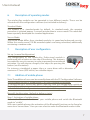
The secure-mode differs from standard-mode by its speed and enhanced security.
Within this mode several 128 Bit encoded ciphers are being submitted, additionally
containing a random code.
7. Description of user configuration
Set-up: (manual konfiguration)
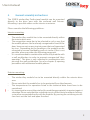
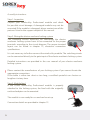
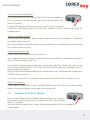
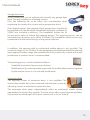
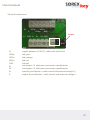
The configuration of the wirelessKey Professional module is
performed with a button on the side of the device. This button is
concealed for security reasons, in order to prevent from accidental
activation. You will require a longish, thin object for pressing the
button (see illustration).
For instance, a toothpick, a paper clip or a screw driver with a diameter of
maximum 2.3 mm (0.09 inches) are suitable objects.
7.1
Addition of mobile phone
Note: The addition of users can be normally done with the PC Configuration Software.
The discription for this is configuration is on your software cd included.
To configurate your wirelessKey device manually with the konfiguration switch on
the module, you have to activate this switch on the pc software. Default this function
is disabled and the konfiguration is not possible in delivery status.
Manually konfiguration: (default at delivery status)
Step 1: Activation of mobile phone
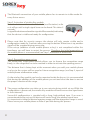
Activate the Bluetooth function of your mobile phone and switch the Bluetooth
mode to “visible”.
With most mobile phones the activation of the Bluetooth function can be found as
menu item “connections”. Here you can select to make the Bluetooth mode visible.
www.wireless-key.com