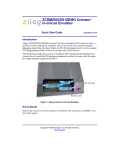
1
ZGP32300200ZPR
Z8 GP™ ZGP323 Programming
System with USB Interface
User Manual
UM019101-0305
Introduction
Thank you for purchasing the ZiLOG ZGP32300200ZPR Z8 GP™ ZGP323 Programming
System with USB interface (Figure 1). The Z8 GP™ ZGP323 Programming System provides an inexpensive development environment for ZiLOG’s Z8 GP family of microcontrollers. Two windowed 28-CDIP (Ceramic DIP) chips are included for use in prototyping.
The windowed CDIP chips are provided for your convenience and are eraseable with
ultraviolet light.
This User Manual tells you how to connect programming system components to your PC,
and a target board, install the ZDSII integrated development environment, and use ZDSII
to burn demonstration code into a Z8 GP family OTP microcontroller.
Figure 1. Z8 GP ZGP323 Programming System with USB Interface
ZiLOG Worldwide Headquarters • 532 Race Street • San Jose, CA 95126
Telephone: 408.558.8500 • Fax: 408.558.8300 • www.ZiLOG.com
Z8 GP™ ZGP323 Programming System
User Manual
Page 2
Software Requirements
Table 1 lists the PC requirements for running ZDS II.
Table 1. ZDS II System Requirements
Recommended Configuration
Minimum Configuration
•
•
•
•
•
•
•
•
• PC running MS Windows 98SE/WinNT 4.0–
SP6/Win2000–SP3/WinXP–SP1
• Pentium II/233 MHz processor
• 96 MB RAM
• 12 MB hard disk space (documentation not
included)
• Super VGA video adapter
• CD-ROM drive
• USB port
• Internet browser (Internet Explorer or
Netscape)
PC running MS Windows XP, SP2
Pentium III/500 MHz processor
128 MB RAM
35 MB hard disk space
Super VGA video adapter
CD-ROM drive
USB port
Internet browser (Internet Explorer or
Netscape)
Installing the ZDSII Software
Perform the following steps to install the software tools:
1. Load the ZDSII CD into your CD-ROM drive.
2. The CD automatically launches the DemoShield application and provides a menu to install the product and documentation. Click on the Install Application button and follow
the prompts to install ZDS II.
Note: Software versions illustrated in the following figures are for reference only.
You may have an updated version.
3. The following directory is installed on the host PC, assuming all installation settings
remain at their defaults:
C:\Program Files\ZiLOG\ZDSII_<product>_<version number>.
Configuring the 5VDC Universal Power Supply
The universal power supply kit features several different plug configurations in one box
and the power supply itself in another. The power supply ships with a slide-out plate that
must be removed to insert the location-specific plug configurations.
1. Remove the slide-out plate.
Software Requirements
UM019101-0305
Z8 GP™ ZGP323 Programming System
User Manual
Page 3
2. Select the plug configuration specific to the power requirements of your locale and
insert it into the slot that remains after removing the slide-out plate.
3. Slide the new plug configuration into the slot until it snaps into place.
4. Plug the power supply into an electrical outlet.
Installing the USB Interface Driver and Cable
The Z8 GP ZGP323 Programming System features a USB interface. Follow the steps in
this section to install the Z8 GP ZGP323 Programming System with USB Interface and
configure the Z8 Programmer. Connect the hardware as shown in Figure 2.
Figure 2. Hardware Setup Using the Supplied USB Cable
When you first connect the Programming System to your computer, you need to help Windows load the appropriate driver from the ZDSII installation directory or CD-ROM. You
can download ZDSII software from www.ZiLOG.com. You need to help Windows locate
the driver once only. The procedure you use depends on your Windows operating system
version.
Windows XP
1. Connect the 5 VDC power supply to the Programming System and apply power.
2. Connect the Programming System to the host PC using the USB cable.
If the Found New Hardware Wizard window appears, check the No, not this time button and click Next to continue.
3. In the Wizard, select Install from a list or specific location (Advanced); then click Next.
Note: If the Windows Logo testing dialog appears, select Continue Anyway.
UM019101-0305
Installing the USB Interface Driver and Cable
Z8 GP™ ZGP323 Programming System
User Manual
Page 4
4. Select Search for the best driver in these locations and Include this location in search.
5. Browse to the driver directory, one of the following:
<ZDSII Installation Directory>\device drivers\USB
<ZDSII Installation CD>\Device Drivers\USB
6. Click Next, and then click Next again after the appropriate driver is found.
7. Click Finish to complete the installation.
Windows 2000
1. Connect the 5 VDC power supply to the Programming System and apply power.
2. Connect the Programming System to the host PC using the USB cable.
The Found New Hardware Wizard should activate automatically.
3. In the Wizard, click Next.
4. Select Search for a suitable driver for my device (Recommended); then click Next.
5. Select Specify a location; then click Next.
6. Browse to the driver directory, one of the following:
<ZDSII Installation Directory>\device drivers\USB
<ZDSII Installation CD>\Device Drivers\USB
7. Click OK, and then click Next after the appropriate driver is found.
8. Click Finish to complete the installation.
Windows 98SE
1. Connect the 5 VDC power supply to the Programming System and apply power.
2. Connect the Programming System to the host PC using the USB cable.
The Found New Hardware Wizard should activate automatically.
3. In the Wizard, click Next.
4. Select Search for the best driver for your device (Recommended); then click Next.
5. Select Specify a location; then browse to the driver directory, one of the following:
<ZDSII Installation Directory>\device drivers\USB
<ZDSII Installation CD>\Device Drivers\USB
6. Click Next, and then click Next again after the appropriate driver is found.
7. Click Finish to complete the installation.
Installing the USB Interface Driver and Cable
UM019101-0305
Z8 GP™ ZGP323 Programming System
User Manual
Page 5
Programming System Components
The Z8 GP ZGP323 Programming System circuit board contains three LED indicators:
• Yellow LED D1: Flashes as data is received over the USB connection from the PC.
• Red LED D3: Illuminates during OTP programming or reading.
• Green LED D5: Illuminates when 5VDC is applied to the programmer.
The following components are for factory use only:
• Jumper JP1, which must be IN.
• Jumpers JP2 through JP7.
• Connector P1 (ZDI).
• Header J1 (ISP).
• Test points TP1 and TP2.
The remaining components are not user-serviceable.
Using ZDS II to Burn a Hex File into a ZGP323 OTP Chip
After installing the ZDS II software and setting up the hardware, use the following procedure to open the sample project named ledblink_c.pro, build a hex file from the program, and burn that hex file into the supplied ZGP323 28-CDIP chip via the OTP
programming module.
Note: If you are familiar with using ZDS II to create hex files and have previously
used the Z8 GP ZGP323 programming system, refer to “Hex File Burning
Instructions for Experienced ZDS II Users” on page 9
The sample project ledblink_c.pro is included in the ZDS II sample directory, located
in:
c:\Program Files\ZiLOG\ZDSII_<product>_<version>
\samples\<processor type>_<demo name>
\<demo name>_<language>\src
1. Start ZDS II for the Z8 GP ZGP323 programming system.
2. Open the sample project file: File –> Open Project –>
c:\Program Files\ZDSII_Z8GP_<version>
\samples\ZGP323_ledBlink\ledblink_c\src\ledblink_c.pro.
3. In ZDSII, open the Build menu and select Set Active Configuration.
UM019101-0305
Z8 GP™ ZGP323 Programming System
User Manual
Page 6
4. In the Select Configuration dialog, select Debug and click OK.
5. Open Project –> Settings.
6. In the General tab, verify the CPU Family field is set to ZGP323.
7. In the General tab, set the CPU field to ZGP323XXX2832_Window.
8. Set the Output Files Directory: to the directory in which you want your output files
stored. By default, ZDSII stores your files in the same directory as the project files.
9. In the Debugger tab, make sure the Driver: field is set to Simulator.
10. Click OK.
11. When asked to rebuild affected files, click Yes to rebuild the project. (You can also rebuild later by pressing F7.)
The Build Output Window at the bottom of ZDSII provides status messages about the
rebuild’s progress.
12. To debug the program using the simulator, open the Build menu and select Debug and
then Reset to load the simulator with the program code. The simulator is used to completely debug the program before downloading to the chip. Select Build > Debugger >
Stop Debugging when you have finished debugging.
13. Now that the program is complete, we’re going to create a hex file you can download
into a ZGP323 chip installed on the Programing System.
14. In ZDSII, open the Build menu and select Set Active Configuration.
15. In the Select Configuration dialog, select Release and click OK.
16. Rebuild the project. Open the Build menu and select Rebuild All.
17. Browse to the c:\Program Files\ZDSII_Z8GP_<version>
\samples\ZGP323_ledBlink\ledblink_c\src directory. There you will find
the file ledblink_c.hex, the hex file just created when you rebuilt the project in Release configuration.
18. Connect the Z8 GP ZGP323 programming system to your development PC as described in “Installing the USB Interface Driver and Cable” on page 3.
19. Open Project > Settings.
The Project Settings window appears.
Using ZDS II to Burn a Hex File into a ZGP323 OTP Chip
UM019101-0305
Z8 GP™ ZGP323 Programming System
User Manual
Page 7
20. In the Debugger tab of the Project Settings window, select USB Driver from the Driver
drop-down menu.
21. Click OK. If prompted to rebuild the project, click YES.
22. Select the appropriate package converter for the OTP chip you wish to burn. For the
windowed 28-CDIP part, select the 28-PDIP package converter.
23. Install the package converter into the ZIF socket on the Programming System. Match
pin 1 of the package converter with pin 1 of the ZIF socket. Pin numbers are silkscreened on the board.
24. Install the OTP chip you wish to burn into the package converter installed on the Programming System’s ZIF socket. Match pin 1 of the chip (indicated by a notch on the
chip) with pin 1 of the package converter’s ZIF socket.
25. Stop any current debugging process by selecting Build > Debug > Stop Debugging.
26. Select Tools > OTP Programming to open the OTP window (Figure 3).
UM019101-0305
Using ZDS II to Burn a Hex File into a ZGP323 OTP Chip
Z8 GP™ ZGP323 Programming System
User Manual
Page 8
Figure 3. OTP Programming Window (Hex File Example)
27. If the appropriate target device is not selected, set it now in the Device drop-down
menu. For the windowed ZGP323 part shipped with the programming system, select
ZGP323XXX2832_Window.
28. In the Hex File: section, click the
into the OTP chip.
button and select the hex file you wish to burn
29. If you do not want to pad the hex file, select the None button in the Pad File With area.
Otherwise, select the FF, 00, or Other button. If you select the Other button, type the
hex value to pad the hex file with in the Other field.
30. Click the Load File button to load the hex file.
31. Click the Ram Checksum button to calculate the checksum of the data in programmer
RAM. Use this to compare with the OTP checksum after burning.
32. Select which option bits to program in the Programming Option Bits area. For this demo
example, no option bits need to be added.
33. If you do not want a serial number loaded into the part, select the None button in the
Method area. For this demo example, select None. To load a serial number:
a. Select the Sequential or Pseudorandom button to determine how the serial number
is incremented on subsequent burns.
b. Select the size of the serial number (1, 2, 3, or 4 bytes) in the Serial Number Size
area.
c. Enter the starting serial number in the Serial Number field.
d. Enter the address into which you want the serial number loaded in the Address
field. Consult the project’s MAP file to determine an unused memory location.
34. Click Blank Check to verify that the OTP chip is actually blank.
35. Click the Burn button to program the OTP chip with the contents of programmer RAM.
As part of the Burn function, the OTP chip is also verified.
36. When the burn is complete, click OTP Checksum to calculate the checksum of data on
the OTP chip and compare it to the RAM checksum calculated earlier.
37. Click Close to close the OTP Programming window. You now have a chip that is ready
to be used on a target board.
Using ZDS II to Burn a Hex File into a ZGP323 OTP Chip
UM019101-0305
Z8 GP™ ZGP323 Programming System
User Manual
Page 9
Hex File Burning Instructions for Experienced ZDS II Users
The following instructions describe the process for burning a hex file to a ZGP323 OTP
chip.
1. Connect the Z8 GP ZGP323 Programming System to your development PC as
described in “Installing the USB Interface Driver and Cable” on page 3.
2. Install the appropriate package converter into the ZIF socket on the Programming System.
3. Install the OTP chip you wish to burn into the package converter installed in the Programming System’s ZIF socket. Match pin 1 of the chip with pin 1 of the package converter’s ZIF socket.
4. Stop any current debugging process by selecting Build > Debug > Stop Debugging.
5. In ZDS II, open any project, such as ledblink_c.pro located in
c:\Program Files\ZDSII_Z8GP_<version>
\samples\ZGP323_ledBlink\ledblink_c\src\ledblink_c.pro.
6. In the Debugger tab of the Project Settings window, select USB driver from the dropdown menu.
7. Select Tools > OTP Programming to open the OTP window (Figure 4).
UM019101-0305
Hex File Burning Instructions for Experienced ZDS II Users
Z8 GP™ ZGP323 Programming System
User Manual
Page 10
Figure 4. OTP Programming Window (Hex File Example)
8. If the appropriate target device is not selected, set it now in the Device drop-down
menu.
9. In the Hex File: section, click the
into the OTP chip.
button and select the hex file you wish to burn
10. Set the remaining OTP programming parameters as necessary for your application.
11. Click the Load File button to load the hex file.
12. Click the Burn button to program the OTP chip with the contents of programmer RAM
and selected options.
Hex File Burning Instructions for Experienced ZDS II Users
UM019101-0305
Z8 GP™ ZGP323 Programming System
User Manual
Page 11
This publication is subject to replacement by a later edition. To determine whether a later
edition exists, or to request copies of publications, contact:
ZiLOG Worldwide Headquarters
532 Race Street
San Jose, CA 95126
Telephone: 408.558.8500
Fax: 408.558.8300
www.ZiLOG.com
Document Disclaimer
ZiLOG is a registered trademark of ZiLOG Inc. in the United States and in other countries. All
other products and/or service names mentioned herein may be trademarks of the companies with
which they are associated.
©2005 by ZiLOG, Inc. All rights reserved. Information in this publication concerning the devices,
applications, or technology described is intended to suggest possible uses and may be superseded.
ZiLOG, INC. DOES NOT ASSUME LIABILITY FOR OR PROVIDE A REPRESENTATION OF
ACCURACY OF THE INFORMATION, DEVICES, OR TECHNOLOGY DESCRIBED IN THIS
DOCUMENT. ZiLOG ALSO DOES NOT ASSUME LIABILITY FOR INTELLECTUAL PROPERTY INFRINGEMENT RELATED IN ANY MANNER TO USE OF INFORMATION,
DEVICES, OR TECHNOLOGY DESCRIBED HEREIN OR OTHERWISE. Devices sold by
ZiLOG, Inc. are covered by warranty and limitation of liability provisions appearing in the ZiLOG,
Inc. Terms and Conditions of Sale. ZiLOG, Inc. makes no warranty of merchantability or fitness for
any purpose Except with the express written approval of ZiLOG, use of information, devices, or
technology as critical components of life support systems is not authorized. No licenses are conveyed, implicitly or otherwise, by this document under any intellectual property rights.
UM019101-0305
Hex File Burning Instructions for Experienced ZDS II Users