1
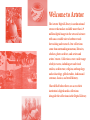
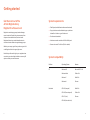
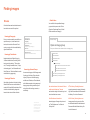
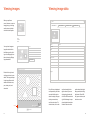
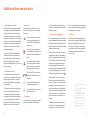
User Manual Contents 01 Welcome to Artstor 03 Key features and tools 04 Interface overview 05 Getting started 05 Register for an account 06 System requirements 06 System compatibility 07 Finding images 07 Search 09 Browse 11 Viewing images 12 Viewing image data 13 Downloading images 14 Organizing images 15 Additional features and tools 15 Image functions 15 Translation 16 Instructor-level user features 16 Discovery services Welcome to Artstor The Artstor Digital Library is an educational resource that makes available more than 1.9 million digital images in the arts and sciences with an accessible suite of software tools for teaching and research. Our collections come from outstanding museums, libraries, scholars, photo archives, and artists and artists’ estates. Collections cover a wide range of subject areas, including art and visual studies, architecture, religion, anthropology and archaeology, global studies, fashion and costume, classics, and world history. Shared Shelf subscribers can access their institution’s digital media collections alongside the collections in the Digital Library. Key features and tools 3 p Share Display Options Tools Sort by q Revelance 1929 Collection Type clear Images/page q 1942 1956 1969 1929 You can also generate individual image URLs or image group URLs to share with other users at your institution. Mobile Search, browse, zoom, and view saved image groups. Also, you can study with the Flashcard View, which allows you to see your images without text and then flip them to reveal the image record. of 28 GO D 2009 E clear " Click image to select. Double click to enlarge. Click caption to view full record. F Navigate through your search history, upload files to your personal collection, organize image groups, create and manage folders, change display options, download image groups and citations, and find help Architecture and City Planning Decorative Arts, Utilitarian Objects and Interior Design B. Filter panel Drawings and Watercolors You can download images and image details when logged into your Artstor user account. 1996 Page 1 2009 2000 results for "art on file clear 1982 p q C My saved searches 72 Artstor Digital Library Classification Log out Artstor Digital Library Advanced Search Hide filter panel Garden and Landscape Print Share [email protected] Filtered Search All Collections: “art on file” Double-click on the image thumbnails to open the Image Viewer and its tools to enlarge, pan, and rotate. You can print an image and its descriptive data. You can also print details by zooming and panning within the image. Welcome to Artstor Edit profile Help p Browse Browsing allows you to navigate through Artstor’s p When you run a keyword search, options appear along with your search results page. You can filter your results by one of 16 Artstor classifications, geographical area or country, and date range. Organize p Faceted Search Find q Refine your search by keyword, date or date range, geography, classification (media), and/or collection. View History p Advanced search Select Language A q You can narrow your searches to Shared Shelf Commons, Shared Shelf Institutional Collections (if available), and Personal Collections. Images from Artstor Digital Library col lections are identified with this icon , Shared Shelf Commons and institutional images are marked with this icon S , and personal collections are marked with this icon P . A. Navigation menu p Simply type your keyword(s) in the search box and click Go. categories. You can browse by collection, classification, and geography. p Keyword search Interface overview Paintings Filter by collection, classification (media), and geography Prints Sculpture and Installations B Geography clear 0 North America Canada United States C. Login area 0 South America Brazil Uruguay D. Keyword search box 0 Europe Belgium Denmark France Germany Greece Italy Netherlands Enter a search term, narrow by collection, save a search or access previously saved searches, or go to advanced search E. Display and navigation bar G Choose sorting options, thumbnail size, images per page, navigate through results, and open image groups F. Date range filter Narrow your search results by earliest and latest dates G. Search results page 4 Getting started Get the most out of the Artstor Digital Library: Register for a free account Register to create image groups, download images, export content to PowerPoint, get access away from campus and on mobile devices, and much more. Registered instructors can add shareable notes to content and create folders to organize image groups. System requirements —— Flash Player (available free at adobe.com/downloads) —— Pop-up blockers must be disabled or pop-up windows allowed from *artstor.org and *artstor.net —— Cookies must be enabled —— A minimum monitor resolution of 1280 x 1024 pixels —— Screen colors set to True Color (32 bit or better) While at your campus, go to library.artstor.org and click on the Register link on the upper right corner. Note that you will need to log in to your registered user account at your subscribing institution once every 120 days to maintain your remote access. System compatibility Platform Operating System Browser PC Windows XP Microsoft IE 7.0-10 Windows Vista Firefox 5.0+ Windows 7 Safari 5.0+ Windows 8 Chrome OS 10.5 (Leopard) Safari 5.0+ OS 10.6 (Snow Leopard) Firefox 5.0+ OS 10.7 (Lion) Chrome Macintosh OS 10.8 (Mountain Lion) 5 6 Finding images There are two main ways to find images in the Artstor Digital Library: searching and browsing. You can also find curated topics in the Global Folders. Search by collection type Search Keyword search Enter your keyword(s) in the search box and click Go. Artstor will return results that include all your search terms, so there is no need to include “and” between terms. Filtered search When you run a keyword search, options will appear along with your search results page. You can filter by one of 16 Artstor classifications, geographical area or country, and date range. You can further refine these results using the same keyword box by entering another term and choosing “within this search result” from the dropdown options. SEARCH GO ALL COLLECTIONS p q The default setting in the Artstor Workspace is to search through all available collections. You can also limit your searches to Shared Shelf Commons, which is composed of collections that Shared Shelf subscribers have made public; if your institution makes content available locally through Shared Shelf, you can limit your search results to Shared Shelf Institutional Collections; and if you are an instructor and have uploaded your own files, you can limit the search to Personal Collections. Advanced Search Advanced search Limit or filter your search by field, date parameters, collection, classification, or geography. Filtered Search All Collections: “art on file” Hide filter panel Collection Type clear Artstor Digital Library Classification clear Advanced Search Search for words or phrases Search by geography, classification, and/or collections You can enter multiple words and use quotes to indicate exact search terms. You can narrow your search results by filtering. Up to five filters can be selected from both the Geography and Classification areas. Architecture and City Planning Decorative Arts, Utilitarian Objects and Interior Design in any field q AND q in any field q AND q in any field q Garden and Landscape AND q in any field q Paintings AND q in any field q Drawings and Watercolors Prints Enter a year or range (numbers only) to limit your search. FROM Geography CE (AD) q TO clear 0 North America Canada United States 0 South America Brazil Uruguay 7 0 Europe Belgium Denmark Classification CE (AD) q Find only records from this exact year (or within this range). SEARCH CLEAR CLOSE CLEAR [0] of 16 CLEAR Film, Audio, Video and Digital Art Collections Find all records that include this year (or overlap this range). [0] of 206 North America Central America and the Caribbean South America Europe Africa North of the Sahara Architecture and City Planning Decorative Arts, Utilitarian Objects and Interior Design Drawings and Watercolors Fashion, Costume and Jewelry Search by date or date range Sculpture and Installations Geography [0] of 8 CLEAR Artstor Collections Shared Shelf Institutional Collections HELP 8 Finding images Browse Global Folders You can find further specialized image groups via the top menu bar. Click on Organize > Open Image Group > Global Folders and choose a category: Go to the Browse section below the search box and choose one of four options: Browsing by Geography Focus on works created by an artist from a specific country or, in the case of architecture, the location of the work. Each country or region is further subdivided by object classification. BROWSE Browse Groups Geography (Afghanistan, Albania, Algeria...) Classification (painting, performing arts, photography...) Collection Navigate the Artstor Digital Library by 16 broad classifications, including “Architecture and city planning,” “Decorative arts,” “Drawings and watercolors,” “Maps, charts and graphs,” and “Humanities and Social Sciences.” Each classification can be sorted further by geography. Browsing by Collection View all the collections in Artstor including Shared Shelf Commons and institutional content for Shared Shelf subscribers. Each collection is subdivided by categories based on the content of the collection. 9 First open a folder and then double click on an image group. (Artstor, Shared Shelf, Shared Shelf Commons, Personal Collections...) Featured Groups Browsing by Classification Open an image group (Sample Topics, Artstor Travel Award recipients...) + Private Folders + Unlocked Folders + Institutional Folders Global Folders Featured Groups + Art and Architecture, Periods and Cultures Browsing by Featured Groups Access curated groups of 100 images each focusing on Art History Topics, Interdisciplinary Topics such as Anthropology and Women’s Studies, and Travel Awards, which features award-winning essays and image groups outlining creative ways of using Artstor for teaching, research, or scholarship. “AP® and Advanced Placement® is a trademark registered and/or owned by the College Board, which was not involved in the production of, and does not endorse, this website.” + Art and Architecture, Themes + Social Studies and Humanities + AP© Art History Teaching Resources + AP© US History Teaching Resources Art and Architecture, Periods and Cultures and Art and Architecture, Themes: seminal works taught in introductory-level art and architecture courses. AP® Art History Teaching Resources: a growing resource to support the teaching of the revised Advanced Placement® Art History Curriculum Framework. Social Studies and Humanities: selected groups of images in topics such as “The Enlightenment” or Food and Culinary Arts. AP® US History Teaching Resources: image groups focusing on each of the seven themes detailed in the Advanced Placement® United States History Curriculum Framework. 10 OPEN CLOSE HELP Viewing images Viewing image data When you perform a search, browse, or open an image group, your image results return as thumbnails with a brief caption. Title Information File properties Instructor notes Personal notes Title Creator Date Field You may view images as large thumbnails with a brief data record by clicking on the Display options tab and choosing Display large thumbnails. Creator Creator Title Title Location Date Date ID Number Location Description Data p Description Artstor Collection VIEW FULL RECORD ID Number Source http://library.artstor.org/library/iv2.html?parent=true Rights Double-click any thumbnail image to view in more detail. The image will open in the Image Viewer with additional tools to zoom, pan, rotate, print, and download. q Report an error Tool bar 18.2% Title Creator 11 Every file in our database is accompanied by a full data record with information about the object, file properties, personal notes, and instructor notes. To view the data, click on the caption beneath the image thumbnail. If you are viewing large thumbnails, click View Full Record to the right of the image to open a descriptive data window. Select a tab to view infor- mation about the object, file properties (including the Artstor ID and URL link), personal notes, and instructor notes. + 12 Downloading images Organizing images Organize Open image group Save image group Save image group as... Rename image group Delete image group p Save selected images to New Image group Delete selections from image group Existing image group Select all images on page Recently opened image group Rearrange images using Slide Sorter Clear all selections Single image Export to PowerPoint Image group download You can download images individually as JPG files. Double-click an image thumbnail to open the Image Viewer, then click the save icon on the tool bar to download a zip file with the JPG image and an HTML file with the image’s data. You will need a zip program to open this download. You can download an entire image group— including captions— prepopulated into a single PowerPoint presentation. Simply open your image group then click the export to PowerPoint button on the display and navigation bar. Each image appears on its own slide with the image data in the notes field. In presentation mode, the image is hyperlinked to the original in the Digital Library where you can zoom, pan, and rotate the image. The Download Groups feature allows you to download an entire saved group. Click on the folder icon on the display and navigation bar to download a zipped file with all the JPG images along with their data records as HTML files. You will need a zip program to open the downloaded group. 13 As a registered user, you can create image groups and share them with others at your institution, write image group descriptions, build presentations, and more. Creating an image group is as easy as selecting the images you want by clicking on a thumbnail, then clicking on the Organize tab and saving the selected images to a New image group, Existing image group, or Recently opened image group. The tab gives you several other options for working with the images you’ve selected. There are many ways to open an image group. One is to go to the navigation menu and click on the Organize tab and then on Open image group. A new window will open displaying a list of the folders available to you. Click the plus sign (+) next to a folder title to expand it and display its contents. Click the minus sign (-) to collapse an expanded folder. 14 Additional features and tools Offline Image Viewer (OIV) The OIV, Artstor’s presentation software, is an image-friendly alternative to PowerPoint or Keynote. It allows you to download much larger images from the Digital Library (up to 3200 pixels on the long side) than Export to PowerPoint and create digital slide shows that feature side-by-side comparisons, zooming and panning, and customizable captions. Image icons There are further features that can be accessed by clicking the icons under image thumbnails. Click on the IAP icon to download publishing-quality images from the Images for Academic Publishing program. Click on the clustered image icon to view duplicates or details of the same work available in the Digital Library. To install, go to Tools > Download offline presentation tool (OIV), select the PC or Mac version of the program, and install. Once installed, simply import image groups from the Digital Library, or use your own local images. Click on the associated images icon to discover which other images instructors most frequently save along with the lead image. Citation export option It’s easy to generate citations to save, print, or export. Simply select an image or image group and go to Tools > Save citations for selected images or Save citations for image group. You can access your citations by going to Tools > View and export citations. Select the images by checking the box above each thumbnail and then select whether you want to email citations, export into EndNote, ProCite, Reference Manager, or RefWorks, or save them as a local file. 15 Click on the QTVR icon to launch a QuickTime Virtual Reality file of the image. Click on the audio file icon to play an accompanying audio file. Click on the video icon to launch a video player screen. Translation Located at the top of the page to the right, the Google translator button provides you with the ability to translate the site, collections, and metadata into one of 80 different languages. Instructor-level user features Users registered as instructors have all the regular registered user features, as well as the ability to upload files to personal collections, create and share folders, and add shareable notes to images. To upload your own files, pick Upload > Upload to personal collection > Image and audio files. Supported file types include JPG, GIF, TIFF, BMP, PNG, and MP3. Instructors can add up to one gigabyte of content; larger volumes (for institutional collections, for example) can be added by using Shared Shelf. Images from your personal collection are identified with this icon P . To share a folder, click on Share > Create Folder > Next and choose the level of access for your folder. In the Create a Folder window, give your folder a unique name and choose whether you would like to enable students to create sub-folders. Click Next and you will then receive a confirmation that your folder was created. Click Finished. To add a description to an image group, click Organize > Open image group. Click the image group of your choice, then Open > Create image group description. You can now enter text in the description field. Click Save when you’re done. Discovery Artstor integrates with other search systems. You can currently find Digital Library content through EBSCO Discovery Service™, Ex Libris® Group’s Primo Central Index, Paratext’s 19th Century Masterfile database, and Serials Solutions®’ Summon™ service. Cover: Courtesy National Gallery of Art, Washington Page 1: Unknown Yokuts artist, Basket, ca. 1940. Portland Art Museum Venice from Above; view of the domes of the Basilica San Marco looking to the north, 2011, Venice; Italy. Art on File KanōSchool, Nasu no Yôichi Shoots the Taira Fan, and Kumagai Naozane Pursues Taira no Atrumori, 18th century. Portland Art Museum Darius Kinsey , Steel Spar Skidder with Swinging Loading Boom, 1916. Portland Art Museum 16 For troubleshooting tips or to sign up for free online training sessions, visit help.artstor.org For teaching ideas and news, visit artstor.org/blog Find easy instructional videos at youtube.com/artstor Need help? Contact User Support at: [email protected] 888.278.0079 (toll-free USA and Canada) 212.500.2414 Artstor 151 E 61 Street New York, NY 10065 artstor.org