1
Filtering Data:
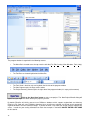
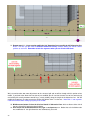
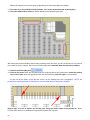
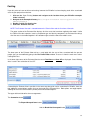
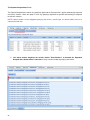
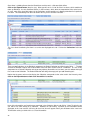
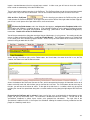
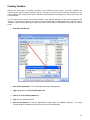
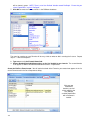
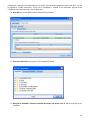
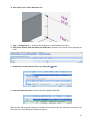
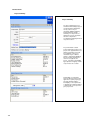
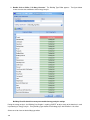
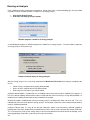
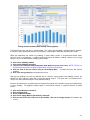
The Estimate View can filter the list of line items displayed by typing into the top most row of the Cost Detail View
called the “Filter Row”. This row will consist of empty values for all columns and will filter the list of line items to
match whatever value is typed into each column. For instance, typing the word “slab” in the description column
would cause only those line items whose description started with “slab” to be displayed. Filtering can be
performed on any and all fields.
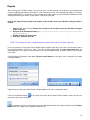
Typing the percent character "%" before filter text will cause the filter to look for that text anywhere in the field.
For instance, typing “%slab” in the description column would cause only those line items whose descriptions
contain the word “slab” to be displayed.
Sorting Data:
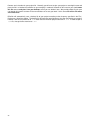
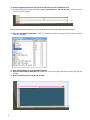
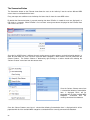
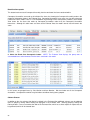
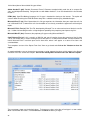
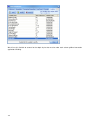
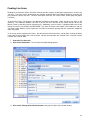
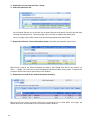
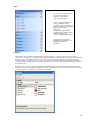
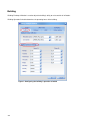
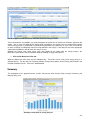
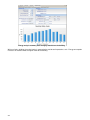
Each column in the Estimate View can be sorted. Sorting on a column is performed by clicking on the column
header. An arrow appears in the column header to indicate whether the sort is ascending or descending. A sort
may be applied to only one column at a time.
Reporting:
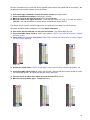
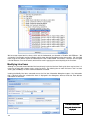
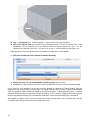
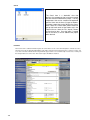
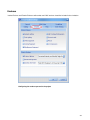
The cost report is now a file created as a WYSIWYG view of the Cost Detail view. This means that the cost report
will have the same data displayed in the Estimate View in the same format. This includes line item grouping,
column grouping, any filters applied, and column sort order.
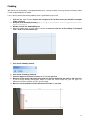
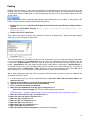
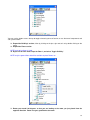
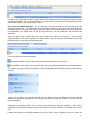
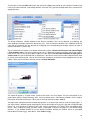
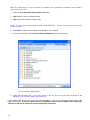
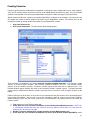
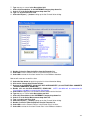
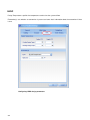
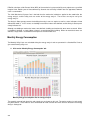
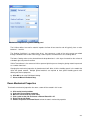
To create a cost report, click on the File | Reports | From Estimate View menu item. This will display a file save
dialog, which provides the ability to save the cost report as a Microsoft Word document, Microsoft Excel
spreadsheet, HTML document, or an Adobe PDF. Once a file name and file type have been specified click the
“Save” button to create the cost report.
177