1
Requred Web.Config Changes
<SYSTEM.WEB>
...
<appSettings>
<add key="ChartImageHandler" value="storage=file;timeout=20;" />
</appSettings>
...
<PAGES>
<CONTROLS>
<add tagPrefix="asp" namespace="System.Web.UI.DataVisualization.Charting"
assembly="System.Web.DataVisualization, Version=3.5.0.0, Culture=neutral, PublicKeyToken=31bf3856ad364e35"/>
</CONTROLS>
</PAGES>
...
<HTTPHANDLERS>
<add path="ChartImg.axd" verb="GET,HEAD,POST"
type="System.Web.UI.DataVisualization.Charting.ChartHttpHandler, System.Web.DataVisualization, Version=3.5.0.0,
Culture=neutral, PublicKeyToken=31bf3856ad364e35" validate="false"/>
</HTTPHANDLERS>
...
</SYSTEM.WEB>
<SYSTEM.WEBSERVER>
<HANDLERS>
<add name="ChartImageHandler" preCondition="integratedMode" verb="GET,HEAD,POST"
path="ChartImg.axd" type="System.Web.UI.DataVisualization.Charting.ChartHttpHandler, System.Web.DataVisualization,
Version=3.5.0.0, Culture=neutral, PublicKeyToken=31bf3856ad364e35"/>
</HANDLERS>
</SYSTEM.WEBSERVER>
Using the Charts Module
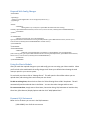
After you make the required changes to your web.config you can start using your Charts module. When
you first look at the module with the config changes it will show you a default chart showing the total
users per portal in your current system.
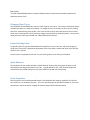
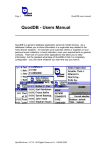
To work with your charts click on “Manage Charts”. This will open the Chart Editor where you can
upload charts, edit existing charts and create your own charts.
To edit an existing chart, select the chart from the “Select Existing Chart to Edit” drop down. This will
automatically load the selected chart in the Editor. You can then make changes and then save.
To create a new chart, simply enter a Chart Name, Connection String, SQL Statement to load the chart,
Chart Size, Spike Removal, Display Options and then click “Add/Update Chart”.
Dynamic SQL Statements
Below is a list of tokens you can use in the SQL Statement.
[USR-USERID]: User ID of the current user