1
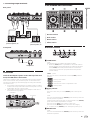
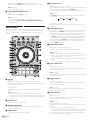
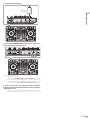
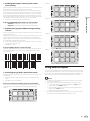
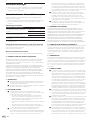
rCENSOR button
Press:
The track is played in the reverse direction while the [CENSOR] button is pressed, and normal playback resumes when the button is
released.
! Even during playback in the reverse direction, normal playback
continues in the background. When the button is released, playback resumes from the point reached in the background.
[SHIFT] + press:
The track is played in the reverse direction. When the [SHIFT] and
[CENSOR] buttons are pressed again, reverse playback is canceled
and normal playback resumes.
sPANEL SELECT button
The panel display switches each time the button is pressed.
Panel display off l [REC] panel l [FX] panel l [SP-6] panel l
[VIDEO] panel l Panel display off ...
! When Serato-Video is installed and enabled on the [SETUP]
menu, the [VIDEO] panel is displayed.
12
12
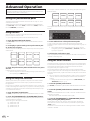
7Headphones CUE/MIC TALK OVER button
Press:
The sound of channels for which the headphones [CUE] button is
pressed is output to the headphones.
! When the headphones [CUE] button is pressed again, monitoring
is canceled.
When the [INPUT SELECT] switch for channel 3 or 4 is set to [MIC1]
or [MIC2], the talkover function can be turned on or off.
When the talkover function is on, the headphones [CUE/
MIC TALK OVER] button flashes. When a sound of over -15 dB is
input to the microphone, the sound other than that of the microphone is attenuated by approximately 20 dB.
! The talkover function for both the microphone connected to the
[MIC1] terminal and the microphone connected to the [MIC2]
terminal can be turned on and off by pressing the headphones
[CUE/MIC TALK OVER] button for either channel 3 or channel 4.
[SHIFT] + press:
The track’s tempo can be set by tapping the button. (Tap function)
! When the Tap function is used, the display of the deck section on
the computer’s screen switches to the [Beatgrid Editer] display.
Click [Edit Grid] on the computer’s screen.
Mixer section
12
Turn counterclockwise: Gradually decreases the low-pass filter’s
cutoff frequency.
Turn clockwise: Gradually increases the high-pass filter’s cutoff
frequency.
12
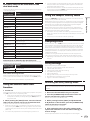
8Headphones CUE button
3
4
5
5
3
c
5
d
4
4
4
5
e
6
f
6
7
8
7
g
9
a
8
h
9
b
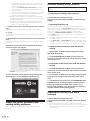
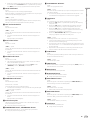
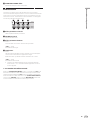
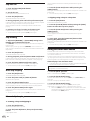
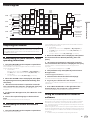
1FX 1 assign button
Turns effect unit FX1 on and off for the respective channel.
2FX 2 assign button
Turns effect unit FX2 on and off for the respective channel.
3TRIM control
Adjusts the individual channel output gain.
4EQ (HI, MID, LOW) controls
Boosts or cuts frequencies for the different channels.
5Channel Level Indicator
Displays the sound level of the respective channels before passing
through the channel faders.
6FILTER control
Applies the filter effect for the respective channel.
The original sound is output when the control is at the center
position.
Press:
The sound of channels for which the headphones [CUE] button is
pressed is output to the headphones.
! When the headphones [CUE] button is pressed again, monitoring
is canceled.
[SHIFT] + press:
The track’s tempo can be set by tapping the button. (Tap function)
! When the Tap function is used, the display of the deck section on
the computer’s screen switches to the [Beatgrid Editer] display.
Click [Edit Grid] on the computer’s screen.
9Channel fader
Move:
Adjusts the level of audio signals output in each channel.
[SHIFT] + move:
Use the channel fader start function.
For details on the channel fader start function, see Using the channel
fader start function on page 25.
aCrossfader Assign Switch
Assigns the channel output to the crossfader.
[A]: Assigns to [A] (left) of the crossfader.
[B]: Assigns to [B] (right) of the crossfader.
[THRU]: Selects this when you do not want to use the crossfader.
(The signals do not pass through the crossfader.)
bCrossfader
Outputs the sound assigned with the crossfader assign switch.
cMASTER LEVEL control
Adjusts the master sound level output.
dMaster level indicator
Displays the master output’s audio level.
eBooth monitor level control
Adjusts the level of audio signals output from the [BOOTH] terminal.
fHEADPHONES MIXING control
Adjusts the balance of the monitor volume between the sound of the
channels for which the headphones [CUE] button is pressed and the
sound of the master channel.
gMASTER CUE button
Turns monitoring of the master output’s sound on and off.
14
En