1
Amarra Symphony with iRC v2.6 User Manual Table of Contents
About This Manual
Notice of Liability
Notice of Rights
1.0 Welcome to the World of Amarra Symphony with iRC
2.0 Getting Started
2.1 Connecting to your output device
2.2 Launching Amarra Symphony the First Time
2.3 Launching Symphony Next Time 3.0 The Amarra Symphony Horizontal User Interface
1) Transport buttons 2) Symphony Volume Slider
3) Amarra Symphony UI Window
4) Playback Position Slider
5) Playlist Commands - only visible when in Playlist mode* 6) Artwork window
7) ‘M’ Button
8) ‘I’ Button - Information Button
9) CACHE Button
10) Amarra/iTunes Button
11) PLAYLIST Button
12) TRACKS Button
13) EQ Button
14) iRC Button
15) ‘P’ Button - Preload Tracks Button
16) LINK Button
17) Up/Down Arrow Button
3.1 The Amarra Symphony Vertical Window
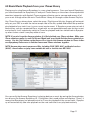
4.0 Basic Music Playback from your iTunes library 5.0 Additional Features to Further Improve your Sound
5.1 Amarra Playlists
5.1.1 General Information about Amarra Playlists
5.1.2 Amarra Playlist Window
5.1.3 Entering Playlist Mode 5.1.4 Loading tracks into a Playlist
5.1.5 Using your Amarra Playlist
5.1.6 Saving a Playlist for Future Recall
5.1.7 Opening an Existing Playlist
5.1.8 Clearing your Playlist
5.2 CACHE Mode
5.3 Amarra EQ
5.3.1 Displaying the EQ Window
5.3.2 Turning the EQ On
5.3.3 Adjusting EQ
5.3.4 Setting Amarra EQ via iTunes
5.3.5 Saving and Recalling EQ Settings
6.0 Playing FLAC Files
6.1 Playing FLAC Files Natively via Amarra Playlists
4
4
4
5
6
6
6
7
8
8
8
8
8
8
8
9
9
9
9
9
9
9
9
9
10
10
10
11
14
14
14
15
15
15
16
17
17
17
17
18
18
18
18
19
19
20
20
6.2 Playing FLAC Files from iTunes
6.2.1 Converting FLAC Folder to AIFF Format
6.2.2 Converting FLAC Files to AIFF Format
7.0 Gapless Playback
7.1 Gapless Playback in Amarra/iTunes Mode 7.2 Gapless Playback in Amarra Playlist mode 8.0 Sample Rate Conversion using Sonic Studio Process
8.1 Launching Sonic Studio Process
8.2 The Params Window
8.3 The Que Manager Window
9.0 Sonic Studio iRC - Impulse Response Correction
9.1 Using iRC Measure
9.2 Using Sonic Studio iRC
10.0 Meters Display
11.0 Full Sonic EQ
12.0 Panner Window
13.0 Licensing 2 machines with your Amarra Symphony License
14.0 Registering Your Amarra Symphony with iRC Software
15.0 Contacting Sonic Studio
APPENDIX A - Amarra Pulldown Menus
A.1 Amarra Symphony Pulldown Menu
A.2 File Pulldown Menu
A.3 Playlist Pulldown Menu
A.4 Desk Window
A.5 Windows Menu
APPENDIX B - The Amarra Symphony Preferences Window
B.1 LAUNCH SETTINGS
B.2 PLAYBACK SETTINGS B.3 CACHE SETTINGS
B.5 PROCESSING SETTINGS
B.6 HARDWARE SETTINGS
B.7 ADDITIONAL SONIC HARDWARE SETTINGS
APPENDIX C - Your Amarra Symphony Folder
20
21
21
22
22
22
23
23
23
24
25
25
25
27
27
28
28
29
30
31
31
32
33
34
34
35
35
35
35
36
36
37
38
About This Manual
This manual, as well as the software described in it, is furnished under license and may only
be used or copied in accordance with the terms of such license. The information in this manual
is furnished for informational use only, is subject to change without notice, and should not be
construed as a commitment by Sonic Studio, LLC. Sonic Studio, LLC assumes no responsibility
or liability for any errors or inaccuracies that may appear in this book.
Except as permitted by such license, no part of this publication may be reproduced, stored in a
retrieval system, or transmitted, in any form or by any means, electronic, mechanical, recording, or otherwise, without the prior written permission of Sonic Studio, LLC.
Notice of Liability
The author and publisher have made every effort to ensure the accuracy of the information
herein. However, the information contained in this document is provided without warranty,
either express or implied. Neither the authors, Sonic Studio, LLC, nor its dealers or distributors
will be held liable for any damages to be caused either directly or indirectly by the instructions
contained in this book, or by the software or hardware products described herein.
SONIC STUDIO, LLC MAKES NO WARRANTIES, EXPRESS OR IMPLIED, INCLUDING WITHOUT
LIMITATION THE IMPLIED WARRANTIES OF MERCHANTABILITY AND FITNESS FOR A PARTICULAR PURPOSE, REGARDING THE APPLE SOFTWARE. SONIC STUDIO, LLC DOES NOT
WARRANT, GUARANTEE, OR MAKE ANY REPRESENTATIONS REGARDING THE USE OR THE
RESULTS OF THE USE OF THE SONIC STUDIO, LLC SOFTWARE
IN TERMS OF ITS CORRECTNESS, ACCURACY, RELIABILITY, CURRENTNESS, OR OTHERWISE.
THE ENTIRE RISK AS TO THE RESULTS AND PERFORMANCE OF THE SONIC STUDIO SOFTWARE IS ASSUMED BY YOU. THE EXCLUSION OF IMPLIED WARRANTIES IS NOT PERMITTED
BY SOME STATES. THE ABOVE EXCLUSION MAY NOT APPLY TO YOU. IN NO EVENT WILL
SONIC STUDIO, LLC, ITS DIRECTORS, OFFICERS, EMPLOYEES, OR AGENTS BE LIABLE TO YOU
FOR ANY CONSEQUENTIAL, INCIDENTAL, OR INDIRECT DAMAGES (INCLUDING DAMAGES
FOR LOSS OF BUSINESS PROFITS, BUSINESS INTERRUPTION, LOSS OF BUSINESS INFORMATION, AND THE LIKE) ARISING OUT OF THE USE OR INABILITY TO USE THE SONIC STUDIO
SOFTWARE EVEN IF SONIC STUDIO HAS BEEN ADVISED OF THE POSSIBILITY OF SUCH DAMAGES. BECAUSE SOME STATES DO NOT ALLOW THE EXCLUSION OR LIMITATION OF LIABILITY FOR CONSEQUENTIAL OR INCIDENTAL DAMAGES,THE ABOVE LIMITATIONS MAY NOT
APPLY TO YOU.
Notice of Rights
©2007-2013 Sonic Studio, LLC — All rights reserved. No part of this document may be reproduced, stored in a retrieval system or transmitted in any form or by any means, without the
prior written permission of the publisher.
Sonic Studio, Amarra, Amarra Hifi, Amarra Symphony, Sonic Mastering EQ, Model 302, Model
303, Model Four, Model 305 and the Sonic Studio and Amarra logos are trademarks of Sonic
Studio, LLC. All other company or product names are either trademarks or registered trademarks of their respective owners.
Page 4
1.0 Welcome to the World of Amarra Symphony with iRC
Congratulations and welcome to the Amarra family. By now you should have successfully
downloaded, installed and activated Amarra Symphony with iRC (‘Symphony’) and are ready
to listen to your music! We have a few short notes to pass along to make your listening experience better.
• If you haven’t Installed and Activated Symphony yet, please do the following:
- Double-click on the Amarra Symphony Installer Package to launch the installer
- Follow on screen instructions for installation
- Enter system admin password when prompted
- Symphony will auto launch as part of installation
• If you have any issues Activating Symphony, please refer to the Amarra Symphony Activation
Guide located in your Amarra Symphony folder in Finder. If problems persist, please contact
us at [email protected]
• Google Translate now provides for translating full documents into local languages. Please
visit http://translate.google.com/ , select the desired language to translate to and click on ‘translate a document’. It’s not a perfect tool, but it may help those who prefer languages other than
English
• Always launch Symphony first and let it launch iTunes to ensure proper operation
•DO NOT adjust the sample rate in Audio Midi Setup or set your DAC’s sample rate manually to
match the sample rate of the file. Symphony will automatically set both Audio Midi Setup and
your DAC correctly to match the native sample rate of the file being played back.
• If Symphony quits unexpectedly for any reason, please delete your Amarra Symphony Preferences prior to re-launching Symphony. See Appendix B for information on Amarra Symphony
Preferences.
•A significant amount of additional information can be found at our support portal and on our
FAQ. Please visit our support page at http://www.sonicstudio.com/amarra/amarrasupport.html
to access these resources.
• Holding the Mouse over any button will display a Help Tip displaying what the button does.
It’s time to Enjoy the Music!!
Page 5
2.0 Getting Started
This section reviews the initial steps needed to ensure proper operation of Amarra Symphony.
2.1 Connecting to your output device
Ensure you have correctly set up the device you are sending your music to (built in audio, external DAC) by selecting the desired device in Audio Midi Setup and setting it to be the device
for sound output (and sound input if available). You can access Audio Midi Setup in the Applications->Utilities folder in Finder.
As an alternative, you can set the output device using the Sound item on the System Preferences window.
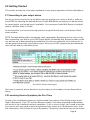
NOTE: The table below reflects the sample rates supported by Symphony for the various interfaces connecting your Mac to your DAC/Output device. Remember that Symphony does not do
any realtime up or downsampling as we believe this to be an audiophile no-no that results in
non-bit-perfect, potentially inconsistent output. Ensure your DAC supports the desired sample
rates natively and you should be all set.
Amarra/DAC Sample Rate Support
Once you’ve correctly set the device for sound output, you are ready to launch Amarra Symphony.
2.2 Launching Amarra Symphony the First Time
As part of the installation process you will be asked if you want an Easy Setup and to launch
Amarra Symphony. Click ‘OK’ for Easy Setup and select ‘Yes’ when prompted and Symphony
will launch as the installation process completes. If this is a fresh install, you’ll need to activate
your license with your code, email and a password you create up to 16 characters long. Enter
that information, click Activate to launch Symphony. Symphony should find your sound output
Page 6
device automatically while it launches Symphony and iTunes. You can verify the device Symphony is talking to by clicking on the ‘I’ button on the Symphony User Interface. Your device
should be displayed in the Symphony UI window.
2.3 Launching Symphony Next Time
After initial launch, to launch Symphony in the future, click on the Amarra Symphony icon in
your dock or navigate to your Applications->Amarra Symphony folder in Finder and doubleclick on ‘Amarra Symphony.app’.
As long as your device is set as the device for sound output prior to launching Symphony,
Symphony should automatically find the device.
Page 7
3.0 The Amarra Symphony Horizontal User Interface
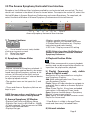
Symphony has 2 different User Interfaces available, one horizontal and one vertical. The horizontal user interface is the default UI and is shown below. To swap to the vertical UI, select Use
Vertical Window in Amarra Symphony Preferences and restart Symphony. To swap back, deselect Use Vertical Window in Amarra Symphony Preferences and re-start Amarra.
1
2
7 8
9
10
3
11
4
12
13 14
5
6
15 16 17
Amarra Symphony Horizontal User Interface
1) Transport buttons
<<
Go to head of current track, doubleclick to go to previous track
||/> Pause/Play button
>>
Go to next track
2) Symphony Volume Slider
•Adjusts volume for Symphony playback. If
you are using an external device, we recommend leaving the Symphony volume at full
volume (all the way to the right) and use
your volume control on your external device
to adjust playback volume.
•The speaker icons are hot spots for 0, and
-144 dB.
•iTunes and Amarra Symphony Volume are
kept in sync.
NOTE: You may notice a small delay or echo
while the iTunes Volume is being moved.
3) Amarra Symphony UI Window
•Displays Track, Artist and Album Name
•Displays Gain level in dB (0.0dB to -144dB).
•If Cache selected - Displays amount of RAM
used to load selected tracks
•Displays file type
•Displays sample rate of current track
•Displays position of Playhead via counter
•If Preload Tracks Preference set - Displays
track playing and tracks loaded
•If EQ is on - Displays current EQ setting
NOTE: If Gain is less than 0.0,dB dithering is
enabled if auto-dither is selected in Amarra
Symphony Preferences.
4) Playback Position Slider
•Blue Slider corresponds to current playback
position and can be moved either direction to
reposition the playhead for playback.
5) Playlist Commands - only visible
when in Playlist mode*
See Section 5 for more details on using Amarra Symphony Playlists.
Add: Adds selected tracks from iTunes into
your Symphony Playlist
Finder: Opens a Finder window to navigate to
and select files to add to an Amarra Symphony Playlist
Clear: Clears Playlist. Also clears preloaded
tracks when in Symphony/iTunes mode
Open: Opens a saved Amarra or Symphony
Playlist - clears current playlist
Save: Opens a Finder window to save current
Playlist for future recall
* Clear Button is visible in Amarra/iTunes
mode and clears any Preloaded Tracks
6) Artwork window
Page 8
•iTunes in yellow indicates iTunes is playing
back your music.
•Displays available artwork
•Double-click on the Artwork window to open
a larger, independent Artwork window
NOTE: Not all tracks contain artwork. Use
the Get Album Artwork command in iTunes
to get additional artwork.
NOTE: Amarra Symphony stores artwork in
your Macintosh HD/Library/Applications
Support/Sonic Studio/Artwork folder in
Finder. If you are missing artwork, ensure
you have proper permissions for this folder.
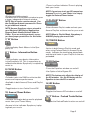
7) ‘M’ Button
•Click to display Sonic Meters in the Symphony UI
8) ‘I’ Button - Information Button
•Click to display your device information
in the Symphony UI. This is a good way to
validate what device Symphony is outputting
music to.
NOTE: A great way to do an A/B comparison
between Symphony and iTunes is to simply
toggle the Amarra/iTunes button.
11) PLAYLIST Button
•Enters Amarra Playlist mode and sets your
Amarra Playlists as the source for your music.
NOTE: When in Playlist Mode, Symphony is
ALWAYS playing your music back.
12) TRACKS Button
•Active in both Amarra Playlist mode and
when using Preload Tracks in Amarra/iTunes
mode. Indicates the track being played back
and the total tracks in your Playlist or that are
preloaded.
13) EQ Button
9) CACHE Button
•Turns the Equalizer window on and off.
•Use Option-click to Bypass EQ
•Preloads tracks into RAM to minimize disk
access and improve performance
NOTE: This button only effects the display of
the EQ window. Use the EQ button on the
Equalizer to turn the EQ on and off.
•Available in both Amarra/iTunes and Playlist
modes
14) iRC Button
•Toggle button to turn Cache On and Off
10) Amarra/iTunes Button
•Toggles the Amarra iRC window on and off
15) ‘P’ Button - Preload Tracks Button
•Indicates the engine being used to playback
music from your iTunes library.
•Toggles the Preload Tracks function on and off
•Amarra in blue indicates Symphony is playing back your music
Page 9
16) LINK Button
•Links the Symphony UI to the iTunes window. Move your iTunes window and Amarra will follow.
NOTE: If you move your Amarra window, iTunes does not follow. This is useful if you need to
temporarily separate the windows.
17) Up/Down Arrow Button
•Toggles the Artwork Window on and off
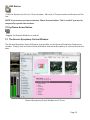
3.1 The Amarra Symphony Vertical Window
The Amarra Symphony Vertical Window is accessible via the Amarra Symphony Preferences
window. Simply click on Amarra Vertical Window and restart Symphony to use the Vertical window.
Amarra Symphony Vertical Window with iTunes
Page 10
4.0 Basic Music Playback from your iTunes library
Playing music using Amarra Symphony is a very simple process. Once you launch Symphony,
you should see both the Symphony UI and your iTunes library on the screen. Amarra provides
seamless integration with Apple’s iTunes program allowing you to manage and access all of
your music through either the main iTunes Music Library or through custom Amarra Playlists.
Use iTunes like you always have, select the songs / Playlists and hit play. Amarra will automatically set your DAC to match the native sample rate of the file, update Audio Midi Setup and begin playback of any track it can in your current environment. If Symphony encounters a track it
cannot play, such as a protected file or a track with an unsupported sample rate for the current
environment, it will seamlessly switch to iTunes for playback and then switch back to Symphony when it sees a track it can play without issue.
NOTE: If you don’t see the Amarra window, it is likely behind your iTunes window. Make your
iTunes window smaller (or exit Full Screen Mode) and you should find the Amarra window on
screen. Use the ‘link’ button on the Amarra UI or choose Link Amarra window to iTunes in Amarra Symphony Preferences to link the Amarra and iTunes windows together.
NOTE: Amarra plays most compressed files including FLAC, MP3, AAC, and Apple Lossless
(ALAC). Amarra does not play some variable bit rate or low bite rate MP3 files.
You can verify that Amarra Symphony is playing back your music by seeing the Amarra button
turn blue on the Amarra Symphony UI. If the button has turned yellow and displays ‘iTunes’, it
means that Symphony has passed control to iTunes for playback of the current track. Symphony will automatically take over playback on the next track that it can play back natively.
Page 11
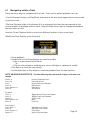
4.1 Navigating within a Track
There are many ways to navigate within a track. Once you’ve started playback, you can:
• Use the Transport buttons to Play/Pause and move to the next track, beginning of current track
or previous track
• The blue Playhead slider in the Amarra UI is a song position slider that corresponds to the
current location of playback within a track. Drag the slider left or right to change the playback
position within a track
•Use the iTunes Playhead slider to move to a different location in the current track.
•Modify the Time Display in the Amarra UI
• Pause playback
• Double-click on the Time element you want to modify.
• Type in a new value and hit Return
or
• Click on a time element and drag your mouse left/right or up/down to modify
• Click Return to save the new setting
• Hit the Space bar or Play button to continue playback from the new location.
NOTE: KEYBOARD SHORTCUTS - Use the following key commands in place of menu commands.
Cmd+5, 6
Previous Track/Next Track
Cmd + 8,9
Down/Up Volume
Cmd + ,
Opens Preferences Window
Cmd + HHide Amarra
Cmd + Option + H
Hide Others
Cmd + QQuit Amarra
File Menu
Cmd + 1
Toggle Amarra/iTunes for Playback
Cmd + 2
Toggles Playlist for Playback
Option + CClears Tracks
Cmd + Option + M
Mute
Cmd + E
Eject Disk
Playlist Menu
Cmd + Shift + I
Cmd + O
Cmd + Option + C
Option + P
Add Tracks from iTunes
Add Tracks from Finder
Clear Tracks
Opens Playlist Window
Page 12
Desk Menu
Cmd + Option + M
Cmd + Option + C
Mute
Toggles Cache On/Off
Windows Menu
Option + AOpens Amarra Window
Option + I
Opens iTunes Window
Option + P
Opens Playlist Window
Option + E
Open EQ Window
Option + R
Opens Sonic IRC window
Page 13
5.0 Additional Features to Further Improve your Sound
Amarra has many features that can be used to further improve your sound over using just the
basic Sonic Studio Engine built into Amarra. The following sections review the additional features and what they do to improve sound.
NOTE: There are many suggestions on our FAQ for configuring your Mac for best performance.
Please visit our website for access to the FAQ.
For Optimal Sound Quality in Amarra Symphony, we recommend:
• Use CACHE Mode and select Memory Amount to about 1/3 to 1/2 of available memory, up to
3Gb.
• Load your Tracks into a Playlist and Quit iTunes.
• In Amarra Symphony Preferences select Gain Bypass and use your external device for gain
control
• In Amarra Symphony Preferences, select EQ Bypass if not using EQ
• From the Amarra->File->Extras pulldown menu, select Quit/Launch Finder to quit Finder
5.1 Amarra Playlists
Amarra Symphony and Playlist windows
Using Amarra Playlists provides several benefits including:
• Processing your music more efficiently than in Amarra/iTunes mode resulting in better sound
quality
*Ability to run independently of iTunes
• Ability to play FLAC files natively, no conversion needed
5.1.1 General Information about Amarra Playlists
• You can load tracks of different sample rates and different file types into the same Playlist
without issue.
• Tracks can reside in more than one Playlist.
• Amarra Symphony only stores a pointer and some other information about the file, it does
not make an additional copy of the file when adding to a Playlist
Page 14
• If you move your tracks to another location on your disk, you will need to re-do your Amarra
Playlists
• Commands for Amarra Playlists can be accessed from the Amarra UI, the Amarra Playlist UI
or from the Amarra Symphony->Playlist pulldown menu.
•You will only be able to load tracks into an Amarra Playlist that Symphony can play back in the
current configuration. If you get a ‘sample rate not supported’ message, please check to make
sure your Mac, interface and DAC all support the sample rate of the track being loaded.
•You can also use a drag/drop method of loading tracks, including saved Amarra Playlists, into
your Amarra Playlist from either your iTunes library or a Finder window.
5.1.2 Amarra Playlist Window
Amarra Playlist mode provides an additional, independent Playlist window (optional) to manage your Amarra Playlists.
There are some new buttons on the Amarra Playlist window to be aware of.
The Link Button:
This button links the Amarra window to the Amarra Playlist window. As you move the
Amarra window, the Playlist window will follow.
The Repeat Playlist Button:
This button has 2 states and determines what Symphony should do at the end of a Playlist.
Stop at end of Playlist:
Repeat Playlist:
All other buttons on the Amarra Playlist UI have the same function as on the Amarra UI.
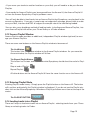
5.1.3 Entering Playlist Mode
Entering Playlist mode is easy. Simply press the Playlist button on the Amarra UI. The button
will turn blue and typically the Playlist window is displayed. If you do not see the Playlist window, click on the Amarra Symphony->Windows->Playlist pull down menu item at the top of the
screen.
The PLAYLIST BUTTON:
5.1.4 Loading tracks into a Playlist
There are 2 ways to load new tracks into an Amarra Playlist - selecting tracks from your iTunes
library or selecting tracks via Finder.
Page 15
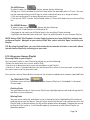
The ADD Button:
To select tracks via your iTunes library, please do the following:
• Bring your iTunes window to the front and select the desired tracks in iTunes. You can
use the command key and shift key to select individual tracks or a range of tracks.
• Click on the Amarra UI to bring Symphony to the front
• Click on the “ADD” button. The selected tracks in iTunes will load into your Amarra Playlist.
The FINDER Button:
To select tracks using the Finder, please do the following:
• Click on the Finder button on the Amarra UI
• Navigate to the tracks you’d like to load in the resulting Finder window.
• Highlight the desired tracks and click ‘Open’ to add the tracks to your Amarra Playlist
NOTE: Native FLAC File Playback: Use the Finder button to load your FLAC files natively into
an Amarra Playlist. Navigate to your desired FLAC files, select and click ‘Open’ to add to your
Playlist.
TIP: By using Preload Tracks, you can Preload the desired number of tracks or an entire album
into an Amarra Playlist by selecting just one track.
5.1.5 Using your Amarra Playlist
Choosing Tracks in your Playlist
You can select tracks in your Playlist by doing any of the following:
• Select the track with your cursor and hit Play
• Use the up or down arrow to move up and down in the Playlist
• Use the >> and << Transport buttons on the Amarra UI to move to the next track, to the head
of current track or to the previous track
You can also use the Tracks Button to see the list of tracks loaded and to choose a desired Track
The TRACKS BUTTON:
Pulldown menu of the tracks either in your Amarra Playlist or Preloaded if in Amarra/
iTunes mode
Deleting Tracks
You can delete a track in the current Playlist by highlighting the track and hitting the Delete Key on your keyboard
Moving Tracks
You can move tracks up and down in the current playlist by highlighting the track and
holding the mouse key down. You will see a white line that you can move around in the
Playlist and it indicates where the file will be placed when dropped. Release the mouse
to drop the file in place. It will take Symphony a moment to rebuild the Playlist so
please be patient.
Page 16
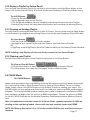
5.1.6 Saving a Playlist for Future Recall
You can Save your Amarra Playlist for recall at a future time by using the Save button on the
Amarra UI, on the Amarra Playlist UI or from the Amarra Symphony->Playlist pulldown menu.
The SAVE Button:
• Press the Save button
• Set the desired name for the Playlist
• Click the Where pulldown item to navigate to the desired location for your Playlist
• Saving a Playlist with the same name and location will overwrite the existing Playlist
5.1.7 Opening an Existing Playlist
You can recall an existing Amarra Playlist in one of 2 ways. You can either use the Open Button
on the Amarra UI or drag/drop an existing Playlist into the Amarra Symphony Playlist Window.
The Open Button:
• Click on this button to access a Finder window.
• Navigate to your saved Playlist and click Open to load into Amarra Playlists
OR
• Drag/Drop an existing Playlist from the Finder window into the Amarra Playlist Window.
NOTE: Loading a new Playlist will clear any tracks currently in your Amarra Playlist.
5.1.8 Clearing your Playlist
To clear the contents of your current Playlist simply click on the Clear Button:
The Clear or Clear All Button:
• Click on either button to clear the current contents of your Amarra Playlist
• The Clear button also clears any Preloaded Tracks in Amarra mode.
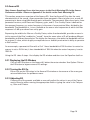
5.2 CACHE Mode
The CACHE Button:
Cache mode pre-loads songs into RAM to minimize disk access resulting in better sound quality. Cache can be used in either Amarra/iTunes or Amarra Playlist Mode. To turn on Cache
mode, simply click on the CACHE button on the Amarra UI prior to loading your tracks. The
CACHE button will turn yellow and Amarra will first load your tracks into RAM and then begin
playback. The amount of RAM used for loading your tracks is displayed in the Amarra UI Window, playback can begin once the amount of RAM is displayed. Choose the amount of RAM
to use for CACHE Playback via the Amarra Symphony Preferences window, Memory Amount
item.
Note: Currently Amarra will load a max of 2.8 Gb into Cache, typically between 2.6-2.8Gb depending on the track being loaded. Amarra will only load complete tracks into CACHE.
NOTE: Set Memory Amount to 1/3 to 1/2 of the available RAM on your machine for best performance.
Page 17
5.3 Amarra EQ
Note: Amarra Symphony Users also have access to the Sonic Mastering EQ via the Amarra
Preferences window. Please see Appendix C for details on the Sonic Mastering EQ
This section presents an overview of the Amarra EQ. Use the Amarra EQ to alter the sonic
characteristics of the sound. Amarra provides three parametric filters to tailor your sound. All
processing is done using 64bit floating point arithmetic. The parametric filters are classic, three
parameter versions, with Resonant Frequency, gain, and Q. Q or Quality Factor is defined as
the resonant frequency, or center frequency in the case of a symmetrical filter, divided by the
bandwidth. The bandwidth is, in turn, defined as the one or two frequencies at which the filter
response is 3 dB up or down from unity gain.
Expressing the width of a filter as a Quality Factor, rather than bandwidth, provides a more intuitive sense of the filter’s subjective “sound,” since the same value of Q will produce different
bandwidths at different frequencies. The higher the frequency, the wider the bandwidth will be
for a given Q value, which roughly corresponds to our auditory mechanism’s ability to perceive
a filter’s action.
As an example, a parametric filter with a Q of 1 has a bandwidth of 100 Hz when its center frequency is set to 100 Hz but, it has a bandwidth of 1000 Hz when the center frequency is set to
1000 Hz.
Using the EQ takes 2 steps - first display the EQ window and then turn the Equalizer itself on.
5.3.1 Displaying the EQ Window
Click on the EQ button on the Amarra UI, below the center window. Use Option-Click on
the EQ button to bypass current EQ settings.
5.3.2 Turning the EQ On
Either click on the EQ button in the Amarra EQ window or choose one of the many presets available from the pulldown menu.
5.3.3 Adjusting EQ
Choose one of the presets available or manually adjust the values in any of the 3 parametric filters by either moving the appropriate slider or typing the value in for Frequency, Gain and Q factor.
Page 18
Amarra EQ Window
5.3.4 Setting Amarra EQ via iTunes
• Select the ‘Link Amarra EQ to iTunes EQ’ in Amarra Preferences
• Either set the iTunes global EQ or Select a Track in iTunes and using “Get Info” select
the “Options”Tab and set the EQ Preset. Amarra EQ will follow the iTunes EQ presets.
NOTE: A new feature in Amarra 2.5 is an Amarra Preference - ‘EQ Bypass’. This bypasses any EQ
processing by Amarra during playback.
Note: The iTunes EQ is typically ‘On’ by default which may effect playback even if the ‘Link
Amarra EQ to iTunes EQ’ preference is not selected. We recommend turning the iTunes EQ
‘Off’ unless specifically using the iTunes EQ. The iTunes EQ can be accessed from the iTunes>Windows menu.
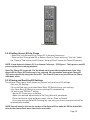
5.3.5 Saving and Recalling EQ Settings
The Amarra->Desk menu items allows you to save and recall your EQ settings.
•Set your EQ Settings
•Go to the Desk menu and select Save Sonic EQ Setup to save your settings
•Use Open Sonic EQ Setup to open an existing EQ saved setting
•To save a new ‘DEFAULT’ setting:
•Set the EQ Preset menu to Default
•Make your desired adjustments to the Freq, dB and Q parameters
•From the Amarra->Desk pulldown menu, click on ‘Save as Default’
•If you quit with the Default EQ setting set, next time you launch, those values will be
automatically recalled
NOTE: You will need to click on the top bar of the Amarra EQ to make the EQ the Active Window for the Amarra Desk menu items to be accessible.
Page 19
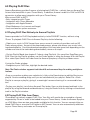
6.0 Playing FLAC Files
Amarra Symphony provides 2 means of playing back FLAC files - natively from an Amarra Playlist and a converted file in your iTunes library. In addition, Amarra has built-in FLAC to AIFF file
conversion to allow easy integration with your iTunes Library.
Why convert FLAC to AIFF?
• Easy integration with iTunes
• Integration with iTunes Metadata
• Integration with Apple Remote
• Simplified ease of us (convert and forget)
• Less overhead on system resources.
6.1 Playing FLAC Files Natively via Amarra Playlists
Amarra provides for FLAC file playback natively via the PLAYLIST function, without using
iTunes. To playback FLAC Files via Amarra Playlists, do the following:
• Obtain your music in FLAC format from one or more of a variety of providers such as HD
Tracks among others. As part of the download process, please note where your music is being downloaded to. Once the download completes (this may take some time depending on the
number and size of the tracks being downloaded), move on to step 2.
• Go into Playlist Mode (see chapter 5.1 about using Playlists). You can either Drag/Drop your
FLAC Files into the Playlist window, use the Finder button in either the Amarra UI or the Playlist
UI or select Open Tracks via Finder from the Amarra Symphony->Playlist pulldown menu.
If using the Finder window
• Navigate to your FLAC files, highlight the desired tracks.
Note: The Finder window supports both the shift and command keys for making multiple selections.
•Once you are done making your selection(s), click on the Open button to add the files to your
playlist. Continue adding songs until you are satisfied with your playlist. Select File > Save
Playlist to save your playlist, giving it a meaningful name and saving it in a memorable location.
• To play your playlist, just click on Amarra’s Play button. You can skip forward and back in the
playlist by using the forward and back buttons, using the Tracks list or by clicking on the desired
track in the Playlist window.
6.2 Playing FLAC Files from iTunes
iTunes does not natively support FLAC Files. Your files will need to be converted to a format
supported by iTunes in order to be loaded into your iTunes library. Under the Amarra Symphony->FILE Menu there are two commands available for this function. You can convert either selected FLAC files or an entire FLAC folder to AIFF format. You can also automatically add them
to your iTunes library and create an iTunes playlist.
Page 20
6.2.1 Converting FLAC Folder to AIFF Format
Converting a FLAC Folder to AIFF is an easy 3-step process
• Click on the Amarra Symphony->File->Convert FLAC Folder to AIFF
• In the resulting Finder window, navigate to and select the folder containing FLAC files you
want to convert and click Open.
• In the next window, specify the destination folder for the new AIFF files. You can create a
temporary folder for this or choose an existing folder for your new AIFF files. Click Open when
done.
• Lastly, you will have the opportunity to automatically add these files to iTunes and create a
playlist using the dialog below.
This will copy (and organize if your iTunes Preferences are set) with your iTunes library.
6.2.2 Converting FLAC Files to AIFF Format
Converting a FLAC FILE to AIFF is an easy 3-step process
• Click on the Amarra Symphony->File->Convert FLAC FILE to AIFF
• In the resulting Finder window, navigate to and select one or more FLAC files to convert and
click Open
• In the next window, specify the destination folder for the new AIFF files.
• Lastly, you will have the opportunity to again, automatically add these files to iTunes and create a playlist.
NOTE: Converting FLAC Folders and Files to AIFF using Amarra Symphony is a non-destructive
process. Your original FLAC files will remain intact and you will also have new AIFF files. We
recommend copying your FLAC files off to your backup drive for retrieval in case of emergency.
Use your AIFF files for day-to-day playback. This setup will provide better sound quality during
playback and minimize the amount of space needed for backups.
Page 21
7.0 Gapless Playback
Gapless playback is perfect for contiguous performances such as symphonic recordings or live,
continuous performances. Gapless playback is now available in both Amarra/iTunes mode and
in Amarra Playlist mode however there are some minor differences between how gapless playback is provided in each mode.
NOTE: Uncompressed files are required for Gapless Playback. Use AIFF, WAV, or BWF files
7.1 Gapless Playback in Amarra/iTunes Mode
To enable Gapless Playback in Amarra/iTunes Mode:
• Select the Amarra Symphony Preference setting for PRELOAD TRACKS and set the COUNT
parameter to the desired number of tracks (or a full album) in the gapless performance.
• Ensure your iTunes library is sorted in the correct order in SONG view for the gapless performance.
• Choose a track in iTunes and the number of tracks in the COUNT field will be loaded together,
based on current sort order, and played back. Those tracks that are part of a true gapless performance will be played back without a gap.
NOTE: The current sort order of your iTunes library is critical for gapless playback, especially
when attempting to Preload and play a full album. Please ensure your iTunes library is sorted
in the correct order when in Songs or List View prior to attempting to Preload Tracks. For best
performance, when Preloading an Album, sort your iTunes library by ‘Artist by Album’. When
Preloading a specified number of tracks, Symphony will load tracks, based on current sort
order, up to the specified number in Amarra Symphony Preferences or until the sample rate
changes.
NOTE: Please unsure that you have disabled SHUFFLE mode in iTunes when using PRELOAD
TRACKS in Amarra Symphony
7.2 Gapless Playback in Amarra Playlist mode
Using Amarra Playlists makes it very easy to have gapless playback. All tracks in an Amarra
Playlist will play back gaplessly as long as the sample rate is the same, there is no need to set
the PRELOAD TRACKS item in Amarra Preferences. That said, using the Preload Tracks function
will allow you to load several tracks or an entire album by selecting only one track in iTunes.
Note: Gapless Playback is designed to work with true gapless performances such as symphonic recordings, live performances and recordings that were mastered as gapless. Gapless playback is not a substitute for mixing independent tracks together.
Note: For best performance, when Preloading an Album, sort your iTunes library by ‘Artist by
Album’. When Preloading a specified number of tracks, Amarra will load tracks up to the specified number in Amarra Preferences or until the sample rate changes.
Page 22
8.0 Sample Rate Conversion using Sonic Studio Process
Sonic Studio Process provides the ability to up or down sample your uncompressed tracks offline and create new files that can be played back at new native sample rates. In addition, SSP
allows for a change in file type as part of the sample rate conversion.
For additional information, refer to the Sonic Studio Process User Manual located in your Applications -> Amarra Symphony -> Extras folder.
8.1 Launching Sonic Studio Process
The Sonic Studio Process can be accessed from the Amarra Symphony->File pulldown menu.
Choose Open Sonic Studio Process to launch Sonic Studio Process.
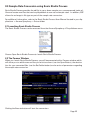
8.2 The Params Window
When you launch Sonic Studio Process, you will be presented with a Params window which
will allow you to add the source files you wish to convert (use the Open Button), the destination for your converted files (use the Set Folder button) and a series of parameters regarding
the sample rate conversion.
SSP Params Window
Clicking the Execute button will start the conversion.
Page 23
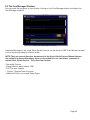
8.3 The Que Manager Window
You can track the progress of your job by clicking on the Que Manager button to display the
Que Manager window.
SSP Que Manager Window
A detailed description on using Sonic Studio Process can be found in SSP User Manual located
in your Amarra Symphony->Extras folder.
NOTE: There are several functions documented in the Sonic Studio Process Manual that are
not available in Amarra Symphony, but are only available in our standalone, separately licensed Sonic Studio Process. These functions include:
• Decrackle Process
• Sample Rate support above 192k
• CAF File type support
• “Classic” Sample Rate Converter
• Additional Filter curves and Dither Types
Page 24
9.0 Sonic Studio iRC - Impulse Response Correction
NOTE: New purchases of Amarra Symphony with iRC v2.6 include the Sonic Studio iRC feature.
Amarra Symphony 2.5.1 and previous version upgrades to Amarra Symphony 2.6 do not include the Sonic Studio iRC feature. An upgrade to add this feature to your copy of Amarra
Symphony is available on our online store.
Apart from Sonic Studio iRC feature, current Amarra Symphony users get all of the bug fixes
and additional features added to Amarra Symphony 2.6 free of charge.
NOTE: You will need an omnidirectional full-bandwidth measurement microphone. We recommend that the frequency response is within ± 1 dB in the area of the speaker’s frequency
response range. Failure to use a recommended microphone may result in false measurement
information.
The XTZ Microphone Pro from XTZ Audio is a cost efficient microphone kit that we recommend. Other recommended mics can be found in our FAQ.
The listening room is usually the weakest link of any sound system. Loudspeakers have been
designed for a certain placement in a room, but in an imperfect environment, performance
suffers and it’s impossible get the full benefit from your DAC, amp and speaker investment.
Imaging, clarity, and bass tightness are all affected by the limitations imposed by your listening
room, and the result is that your listening experience can be significantly diminished.
Amarra Symphony now includes Sonic Studio iRC Impulse Response Correction capability.
This leading-edge room correction technology is designed to optimize the sound of your system in your environment and to your taste.
Sonic Studio iRC measures the acoustic characteristics of your loudspeakers within your listening environment and then optimizes for timing, phase and frequency anomalies imposed by
your room. The result is massively improved imaging and sound staging because now your
room will be working with your sound system, not against it.
Using Sonic Studio iRC is a 2 step process. First, measure and calibrate your listening environment using the iRC Measure calibration tool and create filter files (.filter suffix) for your specific
needs. The second is to load the filter files into the Sonic Studio iRC filter bank in Amarra Symphony for use during play back.
9.1 Using iRC Measure
The iRC Measure application (iRC Measure.app) is installed as part of the Amarra Symphony
standard installation and can be found in your Applications->Amarra Symphony folder in Finder. Please refer to the Sonic Studio iRC User Manual for details on installing and using the iRC
Measure application. The manual can be found in your Amarra Symphony folder.
9.2 Using Sonic Studio iRC
Filter sets created by the iRC Measure application must be loaded into Sonic Studio iRC filter
bank. The Sonic Studio iRC filter bank window is accessed by pressing the iRC button on the
Amarra Symphony User Interface.
Page 25
Pressing the button will launch the Sonic Studio iRC application, check for a valid license and
display the Sonic Studio iRC filter bank (see image below). Remember to click the On/Off button on the filter bank to turn processing on and off.
NOTE: Filter names in the Sonic Studio iRC window will be set automatically according to the
‘yournamehere.filter’ filename in Finder
Sonic Studio iRC filter bank
The SSiRC filter bank has four (4) pre-selection slots where filter files can be loaded for quick
selection. To load a filter file into an empty slot:
• Double-Click on an empty filter slot. This opens a Finder dialog where you can navigate to the
folder where you stored your filter files using the iRC Measure application.
• Select the filter file that you want to load from the popup Finder window.
• Adjust Gain to an appropriate level for the filter you are using by typing a value in the box
provided.
NOTE: A value of 0.0 dB is full volume, positive numbers increase gain, negative numbers
decrease gain. Putting a value above 0.0 in the gain field will increase your output signal, be
careful when setting gain to avoid potential damage to your equipment.
Listen to the result of applying the loaded filters by doing the following:
• Play a track through Amarra Symphony.
• Turn on the Sonic Studio iRC filter bank by pressing the on/off button until it reads On in blue.
• Switch between loaded filters by clicking the corresponding filter slot. The active filter slot
has a blue indicator.
Note: Deleting Amarra Symphony Preferences will delete your pre-selected filters from Sonic
Studio iRC, they will need to be reloaded.
Page 26
10.0 Meters Display
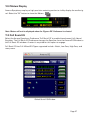
Amarra Symphony employs a high precision metering section to visibly display the audio signal. Select the “M” button to show the Meters.
Amarra Symphony Track Area with Meters displayed
Note: Meters will not be displayed when the ‘Bypass EQ’ Preference is selected
11.0 Full Sonic EQ
Select the Amarra Symphony Preference ‘Full Sonic EQ’ to enable the advanced, full 4-band
Equalizer. The Full Sonic EQ Preference changes the Equalizer from the Amarra EQ Window to
the Full Sonic EQ window. A restart is required for this option to engage.
Full Sonic EQ has Full 4-Band EQ. Types supported include : Notch, Low Pass, High Pass, and
many more.
Global Sonic EQ Window
Page 27
12.0 Panner Window
Amarra Symphony has a stereo panner that can be used to route the output with variable gain.
To open the panner select Amarra Symphony->File-> Panner, which brings up the Panner window.
The Panner in Stereo mode
By default, the panner opens in off mode. In the upper left corner, the channel to which the
panner currently applies is indicated. As this Track indicator is also a drop down menu, it operates as a Strip selector for the panner as well.
13.0 Licensing 2 machines with your Amarra Symphony License
Amarra Symphony allows for 2 machines to be activated with the same license. To activate
Amarra Symphony on two machines, please do the following:
Machine 1
- Download and launch the Amarra Symphony Installer on Machine 1
- Choose Easy Setup
- Select ‘Yes’ when asked to launch Amarra Symphony
- Click Activate to access the Activation Window
- Enter Your Activation Code, email address and create your own password up to 16 characters
long and enter in the spaces provided.
- Click ACTIVATE to activate your copy of Amarra Symphony on Machine 1.
Machine 2
- Download and launch the Amarra Symphony Installer on Machine 2
- Choose Easy Setup
- Select ‘Yes’ when asked to launch Amarra
- Click Activate to access the Activation Window
- Enter Your Activation Code, email address and the password created for machine 1 in the
spaces provided
- Click ACTIVATE to continue the process on Machine 2.
- You will be asked to enter a new password for Machine 2. Enter in a new, unused password
up to 16 characters in length. You should get a message that your software has been activated
and should not have any issues moving forward.
Note: Your password is attached to your license, not your computer. The password created on
machine 2 will become the active password for your license should you need to activate any
machine in the future.
Page 28
14.0 Registering Your Amarra Symphony with iRC Software
In order to receive warranty service, you must register your product with Sonic Studio. This
may be done at any time with proof-of-purchase. We strongly recommend that you register
with Sonic Studio as soon as you purchase your unit.
Why?
1. Your product will be registered with us.
Registration is used as proof of ownership if your product is ever lost or stolen.
2. Sonic Studio updates Amarra Symphony software on a regular basis.
This allows us to keep you informed of updates as they become available.
We strongly encourage you to create a License Control Panel Account. Please read the Amarra
Symphony Activation Guide for information on this important feature.
Please register your Amarra Symphony software using our automated registration Web page
at: http://www.sonicstudio.com and click on Support => Register
Alternatively, our mail address is:
Sonic Studio, LLC
Amarra Software Registration
1340 Mission Street
San Francisco, CA USA 94103
If you encounter issues using Amarra Symphony please refer to our Amarra Support Portal at
http://www.sonicstudio.com/amarra/amarrasupportportal.html. If none of these steps address
your problem please contact your dealer or Sonic Studio support for more help.
Page 29
15.0 Contacting Sonic Studio
Thanks for using Amarra Symphony. We really appreciate your patronage and are always interested in your experiences with Amarra Symphony.
For information on problems, resources please visit our FAQ page
http://www.sonicstudio.com/amarra/amarrafaq.html
For bug reports and support issues, visit:
http://www.sonicstudio.com/amarra/amarrasupport.html
or email us:
[email protected]
To suggest new features for our products, e–mail us at [email protected]
Page 30
APPENDIX A - Amarra Pulldown Menus
The following section describes the Amarra Symphony Pulldown Menu Items
Amarra Symphony Menu Bar
A.1 Amarra Symphony Pulldown Menu
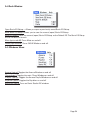
About Amarra: Opens the modal About window. This is useful for verifying the version number
of Amarra Symphony that you are running. Click anywhere in the window to close it.
Preferences: Opens the Preference window for Amarra Symphony.
Services: This menu proves access to any Services that are available to Amarra Symphony.
Hide Amarra: Hides all Amarra Symphony windows. To reveal the windows, click on the Dock
icon or tap the ‚+tab key to cycle through running applications to select Amarra Symphony.
Hide Others: Hides all windows other than Symphony.
Show All: Reveals all windows.
Quit Amarra: Quits Amarra Symphony.
Page 31
A.2 File Pulldown Menu
Toggle Amarra/iTunes Playback [cmd+1]: Toggles between Amarra Symphony and ITunes engine for playback in Amarra/iTunes mode. N/A in Amarra Playlist mode
Set Playlist for Playback: [cmd+2]: Sets Amarra Symphony’s Playlist as the source for playback
Open Recent: List of Recent Amarra Playlists for easy access
Clear Tracks: Clears Tracks from either Amarra Playlist or Preloaded Tracks
Mute: Mutes Amarra Symphony
Convert FLAC File to AIFF... : Convert FLAC Files to AIFF Format - see chapter 6 for details
Convert FLAC Folder to AIFF... : Convert FLAC Folder to AIFF Format - see chapter 6 for details
Activation...: Opens the Activation Window, refer to the Amarra Activation Guide for more information about Activating Amarra Symphony
Audio Device Preferences...: Opens the Audio Device Preferences for managing your DAC
Open Audio Midi Setup...: Open the Audio Midi Setup window for setting up your DAC
Panner - Amarra: Opens the Amarra Panner Window
Open Sonic Studio Process...: Opens Sonic Studio Process for Sample Rate Conversion
Check for Updates...: Manually checks for availability of new versions of Amarra Symphony.
Setting the Amarra Symphony Preferences - Check for Updates on Launch will automate this
Sonic Studio Website...: Links back to the Sonic Studio Website
Eject Disk...: Ejects CD from tray
Extras...: Accesses additional features of Amarra
Page 32
Extras: submenu
Close Window: NA
Cut: NA
Copy: NA
Paste: NA
Enable Debugging: Allows Amarra Symphony to log information on its operation to the Console Log.
Open Console Log: Opens the Console Application to view the Amarra Symphony console log (
in Utilities Folder ).
Quit/Launch Finder: Quits and launches the Finder Application
Purge OSX Inactive Memory: Releases Inactive memory that OS has not released. This can
help with overall play back performance.
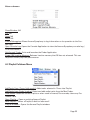
A.3 Playlist Pulldown Menu
Add Tracks From iTunes [shft+cmd+i]: Adds tracks selected in iTunes into Playlist
Add Tracks from Finder [cmd+o]: Select and add audio tracks from the Mac Finder.
Clear Tracks: Clears the current Playlist or when used in Amarra/iTunes mode, clears any Preloaded Tracks
Open Playlist...: Open an existing Amarra Playlist
Save Playlist...: Saves a Playlist to disk for later recall
Playlist Window...: Opens the Amarra Playlist window
Page 33
A.4 Desk Window
Open Sonic EQ Setup...: Allows you open a previously-saved Sonic EQ Setup.
Save Sonic EQ Setup: Allows you to save the current (open) Sonic EQ Setup.
Save As Default: Save the current (open) Sonic EQ Setup as the Default EQ. The Sonic EQ Setup
will be recalled on launch.
Mute [opt+cmd+M]: Turns Mute on and off.
Cache [opt+cmd+M]: Turns CACHE Mode on and off.
A.5 Windows Menu
Amarra [opt+a]: Toggles the Amarra Window on and off
iTunes [opt+i]: Toggles the main iTunes Window on and off
Playlist: [opt+p]: Toggles the Amarra Playlist Window on and off
Equalizer [opt+E: Toggles the Equalizer on and off
Sonic iRC [opt+R: Turns on Sonic Studio iRC window
Page 34
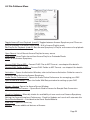
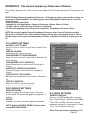
APPENDIX B - The Amarra Symphony Preferences Window
This section describes all of the functions available via the Amarra Symphony Preferences window.
NOTE: Deleting Amarra Symphony Preferences - if Symphony quits unexpectedly or if you are
seeing any unusual behavior, try deleting your Amarra Symphony Preferences to see if this
clears the issue
• Quit Symphony and iTunes
• Navigate to your Applications->Amarra Symphony->Extras folder in Finder
• Double-click on ‘Delete Amarra Preferences.command’
• Re-launch Symphony when the process completes. Symphony will launch iTunes
NOTE: By de-selecting the Amarra Symphony Preference item ‘Launch/Quit Amarra with
iTunes’, you will stop iTunes from automatically launching when you launch Amarra. This is
helpful if you wish to operate independent of iTunes, using Amarra Playlists to play your music.
B.1 LAUNCH SETTINGS
LAUNCH / QUIT ITUNES:
Forces iTunes to launch or quit with Amarra Symphony.
HIDE ON LAUNCH:
Symphony will hide on launch.
LINK AMARRA TO ITUNES WINDOW :
Forces iTunes to remain ‘attached’ to Symphony’s
main window
LINK AMARRA EQ TO ITUNES EQ :
Forces Symphony to follow the EQ settings in
iTunes.
CHECK FOR UPDATES ON LAUNCH:
Amarra Symphony will check for updates on
launch.
OPEN PLAYLIST ON LAUNCH:
Re-loads last used playlist on launch of Symphony
VERTICAL WINDOW:
Vertical window. (restart required)
-------------------------------------------------
B.2 PLAYBACK SETTINGS
PRELOAD TRACKS :
Enables loading of multiple tracks in Amarra/
iTunes Mode. This provides gapless playback capability.
COUNT :
Number of tracks to load for gapless playback
NOTE: Disable SHUFFLE MODE in iTunes when
using PRELOAD TRACKS.
-------------------------------------------------
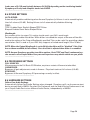
B.3 CACHE SETTINGS
MEMORY AMOUNT :
Amount of RAM dedicated to store audio in Cache Mode. Settings are 512Mb,
1Gb, 2Gb and 3Gb. We recommend
between setting this to between 1/3 and
1/2 of your available memory.
Note: Currently Amarra Symphony will
Page 35
load a max of 2.8 Gb and typically between 2.6-2.8Gb depending on the track being loaded.
Symphony will only load complete tracks into CACHE.
-------------------------------------------------
B.4 DITHER SETTINGS
AUTO-DITHER:
Automatically enables redithering when Amarra Symphony’s Volume is set to something less
than full volume (0.0 dB). Setting Volume to full automatically disables dithering.
TYPE :
TPDF: Enables Sonic Studio’s Shaped TPDF Dither.
Shaped: Enables Sonic Noise Shaped Dither
Wordlength:
Sets number of bits for output. This setting should match your DAC’s word length.
For best quality enable Auto-dither. When dither is enabled the output of Amarra will be dithered to the setting of the Output Wordlength specified. This can be useful for providing a better
sound when Gain is used or if your DAC only supports a limited word length (16 or 20 bits).
NOTE: When the Output Wordlength is set to 24 bits the dither will be “disabled” if the Gain
has not been modified (at full volume). Once the Gain is adjusted then dither is re-enabled.
NOTE: Amarra Symphony provides two dither options: Sonic TPDF and Sonic’s advanced psycho-acoustic noise-shaped dither. Your personal experience may decide which one you prefer.
-------------------------------------------------
B.5 PROCESSING SETTINGS
FULL SONIC EQ:
Allows access to the Full Sonic EQ Window, requires a restart of Amarra to take effect
GAIN BYPASS:
Bypasses all gain adjustments made in Amarra. Plays back tracks at full volume (0.0 dB)
EQ BYPASS:
Bypasses all Amarra Symphony EQ processing currently in effect.
-------------------------------------------------
B.6 HARDWARE SETTINGS
Follow Core Audio Settings:
Automatically follow Core Audio Settings when changed. Symphony will use the same output
device as specified in AMSU. De-select this Preference and use Audio Device Preferences to set
your Output Audio Device to a different Audio Device, independently of AMSU.
-------------------------------------------------
Page 36
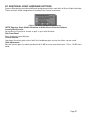
B.7 ADDITIONAL SONIC HARDWARE SETTINGS
Amarra Symphony provides additional preferences when used with a Sonic Audio Interface.
These controls allow integration of Analog Gain Control and more.
Additional Sonic Hardware Preferences
NOTE: Requires Sonic Studio Hardware and the Amarra Console Software.
Launch/Quit Console:
Forces Sonic Console to launch or quit in sync with Amarra.
Dim Front Panel:
Dims the front panel display.
Control Volume:
Interlocks Amarra’s gain control with the hardware gain control so either can be used.
Gain Adjustment:
Set the system gain to match professional (0 dB) or consumer electronic (-10 or -14 dB) standard.
Page 37
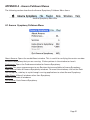
APPENDIX C - Your Amarra Symphony Folder
This section describes the files installed in your Applications->Amarra Symphony folder in
Finder as part of the Amarra Symphony installation process.
Amarra Symphony.app: The Amarra Symphony application
iRC Measure.app: Impulse Response Correction
measurement and calibration tool
Extras Folder: (these items run only when
launched manually)
• Amarra QuickSupport.app - remote login application used for remote support sessions
• Amarra Remote.app - for use with the Mac’s Infared Remote Control
• AmarraLicenseManager.app - use this app to
manually manage backing up and removing your
Amarra license
•AmarraSymphonySetup.app - use this app to
manually go through the Easy Setup process of the
Amarra installation
•Amarra FLAC Installer.pkg - use this Installer Package to manually install the FLAC components
needed for FLAC file playback. These are automatically installed as part of the Easy Setup installation.
•Sonic_Studio_Process_User_Manual.pdf - refer to
this manual for details on operating Sonic Studio
Process
•Delete Amarra Preferences.command - use this
utility to reset Amarra Symphony to a factory default setting
•uninstall_amarra.command - use this utility to
uninstall Amarra and remove Amarra related files
from your disc
•flac Folder - contains the 2 FLAC components
needed for FLAC file playback. They are loaded
into the Macintosh HD->Library->Components
folder
•Scripts Folder - contains scripts used
during the installation of Amarra
Symphony.
Manuals:
•Amarra Activation Guide.pdf - refer
to this manual for Installation and
Activation instructions
•Amarra 2.6 Read Me.pdf - important
notes about Amarra Symphony version 2.6
•Amarra Symphony 2.6 User Manual
- refer to this manual for detailed
information about operating Amarra
Symphony
•Amarra FAQ.webloc - link to our Amarra FAQ
•Amarra - Support.webloc - link to the
Amarra Support portal
©2007-2013 Sonic Studio, LLC — All rights reserved. No part of this document may be reproduced, stored in a retrieval
system or transmitted in an form or by any means, without the prior written permission of the publisher. Sonic Studio,
Amarra, and the Sonic Studio and Amarra logos are trademarks of Sonic Studio, LLC. All other company or product names
are either trademarks or registered trademarks of their respective owners.
Page 38