1
E6GOLF
TRUGOLF
PRACTICE
PRACTICE
DRIVING RANGE
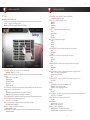
SHOT PROFILE VIEW
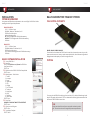
1.From the Main Menu, select PRACTICE and then DRIVING RANGE.
–OR–
From the Practice Area, click or touch the E6 Cube.
2.Select CHOOSE PRACTICE AREA.
3.Select DRIVING RANGE.
• Select a color button to have your shot(s) leave a tracer of that color. This is useful for
comparing shots.
• Select the arrow buttons to increase or decrease the area displayed in the TOP VIEW &
SHOT PROFILE; select the double arrow button to reset.
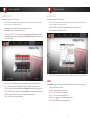
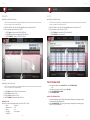
CLEAR SHOT STATISTICS
1.Click the arrow at the bottom of the Shot Statistics box to open the drop-down menu.
2.Select RESET to clear all shots –OR– select REMOVE to clear only the last shot.
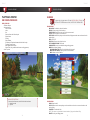
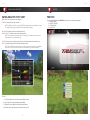
ON SCREEN INTERFACE
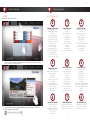
SHOT STATISTICS
• TOTAL: Total distance of shot(s)
• CARRY: Distance of shot(s) in air
• LAUNCH: Shot angle
• MPH: Ball speed
• TO TARGET: Distance from target
• DEVIATION ANGLE/DISTANCE: Consistency of shots
• DISPERSION: Tracks the spread of multiple shots.
• SPIN: Ball Spin (available with some tracking systems)
IMPORTANT: The Shot Statistics Box also has a drop-down menu which is opened by clicking
the arrow at the bottom of the box.
PRACTICE SESSION
Practice sessions are a way to practice inside E6 and store all of your data in the cloud. Add clubs to
your bag and track the performance of each over time. Analyze how your practice is affecting your
game. You can also compare clubs to each to see which is the best one for you or your student.
1.From the Main Menu, select PRACTICE and then PRACTICE SESSION.
–OR–
From the Practice Area, click or touch the E6 Cube.
2.Select CHOOSE PRACTICE AREA.
3.Select PRACTICE SESSION.
PLAYERS
1.To add players SELECT one of the following options:
LOGIN - If you already have created a Profile.
CREATE - Create a Profile. A Player Profile is required to track your stats online and to
compete in online events.
2.ADD additional Players (8 players max)
3.To REMOVE a player TAP the LOG OUT icon.
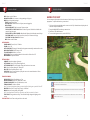
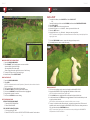
WIND GAUGE
1.Click or touch the WIND GAUGE to adjust the wind settings.
2.Click or touch the perimeter of the Wind Gauge to change the wind direction.
3.Drag the attachment on the right up or down to change the wind speed.
4.Select the Checkmark button to accept the new settings; select the X button to cancel.
Note: The wind can only be adjusted in Practice, and not during regular golf play.
17
18