1
C H A P T E R 1 Introducing VMware P2V Assistant
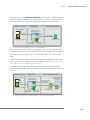
When directed to use the direct to disk device option, the P2V Assistant searches for
local disks. You select which disk to use, and the P2V Assistant uses the designated
disk as the cloned disk. If any data is stored on this target disk, it is overwritten.
Physical source disk
ESX helper VM
Clone as ESX virtual disk
Source computer
ESX server helper
virtual machine
P2V boot CD
P2V
assistant
Create clone
Source disk
w/operating system
Target disk
filename.dsk
Disk w/OS
running VM
Target disk to
receive clone
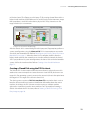
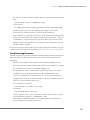
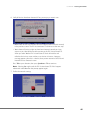
Cloning Direct to Disk in a VMware ESX Server Helper Virtual Machine
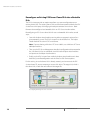
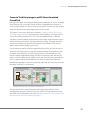
If the source disk contains a supported operating system, the P2V Assistant displays
the option to perform a system reconfiguration on the new cloned disk. The cloned
disk produced, with or without the system reconfiguration is in ESX Server, .dsk,
format.
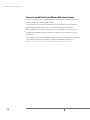
If you do not opt to convert the virtual cloned disk into a bootable disk at this time,
you can convert it later using the P2V Assistant. Refer to Reconfigure an Existing ESX
Server Cloned Disk into a Bootable Disk on page 16.
To actually use the .dsk, power off the helper virtual machine running the P2V
Assistant, then detach the .dsk and attach it to the new virtual machine where it will
be used.
Physical source disk
ESX helper VM
Clone as bootable virtual disk
Virtual machine
with bootable
system disk
Source computer
ESX server helper
virtual machine
P2V
boot CD
P2V
assistant
Source disk
w/operating system
Disk w/OS
running VM
Target disk to
receive clone
Create clone and
perform system
reconfiguration
Bootable
target disk
filename.dsk
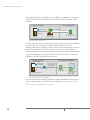
Cloning and Reconfiguring Direct to Disk in a VMware ESX Server Helper Virtual Machine
15