1
Annotations
and applying the function, such as Rotate 90° Clockwise, to the group.
There are two ways to batch annotations:
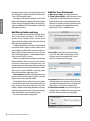
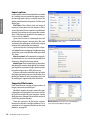
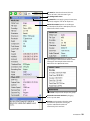
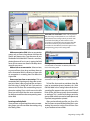
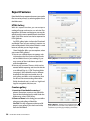
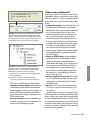
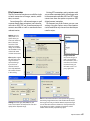
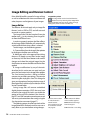
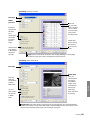
1. Info Panel: Select the media items you want
to include in your batch. Open the Info Panel and
type your information into the desired annotations fields (e.g. caption, keyword or category),
or you can use AutoFill. Then press the green
checkmark button at the top of the Info Panel to
confirm.
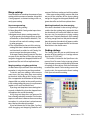
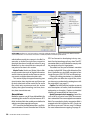
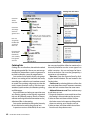
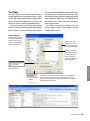
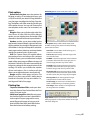
2. Organize Panel: Reveal the desired annotation group in the Catalog Index using the dropdown menu in the upper right hand corner of
the panel. Expand the annotation group label
(e.g. Date Finder, Keywords) to show available
annotations.
Choose Add Field from the annotation group
drop-down menu, and type in your new field
information. Select a group of media items, then
drag-and-drop them onto the new field.
Batch removing annotations
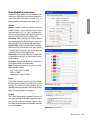
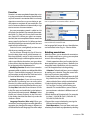
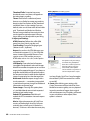
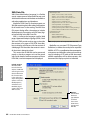
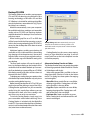
You can remove the annotation fields from
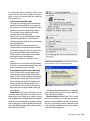
selected media items by using the Clear Annotations command in the Action menu.
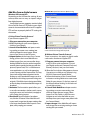
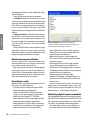
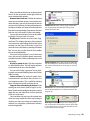
After selecting this command, a dialog appears
asking if you want to Clear All annotations or
Choose Fields. The latter button reveals the annotation fields attached to item(s), allowing you to
select the particular field(s) to remove.
Annotation scripts
MediaPro offers some special annotation scripts in
the Scripts - Annotate sub-menu:
• Copy Photo Data to Clipboard copies all EXIF
photo metadata to the clipboard.
• Import From PhotoDISC™ (Mac) annotates
images in your front catalog, using text files
located in your PhotoDISC™ CD-ROM.
• Make Caption from Photo Data copies all EXIF
photo metadata into the Caption field.
• Make Caption from Text Files (Mac) searches for
.txt files in the same folder as the original, and
copies the contents into the caption field.
34
I V I E W M E D I A P R O U S ER MANUAL
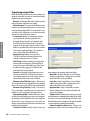
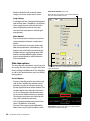
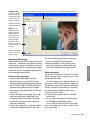
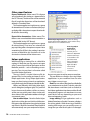
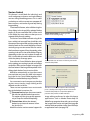
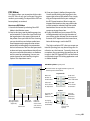
Clear Annotations (Action menu) reveals the
annotation fields attached to item(s), allowing you to
select the particular field(s) to remove.
• Make Caption from Text Lines (Mac ) opens a
text file and uses each line of the file as the
caption for the selected items.
• Make Event Date from Capture copies the
EXIF Capture Date into the Event Date of the
Annotations pane.
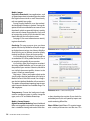
• Make Keywords from Folders (Mac) enables
you to add keywords to media files from
folder names. The dialog provides the option
of defining the level of folders in the path you
would like to use for keywords.
• Make Product from EXIF Data (Mac)
copies the EXIF Maker and Model fields and
puts them into the Product field of the Annotations pane.
You can modify existing scripts or create and
attach your own annotation scripts at any time.
Simply write the script, then place it in the userdefined Plug-ins - Scripts folder (see page 3).
Modifying digital camera metadata
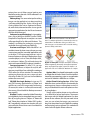
For photographs taken with with digital cameras,
the Info Panel will display special data (EXIF) that
was captured and embedded in the media file.
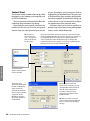
This data is not editable, with two exceptions:
• Set Capture Date (Action menu): Digital cameras record the date and time a photograph