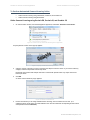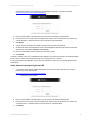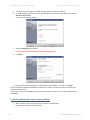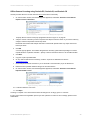
1
Ocularis™ Installation & Licensing Guide © 2012 On-Net Surveillance Systems Inc. On-Net Surveillance Systems, Inc. One Blue Hill Plaza, 7th Floor, PO Box 1555 Pearl River, NY 10965 Phone: (845) 732-7900 | Fax: (845) 732-7999 Web: www.onssi.com Ocularis 3.5 000081712-1143-OC3.5(3.5.0.77) Legal Notice This product manual is intended for general information purposes only, and due care has been taken in its preparation. Any risk arising from the use of this information rests with the recipient, and nothing herein should be construed as constituting any kind of warranty. © 2002-2012 On-Net Surveillance Systems, Inc. All rights reserved. OnSSI and the ‘Eye’ logo are registered trademarks of On-Net Surveillance Systems, Inc. Ocularis, Ocularis Client, Ocularis Client Lite, Ocularis Video Synopsis, NetEVS, NetDVMS, NetDVR, ProSight, NetGuard, NetGuard-EVS, NetSwitcher, NetMatrix, NetCentral, NetTransact, NetPDA and NetCell are trademarks of On-Net Surveillance Systems, Inc. All other trademarks are property of their respective owners. On-Net Surveillance Systems, Inc. reserves the right to change product specifications without prior notice. Patents Applied For in the U.S. and Abroad Ocularis Installation & Licensing Guide Contents Table of Contents INTRODUCTION............................................................................................................................................................3 OCULARIS FEATURES SETS ............................................................................................................................................3 GETTING STARTED WITH OCULARIS........................................................................................................................4 MINIMUM SYSTEM REQUIREMENTS..................................................................................................................................4 INSTALLATION PROCEDURES ..........................................................................................................................................4 INSTALLING OCULARIS ON A NEW SYSTEM .......................................................................................................................4 UPGRADING TO OCULARIS VERSION 3.5 ..........................................................................................................................6 OCULARIS INSTALLATION & CONFIGURATION.......................................................................................................8 DOWNLOAD THE OCULARIS INSTALLATION FILES................................................................................................9 EXTRACT OCULARIS INSTALLATION FILES ..........................................................................................................10 INSTALLING OCULARIS BASE .................................................................................................................................13 To Install Ocularis Base ...................................................................................................................................................... 13 LICENSING OCULARIS BASE ...................................................................................................................................16 To License Ocularis Base .................................................................................................................................................... 16 INSTALLING OCULARIS COMPONENTS .................................................................................................................19 OCULARIS COMPONENT LOCATION................................................................................................................................19 Basic System.......................................................................................................................................................19 Distributed System ..............................................................................................................................................19 Which system is best for me?..............................................................................................................................19 To Access the Ocularis Component Installation Page......................................................................................................... 20 INSTALLING OCULARIS ADMINISTRATOR .............................................................................................................23 To Install Ocularis Administrator........................................................................................................................................ 23 INSTALLING OCULARIS CLIENT ..............................................................................................................................24 To Install Ocularis Client .................................................................................................................................................... 24 OCULARIS RECORDING COMPONENTS .................................................................................................................25 OCULARIS PS, OCULARIS IS, AND OCULARIS CS ...........................................................................................................25 To Install a Recording Component (for Ocularis PS, Ocularis IS and Ocularis CS) .......................................................... 25 OCULARIS ES.............................................................................................................................................................27 To Install The Ocularis ES Recording Component.............................................................................................................. 27 To Install the Management Server (RC-E Server) ............................................................................................................... 27 To Access the Recorder Downloads Web Page ................................................................................................................... 30 To Install the Recording Server (RC-E Recorder)............................................................................................................... 31 To Configure RC-E for IP Address Resolution .................................................................................................................... 32 To Install the RC-E Manager (Management Client)............................................................................................................ 32 To Install the Log Server ..................................................................................................................................................... 33 To Install Video Device Drivers .......................................................................................................................................... 34 To Install a Failover Server (optional) ................................................................................................................................ 34 Synchronize Time on Servers.................................................................................................................................34 OCULARIS 3.5 CAMERA LICENSE REGISTRATION................................................................................................35 NEW CAMERA LICENSE REGISTRATION PROCESS ...........................................................................................................35 REGISTER CAMERA LICENSES ON 3.5 RECORDERS ........................................................................................................35 Online or Offline?.................................................................................................................................................35 To Perform Automated Camera Licensing Online ...............................................................................................36 Online Camera Licensing using Ocularis PS, Ocularis IS, and Ocularis CS...........................................................36 On-Net Surveillance Systems, Inc. i Contents Ocularis Installation & Licensing Guide Online Camera Licensing using Ocularis ES ..........................................................................................................37 To Perform Automated Camera Licensing Offline ...............................................................................................38 Offline Camera Licensing using Ocularis PS, Ocularis IS, and Ocularis CS...........................................................39 Offline Camera Licensing using Ocularis ES ..........................................................................................................40 OCULARIS EVENT PROXIES.....................................................................................................................................41 RC-C / RC-I EVENT PROXY .........................................................................................................................................41 To Update the RC-C / RC-I Event Proxy ............................................................................................................................. 41 Configuring the RC-C / RC-I Event Proxy...............................................................................................................42 To Configure Event Forwarding in the Management Application for RC-C or RC-I.......................................................... 42 To Configure Parameters in the RC-C / RC-I Event Proxy ................................................................................................. 43 To Restart the RC-C / RC-I Event Proxy ............................................................................................................................. 43 RC-E EVENT PROXY ...................................................................................................................................................44 To Update the RC-E Event Proxy ........................................................................................................................................ 44 To Configure Parameters in the RC-E Event Proxy ............................................................................................................ 45 To Modify Parameters in the RC-E Event Proxy ................................................................................................................. 46 DYNAMIC VS. BASIC DRIVES ...................................................................................................................................47 APPENDIX A OCULARIS ES COMPONENT INSTALLATION.............................................................................48 CONTACT INFORMATION .........................................................................................................................................50 ii On-Net Surveillance Systems, Inc. Ocularis Installation & Licensing Guide Introduction Introduction Ocularis version 3.5 is the latest version of OnSSI’s flagship IP-video and security platform. Ocularis represents the latest evolution in IP-video surveillance and security. As an integrated video and event management platform, it includes a full-fledged video management system for streaming, recording and managing an unlimited number of cameras at multiple sites. Ocularis Features Sets Ocularis version 3.5 is offered in four feature sets, designed to meet the needs of organizations of all sizes and structures, from single-location retail outlets or schools, to multiple-site, complex municipal and campus installations. Ocularis PS – for organizations with limited active live monitoring and alerting. Ocularis IS – competitively priced for organizations operating at multiple locations with no size limitations. Ocularis CS – For large distributed organizations with extended command and control needs. Ocularis ES – brings a higher level of efficiency to recording system maintenance. The Ocularis™ Platform, regardless of feature set, consists of the following components: Ocularis Base – server software application which regulates and manages the flow of data between video client users, recording servers, video wall management and an integrated alerting application. Ocularis Administrator - The front end software application used to manage Ocularis Base. Ocularis Recorder - An application is required to supply camera configuration and recording. Ocularis Client – OnSSI’s award winning video client application. Optional Add-On Applications – these include Remote Video Wall and Video Content Analytics. Add-Ons are available based upon Ocularis feature set. Add-ons are made available as they are introduced. See our website www.onssi.com or call OnSSI Sales for information on Ocularis Add-Ons. This manual provides detailed instructions for installing Ocularis and its components. For a more concise installation guide, see the Ocularis Quick Install Guide. On-Net Surveillance Systems, Inc. 3 Getting Started with Ocularis Ocularis Installation & Licensing Guide Getting Started with Ocularis Minimum System Requirements Requirements for individual components may be found on the www.onssi.com website. Installation Procedures This section discusses the following: Installing Ocularis on a New System Upgrading to Ocularis Version Installing Ocularis on a New System Regardless of feature set, a recommended process flow to prepare the video management environment with Ocularis on a new system is as follows: 1. Download and extract the Ocularis feature set installation file from www.onssi.com. 2. Install the Ocularis Base software component. 3. In large environments or if using Ocularis ES, this component should be installed on a dedicated server. In some cases, a dedicated server is not necessary. For Ocularis PS, IS and CS, the Ocularis Base may be installed on the same PC as the other Ocularis components. As the system grows, additional recording components may be added. System requirements may be found on the www.onssi.com website for detailed hardware and operating system specifications. Refer to Installing Ocularis Base on page 9 for details on the software installation. Anti-Virus software must be disabled during the installation of the Ocularis Base component. License Ocularis. 4. 5. Prior to using Ocularis components, you must license your copy of Ocularis Base. See Licensing Ocularis Base on page 16 for more details on how to activate the software. Install the Ocularis Administrator application. This component is must be installed on a workstation with network connectivity to the Ocularis Base component. It may reside on the same PC as the Base provided that graphic card requirements are met. Refer to Installing Ocularis Administrator on page 23 for details on the software installation. Install the Ocularis recording component software. For Ocularis PS, IS and CS, installation of the recording component includes the installation of the RC-P, RC-I and RC-C recorders respectively, as well as the event proxy for IS and CS installations. The corresponding event proxy will be installed on the same machine as the RC-C or RC-I software. For Ocularis ES, the recording component contains several other components. Install these in the following order: 1.) RC-E Server (Management Server) 2.) RC-E Recording Server (includes RC-E Event Proxy) 3.) RC-E Manager (Management Client) 4.) RC-E Failover Server(s) [Optional] 4 On-Net Surveillance Systems, Inc. Ocularis Installation & Licensing Guide 6. 7. 8. Create at least one administrative account on the recording component with full access rights. Use the Management Application for Ocularis PS, IS or CS Use the RC-E Manager for Ocularis ES Add and configure the IP video cameras and devices on the recording component. Use the Management Application for Ocularis PS, IS or CS Use the RC-E Manager for Ocularis ES Install the Ocularis Client on at least one workstation. 9. Getting Started with Ocularis See Installing Ocularis Client on page 24 for additional instructions on installation. Configure Ocularis Base using Ocularis Administrator. Refer to the Ocularis Administrator User Manual for further instructions. 10. Test connectivity of cameras by logging into Ocularis Base with Ocularis Client. 11. Install any remaining workstations with Ocularis Client. 12. For Ocularis ES, Ocularis CS or Ocularis IS configure the event proxy to forward events to the Ocularis Base Server. Installation and configuration of Event Proxies can be found at the end of this document. 13. Within 30 days of installing cameras on the recording component(s), you must register the camera licenses. See Ocularis 3.5 Camera License Registration on page 35 for further instructions. On-Net Surveillance Systems, Inc. 5 Getting Started with Ocularis Ocularis Installation & Licensing Guide Upgrading to Ocularis Version 3.5 Refer to the document Upgrading to Ocularis 3.5 for full details on upgrading an Ocularis system. Summary Upgrading to Ocularis v3.5 requires reinstallation of all components. Exception: upgrading the recording component is not required but highly recommended. See Error! Reference source not found. below. The installation process requires that Ocularis Base be installed first. All upgrades will need to re-license Ocularis with a new SLC. Detail It is not necessary to manually uninstall any of the Ocularis components 1 in order to upgrade from an earlier version to version 3.5. Simply install the new version on top of the existing version. You’ll be prompted to uninstall the older version and replace with the new version. Manually uninstalling components is not only unnecessary, but may cause errors or data loss. The following Ocularis components need to be upgraded to 3.5: Ocularis Base, Ocularis Administrator and all instances of Ocularis Client. Ocularis Base should be upgraded first. After that, the order in which you upgrade each component from an installation standpoint does not matter. The installation procedure will examine the system for an existing instance of each Ocularis component and if it finds it, the software will prompt you to uninstall the corresponding component during the installation process. Exception: Ocularis Base is upgraded without uninstalling the prior version. Upgrading Recorders It is not necessarily required to upgrade existing recording component software. However, not doing so will restrict you from using the robust features of the new recorder versions. You must, however, upgrade the event proxy used. See To Update the RC-C / RC-I Event Proxy on page 41. Upgrading to the Ocularis 3.5 recorders requires that all cameras be re-registered. This new process may be done online or offline. You have a 30 day grace period to license a camera from the time of installation or upgrade. If you currently have NetDVMS 6.5g and are upgrading to Ocularis CS 3.5, you may continue to use NetDVMS 6.5g with Ocularis CS. The number of NetDVMS camera licenses will be deducted from the Ocularis CS RC-C recorder count. We strongly recommend upgrading to the newest RC-C recording component. This upgrade, however, may be done at a later time. If you have RC-P 1.0, RC-I 7.0 or RC-C 7.0, you may upgrade to the newest versions of these recorders now or at a later time. If you currently have NetEVS 3.1b or earlier, when you upgrade to Ocularis ES 3.5, you must upgrade to the RC-E 5.0 recording component included in Ocularis 3.5. If you currently have RC-E 4.0 or RC-E 4.1a, you need not upgrade the recorder to RC-E 5.0 unless you choose to. However, you must upgrade the event proxy used. If you are upgrading a NetDVR environment and have obtained Ocularis IS, you MUST upgrade NetDVR to the RC-I recorder. Remember that you may request multiple RC-I recorder SLCs depending on the number of cameras on the system. RC-I SLCs are limited to installing on a maximum of 5 servers or 320 camera licenses per SLC. Additional SLCs are available upon request and at no charge. If you upgrading a ProSight-SMB environment and have obtained Ocularis PS, you MUST upgrade ProSight-SMB to the RC-P recorder. Remember that you may request multiple RC-P recorder SLCs 1 6 The exception to this is the uninstallation of RC-E components with Ocularis ES On-Net Surveillance Systems, Inc. Ocularis Installation & Licensing Guide Getting Started with Ocularis depending on the number of cameras on the system. These additional SLCs are available upon request and at no charge. New Ocularis SLCs ARE REQUIRED when upgrading from any Ocularis version. Be sure to have your new SLC in hand prior to the start of any software installation. To upgrade, simply follow the installation instructions that follow. Differences will be noted where applicable for upgrade installations. See the Release Notes for Ocularis v3.5 for known issues, feature changes and fixes. On-Net Surveillance Systems, Inc. 7 Ocularis Installation & Configuration Ocularis Installation & Licensing Guide Ocularis Installation & Configuration Items to consider prior to installation: Once all components are installed, synchronize the date and time between the server and workstation pcs. Note: The time and date tolerance for all PCs using Ocularis is a maximum of five (5) minutes. If the time is off by more than 5 minutes between the Ocularis Base machine and Ocularis Client workstations, log in attempts will fail. The Ocularis Base component should be installed or upgraded first. After that, the order of installing or upgrading each component does not matter. You must either be logged in as the Windows account ‘Administrator’ when licensing Ocularis Base or be a user with administrative privileges and select ‘Run as Administrator’ when launching the licensing application. Depending on your current Windows configuration, you may be asked to insert your original Windows installation CD in order to install additional Windows components. You will need to have your Ocularis 3.5 Software License Code (SLC) on hand when you license the application. The following components are outlined in this document: 8 Download the Ocularis Installation File Extract the Ocularis Installation Files Installing Ocularis Base Licensing Ocularis Base Installing Ocularis Components Installing Ocularis Administrator Installing Ocularis Client Ocularis Recording Components Ocularis 3.5 Camera License Registration Ocularis Event Proxies On-Net Surveillance Systems, Inc. Ocularis Installation & Licensing Guide Download the Ocularis Installation Files Download the Ocularis Installation Files If necessary, Ocularis software may be obtained from the OnSSI website. Follow these instructions to download the installation file. 1. Open a browser and go to the Downloads page at: http://www.onssi.com/support/downloads. 2. Review the SLC requirements and other instructions on the page. 3. Click the link for the Ocularis feature set you wish to download (e.g. Ocularis CS v3.5 Download) 4. A short web form appears. Fill out the form and click Submit. You will receive an email containing the link to the download file as well as other documentation. 5. Click the link to download the Ocularis 3.5 file. 6. You will be prompted to save the file. Select the desired file location and click Save. The file download may take several minutes depending on your connection speed. Be sure to remember the path to the directory where the file was saved. On-Net Surveillance Systems, Inc. 9 Extract Ocularis Installation Files Ocularis Installation & Licensing Guide Extract Ocularis Installation Files These steps outline the extraction of the Ocularis installation files and may be used for all Ocularis feature sets and for new or existing installations. 1. Locate the Ocularis installation file. This file may have been downloaded from the OnSSI website or obtained through other means. The file will have one of the following formats depending on the feature set: Ocularis Feature Set Ocularis PS Ocularis IS Ocularis CS Ocularis ES Filename Ocularis_3-5_PS.exe Ocularis_3-5_IS.exe Ocularis_3-5_CS.exe Ocularis_3-5_ES.exe WARNING: THIS PROCESS SHOULD BE PERFORMED ON THE SYSTEM WHERE OCULARIS BASE EXISTS (IF AN UPGRADE) OR WHERE IT WILL BE INSTALLED (NEW). 2. If it is not already there, copy the installation file from step 1 above to the Ocularis Base machine. 3. Double-click the file from step 1 above to launch and begin the file extraction. You’ll see messages regarding the installation validation which may take several minutes. The following sample screens are shown for Ocularis CS but corresponding screens are displayed for the other Ocularis feature sets. The Welcome to the Ocularis Installer Extraction Wizard screen appears. Figure 1 Ocularis Installer Extraction Wizard 4. Click Next. On the Destination Folder screen, you may modify the path for the installation files to be placed. 10 On-Net Surveillance Systems, Inc. Ocularis Installation & Licensing Guide Extract Ocularis Installation Files Figure 2 Select Destination Folder Click Next. 5. The Ready to Extract screen summarizes file extraction location and size. Click Back to make changes or click Next to proceed. Figure 3 Installation Summary Files are extracted and copied to the location specified. This may take several minutes. When all files are extracted, a Setup Wizard Complete screen appears. The installation files have been downloaded and unpacked. No applications or components have been installed. Figure 4 Extraction Setup Wizard Complete On-Net Surveillance Systems, Inc. 11 Extract Ocularis Installation Files 6. Ocularis Installation & Licensing Guide If you choose to: a. Install Ocularis Base now: make sure the corresponding checkbox is selected and click Finish. Proceed to Installing Ocularis Base below. b. If you choose to install Ocularis Base later: uncheck the Install Ocularis Base checkbox and click Finish. Proceed to Installing Ocularis Base below. You have completed the extraction of the Ocularis installation files. 12 On-Net Surveillance Systems, Inc. Ocularis Installation & Licensing Guide Installing Ocularis Base Installing Ocularis Base Reminder: Anti-Virus software must be disabled during the installation of the Ocularis Base component. Follow this procedure when installing a new system or upgrading an existing Ocularis Base component. The Ocularis Base licensing application stores Ocularis licensing information in ‘Secure Storage’ on the hard drive of the Base machine. Because of this, the operating system partition must reside on a ‘Basic’ disk and not as part of a ‘Dynamic’ disk. If you need instructions on how to check for this, see Dynamic vs. Basic Drives on page 47. Ocularis Base uses SQL Server to store configuration data. By default, SQL Server Express 2008 will be used unless otherwise specified. Alternate instances of SQL Server may be used for advanced users. TO INSTALL OCULARIS BASE Use these steps for all feature sets of Ocularis. WARNING: THIS PROCESS SHOULD BE PERFORMED ON THE SYSTEM WHERE OCULARIS BASE EXISTS (IF AN UPGRADE) OR WHERE IT WILL BE INSTALLED (NEW). 1. To install Ocularis Base after extracting the installer files (from Extract Ocularis Installation Files on page 10), go to the directory where the Ocularis _S files were extracted to (where ‘_S’ is PS, IS, CS or ES). These installation files should be located on the Ocularis Base machine. If they are not, copy them to the Ocularis Base system. For Ocularis CS, the default location is: C:\Ocularis CS Installer. Launch (double-click) the shortcut: Install Ocularis Base. 2. If upgrading Ocularis, a message that a previous installation of this software has been detected. Click Yes to proceed with the installation. A warning screen appears reminding you that a new SLC is required to upgrade to this version. Be sure to have your new SLC in hand. Click Yes when ready 3. The Ocularis Base Setup Wizard screen appears. Figure 5 Ocularis Base Setup Wizard Click Next. 4. The License Agreement appears. Please read, click the “I accept..” radio button and then click Next. 5. Select between the Demo or Retail version of Ocularis Base. On-Net Surveillance Systems, Inc. 13 Installing Ocularis Base Ocularis Installation & Licensing Guide Figure 6 Select Demo or Retail Version The Demo version provides for a limited number of camera licenses and a single license for Video Content Analytics and Remote Ocularis Video Wall. There is also an expiration date associated with this license. Choose this option only if you know you are working with a demo license. The Retail version is only limited by the licenses purchased. This option is available for all feature sets of Ocularis. Click Next. 6. Select the type of installation: Typical or Custom. Typical will install all new files using default settings for file locations and database instance. Custom allows you to change these settings. The vast majority of installations should choose “Typical”. Typical: a. Select the Typical radio button and click Next. Ocularis Base is installed using these default settings: Base installation files are placed in c:\Program Files\OnSSI\Ocularis Base Bookmarks location is designated as: c:\inetpub\wwwroot\OcularisService\Bookmarks SQL Server 2008 Express is installed with a Server Name of OCULARISSERVER, SA User Name of sa and an encrypted SA password. Custom: a. Select the Custom radio button and click Next. b. On the SQL Server instance page, most users will use the default selection. SQL Server Options Defined: Use Ocularis default SQL Server instance – this default option will install SQL Server 2008 Express for use with Ocularis. Edit System Administrator login - If you wish to modify the administrator login for the SQL Server instance, click the Edit System Administrator login checkbox. The corresponding fields will open to allow entry of the required criteria. Use another SQL Server 2008 instance - If you have an existing SQL Server database that you wish to use, you may select this option. You will be required to enter login credentials for this SQL Server instance.. 14 Figure 7 SQL Server Instance c. When ready, click Next. d. On the Select Bookmarks Folder screen, you have the option to specify the location for the storage of Ocularis Bookmarks. Change the default location if necessary. When ready, click Next. On-Net Surveillance Systems, Inc. Ocularis Installation & Licensing Guide Installing Ocularis Base e. On the Select Destination Folder for Ocularis Base you may modify the directory path for the Ocularis Base files. We recommend using the default but you may modify the path here. Click Next. f. The next screen summarizes the installation folders and size. Click Back to make changes or click Next. The Ocularis Base files are installed to the specified directory and may take several minutes. A new installer website is also created. 7. When installation is completed, the Setup Wizard Complete for Ocularis Base screen appears. Figure 8 Ocularis Base Setup Wizard Complete 8. You are given the option to activate the Ocularis license upon completion of the wizard. It is recommended (but not mandatory) to do this at this time. Ocularis must be licensed before use. a. If you choose to license Ocularis now, verify that the Activate License checkbox is checked and click Finish. The Ocularis License Activation application is automatically launched. Proceed to Licensing Ocularis Base below. b. If you choose to activate the Ocularis license later, uncheck the Activate License checkbox and click Finish. When you are ready to license Ocularis, launch the Ocularis License Activation application from the desktop icon. Proceed to Licensing Ocularis Base below. The installation of Ocularis Base will create the following icon on the desktop: On-Net Surveillance Systems, Inc. 15 Licensing Ocularis Base Ocularis Installation & Licensing Guide Licensing Ocularis Base Once the Ocularis Base component is installed, an additional licensing step is required. All new and upgrade installations require the Ocularis Base to be licensed with the Ocularis 3.5 SLC. TO LICENSE OCULARIS BASE This procedure may be used for: Demo, Retail, new, or upgrade versions of all Ocularis feature sets. 1. 2. Launch the Ocularis License Activation application. This is done in one of two ways: At the end of installing or upgrading Ocularis Base, you are given the option to activate the Ocularis license. This will automatically launch the Ocularis License Activation application if the Activate license checkbox is selected on the last screen of the installation wizard. (see Figure 8). On the system where the Ocularis Base component is installed, locate the following icon on the desktop: If you are logged in under the Windows ‘Administrator’ account, double-click this icon to launch the Ocularis License Activation application. If you are logged in under another account with administrative rights, rightclick the icon and select ‘Run as Administrator’. The image shown in Figure 9 is displayed. Figure 9 Ocularis License Activation on a fresh system On upgrade installations, the License Status area may identify that you need to obtain a new SLC. 3. Enter the Ocularis Base 3.5 SLC in the field provided in ‘Step 1: Enter SLC and click “Verify SLC”’. In upgrade installations, the SLC may already appear in this field. 4. Click Verify SLC. The Licensing Status area will update to reflect the licensing defined by the SLC. 5. If the Ocularis Base installation is: For a Demo version: The activation is complete. The software is licensed for the number of days and number of licenses shown. Click Close. You may proceed with the installation of Ocularis components. (see Installing Ocularis Components on page 19.) For a Retail or Trial version and: a.) This is a new installation: o a few more steps are required. Continue to step 6 below. b.) This is an upgrade from any prior Ocularis version: 16 On-Net Surveillance Systems, Inc. Ocularis Installation & Licensing Guide o 6. Licensing Ocularis Base a few more steps may be required. You may have received a new .v2c file with your Ocularis 3.5 SLC if you made any changes to your license. If you made changes and received a new .v2c file, continue to step 11 below. If not, the activation is complete. Click Close. A file needs to be generated by the licensing application on the Ocularis Base machine based on the SLC entered. Refer to Figure 9 and locate onscreen instructions: “Step 2: Click “Generate Base License File…” and click the Generate Base License File button. Warning: This step may only be done once. It is important to be sure that the machine used to license Ocularis Base be the final unit in which the software will reside. 7. A Windows save dialog box appears, prompting for a file location. Specify an easily accessible location to store the .c2v file that is generated. 8. Refer to onscreen instructions: “Step 3: Send file created in Step 2 for activation….” a.) if you have access to the internet from the Ocularis Base machine, click the ‘Click Here’ link provided on the screen as shown in Figure 9. This will launch a browser and navigate to the Ocularis Base Licensing Page. b.) If you do not have access to the internet from this machine: i) bring the .c2v file generated above to another workstation that does have internet connectivity ii) open a browser and type the following URL: http://www.onssi.com/sendc2v The following screen appears in the browser: On-Net Surveillance Systems, Inc. 17 Licensing Ocularis Base Ocularis Installation & Licensing Guide Figure 10 Ocularis Base Licensing Web Page 9. Fill out the form and remember to attach the .c2v Base License File that was generated in the prior step. 10. When finished, click the Send button. OnSSI will process the file based on your purchased license and email to you a new file with a .v2c extension. The turn around time is approximately one hour during normal business hours. (approx. 8:00 a.m. to 8:00 p.m. U.S. Eastern time.) 11. Detach the.v2c file provided by OnSSI to a location easily accessible to the Ocularis Base machine. 12. Launch the Ocularis License Activation application on the Ocularis Base machine if it is not already open. (If you are logged in under the Windows ‘Administrator’ account, double-click the desktop icon to launch the Ocularis License Activation application. If you are logged in under another account with administrative rights, right-click the icon and select ‘Run as Administrator’) 13. Click the Update Base License button as shown in Figure 9. 14. Locate and select the .v2c file. 15. Click Open. The Licensing Info area of the Ocularis License Activation screen will update to reflect installed licenses as well as your SLC. The software is ready for use. 16. Click Close to close the Ocularis License Activation application. 18 On-Net Surveillance Systems, Inc. Ocularis Installation & Licensing Guide Installing Ocularis Components Installing Ocularis Components Certain components of Ocularis, namely: Ocularis Client, Ocularis Administrator and Ocularis recording components, are downloaded and installed from a central webpage located on the Ocularis Base machine. This makes installation easy as system administrators need not obtain separate installation files and move them from computer to computer. Since computers running Ocularis components need to have network connectivity to the Ocularis Base system anyway, the installation files for Ocularis components may be accessed from the Base machine. A local webpage must be launched in order to download Ocularis components. Ocularis Component Location Ocularis components may be installed in various locations on a network. The configuration chosen depends on many factors including (but not limited to): the number of cameras licensed, the recording component used and the availability of computer hardware for the system. Basic System In most cases, a single server system (also called “Basic System”) will suffice. In a Basic System layout, a central server is used as the primary location for the following components: o Ocularis Base o Recording Component o and perhaps even the Ocularis Administrator (depending on the graphics card) The ‘Basic System’ is a good system to start with when first implementing Ocularis, especially on smaller systems (those with less than 30 cameras). In an Ocularis PS environment, it is even acceptable to run the components on a Windows 7 PC, rather than a server class machine, provided the camera count is low. Networked workstations will have the Ocularis Client installed on them. You may install the Ocularis Client component on an unlimited number of workstations. As the system grows and cameras are added or upgraded, the capacity of the recording component will be reached. The expansion process would be to then simply add an additional server on the network to house an additional instance of the recording component and install the new cameras on the new recorder. With Ocularis, the location of the camera is seamless to the operator. The Basic System, however, is not supported when using Ocularis ES. Distributed System In cases where the systems are larger or with Ocularis ES, a multiple server system (also called “Distributed System”) is used. In a Distributed System, separate dedicated servers are used with single components installed on each. The Ocularis Base may reside on one server (with or without a recording component), recording components each on their own servers, and the Ocularis Administrator and Ocularis Client on one or more networked workstations. Which system is best for me? It is important to determine the general layout of where you want components to be installed on new Ocularis installations. In general, it is safe for most users to select the Basic System and grow into the Distributed System. If you have hundreds of cameras (or more) or you use Ocularis ES, use the Distributed System as a model. Otherwise, most installations will be fine with the Basic System layout. There is no set formula to determine the layout for each installation, as each organization is unique. The system layouts described here are simply for use as a general guideline. On-Net Surveillance Systems, Inc. 19 Installing Ocularis Components Ocularis Installation & Licensing Guide TO ACCESS THE OCULARIS COMPONENT INSTALLATION PAGE Note: Be sure to turn off any Firewalls running on the Ocularis Base machine. 1. Determine the layout of the Ocularis system and go to the machine where you want to install the component. 2. Access the download webpage through a browser using the following URL: http://[NAME]:[port]/OcularisService where [NAME] is either the IP Address or computer name of the Ocularis Base machine and port is the IIS port number. In most cases, the default port 80 is used and it is not necessary to enter it here. This URL will redirect to a longer one, which may also be used: http://[NAME]:[port]/OcularisService/InstallerWebsite/index.html The following web page appears: Figure 11 Install Ocularis Components Web Page 3. 20 Select the system layout (Basic or Distributed) you intend to follow. On-Net Surveillance Systems, Inc. Ocularis Installation & Licensing Guide Installing Ocularis Components For Basic Systems: 1. Click on ‘Basic System’. This option should be used by most Ocularis PS, IS and CS installations. (Use the ’Distributed System’ diagram for Ocularis ES.) Figure 12 Basic Installation Web Page The ‘Basic Installation’ page provides a sample layout that may be followed to assist with determining where Ocularis components should be installed. When you move the mouse over a component, a balloon assistant pops up. On-Net Surveillance Systems, Inc. 21 Installing Ocularis Components Ocularis Installation & Licensing Guide Figure 13 Balloon assistant for Ocularis Client The balloon assistant provides direction on where we recommend installing the component. There are three options displayed: o Click here to review hardware specifications for this component o Click here to download the component o Click here to view the user manual. 2. Select the component you wish to download and install. 3. Select the ‘Click here to download component’ link when you are ready to download the corresponding component to the local machine. 4. Follow the on-screen prompts. 5. You will be asked whether the component is an Upgrade or New installation. o Choose Upgrade if you have an existing version of the component o Choose New if you do not have the component installed on the local machine 6. You will be asked whether to run or save the installation file for the component. You may save the file locally and run it later or simply run it now. 7. The installation for each component will continue. See the instructions below specific to each component. For Distributed Systems: The Distributed model may be used for any installation of Ocularis but should be used for Ocularis ES. The download procedure is the same as the Basic System above. 22 On-Net Surveillance Systems, Inc. Ocularis Installation & Licensing Guide Installing Ocularis Administrator Installing Ocularis Administrator Refer to the system requirements defined on the OnSSI website for hardware specifications. The Ocularis Administrator must have network connectivity to the machine where the Ocularis Base software is installed. Prior to using Ocularis Administrator on a new system, you must license your copy of Ocularis Base. See Licensing Ocularis Base on page 16 for more details. Follow this procedure when installing a new system or upgrading an older version of Ocularis Administrator. TO INSTALL OCULARIS ADMINISTRATOR These instructions assume that you have installed Ocularis Base and are located at the system on which you wish to install Ocularis Administrator. Use these steps for all feature sets of Ocularis. 1. From the ‘Install Ocularis Components’ web page, select either the ‘Basic System’ model or ‘Distributed System’. (see Figure 11). 2. From the Basic or Distributed Installation webpage, click either: o the Ocularis Administrator component DVD symbol at the bottom of the screen o the ‘Click here to download component’ link within the corresponding pop-up assistant. 3. When you are asked if you want to continue, click Yes. 4. When you are prompted to run or save the file, you may choose to either run it now or save it and run the installation later. In a new installation, an extraction wizard screen will appear. Follow the prompts to extract the files and then you’ll see the Welcome to Ocularis Admin Setup Wizard screen. 5. Once Run has been selected, the Welcome to Ocularis Admin Setup Wizard appears. Click Next. 6. The License Agreement appears. Please read, click the “I accept..” radio button, and then click Next. 7. In the Data Collection options screen, you have the opportunity to allow or deny Ocularis to gather anonymous usage statistics from the Ocularis Administrator component. Data collected is used to improve the Ocularis Administrator software. No uniquely identifiable information is collected. To opt out, uncheck the Allow Data Collection box. Click Next. 8. If a previous version of the Ocularis Administrator is detected, a notice will appear asking for your confirmation to uninstall the older version and install the new version. Click Yes. 9. a. An “Are you sure you want to remove Ocularis Admin…?” screen appears. Click Yes. b. When the uninstallation is complete, click OK. The Select Destination Folder screen appears. You may leave the default directory path as is or change it if necessary according to your organization. If installing the Demo version, keeping the default path is recommended. Click Next. 10. The next screen, Ready to Install the Program, will confirm the file path and disk space requirements. Click Next if OK. Click Back to make changes to the directory path or the folder. The Ocularis Administrator software is installed. 11. When completed, the Setup Wizard Complete for Ocularis Administrator screen appears. 12. Click Finish. The installation of Ocularis Administrator will create the following icon on the desktop: On-Net Surveillance Systems, Inc. 23 Installing Ocularis Client Ocularis Installation & Licensing Guide Installing Ocularis Client The Ocularis Client may be installed on as many systems as desired. Refer to the system requirements defined on the OnSSI website for hardware specifications. Follow this procedure when installing a new system or upgrading existing copies of Ocularis Client. TO INSTALL OCULARIS CLIENT These instructions assume that you have installed Ocularis Base and are located at the system on which you wish to install Ocularis Client. Use these steps for all feature sets of Ocularis. 1. From the ‘Install Ocularis Components’ web page, select either the ‘Basic System’ model or ‘Distributed System’. (see Figure 11). 2. From the Basic or Distributed Installation webpage, click either: o the Ocularis Client component DVD symbol at the bottom of the screen o the ‘Click here to download component’ link within the corresponding pop-up assistant. 3. When you are asked if you want to continue, click Yes. 4. When you are prompted to run or save the file, you may choose to either run it now or save it and run the installation later. In a new installation, an extraction wizard screen will appear. Follow the prompts to extract the files and then you’ll see the Welcome to Ocularis Client Setup Wizard screen. 5. Once Run has been selected, if a previous version of the Ocularis Client is detected, a notice will appear asking for your confirmation to uninstall the older version and install the new version. Click Yes. a. An “Are you sure you want to remove Ocularis Client…?” screen appears. Click Yes. b. When the uninstall is complete, click OK. 6. The Welcome to Ocularis Client Setup Wizard appears. Click Next. 7. The License Agreement appears. Please read, click the “I accept..” radio button and then click Next. 8. The Select Destination Folder screen appears. You may leave the default directory path as is or change it if necessary according to your organization. If installing the Demo version, keeping the default path is recommended. Click Next. 9. The Select Option screen appears. Select the desired language for Ocularis Client from the drop-down menu. The language may be changed again after the software has been installed. Click Next. 10. The next screen, Ready to Install the Program, will confirm the file path and disk space requirements. Click Next if OK. Click Back to make changes to the directory path or the folder. The Ocularis Client software is installed. 11. When the Ocularis Client Setup is completed, the Setup Wizard Complete for Ocularis Client screen appears. Click Finish. The software installation will result in the display of the following desktop icons: 24 On-Net Surveillance Systems, Inc. Ocularis Installation & Licensing Guide Ocularis Recording Components Ocularis Recording Components The Ocularis Feature set file downloaded from the OnSSI website (see Download the Ocularis Installation Files on page 9) determines which recorder is packaged with the installation. For instance, if you downloaded the Ocularis CS Feature Set (Ocularis_CS.exe), the name of the recorder included is ‘RC-C’. Ocularis Recorders must be installed for new installations. For upgrade installations, reinstallation of the recorder is optional. Ocularis 3.5 includes upgraded versions of all recording components so to take advantage of the improved new features it is recommended to upgrade all recorders regardless of feature set. The upgrade of the recording component, however, may be done at a later time. The recording components included with Ocularis 3.5 all require an SLC license file as part of the installation process. This file (with filename extension .lic) contains the licensing counts for camera licenses that were purchased with Ocularis. Demo versions include a standard number of camera licenses. Microsoft .NET 4.0 is required on the machine with the recording component. Please install this software in order to successfully install the Ocularis recorder. During the installation, you have the opportunity to allow or deny the gathering of anonymous usage statistics from the recording component. Data collected is used to improve the software. No uniquely identifiable information is collected. You may opt out during the installation. Be sure to have the license file on hand when you install the recording component included with Ocularis 3.5 Ocularis PS, Ocularis IS, and Ocularis CS TO INSTALL A RECORDING COMPONENT (FOR OCULARIS PS, OCULARIS IS AND OCULARIS CS) These instructions assume that you have installed Ocularis Base and are located at the system on which you wish to install the RC-P, RC-I or RC-C recorder. References to the event proxy should be ignored with Ocularis PS. For upgrades, it is recommended to back up existing data. See the document Upgrading to Ocularis 3.5 for details instructions. The examples listed here are for Ocularis CS. 1. From the ‘Install Ocularis Components’ web page, select either the ‘Basic System’ model or ‘Distributed System’. (see Figure 11). 2. From the Basic or Distributed Installation webpage, click either: o the Recording Component DVD symbol at the bottom of the screen o the ‘Click here to download component’ link within the corresponding pop-up assistant. 3. When you are asked if you want to continue, click Yes. 4. When you are prompted to run or save the file, you may choose to either run it now or save it and run the installation later. 5. Once Run has been selected, a Select Destination Folder screen appears. This destination will contain the recording component’s installation files. You may leave the default directory path as is or change it if necessary according to your organization. If installing a Demo version, keeping the default settings is recommended. Click Next. 6. Files are unpacked and downloaded to the specified directory. The Extraction Complete screen appears. You have the option to install the recording component and corresponding event proxy (if applicable) now or at a later time. a. If you choose to install these components now (recommended), verify that the corresponding checkboxes are checked and click Finish. Proceed to step 7 below. On-Net Surveillance Systems, Inc. 25 Installing Recording Components for PS, IS and CS b. Ocularis Installation & Licensing Guide If you choose to install the recorder (and its event proxy) later, deselect the checkboxes and click Finish. These installations may be triggered manually by launching their corresponding executable file in the directory specified in step 5 above. For example: with Ocularis CS, if the default destination folder was used, the location of the files are: C:\Ocularis CS Installer\Installers The recorder file is: OnSSI RC-C_Proxy_And_Recorder.exe The event proxy file is: RC-C RC-I Event Proxy.exe 7. Once the recorder installation file is launched (either from the extraction wizard in step 6 above or from manually launching the executable file), the installation will begin for its corresponding event proxy (if applicable). The recorder installation will follow. The system will check for an existing instance of the event proxy on the local machine. If one is detected, a notice will appear asking for your confirmation to uninstall the older version and install the new version. Click Yes. a. An “Are you sure you want to remove …?” screen appears. Click Yes. b. When the uninstallation is complete, click OK. 8. A Welcome to the RC-C RC-I Event Proxy Setup Wizard appears. Click Next. 9. The Select Destination Folder screen appears. This folder will contain the files for the event proxy. You may leave the default directory path as is or change it if necessary according to your organization. If installing a Demo version, keeping default settings is recommended. Click Next. 10. The next screen, Ready to Install the Program, will confirm the file path and disk space requirements. Click Next if OK. Click Back to make changes to the directory path or the folder. The event proxy software is installed. 11. When completed, the Setup Wizard Complete screen appears. Click Finish. 12. A Welcome to the RC-C Installer Setup Wizard appears. Click Next. 13. A warning message appears reminding you to have your new Ocularis 3.5 SLC in hand (the .lic file) for the next steps. If you are ready, click Yes. 14. The recorder installation begin. You are asked to select which version to install. You may click Install Trial to install a trial version or click Browse to locate the license file (.lic) for the demo or retail version you purchased. Click Open once you have selected the .lic file and then click Continue. 15. A License Agreement appears. Please read, click the “I accept..” checkbox and then click Continue. 16. You are given the option to choose a Typical or Custom installation. Most installations use typical. Click Typical. 17. The installation proceeds. The recorder software is installed. This may take several minutes. 18. When done, a screen stating that the installation is complete appears. Click Close. The recording component is installed. The installation of the Ocularis IS and Ocularis CS recorder and event proxy will create the following icons on the desktop. Ocularis PS will create only the Management Application and Viewer icons. 26 On-Net Surveillance Systems, Inc. Ocularis Installation & Licensing Guide Installing Ocularis ES Recording Components Ocularis ES TO INSTALL THE OCULARIS ES RECORDING COMPONENT The architecture for Ocularis ES varies significantly from the other Ocularis feature sets. Common components for all Ocularis feature sets include the Ocularis Base, Ocularis Administrator and Ocularis Client. In addition to these, the Ocularis ES recording component contains a number of other components: Ocularis ES Recording Component Description Management Server (aka RC-E Server) Typically installed on a dedicated server, this service manages the recorder’s configuration in a relational database. The database (SQL Server) may reside on the same or another PC on the network. Accessible via the RC-E Manager application, this is the component used to manage the RC-E recorders. RC-E Manager The RC-E Manager application is used to manage the day to day configuration of the Management Server and camera configurations. (aka Management Client) SQL Server This is the relational database used by the Management Server. It can reside on the same or different PC as the Management Server. Recorder (RC-E Recording Server) Typically installed on a dedicated server, this service manages the recording of video and communication with devices including cameras. There will likely be multiple recording servers in an enterprise environment. Download Manager The Download Manager is used to configure what is available on the download webpage. RC-E components are also installed via a local webpage, similar to the Ocularis Component Installation web page. Failover Server A failover server is a spare recording server which can take over in case a regular recording server becomes unavailable. A failover server is therefore always installed on a separate computer. There may be multiple failover servers. A graphical installation aid or Ocularis ES may be found in Appendix A of this document. If you are upgrading an existing RC-E or NetEVS installation, please refer to the Upgrading to Ocularis 3.5 document for detailed upgrade instructions. More details on the Ocularis ES architecture and system layout are discussed in OnSSI’s Ocularis Basic Certification Training (“Boot Camp”) course, which is required if you are working with Ocularis ES. Training course schedules and details may be found at: http://www.onssi.com/training/certification-training. TO INSTALL THE MANAGEMENT SERVER (RC-E SERVER) The following steps assume you have determined the layout/architecture of your Ocularis ES environment. Follow these steps after you’ve completed the installation of Ocularis Base, Ocularis Administrator and Ocularis Client. 1. On the machine you wish to install the Ocularis ES recording component Management Server (RC-E Server), open a browser and enter the following URL: http://[NAME]/OcularisService/InstallerWebsite/sysadmin.html where [NAME] is either the IP Address or computer name of the Ocularis Base machine. 2. The webpage displayed is a simple list of links to Ocularis ES components. Click the link for RC-E Event Proxy and Recorder bundle. 3. You are prompted to run or save the file. You may save the file locally and then run it or simply run it now. 4. When the file is run, a Select Destination Folder screen appears. On-Net Surveillance Systems, Inc. 27 Installing Ocularis ES Recording Components Ocularis Installation & Licensing Guide This destination is for the RC-E Installer files. You may leave the default directory path as is or change it if necessary according to your organization. If installing the Demo version, keeping the default path is recommended. Click Next. 5. The Extraction Complete screen appears. You have the option to install the recording component and corresponding event proxy (if applicable) now or at a later time. a. If you choose to install these components now (recommended), verify that the corresponding checkboxes are checked and click Finish. Proceed to step 0 below. b. If you choose to install the recorder (and its event proxy) later, uncheck checkboxes and click Finish. These installations may be triggered manually by launching their corresponding executable file in the directory specified in step 5 above. For example: with Ocularis CS, if the default destination folder was used, the location of the files are: C:\Ocularis ES Installer\Installers\New Version The installation file is: OnSSI-RC-E_Proxy_And_Recorder.exe Once the recorder installation file is launched, the event proxy is installed first. The system will check for an existing instance of the event proxy on the local machine. If one is detected, a notice will appear asking for your confirmation to uninstall the older version and install the new version. Click Yes. c. An “Are you sure you want to remove …?” screen appears. Click Yes. d. When the uninstall is complete, click OK. 6. A Welcome to the RC-E Event Proxy Setup Wizard appears. Click Next. 7. A Select Destination Folder screen appears. This folder will contain the files for the event proxy. You may leave the default directory path as is or change it if necessary according to your organization. If installing the Demo version, keeping the default path is recommended. Click Next. 8. The next screen, Ready to Install the Program, will confirm the file path and disk space requirements. Click Next if OK. Click Back to make changes to the directory path or the folder. The event proxy software is installed. 9. When completed, the Setup Wizard Complete screen appears. Click Finish. 10. Additional files are extracted as the RC-E Server (Management Server) Installation proceeds. This installation will install: o IIS o The RC-E Server Database o The RC-E Server (Management Server) When you see this screen, click on the component in the order shown. As components are installed, they will become disabled on this menu. 28 On-Net Surveillance Systems, Inc. Ocularis Installation & Licensing Guide Installing Ocularis ES Recording Components Figure 14 Installing the RC-E Server (Management Server) Step 1: Internet Information Services (IIS Installation) You can use this menu to install IIS (if necessary) or you may install IIS manually. The IIS installation may take several minutes. Step 2: OnSSI RC-E Server Database Installation You will have the option to install a new instance of SQL Server Express 2008 or use an existing installation of a SQL database. Step 3: OnSSI RC-E Server Installation This is the installation of the RC-E Server (Management Server) You will need the RC-E license file (.lic file) during this installation. Once the Management Server (Step 3) is complete, a web browser will launch to display an html page with installation instructions for other RC-E components titled “Recorder Downloads”. You may manually access the webpage by typing a URL manually. On-Net Surveillance Systems, Inc. 29 Installing Ocularis ES Recording Components Ocularis Installation & Licensing Guide TO ACCESS THE RECORDER DOWNLOADS WEB PAGE Use this procedure to access the Ocularis ES recorder installation page located on the RC-E Server (Management Server) system. 1. Open a browser. 2. Enter the following URL: http://[Management Server address]:[port]/installation/admin For instance: http://192.168.7.192/installation/admin Figure 15 Download Manager This downloads page provides links to download and install: 30 Management Client – This is the RC-E Manager software used to configure and manage cameras and settings on the RC-E Server (Management Server). You may choose from the 32-bit or 64-bit version. Recording Server Installer – This is the recording component which actually records camera video. There may be more than one RC-E recorder in an Ocularis ES enterprise layout. This option is also used to install a Failover server. You may choose from the 32-bit or 64-bit version. Log Server Installer – This component is used to manage systems logs for the RC-E recorders. You may choose from the 32-bit or 64-bit version. Video Device Drivers – These drivers must be installed on each RC-E recorder. The most up-to-date pack of device drivers can be found on the www.onssi.com website. Axis One-Click Connection Component – this optional component ins needed only if implementing Axis One-Click throughout the camera environment. On-Net Surveillance Systems, Inc. Ocularis Installation & Licensing Guide Installing Ocularis ES Recording Components TO INSTALL THE RECORDING SERVER (RC-E RECORDER) The RC-E Recorder, or RC-E Recording Server, typically installed on a separate server, is used for recording video and for communicating with cameras and other devices. There may be more than one recording server in a large Ocularis ES installation. 1. On the machine you wish to install the RC-E Recording server, open a browser. 2. Launch the Recorder Downloads page by typing in the following URL. http://[Management Server address]:[port]/installation/admin 3. Under the section Recording Server Installer, click the link English next to either the 32-bit or 64-bit subtitle. 4. You will be asked “Do you want to save this file?” Click Save File. 5. Instruct the PC where you would like to save the file. 6. After the file is downloaded, run the executable. 7. If you receive a Security Warning, click Run. The InstallShield Wizard will start and begin preparations to install. 8. Click Next through the wizard. When you see the screen to Choose Setup Type, choose Custom. Choosing Custom provides the system administrator who is installing the software more flexibility on the configuration as well as the option to also install a Failover Server. 9. Continue with the wizard. You’ll have the option to specify the location of the installation files. 10. When you see the Choose Recording Server Type screen, select Standard Recording Server. 11. At the Recording Server Configuration screen, fill in this screen as follows: Name Name of the RC-E Recording Server. This is the name that will appear in the RC-E-Manager GUI. It can be changed later if necessary. RC-E Server IP address of the RC-E Server (Management Server) MediaDB The name and location of the RC-E Recording Server database.. Click Next. 12. At the Service Log On Setup screen, use the default value of Local System. Click Next. 13. At the next screen, Recording Server Instance Installer, you’ll be asked to provide the number of instances for the Recording Server on this machine. For most installations, keep the default as ‘1’ and click Next. 14. At the Ready to Install the Recording Server screen, click Install. 15. When the wizard complete screen appears, click Finish. RC-E Post-Component Configuration The RC-E Recorder is hostname driven. This can pose an issue if the surveillance network is not set up or capable of resolving computer hostnames. Therefore, since RC-E relies on hostnames to resolve addresses (rather than IP addresses), a simple edit needs to be done on a configuration file so that Ocularis are able to view video by direct IP address. On-Net Surveillance Systems, Inc. 31 Installing Ocularis ES Recording Components Ocularis Installation & Licensing Guide Follow the procedure below to complete the Post-Component Configuration. TO CONFIGURE RC-E FOR IP ADDRESS RESOLUTION 1. Make a backup copy of the RecorderConfig.xml file which is located in the directory Note: the ProgramData folder may be hidden on some machines. 2. Use a text editor to open the RecorderConfig.xml file and make the following change: (Tip: if using Notepad, use CTRL-F to initiate the find feature to locate the text quickly) Change the section from (see highlights below): <!-It is optional to specify a host name / IP. If no host is specified, then the recorder will automatically resolve a host name that will be used for generating the LiveFeedUri that is published to clients. Examples of valid host values are: 127.0.0.1 2 ServerName www.domain.com --> <host /> <port>7563</port> </webserver> To: <!-It is optional to specify a host name / IP. If no host is specified, then the recorder will automatically resolve a host name that will be used for generating the LiveFeedUri that is published to clients. Examples 2of valid host values are: 127.0.0.1 ServerName www.domain.com --> <host>192.168.11.244</host> Use the RC-E Recording Server IP Address <port>7563</port> </webserver> 3. Save the configuration file and restart the RC-E Server (Management Server) and RC-E Recorder. TO INSTALL THE RC-E MANAGER (MANAGEMENT CLIENT) The RC-E Manager (Management Client) is software which allows administrators the ability to configure parameters on the RC-E Management Server. These parameters include: installing and configuring devices, configuring servers, scheduling and setting up rules, controlling user rights and much more. The RC-E Manager software may be installed on any pc with connectivity to the RC-E Management Server. 1. On the machine you wish to install the RC-E Recording server, open a browser. 2. Launch the Recorder Downloads page by typing in following URL. http://[Management Server address]:[port]/installation/admin 3. Under the section Management Client Installer, click the link English next to either the 32-bit or 64-bit subtitle. 4. You will be asked “Do you want to save this file?” Click Save File. 2 Disregard this IP Address, despite its use in this example. This would not be a valid IP address if components are installed on multiple servers as they are in real world installations. 32 On-Net Surveillance Systems, Inc. Ocularis Installation & Licensing Guide Installing Ocularis ES Recording Components 5. Instruct the PC where you would like to save the file. 6. After the file is downloaded, run the executable. 7. If you receive a Security Warning, click Run. The InstallShield Wizard will start and prepare for the install. 8. Click Next through the wizard. You’ll have the option to change the location where the software is installed. 9. When the wizard is complete, click Finish. TO INSTALL THE LOG SERVER The Log Server provides the necessary functionality for logging information from the RC-E Recording Component. It typically resides on the same server as the RC-E Server (Management Server) and runs as a service. 1. On the machine you wish to install the RC-E Log server, open a browser. 2. Launch the Recorder Downloads page by typing in the following URL. http://[Management Server address]:[port]/installation/admin 3. Under the section Log Server Installer, click the link English next to either the 32-bit or 64-bit subtitle. 4. If you receive a Security Warning, click Run. 5. At the Welcome screen, click Next. 6. Select the location to install the files. Click Next. 7. Select the SQL database to be used and then click Next. 8. Select the web site you want to use and click Next. 9. Specify the URL to the RC-E Server (Management Server) and click Next. 10. Select a user account under which the Log Server service will run. The user is automatically granted administrator rights in RC-E. You are able to select either a particular user account (in which case the service will use the specified user account to log in to the computer acting as management server) or Network Service (in which case the service will run whenever the computer acting as management server is running). How to Select the Predefined Account Network Service The Network Service account is selected by default. Click OK. The Network Service account must be added as a Windows user on the relevant recording server computers in your surveillance system in order to retrieve status information from these recording servers. a.) Click the This account radio button. b.) Click the Browse button. This will open the Select User window. c.) In the Select User window, verify that the required domain is specified in the From this location field. If not, click the Locations button to browse for the required domain. d.) In the Enter the object names to select box, type the required user name. Typing part of a name is usually all that is necessary. Use the Check Names feature to verify that the name you have entered is recognized. e.) Click OK. f.) Specify the password for the user account in the Password field, and confirm the password in the Confirm password field. (The password field must not be left blank.) g.) Click OK. 11. Click Install and then Finish when done. On-Net Surveillance Systems, Inc. 33 Installing Ocularis ES Recording Components Ocularis Installation & Licensing Guide TO INSTALL VIDEO DEVICE DRIVERS You may use the link from the download page to install the package of device drivers that shipped with your version of Ocularis ES. It is always recommended, to check the www.onssi.com website to obtain the most recent driver pack. TO INSTALL A FAILOVER SERVER (OPTIONAL) A failover server is a spare recording server which can take over in case the primary recording server becomes unavailable. A failover server is always installed on a separate computer. You may set up multiple failover servers to ensure redundancy. Follow the steps in To Install the Recording Server (RC-E Recorder) on page 31. When you reach step 10, select Failover Recording Server as the recording server type. Continue with the installation by following the screen prompts. Synchronize Time on Servers It is critical that the time on the Management Server and all Recording Servers be synchronized (by minute and second). If the RC-E servers are not already time synchronized, they must be synchronized manually. The following resources may be helpful in describing time synchronization methods: For Windows Server 2003: http://support.microsoft.com/kb/816042/en-us For Windows XP: http://support.microsoft.com/kb/307897/en-us Registry Entries for W32Time Service: http://support.microsoft.com/kb/223184/en-us Or search the internet for “time server”, “time service”, “synchronize servers”, etc. 34 On-Net Surveillance Systems, Inc. Ocularis Installation & Licensing Guide Ocularis 3.5 Camera License Registration Ocularis 3.5 Camera License Registration As with all versions of Ocularis, camera licenses are purchased when you first buy Ocularis. Subsequently, when you reach the limit of camera licenses purchase, you need to order additional licenses for more cameras. A license needs to be registered for the precise camera on which it is used. This process is called Camera License Registration or more commonly Camera Licensing. With the release of Ocularis 3.5, the new recording components included in this version provide the ability to register camera licenses through an automated process, either online or offline. This new process is supported in the following recorders: RC-P 2.0, RC-I 8.0, RC-C 8.0, RC-E 5.0. If you have an older version recorder, you must license the cameras using the method corresponding with those versions. For RC-C 7.0, for instance, you must go to http://www.onssi.com/software-registration-and-device-licensekeys and supply the MAC addresses for each camera to obtain a .DLK file. The new 3.5 recorders use a new process. New Camera License Registration Process With the Ocularis 3.5 generation recorders, the configuration software used for the recorder has the ability to gather the necessary data from the system to send to OnSSI and automatically register the camera licenses for the installed cameras. For Ocularis PS, Ocularis IS and Ocularis CS, this tool is the Management Application. For Ocularis ES, it is the RC-E Manager. Once the recorder software is installed, add new cameras to the recorders using either the Management Application or RC-E Manager. As soon as a camera is installed, it is fully functional. You may configure its settings and start to use it. A timestamp of when the camera was installed will be recorded and the camera will be fully functional during a 30 day grace period. You have 30 days to register the camera licenses. Register Camera Licenses on 3.5 Recorders For the new Ocularis 3.5 recorders, all cameras have a 30 day grace period from the time of installation or upgrade until they must be licensed. This means that cameras are fully functional after you install them. You do not have to wait in the field for a .DLK file from OnSSI in order to use a camera with the newest recorders. The camera is immediately operational. The timestamp of the installation is noted in the recorder and a countdown begins, giving you 30 days to register the camera license. Licensing cameras must be done when installing new cameras or after upgrading to the Ocularis 3.5 recorder. Note: if you have not upgraded the recorders with Ocularis 3.5, the procedure below does not apply. Register cameras licenses as you did before. Online or Offline? The new licensing process involves registering the camera licenses you previously purchased to a particular device. This automated process may be done online or offline. If the machine designated below has internet connectivity, you may perform licensing online: For this recorder: The machine that needs to have internet access: Ocularis PS Ocularis IS Ocularis CS The recorder machine (RC-P) The recorder machine (RC-I) The recorder machine (RC-C) Ocularis ES The machine where the RC-E Manager (Management Client) is located Keep in mind that if there are multiple recorders in the Ocularis system, cameras on each recorder must go through this process. See: To Perform Automated Camera Licensing Online on page 36 To Perform Automated Camera Licensing Offline on page 38 On-Net Surveillance Systems, Inc. 35 Ocularis 3.5 Camera License Registration Ocularis Installation & Licensing Guide To Perform Automated Camera Licensing Online Online Camera Licensing using Ocularis PS, Ocularis IS, and Ocularis CS Online Camera Licensing using Ocularis ES Online Camera Licensing using Ocularis PS, Ocularis IS, and Ocularis CS 1. On each recorder machine, from the Management Application, select File…Activate License Online. Figure 16 Activate License Online with the Management Application A Specify Device License Counts pop-up appears. Figure 17 Specify Number of Licenses per Device 2. Verify the amount of licenses you wish to request in the Request Licenses column. If you need to make any changes, select the Requested Licenses drop-down. Remember that encoders with multiple channels or cameras with special lenses may require more than 1 license per device. 3. Click OK. An Online License Retrieval pop-up appears. Figure 18 Online License Retrieval 4. 36 If this is the first time you are using automated online licensing, click the Create new user link. (For subsequent times, simply enter your email address in the user name field and corresponding OnSSI License Portal password and click Activate.) On-Net Surveillance Systems, Inc. Ocularis Installation & Licensing Guide Ocularis 3.5 Camera License Registration A web browser is opened to the OnSSI License Registration portal page: This page is located at: https://rclicensing.onssi.com/CustomerRegistration Figure 19 OnSSI License Registration Portal page 5. Enter your email address. This will become your user name for the OnSSI Licensing Portal. 6. Enter the SLC for the recorder. This is the alphanumeric value found on the license file. For instance, the code should have 11 characters and be in the form similar to: 6AX-XXXX-XXXX. 7. Click Submit. 8. You will receive an email with your OnSSI Licensing Portal user name and password. 9. Go back to the Online License Retrieval screen in the Management Application (the screen should still be open but if not, choose File…Activate License Online). 10. Enter your email address and the password you received by email. 11. Click Activate. Licensing is complete! Once your credentials have been validated, you will see the message: “Successfully updated license” and your camera license status will change from “30 day(s) grace” to “Licensed”. If at any point in this license registration process you have questions or receive an error message, please contact OnSSI Sales. Online Camera Licensing using Ocularis ES 1. You must first register with the OnSSI Licensing Portal. This process need only be done once. Open a browser and go to the following URL: https://rclicensing.onssi.com/CustomerRegistration The following screen appears: Figure 20 OnSSI License Registration Portal page 2. Enter your email address. This will become your user name for the OnSSI Licensing Portal. 3. Enter the SLC for the recorder. This is the alphanumeric value found on the license file. For instance, the code should have 11 characters and be in the form similar to: 750-XXXX-XXXX. 4. Click Submit. On-Net Surveillance Systems, Inc. 37 Ocularis 3.5 Camera License Registration Ocularis Installation & Licensing Guide 5. You will receive an email with your OnSSI Licensing Portal user name and password. 6. On the Management Client machine, open the RC-E Manager, right-click License Information and select Activate License Online. An Activate Online pop-up appears. Figure 21 Select Existing User 7. Select the Existing user radio button. It is important to select Existing user. DO NOT select New User. 8. Click Next. Figure 22 Enter OnSSI Licensing Portal credentials 9. Enter the user name (email address) and password that was emailed to you in step 5. Click Next. Once camera licenses have been validated, the camera license count will go from Temporary to Activated in the License Information screen. If at any point in this license registration process you have questions or receive an error message, please contact OnSSI Sales. To Perform Automated Camera Licensing Offline 38 Offline Camera Licensing using Ocularis PS, Ocularis IS, and Ocularis CS Offline Camera Licensing using Ocularis ES On-Net Surveillance Systems, Inc. Ocularis Installation & Licensing Guide Ocularis 3.5 Camera License Registration Offline Camera Licensing using Ocularis PS, Ocularis IS, and Ocularis CS Use this procedure when the recorder machines do not have internet connectivity. 1. On each recorder machine, from the Management Application, select File…Activate License Offline > Export License For Activation. Figure 23 Exporting Offline License with the Management Application A Specify Device License Counts pop-up appears as shown in Figure 17 on page 36. 2. Verify the amount of licenses you wish to request in the Request Licenses column. If you need to make any changes, select the Requested Licenses drop-down. Remember that encoders with multiple channels or cameras with special lenses may require more than 1 license per device. 3. Click OK. A License pop-up appears. The software will gather the necessary system data and package in a license request file with a .lrq filename extension. Specify a name for the file and store it in an accessible location. 4. Click Save. 5. Copy the .lrq file to portable media. 6. On any machine with internet connectivity, email the .lrq file as an attachment and send to [email protected]. 7. OnSSI will process the file and return to you an email with a new license file (.lic) as an attachment. 8. Detach this file to portable media and bring to the recorder machine. 9. On each recorder machine, from the Management Application, select File…Activate License Offline > Import Activated License. Figure 24 Importing Offline License with Management Application 10. Locate and select the new .lic file. 11. Click Open. Licensing is complete! Your camera license status will change from “30 day(s) grace” to “Licensed”. If at any point in this license registration process you have questions or receive an error message, please contact OnSSI Sales. On-Net Surveillance Systems, Inc. 39 Ocularis 3.5 Camera License Registration Ocularis Installation & Licensing Guide Offline Camera Licensing using Ocularis ES Use this procedure when the management client machine does not have internet connectivity. 1. On the Management Client machine, open the RC-E Manager, right-click License Information and select Activate License Offline > Export License For Activation. Figure 25 Exporting Offline License with RC-E Manager A Save Request File pop-up appears. The software will gather the necessary system data and package in a license request file with a .lrq filename extension. The default name for the file is the SLC. Use this default name and store the file in an accessible location. 2. Click Save. 3. Copy the .lrq file to portable media. 4. On any machine with internet connectivity, email the .lrq file as an attachment and send to [email protected]. 5. OnSSI will process the file and return to you an email with a new license file (.lic) as an attachment. 6. Detach this file to portable media and bring to management client machine. 7. On the Management Client machine, open the RC-E Manager, right-click License Information and select Activate License Offline > Import Activated License. Figure 26 Importing Offline License with RC-E Manager 8. Locate and select the new .lic file. 9. Click Open. Once camera licenses have been validated, the camera license count will go from Temporary to Activated in the License Information screen. If at any point in this license registration process you have questions or receive an error message, please contact OnSSI Sales. 40 On-Net Surveillance Systems, Inc. Ocularis Installation & Licensing Guide Installing Ocularis Event Proxies Ocularis Event Proxies Event Proxies are used to route events and other information from the recording component to the Ocularis Base. Therefore, the feature sets that use event proxies are: Ocularis ES, Ocularis CS and Ocularis IS. Ocularis CS and Ocularis IS share the same event proxy. Ocularis ES has its own. RC-C / RC-I Event Proxy RC-E Event Proxy RC-C / RC-I Event Proxy The RC-C / RC-I Event Proxy is used for routing events generated by the RC-C or RC-I recording component to the Ocularis Base Event Coordinator. The RC-C / RC-I Event Proxy must be installed on the same machine as the RC-C or RC-I recorder. The RC-C / RC-I Event Proxy is automatically installed when the RC-I or RC-C recording component is installed. Therefore, if the recording component is upgraded or installed from scratch, the installation of the event proxy itself is not necessary. Its installation is included with the installation of the recording component. If, however, the recording component is not updated but you still would like to update the event proxy, follow the instructions below. For Ocularis v3.5, you must update the event proxy to the newest version. TO UPDATE THE RC-C / RC-I EVENT PROXY These instructions assume that you have updated Ocularis Base and are located at the system on which you wish to install the RC-C / RC-I Event Proxy. 1. From the ‘Install Ocularis Components’ web page, select either the ‘Basic System’ model or ‘Distributed System’. (see Figure 11). 2. From the component download Basic Installation page, click the Recording Component icon. 3. Select the ‘Click here to download component’ link when you are ready. The component downloaded will be both the event proxy and the recorder software. 4. Run the executable file and follow the wizard prompts. Once the wrapper is extracted you will see an Extraction Complete page at the end of the wizard. There are two checkboxes: one for the Event Proxy and one for the Recorder. Uncheck the recorder checkbox, leaving only the event proxy box checked. 5. Click Finish. 6. The previous version of the event proxy should be detected. A notice will appear asking for your confirmation to uninstall the older version and install the new version. Click Yes. a. b. An “Are you sure you want to remove the RC-C / RC-I Event Proxy…?” screen appears. Click Yes. When the uninstallation is complete, click OK. 7. The Welcome to the RC-C RC-I Event Proxy Setup Wizard appears. Click Next. 8. The Select Destination Folder screen appears. You may leave the default directory path or change it if necessary according to your organization. If installing the Demo version, keeping the default path is recommended. Click Next. 9. The next screen will confirm the file path and disk space requirements. Click Next if OK. Click Back to make changes to the directory path or the folder. The RC-C / RC-I Event Proxy software is installed. 10. When the Event Proxy Setup is completed, the Setup Wizard Complete screen appears. Click Finish. The Ocularis version number is now displayed in the proxy setup screen. On-Net Surveillance Systems, Inc. 41 Installing Ocularis Event Proxies Ocularis Installation & Licensing Guide Configuring the RC-C / RC-I Event Proxy Ocularis CS and Ocularis IS recorder events, set up in each corresponding Management Application, are sent to Ocularis Base via the NetCentral port. Configuring the RC-C / RC-I Event Proxy includes configuring NetCentral settings in the corresponding Management Application and configuring settings within the RC-C / RC-I Event Proxy screen. Two steps are involved: Configure event forwarding in the Management Application for RC-C or RC-I Configure parameters in the RC-C / RC-I Event Proxy TO CONFIGURE EVENT FORWARDING IN THE MANAGEMENT APPLICATION FOR RC-C OR RC-I 1. On the RC-I or RC-C machine, open the Management Application. 2. Expand the Advanced Configuration branch. 3. Right-click the NetCentral node and select Properties. 4. In the NetCentral settings, check the Enable NetCentral connections checkbox. 5. Fill in the following: Login name Enter a valid login name found in the NVR. You may use the admin account if you want. Password Enter the password for the login account entered above. Port This is the port that will be used to communicate events between the NVR and the RC-C / RC-I Event Proxy. You may keep the default of 1237 in most cases. Table 1 NetCentral Settings 42 6. When done, click OK to close the NetCentral Settings pop-up. 7. Exit to the Management Application, Save changes and restart services. On-Net Surveillance Systems, Inc. Ocularis Installation & Licensing Guide Installing Ocularis Event Proxies TO CONFIGURE PARAMETERS IN THE RC-C / RC-I EVENT PROXY 1. Open the RC-C / RC-I Event Proxy from the desktop icon or from the Windows menu: Start All Programs OnSSI RC-C / RC-I Event Proxy Figure 27 RC-C / RC-I Event Proxy 2. The System GUID and Name fields are automatically generated. You may modify the Name field as this is what will be displayed in the Ocularis Administrator application. This will be listed as the event source so it is common to label it so that it is easy to identify the NVR for which it is routing. 3. Enter the following as configured by the administrator: Server IP This is the IP Address of the server that Ocularis Base is installed. NetCentral Port This port much match the same port as defined in the NetCentral settings of the NVR’s Management Application. In most cases, you will use the default of 1237. NetCentral Username This is the same username defined in the NetCentral settings of the NVR’s Management Application. NetCentral Password This is the password for the NetCentral Username and should match the one defined in the NetCentral settings of the NVR’s Management Application. Table 2 RC-C / RC-I Event Proxy Settings 4. Click the event type you would like to configure under Enabled Event Types. At least one event type must be checked. 5. When done, click OK. Once the RC-C / RC-I Event Proxy is configured, the selected events will appear in the Ocularis Administrator. This enables the mapping of cameras to events. TO RESTART THE RC-C / RC-I EVENT PROXY 1. Open the RC-C / RC-I Event Proxy from Windows: Start All Programs OnSSI RC-C / RC-I Event Proxy 2. Verify the Settings in this screen. When done, click OK. The proxy is restarted and events should now be recognized in Ocularis. On-Net Surveillance Systems, Inc. 43 Installing Ocularis Event Proxies Ocularis Installation & Licensing Guide RC-E Event Proxy The RC-E Event Proxy is used to route events generated by Ocularis ES RC-E Recorders to the OnSSI Event Coordinator via the RC-E Server (Management Server). The RC-E Event Proxy may be installed on any machine with network connectivity to the RC-E Management Server and the Ocularis Base Server. Typically, it is installed on the same machine as the RC-E Server (Management Server). The RC-E Event Proxy is automatically installed when the RC-E recording component is installed. Therefore, if the recording component is upgraded or installed from scratch, the installation of the event proxy itself is not necessary. Its installation is included with the installation of the recording component. If, however, the recording component is not updated but you still would like to update the event proxy, follow the instructions below. For Ocularis v3.5, you must update the event proxy to the newest version. TO UPDATE THE RC-E EVENT PROXY These instructions assume that you have installed Ocularis Base and are located at the system on which you wish to install the RC-E Event Proxy. 1. Access an alternate webpage on the Ocularis Base machine: http://[NAME]:[port]/OcularisService/InstallerWebsite/sysadmin.html where [NAME] is either the IP Address or computer name of the Ocularis Base machine and port is the IIS port number. In most cases, the default port 80 is used and it is not necessary to enter it here. 2. From the webpage, click the link for RC-E Event Proxy in the Plugins section. 3. When you are prompted to run or save the file, you may choose to either run it now or save it and run the installation later. 4. The previous version of the event proxy should be detected. A notice will appear asking for your confirmation to uninstall the older version and install the new version. Click Yes. a. An “Are you sure you want to remove the RC-E Event Proxy…?” screen appears. Click Yes. b. When the uninstall is complete, click OK. 5. The Welcome to the RC-E Event Proxy Setup Wizard appears. Click Next. 6. The Select Destination Folder screen appears. You may leave the default directory path or change it if necessary according to your organization. If installing the Demo version, keeping the default path is recommended. Click Next. 7. The next screen, Ready to Install the Program, will confirm the file path and disk space requirements. Click Next if OK. Click Back to make changes to the directory path or the folder. The RC-E Event Proxy software is installed. 8. 44 When the Event Proxy Setup is completed, the Setup Wizard Complete screen appears. Click Finish. On-Net Surveillance Systems, Inc. Ocularis Installation & Licensing Guide Installing Ocularis Event Proxies TO CONFIGURE PARAMETERS IN THE RC-E EVENT PROXY 1. Open the RC-E Event Proxy from the desktop icon or from the Windows menu: Start All Programs OnSSI RC-E Event Proxy Figure 28 RC-E Event Proxy 2. Configure the settings on the RC-E Event Proxy Setup screen according to the following: Base Server IP Enter the IP Address for the server which contains the Ocularis Base component (and thereby the OnSSI Event Coordinator) RC-E Management Server IP Enter the IP Address for the server which contains the RC-E Management Server. This is the machine that you log in to with the RC-E Management Client. RC-E Management Server User Name Enter a username for an account with full administrative rights to the RC-E Management Server RC-E Management Server Password Enter the corresponding password for the account listed above Table 3 RC-E Event Proxy Settings 3. 4. Once the four data items above are entered, click the Get/Update Event Types from RC-E Management Server button. This function will retrieve events from the RC-E Management Server and allow you to select which you wish to monitor in Ocularis. Select the events that you wish to monitor in Ocularis. You may select as many as you like and check Subscribe To All Event Types to select the entire list. On-Net Surveillance Systems, Inc. 45 Installing Ocularis Event Proxies Ocularis Installation & Licensing Guide Figure 29 RC-E Event Proxy Events (Sample) 5. Click the Save button. An .xml file is generated which communicates settings to the OnSSI Event Coordinator. 6. Click the Start button. RC-E camera events will now be forwarded to Ocularis Base. TO MODIFY PARAMETERS IN THE RC-E EVENT PROXY 1. Open the RC-E Event Proxy from Windows: Start All Programs OnSSI RC-E Event Proxy 46 2. Click the Stop button, to stop the proxy. 3. 4. Click the Get/Update Event Types from RC-E Management Server to update any new events. Make any desired changes to events (select or deselect) as well as IP address or user account changes. 5. Click the Save button to save the settings. 6. Click the Start button to restart the proxy using the new settings. 7. Click the Finish button when done. On-Net Surveillance Systems, Inc. Ocularis Installation & Licensing Guide Dynamic vs. Basic Drives Dynamic vs. Basic Drives The Ocularis Base licensing application stores Ocularis licensing information in ‘Secure Storage’ on the hard drive of the Base machine. Because of this, the operating system partition must reside on a ‘Basic’ Disk and not as part of a ‘Dynamic’ Disk. To check what type of disk is being used: 1. From the Start menu on the machine where you intend to install Ocularis Base, run diskmgmt.msc Start -> run -> diskmgmt.msc 2. The disk type next to the operating system drive must be listed as ‘Basic’. If the drive is listed as dynamic, this server cannot be used for Ocularis Base. On-Net Surveillance Systems, Inc. 47 Appendix A Appendix A Ocularis Installation & Licensing Guide Ocularis ES Component Installation The Ocularis ES feature set contains more components than the other feature sets. To help with understanding this installation better, an example has been included on the following page. Please note that the IP addresses shown are examples only. 48 On-Net Surveillance Systems, Inc. Ocularis Installation & Licensing Guide Appendix A Ocularis ES Component Installation 2nd To Install RC-E Server (Management Server): (Access the Ocularis Base machine) 1. Browser URL: http://192.168.10.11/OcularisService/InstallerWebsite/index.html 2. Choose Basic or Distributed System 3. Choose Recording Component 4. New 5. Follow the “1, 2, 3” steps to install: 1. IIS 2. SQL Server 2008 Express 3. Management Server (RC-E Server) (the RC-E Proxy will be installed here during this process) 1stTo Install Ocularis Base Server: 1. Launch the executable (Ocularis_ES.exe) to extract installer files. 2. On last page of wizard, check box to install Ocularis Base. 3. Proceed with installation of Ocularis Base and SQL Server 2008 Express via wizards. RC-E Management Server Ocularis Base Server SQL SQL 192.168.10.11 IIS on port 80 192.168.10.12 Ocularis Administrator RC-E Recording Server Proprietary Ocularis Client To Install Ocularis Client: (Access the Ocularis Base machine) 1. Browser URL: http://192.168.10.11/OcularisService/InstallerWebsite/index.html 2. Choose Basic or Distributed System 3. Choose Ocularis Client 4. Follow the wizard prompts. © 2012 On-Net Surveillance Systems Inc. On-Net Surveillance Systems, Inc. To Install Ocularis Administrator: (Access the Ocularis Base machine) 1. Browser URL: http://192.168.10.11/OcularisService/InstallerWebsite/index.html 2. Choose Basic or Distributed System 3. Choose Ocularis Administrator 4. Follow the wizard prompts. To Install an RC-E Recording or Failover Server: (Access the RC-E Management Server machine) 1. Browser URL: http://192.168.10.12/installation/admin/default-en-US.htm 2. Under Recording Server Installer, choose English. 3. Follow the wizard prompts. RC-E Manager To Install RC-E Management Client (RC-E Manager): (Access the RC-E Management Server machine) 1. Browser URL: http://192.168.10.12/installation/admin/default-en-US.htm 2. Under Management Client Installer, choose English. 3. Follow the wizard prompts. Note: the IP addresses listed here are examples only 49 Contact Information Ocularis Installation & Licensing Guide Contact Information On-Net Surveillance Systems (OnSSI) One Blue Plaza 7th Floor P.O. Box 1555 Pearl River, NY 10965 Website: www.onssi.com General: [email protected] Fax: 845.732.7900 845.732.7999 Sales Support: [email protected] 845.732.7900 x 1 PreSales Support [email protected] 845.732.7900 x 2 Technical Support: [email protected] 845.732.7900 x 3 Training: [email protected] 845.732.7900 x 4 Marketing: [email protected] 845.732.7900 x 5 50 On-Net Surveillance Systems, Inc.